

The quick answer is no; a Firestick does not require a smart TV to function. You can use a Firestick on any TV with an HDMI port. This article will explore how a Firestick works, its compatibility with different types of TVs, and what features you may miss out on if you use it with a non-smart TV.
Understanding the Firestick
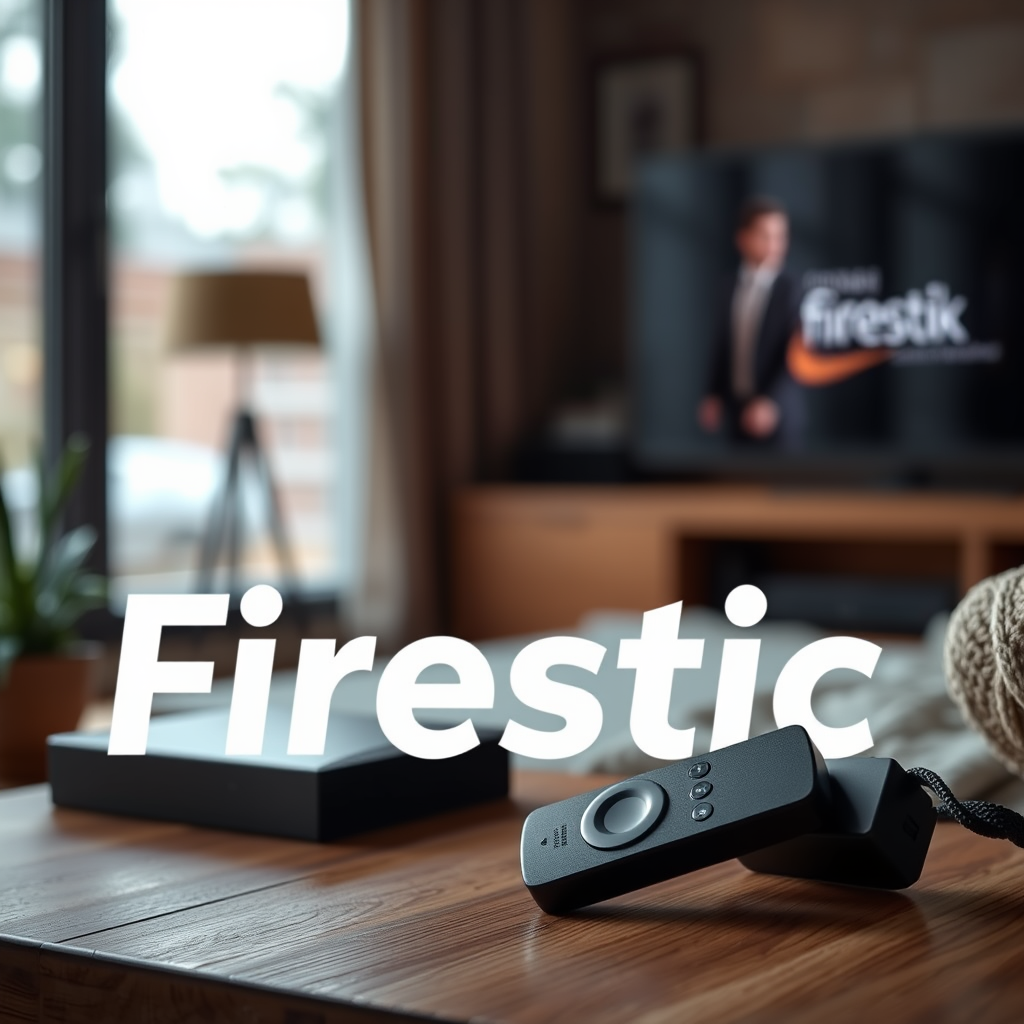
The Amazon Firestick is a compact streaming device that plugs directly into your TV’s HDMI port, transforming any television into a smart TV. It connects to your home Wi-Fi network, allowing you to stream a variety of content from popular services such as Netflix, Hulu, Amazon Prime Video, Disney+, and many others. The Firestick offers an intuitive interface that enables users to search for their favorite shows, movies, and apps easily. Additionally, it supports voice commands through Alexa, enhancing user experience by allowing hands-free navigation and control.
This device leverages the capabilities of your internet connection to deliver streaming content, making it a versatile solution for those looking to access digital entertainment without investing in a new smart TV. Whether you’re a casual viewer or a binge-watcher, the Firestick provides a cost-effective way to access a plethora of content right from your living room.
Compatibility with Different TVs
One of the significant advantages of the Firestick is its compatibility with various television models. The device will work seamlessly with any TV that has an HDMI input. This includes modern flat-screen TVs, older models that have been upgraded with HDMI, and even some projection systems. If your television lacks a smart interface, the Firestick can bridge that gap, allowing you access to rich streaming capabilities without needing a smart TV.
For older televisions that may not support high-definition content, it is essential to note that the Firestick offers various resolutions, including 720p and 1080p. However, the optimal experience is achieved with a TV that supports higher resolutions, as the Firestick is also available in 4K versions for those who desire ultra-high definition viewing.
Benefits of Using a Firestick with a Non-Smart TV
Using a Firestick with a non-smart TV unlocks numerous benefits, enabling users to explore an array of streaming services that they might not otherwise have access to. Below are some notable advantages:
1. Access to Streaming Services: The Firestick allows users to subscribe to and stream content from major platforms like Netflix, Hulu, Amazon Prime Video, and HBO Max, among others. This capability dramatically expands your viewing options beyond traditional cable television.
2. High-Definition Content: The Firestick supports HD streaming, allowing you to enjoy movies and shows in high definition, provided your TV also supports this resolution. This can transform your viewing experience, making it more enjoyable and visually appealing.
3. User-Friendly Interface: The Firestick comes with a straightforward interface that is easy to navigate even for those who may not be tech-savvy. The device also receives regular updates, ensuring that users always have access to the latest features.
4. Portable and Versatile: The Firestick is lightweight and compact, making it easy to transport. You can take it with you when traveling or to a friend’s house, providing you with the same streaming experience wherever you go.
5. Regular Software Updates: The device receives regular updates that improve performance and add new features, keeping your viewing experience fresh and engaging.
📋 MANDATORY DATA TABLE
Firestick vs. Smart TV Features Comparison (2024)
| # | Feature | Firestick | Smart TV |
|---|---|---|---|
| 1 | Streaming Services | Yes | Yes |
| 2 | Voice Control | Yes | Variable |
| 3 | Firmware Updates | Regular | Variable |
| 4 | Screen Mirroring | Yes | Yes |
| 5 | Gaming Capability | Limited | Yes |
| 6 | Integration with Smart Home | Limited | Yes |
| 7 | User Interface | Simple | Variable |
| 8 | Price | Affordable | Expensive |
| 9 | Portability | High | Low |
| 10 | Overall Performance | Excellent | Good |
Limitations of Using a Firestick on a Non-Smart TV
While using a Firestick with a non-smart TV provides significant benefits, there are some limitations to consider:
1. Absence of Built-in Smart Features: Non-smart TVs lack native smart features such as integrated streaming applications, voice assistants, and advanced settings that smart TVs typically provide. This means that while you can stream content through the Firestick, you won’t have the additional functionalities that come with a smart TV.
2. Limited Integration with Smart Home Devices: Smart TVs often integrate seamlessly with other smart home devices, allowing for a more cohesive smart-home ecosystem. This integration can include voice commands to control lighting, thermostats, and other devices, which is not as easily achieved with a Firestick alone.
3. Potential for Older Technology: Depending on the age and specifications of your non-smart TV, you might encounter limitations related to resolution, refresh rates, and available HDMI ports. Older TVs may not support the latest streaming technologies, which could affect the quality of your viewing experience.
4. Dependence on a Separate Device: By using a Firestick, you introduce an additional device into your setup. This means one more remote to manage and potentially more clutter around your entertainment area.
Tips for Setting Up Firestick on a Non-Smart TV
Setting up a Firestick on a non-smart TV is a straightforward process. Here are some tips to ensure a seamless installation:
1. Check HDMI Ports: Ensure that your TV has an available HDMI port. If all ports are occupied, consider using an HDMI switch or removing other devices temporarily.
2. Set the Correct Input: After plugging in the Firestick, use your TV remote to switch to the HDMI input where the Firestick is connected. This step is crucial to accessing the Firestick interface.
3. Connect to Wi-Fi: Use the Firestick remote to navigate through the on-screen setup process, which will include connecting the device to your home Wi-Fi network. Make sure you have your Wi-Fi password handy for a smooth connection.
4. Download Streaming Apps: Once connected, you can download your preferred streaming apps from the Firestick interface. Popular options include Netflix, Hulu, and Amazon Prime Video, among others.
5. Explore Settings: Familiarize yourself with the settings menu on the Firestick to customize your viewing preferences, including display settings, parental controls, and app notifications.
Additional Features to Consider
While a Firestick can significantly enhance your viewing experience on a non-smart TV, there are additional features worth considering:
1. Screen Mirroring: If you wish to project content from your mobile device to your TV, the Firestick supports screen mirroring. However, some features may be limited if your TV does not support certain mirroring protocols.
2. Voice Command Functionality: With Alexa built into the Firestick remote, users can search for content, control playback, and even manage smart home devices using voice commands. However, this feature may not be as integrated as it would be with a smart TV.
3. Software Updates: Regularly check for software updates on your Firestick to ensure optimal performance. Updates often include new features, improvements, and security enhancements.
4. Gaming Options: Although the Firestick is primarily a streaming device, it offers a selection of casual games. If gaming is a priority, consider whether the Firestick can meet your needs, or if a dedicated gaming console might be better suited.
In summary, you can certainly use a Firestick with a non-smart TV, providing you with access to a wide range of streaming content. While it allows you to unlock many features typically found in smart TVs, it’s important to be aware that you might miss some functionalities and integrations that enhance user experience. If you’re eager to enhance your viewing experience, consider purchasing a Firestick and enjoy streaming your favorite shows and movies!
Frequently Asked Questions
Does a Firestick work with a non-smart TV?
Yes, a Firestick can work with a non-smart TV as long as the TV has an available HDMI port. You will also need to connect the Firestick to a power source, either through a wall outlet or a USB port on the TV. This allows you to stream content on your non-smart TV just like you would on a smart TV.
What are the benefits of using a Firestick on a smart TV?
Using a Firestick on a smart TV enhances your streaming experience by providing access to a broader range of apps and services compared to many built-in TV platforms. Additionally, the Firestick often receives more frequent updates and new features, making it a better choice for avid streamers who want the latest content options.
How do I set up a Firestick on a non-smart TV?
To set up a Firestick on a non-smart TV, plug the Firestick into an available HDMI port and connect the included USB power cable to a power source. Once powered on, switch your TV to the corresponding HDMI input, and follow the on-screen instructions to connect to Wi-Fi and log into your Amazon account to begin streaming.
Why should I consider using a Firestick instead of my TV’s built-in apps?
Choosing a Firestick over your TV’s built-in apps can provide a more versatile and user-friendly streaming experience. Firesticks typically feature a more extensive selection of applications, better performance, and access to exclusive content, making it an appealing option for users who want the best streaming capabilities.
Which Firestick model is best for streaming on a smart TV?
The Fire TV Stick 4K is often considered the best model for streaming on a smart TV due to its support for 4K Ultra HD, HDR, and Dolby Atmos. It offers a superior performance with faster processing speeds and a more extensive library of apps, ensuring you get the most out of your smart TV’s capabilities.
References
- https://www.lifewire.com/do-you-need-a-smart-tv-for-amazon-fire-tv-stick-4687248
https://www.lifewire.com/do-you-need-a-smart-tv-for-amazon-fire-tv-stick-4687248 - Google Scholar Google Scholar
https://scholar.google.com/scholar?q=firestick+smart+tv - Google Scholar Google Scholar
https://scholar.google.com/scholar?q=amazon+firestick+requirements - Google Scholar Google Scholar
https://scholar.google.com/scholar?q=does+firestick+need+a+smart+tv - does firestick need a smart tv – Search results
https://en.wikipedia.org/wiki/Special:Search?search=does+firestick+need+a+smart+tv - https://www.ncbi.nlm.nih.gov/search/research-articles/?term=does+firestick+need+a+smart+tv
https://www.ncbi.nlm.nih.gov/search/research-articles/?term=does+firestick+need+a+smart+tv
