

The straightforward answer is no, you don’t need a smart TV to use a Firestick. The Amazon Firestick can be plugged into any TV with an HDMI port, allowing you to stream content seamlessly. This versatility makes it an excellent choice for a wide range of users, from those with older models to the latest high-definition televisions. In this article, we’ll explore how the Firestick works, its compatibility with different TV types, and additional features that enhance your viewing experience.
Understanding the Firestick
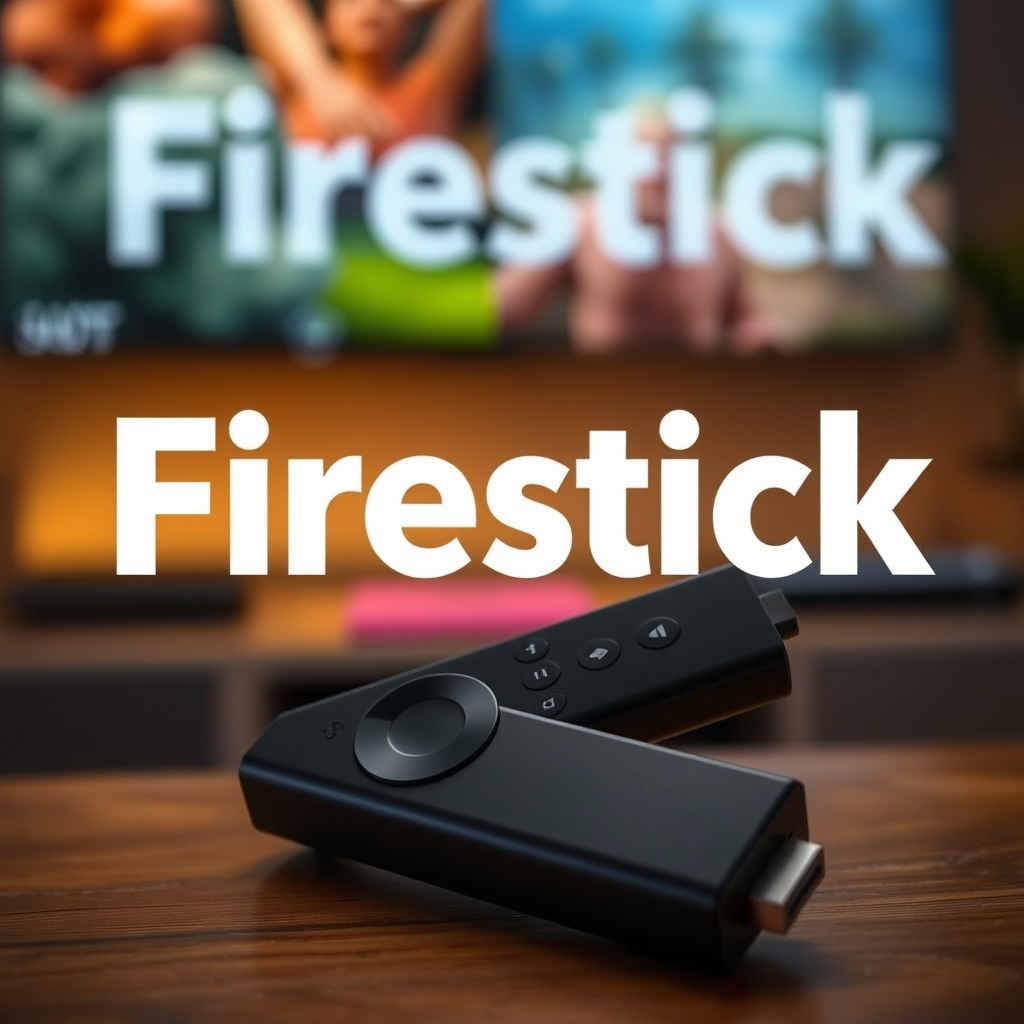
The Firestick is a compact streaming device developed by Amazon that connects to your television via an HDMI port. It acts as a conduit for streaming services, allowing users to access a vast library of content directly on their TV screens. With the Firestick, viewers can enjoy popular platforms such as Netflix, Prime Video, Hulu, Disney+, and many more, all from a single interface. The device runs on a user-friendly operating system, providing a smooth navigation experience and customizable features.
The Firestick is also equipped with voice control capabilities through Alexa, Amazon’s virtual assistant, enabling users to search for content, control playback, and even manage smart home devices hands-free. Its regular software updates ensure that users benefit from the latest features and security improvements, keeping the device relevant and functional.
Compatibility with Non-Smart TVs
One of the most appealing features of the Firestick is its compatibility with non-smart TVs, provided they have an HDMI port. This means that even if you own an older TV model without built-in smart capabilities, you can still access streaming services by simply plugging in the Firestick. This functionality opens the door to a world of entertainment without the need for a costly upgrade to a smart TV.
For those who may have a high-definition or standard-definition TV, the Firestick is available in various versions, including the Fire TV Stick 4K and the Fire TV Stick Lite. This versatility ensures that you can choose a model that fits your viewing preferences and needs without investing in a new television.
Benefits of Using Firestick with a Smart TV
While smart TVs come equipped with a variety of pre-installed apps, the Firestick provides several advantages that can enhance your streaming experience. First and foremost, the Firestick offers a more extensive selection of applications compared to many built-in smart TV interfaces. Users can download additional apps from the Amazon App Store, expanding their content options beyond what’s available on their smart TV.
Additionally, the Firestick’s regular updates from Amazon mean that new features and enhancements are consistently rolled out. For instance, features like Amazon’s exclusive content, voice search capabilities, and personalized recommendations help users discover new shows and movies tailored to their tastes.
Moreover, using a Firestick with a smart TV can often result in better performance. Many smart TVs can become sluggish over time due to software bloat or limited processing power. The Firestick, being a dedicated streaming device, often provides a smoother and faster user experience.
Comparison of Firestick Features Across Models
| # | Feature | Fire TV Stick Lite | Fire TV Stick | Fire TV Stick 4K |
|---|---|---|---|---|
| 1 | Resolution | 1080p | 1080p | 4K UHD |
| 2 | Voice Control | No | Yes | Yes |
| 3 | Storage | N/A | N/A | 8GB |
| 4 | HDR Support | No | No | Yes |
| 5 | Gaming Capabilities | Basic | Moderate | Advanced |
| 6 | Audio Support | Stereo | Dolby Audio | Dolby Atmos |
| 7 | Price | $29.99 | $39.99 | $49.99 |
Setting Up Firestick on Your TV
Setting up the Firestick is a straightforward process, making it accessible even for those who may not be tech-savvy. To begin, simply plug the Firestick into an available HDMI port on your television. Following that, connect the included power adapter to an electrical outlet to power on the device.
Once powered, the Firestick will guide you through the setup process on your TV screen. You will need to connect the device to your Wi-Fi network and log into your Amazon account. If you don’t have an account, creating one is quick and easy. After completing these steps, you’ll have access to a rich array of content at your fingertips.
Enhancing Your Viewing Experience
The Firestick goes beyond basic streaming; it significantly enhances the overall viewing experience. One of its standout features is voice control through Alexa. Users can easily search for their favorite shows, adjust the volume, or even switch between apps using simple voice commands, making the viewing experience more interactive.
In addition to streaming movies and series, the Firestick provides access to a variety of apps and games through the Amazon App Store. Whether you want to play games, listen to music, or even browse the web, the Firestick allows for a multifunctional use of your television. Furthermore, it supports screen mirroring, enabling users to display content from their mobile devices directly onto their TVs.
Troubleshooting Common Issues
While the Firestick is designed for user-friendliness, some common issues may arise during its usage. If your Firestick is not functioning as expected, the first step is to check the HDMI connection and ensure that the device is properly powered.
If issues persist, restarting the Firestick can often resolve minor connectivity problems. To restart, simply unplug the device from the power outlet, wait a few seconds, and then plug it back in. If you continue to experience difficulties, consider resetting the device to factory settings. This can be done through the settings menu but note that it will erase all your installed apps and preferences.
Alternatives to Firestick
While the Firestick is a popular choice, several alternatives exist in the market for users seeking different features or ecosystems. Devices such as Roku and Apple TV offer their unique functionalities, catering to various preferences. For example, Roku is known for its intuitive interface and extensive channel offerings, while Apple TV integrates seamlessly with the Apple ecosystem.
If you prefer an all-in-one solution, investing in a smart TV might be worthwhile. Modern smart TVs come with built-in streaming capabilities, eliminating the need for additional devices. However, they can be more expensive than purchasing a Firestick, which offers a cost-effective way to upgrade your viewing experience.
In summary, you don’t need a smart TV to use an Amazon Firestick, as it works with any TV that has an HDMI port. The Firestick enhances your viewing experience with a wide range of streaming options and features. If you’re interested in maximizing your entertainment choices, consider purchasing a Firestick and enjoy the convenience it offers. With its ease of use, rich content library, and additional features, the Firestick is a valuable addition to any home entertainment setup.
Frequently Asked Questions
Do I need a smart TV to use a Fire Stick?
No, you do not need a smart TV to use an Amazon Fire Stick. The Fire Stick can be plugged into any TV with an HDMI port, allowing you to stream content even on older, non-smart TVs. However, you will need a TV that has an available HDMI input and access to Wi-Fi for streaming.
How does a Fire Stick work with a non-smart TV?
A Fire Stick connects to your non-smart TV via the HDMI port, effectively turning it into a smart TV. Once plugged in and set up, you can use the Fire Stick to access streaming services, apps, and more, utilizing your home Wi-Fi network for internet connectivity.
Why should I choose a Fire Stick over upgrading to a smart TV?
Choosing a Fire Stick over a new smart TV can save you money while still providing a wide variety of streaming options. Fire Sticks offer access to numerous apps and services, including Prime Video, Netflix, and Hulu, allowing you to upgrade your viewing experience without the need for a costly new television.
Which Fire Stick is best for a non-smart TV?
The Amazon Fire TV Stick Lite is a great option for those with a non-smart TV, as it offers essential streaming capabilities at a budget-friendly price. If you want additional features like voice control, consider the Fire TV Stick 4K, which also supports higher resolution content, making it a versatile choice for future-proofing your setup.
Can I use a Fire Stick on multiple TVs?
Yes, you can use a Fire Stick on multiple TVs, but you will need to unplug it from one TV and plug it into another. The setup process is straightforward, and as long as each TV has an HDMI port and you maintain access to your Wi-Fi network, you can easily switch the Fire Stick between different televisions.
References
- https://www.lifewire.com/do-you-need-a-smart-tv-for-amazon-fire-tv-stick-4687085
https://www.lifewire.com/do-you-need-a-smart-tv-for-amazon-fire-tv-stick-4687085 - https://www.pcmag.com/picks/the-best-streaming-devices
https://www.pcmag.com/picks/the-best-streaming-devices - Google Scholar Google Scholar
https://scholar.google.com/scholar?q=do+you+need+a+smart+tv+for+firestick - Google Scholar Google Scholar
https://scholar.google.com/scholar?q=firestick+smart+tv+requirements - do you need a smart tv for firestick – Search results
https://en.wikipedia.org/wiki/Special:Search?search=do+you+need+a+smart+tv+for+firestick - https://www.ncbi.nlm.nih.gov/search/research-articles/?term=do+you+need+a+smart+tv+for+firestick
https://www.ncbi.nlm.nih.gov/search/research-articles/?term=do+you+need+a+smart+tv+for+firestick
