
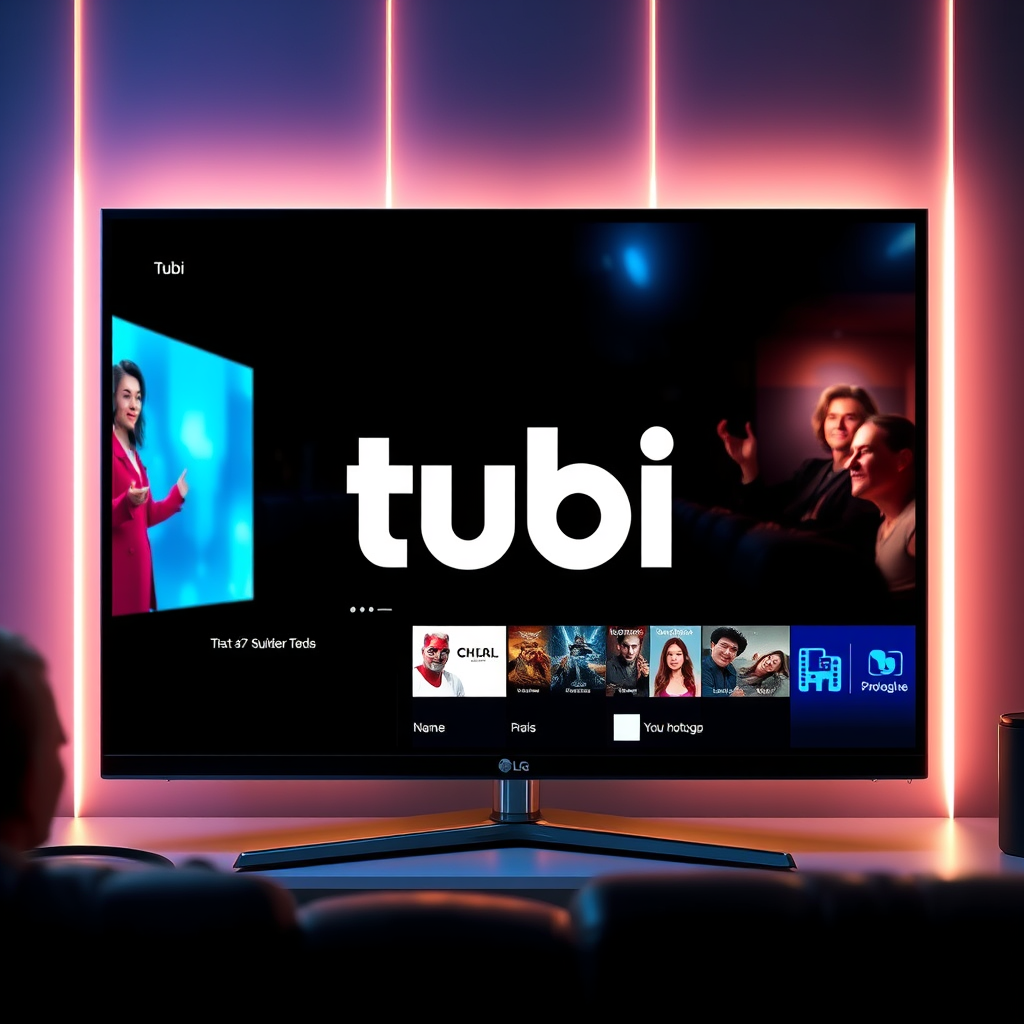

To download Tubi on your LG Smart TV, simply access the LG Content Store, search for Tubi, and select ‘Install.’ This guide will walk you through each step to ensure you can enjoy Tubi’s extensive library of shows and movies on your TV. With Tubi, you have access to a vast selection of films and television series without any subscription fees, making it a great addition to your viewing options.
Accessing the LG Content Store
Starting the journey to download Tubi on your LG Smart TV begins with accessing the LG Content Store. This store serves as the primary portal for downloading apps and games on your LG Smart TV. To get there, grab your remote control and follow these steps:
– Home Screen Navigation: Turn on your LG Smart TV and use the remote to navigate to the home screen. This is usually the default screen that appears when your TV is powered on.
– Locate the LG Content Store Icon: Look for the LG Content Store icon, which resembles a shopping bag or box. It’s typically located among the other app icons on your home screen. Select it with your remote to open the store.
Once inside the LG Content Store, you will find a variety of applications available for installation, including popular streaming services like Tubi.
Searching for Tubi
Now that you’re in the LG Content Store, the next step is to locate the Tubi app. The search function is an efficient way to find specific apps without scrolling through endless options.
– Use the Search Function: At the top of the Content Store, you will see a search bar. Click on it to activate the search function.
– Type in “Tubi”: Using the on-screen keyboard, input “Tubi” and press enter. This action will initiate a search for the app, and you should see the Tubi app icon appear among the search results.
This streamlined process makes it easy to find the app without unnecessary hassle, ensuring you can quickly move on to the next steps.
Installing Tubi
With the Tubi app icon visible, it’s time to proceed with the installation. This process is straightforward and similar to downloading apps on other devices.
– Click on the Tubi App Icon: Once you see the Tubi app in the search results, select it to view more details about the app.
– Select the ‘Install’ Button: On the app details page, locate and click on the ‘Install’ button. This action will begin the download process for the Tubi app. Depending on your internet speed, this should only take a few moments.
After the installation completes, you will be notified, and the Tubi app will be added to your list of installed applications on your LG Smart TV.
Top 7 Streaming Services by Active Users (2024)
| # | Service | Active Users (millions) | Subscription Model | Content Variety |
|---|---|---|---|---|
| 1 | Netflix | 232 | Subscription | High |
| 2 | Amazon Prime Video | 175 | Subscription | Medium |
| 3 | Disney+ | 150 | Subscription | High |
| 4 | Hulu | 47 | Subscription | Medium |
| 5 | YouTube | 2,000 | Free/Premium | Very High |
| 6 | Tubi | 30 | Free | Low |
| 7 | Peacock | 20 | Free/Premium | Medium |
Launching Tubi
After successfully installing the Tubi app, the next step is to launch it and begin exploring its content.
– Return to the Home Screen: Using your remote, navigate back to your LG Smart TV’s home screen. This can usually be done by pressing the ‘Home’ button on your remote.
– Find the Tubi App: Look through your installed applications to locate the Tubi app icon. Once you find it, select it to launch the application.
Upon launching Tubi, you will be greeted with an array of content options, ready for you to start watching.
Creating or Signing into a Tubi Account
To fully utilize Tubi’s features, it’s recommended to create or sign into an account. While you can watch content without an account, having one allows you to save your watchlist and receive personalized recommendations.
– If You’re New: Follow the on-screen prompts to create an account. This typically involves entering your email address, creating a password, and agreeing to the terms of service.
– For Existing Users: Simply enter your login details (email and password) when prompted to access your profile.
Creating an account is free and only takes a few minutes, allowing you to enhance your viewing experience on Tubi.
Troubleshooting Installation Issues
While the installation process is generally smooth, you may encounter some issues. Here are some troubleshooting tips to help resolve common problems:
– App Not Appearing: If Tubi doesn’t show up in your search results, ensure that your LG Smart TV’s software is up-to-date. You can check this in the settings menu under ‘About’ or ‘Software Update.’
– Restarting the TV: If you’re still having issues, try restarting your TV. Power it off, wait for a few seconds, and then turn it back on. After rebooting, attempt your search for Tubi again.
These simple steps can often resolve any minor glitches you may experience during the installation process.
Enjoying Tubi on Your LG Smart TV
Now that Tubi is installed and you’re logged in, it’s time to dive into the vast library of content available at your fingertips.
– Explore Tubi’s Library: Browse through genres, trending shows, and new releases. Tubi offers a wide assortment of movies and TV shows, catering to various tastes and preferences.
– Utilize Features: Take advantage of Tubi’s features like creating watchlists, rating shows, and receiving personalized recommendations based on your viewing habits.
With Tubi, you can enjoy a diverse range of content without the burden of a monthly subscription, making it a valuable addition to your entertainment options.
In conclusion, downloading Tubi on your LG Smart TV is a straightforward process that opens the door to a wealth of entertainment. By following the steps outlined in this guide, you can easily navigate the LG Content Store, install the app, and start enjoying Tubi’s offerings. With its user-friendly interface and extensive library, Tubi is sure to enhance your viewing experience. Happy watching!
Frequently Asked Questions
How do I download Tubi on my LG Smart TV?
To download Tubi on your LG Smart TV, start by turning on your TV and navigating to the LG Content Store. Once there, use the search function to find the Tubi app. Select it and click the “Install” button to download and install the app on your device.
Why can’t I find the Tubi app on my LG Smart TV?
If you’re unable to find the Tubi app on your LG Smart TV, it could be due to your TV model not being compatible or the app not being available in your region. Ensure that your TV’s software is up to date, as this can sometimes resolve compatibility issues.
What should I do if Tubi is not working on my LG Smart TV?
If Tubi is not working on your LG Smart TV, first try restarting your TV and re-opening the app. If the problem persists, check your internet connection and consider reinstalling the app by deleting it and then downloading it again from the LG Content Store.
Which LG Smart TV models support the Tubi app?
Tubi is supported on most LG Smart TV models from 2016 and later, running the webOS platform. To confirm compatibility, check the LG Content Store on your TV for the availability of the Tubi app or consult LG’s official website for specific model support.
How can I update the Tubi app on my LG Smart TV?
To update the Tubi app on your LG Smart TV, go to the LG Content Store and navigate to “My Apps.” Here, you will see a list of installed apps. If an update is available for Tubi, you can select it and choose the “Update” option to ensure you have the latest version for optimal performance.
References
- Product Support: Help Library | LG USA Support
https://www.lg.com/us/support/help-library/how-to-download-apps-on-lg-smart-tv-CT10000018-20150150403015 - https://support.tubi.tv/hc/en-us/articles/360000259308-How-Do-I-Download-the-Tubi-App-
https://support.tubi.tv/hc/en-us/articles/360000259308-How-Do-I-Download-the-Tubi-App- - https://www.lifewire.com/how-to-download-tubi-on-lg-smart-tv-5072065
https://www.lifewire.com/how-to-download-tubi-on-lg-smart-tv-5072065 - Google Scholar Google Scholar
https://scholar.google.com/scholar?q=how+to+download+tubi+on+lg+smart+tv - Google Scholar Google Scholar
https://scholar.google.com/scholar?q=tubi+app+lg+smart+tv+installation - Google Scholar Google Scholar
https://scholar.google.com/scholar?q=installing+apps+on+lg+smart+tv - how to download tubi on lg smart tv – Search results
https://en.wikipedia.org/wiki/Special:Search?search=how+to+download+tubi+on+lg+smart+tv - https://www.ncbi.nlm.nih.gov/search/research-articles/?term=how+to+download+tubi+on+lg+smart+tv
https://www.ncbi.nlm.nih.gov/search/research-articles/?term=how+to+download+tubi+on+lg+smart+tv

[…] straightforward once you know the right route—so this guide tells you exactly how to install the Tubi app and get it running. Follow these steps whether you’re using the Samsung App Store or a built-in […]
[…] apps to your LG Smart TV is quickest through the LG Content Store, where you can search, install, and sign in as needed. This guide walks you step by step through […]
[…] an app on an LG Smart TV is quickest through the LG Content Store, which is the most reliable way to get apps safely and fast. This step-by-step guide walks you from […]
[…] method that works on today’s webOS models. You’ll go from finding the right app in the LG Content Store to installing it and launching it in minutes. If you want the cleanest path with the fewest […]
[…] on your LG Smart TV step by step? This guide delivers the fastest, most reliable method—using the LG Content Store and the TV’s built-in app flow—so you can download and launch apps without guesswork. Follow […]
[…] LG (webOS): Open LG Content Store and search […]
[…] apps on your LG Smart TV is straightforward: you can get them through the LG Content Store using your TV’s remote. This guide will show you exactly how to find the app you want, install […]