

To connect speakers to your TV, you’ll typically use either Bluetooth, an auxiliary cable, or an optical audio cable. This guide will walk you through these methods step-by-step, ensuring you enjoy high-quality sound from your audio setup. Whether you prefer a wired or wireless connection, understanding the options available can significantly enhance your viewing and listening experience.
Understanding Your TV’s Audio Output Options
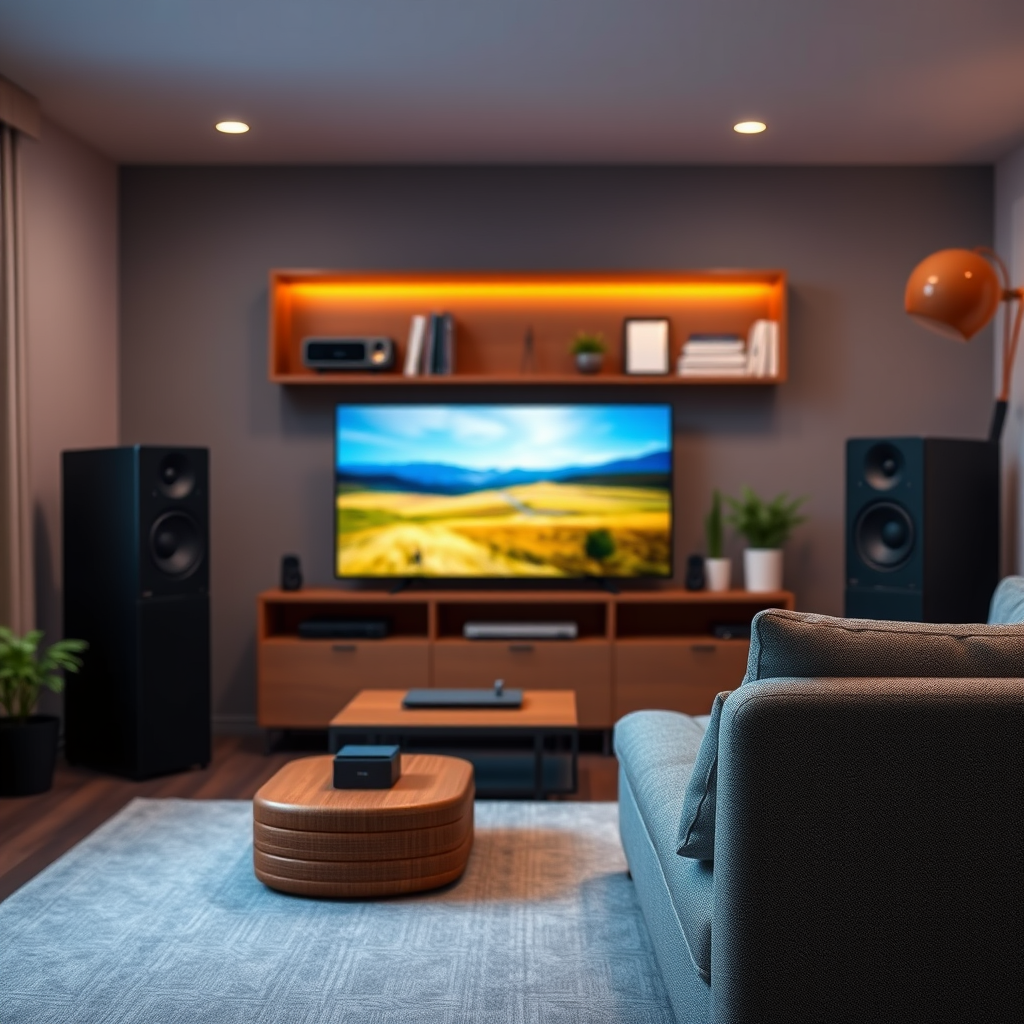
Modern televisions come with various audio output options, each designed for specific types of connections and sound systems. The most common outputs include HDMI ARC (Audio Return Channel), optical audio, and the traditional auxiliary (3.5mm) jack.
– HDMI ARC: This feature allows audio to be sent from the TV to a compatible sound system or soundbar using a single HDMI cable. It supports high-quality audio formats, including Dolby Digital and DTS.
– Optical Audio: An optical audio output uses light to transmit audio signals, providing a clean, digital sound. It is commonly used to connect to soundbars and home theater systems.
– Auxiliary Jack: The 3.5mm auxiliary port is a standard audio connection found on most televisions. It allows for easy connectivity to a wide range of speakers and headphones. However, it may not deliver the same audio quality as HDMI or optical connections.
Check your TV’s specifications to identify which outputs are available and ensure that your speakers support the same connection type for compatibility.
Choosing the Right Speakers for Your Setup
When selecting speakers for your TV, you can choose between wired and wireless options, each with its own advantages.
– Wired Speakers: These typically provide a more stable connection and better sound quality. They are ideal for setups where the speaker placement is fixed.
– Wireless Speakers: These offer greater flexibility in placement and reduce cable clutter. However, they rely on a stable Wi-Fi or Bluetooth connection, which can sometimes lead to audio lag or connectivity issues.
Additionally, consider the size and placement of your speakers. Larger speakers can produce more powerful sound but may require more space. Ensure that they are positioned correctly to create an optimal audio experience, ideally at ear level when seated.
Connecting Wired Speakers to Your TV
Connecting wired speakers to your TV can be accomplished through various methods. Below are step-by-step instructions for using auxiliary and optical cables.
Using an Auxiliary Cable Connection
1. Locate the Auxiliary Port: Find the 3.5mm audio output on your TV, often labeled as “Audio Out” or simply a headphone icon.
2. Connect the Cable: Plug one end of the auxiliary cable into the TV’s audio output and the other end into the input of your speakers.
3. Power On: Turn on both the TV and the speakers.
4. Select Input: Ensure your speakers are set to the correct input mode if necessary.
Connecting Through Optical Cables for Enhanced Sound
1. Find the Optical Output: Look for a port labeled “Optical Out” on your TV.
2. Connect the Optical Cable: Insert one end of the optical cable into the TV and the other into the optical input of your speakers.
3. Configure TV Settings: Access your TV’s audio settings and select the optical output as the audio source.
4. Power On and Test: Turn everything on and test the sound.
Top Audio Connection Types for TVs (2023)
| # | Connection Type | Quality | Ease of Use | Compatibility |
|---|---|---|---|---|
| 1 | HDMI ARC | High | Easy | Most TVs |
| 2 | Optical | High | Moderate | Most TVs |
| 3 | Auxiliary | Medium | Very Easy | Most Speakers |
| 4 | RCA | Medium | Moderate | Older TVs |
| 5 | Bluetooth | Variable | Easy | Most Smart TVs |
| 6 | Wi-Fi | High | Moderate | Smart Speakers |
| 7 | Coaxial | Medium | Moderate | Older Audio Systems |
Setting Up Bluetooth Speakers with Your TV
Connecting Bluetooth speakers to your TV is a convenient way to eliminate cables and enjoy wireless audio. Here’s how to do it:
1. Enable Bluetooth on Your TV: Access settings and turn on Bluetooth in your TV’s audio menu.
2. Put Speakers in Pairing Mode: Refer to your speaker’s manual to activate pairing mode, usually involving pressing and holding a specific button.
3. Search for Devices: On your TV, select “Bluetooth” from the audio settings and search for available devices.
4. Pair the Speakers: Select your speakers from the list and confirm the pairing. You may hear a confirmation sound from the speakers once connected.
Troubleshooting Common Bluetooth Connectivity Issues
If you encounter issues while connecting:
– Ensure Proximity: Keep the speakers close to the TV during pairing.
– Check Compatibility: Ensure your TV supports Bluetooth audio output.
– Restart Devices: Sometimes, simply turning off and on both the TV and speakers can resolve connectivity issues.
Configuring TV Audio Settings
Once your speakers are connected, adjusting your TV’s audio settings is crucial for optimal sound quality. Here’s how to configure them:
– Access Audio Settings: Navigate to your TV’s settings menu and locate the audio section.
– Select Output Source: If you are using HDMI ARC or optical, ensure the correct output is selected.
– Adjust Sound Modes: Many TVs offer sound modes such as “Standard,” “Movie,” or “Music.” Experiment to find the best option for your content.
– Equalization Settings: Utilize equalizer settings to adjust bass, treble, and balance to suit your preferences and room acoustics.
Testing Your Audio Setup
To ensure your audio setup is functioning correctly, perform the following checks:
– Play Different Content: Test out a variety of content, including music, movies, and dialogue-heavy shows, to evaluate sound quality.
– Adjust Volume Levels: Ensure that the volume levels are balanced between the TV and speakers to avoid distortion.
– Listen for Sync Issues: If you notice audio lag, consider adjusting the audio delay settings in your TV’s menu.
Troubleshooting Any Issues That May Arise Post-Setup
If issues persist after setup:
– Recheck Connections: Ensure all cables are securely connected and that the correct input settings are selected.
– Factory Reset: As a last resort, resetting the TV or speakers to factory settings can resolve persistent issues.
Enhancing Your Audio Experience
To take your audio experience to the next level, consider investing in additional equipment:
– Soundbars: A soundbar can provide a significant upgrade over standard TV speakers, delivering surround sound and enhanced bass.
– AV Receivers: For a more complex setup, an AV receiver allows for multiple speaker connections and advanced sound processing.
Improving Room Acoustics
Room acoustics play a crucial role in sound quality. To enhance your listening environment:
– Placement: Position speakers away from walls to reduce sound distortion, and consider angling them towards the listening area.
– Acoustic Treatments: Adding rugs, curtains, and wall panels can help absorb sound and minimize echo.
– Avoid Clutter: Ensure that furniture and decorative items do not obstruct speaker placement for optimal sound dispersion.
By understanding the various methods available to connect speakers to your TV and optimizing your audio settings, you can significantly enhance your viewing experience. Whether you choose a wired or wireless setup, the key is to ensure compatibility and adjust settings to suit your personal preferences. Now, take the next step and start enjoying your favorite shows with superior audio quality!
Frequently Asked Questions
How do I connect my Bluetooth speakers to my TV?
To connect Bluetooth speakers to your TV, first, ensure your TV has Bluetooth capabilities. Then, put your Bluetooth speakers in pairing mode and navigate to your TV’s settings menu. Look for the Bluetooth option, select your speakers from the list of available devices, and follow any prompts to complete the connection.
What cables do I need to connect wired speakers to my TV?
To connect wired speakers to your TV, you typically need speaker wire and possibly a receiver or amplifier, depending on your speaker type. Most TVs have audio output options such as HDMI ARC, optical, or RCA jacks, so make sure to choose the appropriate cable that matches your TV’s output and your speaker’s input.
Why is there no sound coming from my connected speakers?
If you’re not getting sound from your connected speakers, check the volume settings on both your TV and the speakers. Ensure that the correct audio output source is selected in your TV’s audio settings. Additionally, verify that all cables are securely connected and that your speakers are powered on.
What is the best way to connect soundbar speakers to my TV?
The best way to connect soundbar speakers to your TV is through an HDMI ARC connection, as it allows for high-quality audio and easy control using your TV remote. If your TV does not support HDMI ARC, you can use an optical cable or the AUX input, but HDMI ARC is recommended for optimal performance.
Which type of speaker connection is best for my TV setup?
The best type of speaker connection for your TV setup depends on your specific needs. HDMI ARC offers the best audio quality and simplicity, while Bluetooth provides wireless convenience. For high-fidelity audio, a wired connection through an amplifier or receiver is often preferred, especially for home theater systems.
References
- https://www.lifewire.com/how-to-connect-your-tv-to-your-speakers-4687270
https://www.lifewire.com/how-to-connect-your-tv-to-your-speakers-4687270 - Google Scholar Google Scholar
https://scholar.google.com/scholar?q=how+to+connect+speakers+to+tv - Google Scholar Google Scholar
https://scholar.google.com/scholar?q=speaker+connections+to+television - Google Scholar Google Scholar
https://scholar.google.com/scholar?q=TV+audio+output+to+external+speakers - https://www.verywellfamily.com/how-to-connect-speakers-to-tv-5116790
https://www.verywellfamily.com/how-to-connect-speakers-to-tv-5116790 - how to connect speakers to tv – Search results
https://en.wikipedia.org/wiki/Special:Search?search=how+to+connect+speakers+to+tv - https://www.ncbi.nlm.nih.gov/search/research-articles/?term=how+to+connect+speakers+to+tv
https://www.ncbi.nlm.nih.gov/search/research-articles/?term=how+to+connect+speakers+to+tv
