
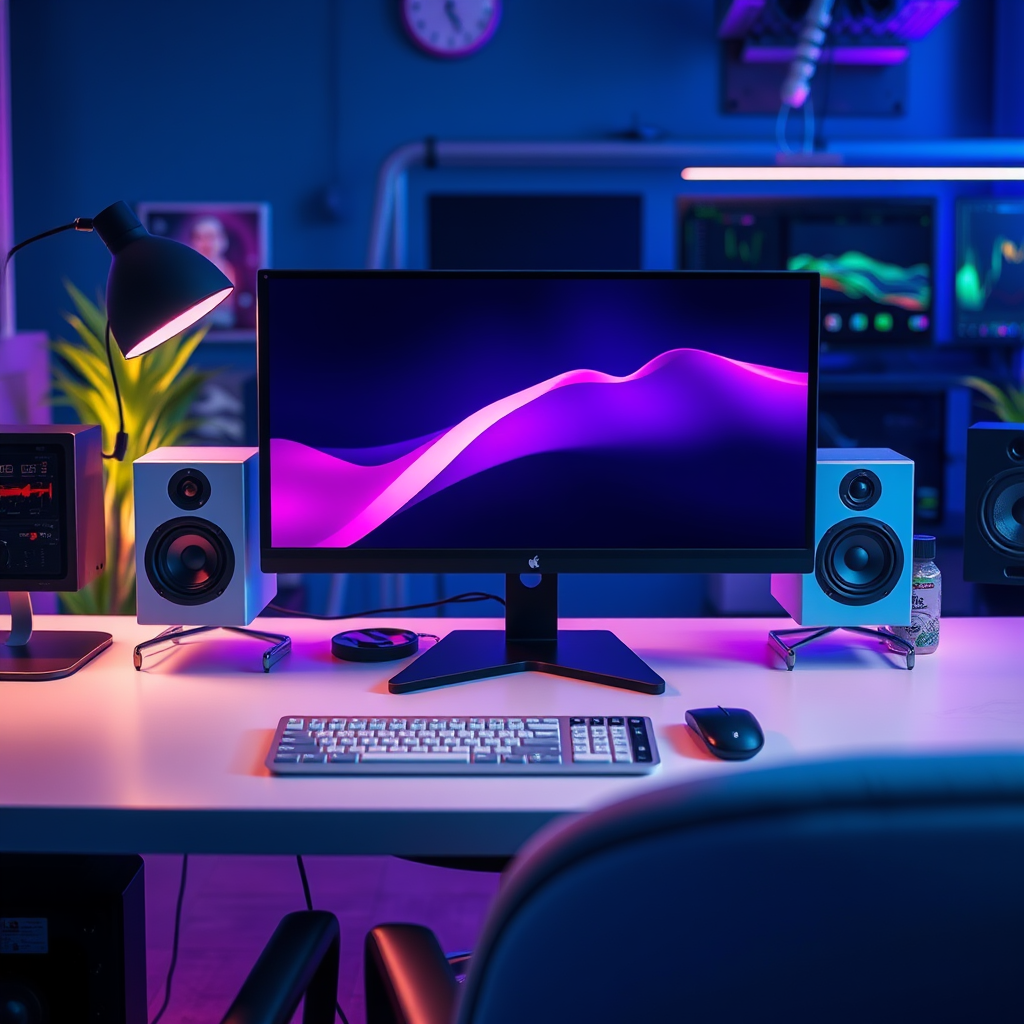

To connect speakers to a computer, you need to identify the audio output port on your device and connect the speakers accordingly, whether through a wired or wireless method. This guide will walk you through the process step-by-step, ensuring you enjoy great sound in no time. Whether you are looking to enhance your gaming experience, enjoy music, or watch movies, knowing how to connect speakers properly is essential for maximizing sound quality.
Understanding Different Speaker Types
Understanding the types of speakers available is crucial for selecting the right option for your computer setup.
– Wired Speakers: These typically connect via a 3.5mm audio jack or USB. Wired speakers are often preferred for their reliability and superior sound quality, as they do not rely on batteries or Wi-Fi connections. They are commonly used in home theaters and computer desks.
– Wireless Speakers: Often connect via Bluetooth or Wi-Fi for a more flexible setup. Wireless speakers provide convenience and reduce cable clutter, making them ideal for users who prefer a minimalist aesthetic or need to move their speakers around frequently.
Identifying the Audio Output on Your Computer
Before connecting your speakers, it is essential to identify the audio output on your computer.
– Desktop vs. Laptop: Locate the audio ports on your device; desktops may have multiple output options including audio jacks, USB ports, and sometimes even optical outputs. Laptops, on the other hand, typically have a single 3.5mm audio jack, which serves as both input and output.
– Check Settings: Ensure your computer recognizes the connected speakers through the sound settings. On Windows, you can access this through the Control Panel or Settings menu, while Mac users can find it in System Preferences. It’s important to select the correct output device to ensure sound plays through your speakers.
Top 7 Speaker Brands for Computer Use (2024)
| # | Brand | Type | Connection | Rating |
|---|---|---|---|---|
| 1 | Logitech | Wired | 3.5mm Jack | ★★★★☆ |
| 2 | Bose | Wireless | Bluetooth | ★★★★★ |
| 3 | Sony | Wired | USB | ★★★★☆ |
| 4 | JBL | Wireless | Wi-Fi | ★★★★☆ |
| 5 | Creative | Wired | 3.5mm Jack | ★★★☆☆ |
| 6 | Edifier | Wireless | Bluetooth | ★★★★☆ |
| 7 | Apple | Wireless | Bluetooth | ★★★★☆ |
Connecting Wired Speakers
Connecting wired speakers is typically straightforward and can be accomplished in several ways.
– Using a 3.5mm Jack: To connect speakers via a 3.5mm audio jack, locate the headphone jack on your computer and plug the audio cable into it. A click should indicate a secure connection. Once connected, ensure that the speakers are powered on and adjust the volume to your preference.
– Using USB Speakers: If your speakers are USB-compatible, connect the USB cable to an available USB port on your computer. Most modern operating systems will automatically recognize the speakers and install any necessary drivers. After installation, check your audio settings to ensure the USB speakers are selected as the output device.
Connecting Wireless Speakers
Wireless speakers offer flexibility and convenience, making them an attractive option for many users.
– Bluetooth Pairing: To connect Bluetooth speakers, first activate Bluetooth on your computer. This can typically be done through the settings menu. Next, turn on your speaker and set it to pairing mode (usually indicated by a flashing light). Once in pairing mode, your speaker should appear in the list of available devices on your computer. Select the speaker, and once connected, you will hear a confirmation sound.
– Wi-Fi Setup: For Wi-Fi speakers, follow the manufacturer’s instructions for connecting via your home network. This often involves downloading a companion app, connecting the speaker to the same Wi-Fi network as your computer, and performing initial setup through the app. Once set up, your speaker will typically appear as an available output device in your audio settings.
Adjusting Sound Settings
After successfully connecting your speakers, adjusting the sound settings can significantly enhance your listening experience.
– Volume Control: Start by checking the volume settings on both your computer and the speakers. Ensure that neither is muted and that the volume is set to a comfortable level. Some speakers may also have their own volume controls, so be sure to adjust those accordingly.
– Output Selection: Make sure the correct output device is selected in your computer’s audio settings. On Windows, go to Sound settings and choose your connected speakers as the default playback device. On Mac, use the Sound settings in System Preferences to ensure the correct output is selected.
Troubleshooting Common Issues
Even with the best setups, issues can arise. Here are some common problems and how to resolve them.
– No Sound: If you experience no sound coming from your speakers, first verify that all connections are secure and that the speakers are powered on. Check the audio settings to ensure the correct output device is selected. It’s also wise to test the speakers with another device to rule out hardware issues.
– Connection Problems: For wireless speakers, connection issues can often be resolved by restarting both your computer and the speaker. Ensure that the speaker is in pairing mode, and try reconnecting. If problems persist, consult the manufacturer’s troubleshooting guide, as specific issues may require unique solutions.
Additional Tips for Optimal Sound
To enhance your audio experience, consider the following additional tips:
– Speaker Placement: The placement of your speakers can significantly affect sound quality. Position your speakers at ear level and away from walls to reduce echo and distortion. For surround sound setups, ensure that speakers are placed according to the recommended configuration for optimal audio immersion.
– Upgrade Options: If you’re looking to further enhance your audio experience, consider investing in higher-quality speakers. Look for features like built-in subwoofers for better bass response or brands known for their superior sound engineering. Research user reviews to find the best options that fit your budget.
By following these steps, you’ll be able to connect your speakers to your computer efficiently and enjoy your favorite media with great sound quality. Whether you use wired or wireless speakers, the process is straightforward and user-friendly. Take the time to explore your audio settings and speaker configurations to enhance your listening experience further. Don’t hesitate to reach out for help if you encounter any issues!
Frequently Asked Questions
How do you connect Bluetooth speakers to a computer?
To connect Bluetooth speakers to a computer, first ensure that your speakers are in pairing mode. On your computer, go to the Bluetooth settings, enable Bluetooth, and search for available devices. Once you see your speakers listed, click on them to pair. After successful connection, your computer will route audio through the Bluetooth speakers.
What cables do I need to connect wired speakers to a computer?
To connect wired speakers to a computer, you typically need a 3.5mm audio cable or speaker wire, depending on your speaker type. For most desktop speakers, a 3.5mm cable will connect from the speaker’s audio output jack to the computer’s headphone or audio output port. If your speakers require a different connection, such as RCA or optical, ensure you have the appropriate adapters.
Why won’t my computer recognize my external speakers?
If your computer won’t recognize your external speakers, check the connections to ensure they’re securely plugged into the correct ports. Additionally, verify that the speakers are powered on and not muted. You may also need to update your audio drivers or adjust your computer’s sound settings to select the external speakers as the default audio device.
Which settings should I adjust to improve sound quality from my computer speakers?
To improve sound quality from your computer speakers, access your sound settings and ensure the audio output is set to the highest quality available. You can also check for enhancements like equalizer settings or surround sound options under the audio properties. Additionally, ensure your speakers are positioned correctly and are not obstructed for optimal sound projection.
What is the best way to connect multiple speakers to a computer?
The best way to connect multiple speakers to a computer is by using a soundbar, a multi-channel audio interface, or a receiver that supports multiple outputs. You can also use a powered splitter if the speakers are passive. Ensure that your computer’s sound card supports the desired configuration and adjust the audio settings to balance the output across all connected speakers.
References
- https://en.wikipedia.org/wiki/Speaker_(audio
https://en.wikipedia.org/wiki/Speaker_(audio - https://www.lifewire.com/how-to-connect-a-computer-to-a-speaker-2626027
https://www.lifewire.com/how-to-connect-a-computer-to-a-speaker-2626027 - Google Scholar Google Scholar
https://scholar.google.com/scholar?q=how+do+you+connect+speakers+to+a+computer - Google Scholar Google Scholar
https://scholar.google.com/scholar?q=speaker+connection+to+computer+audio - Google Scholar Google Scholar
https://scholar.google.com/scholar?q=audio+output+connections+computer - https://www.csun.edu/~dgw61315/connecting_speakers_to_computer.html
https://www.csun.edu/~dgw61315/connecting_speakers_to_computer.html - how do you connect speakers to a computer – Search results
https://en.wikipedia.org/wiki/Special:Search?search=how+do+you+connect+speakers+to+a+computer - https://www.ncbi.nlm.nih.gov/search/research-articles/?term=how+do+you+connect+speakers+to+a+computer
https://www.ncbi.nlm.nih.gov/search/research-articles/?term=how+do+you+connect+speakers+to+a+computer

[…] Bose wireless speakers support SimpleSync, which is designed specifically to pair two Bose speakers for synchronized […]