

Cleaning your Mac speakers is a straightforward process that can greatly enhance audio quality. By using the right tools and techniques, you can effectively remove dust and debris that may be muffling sound. In this guide, we’ll walk you through the essential steps to ensure your Mac speakers sound their best.
Gather Your Cleaning Supplies
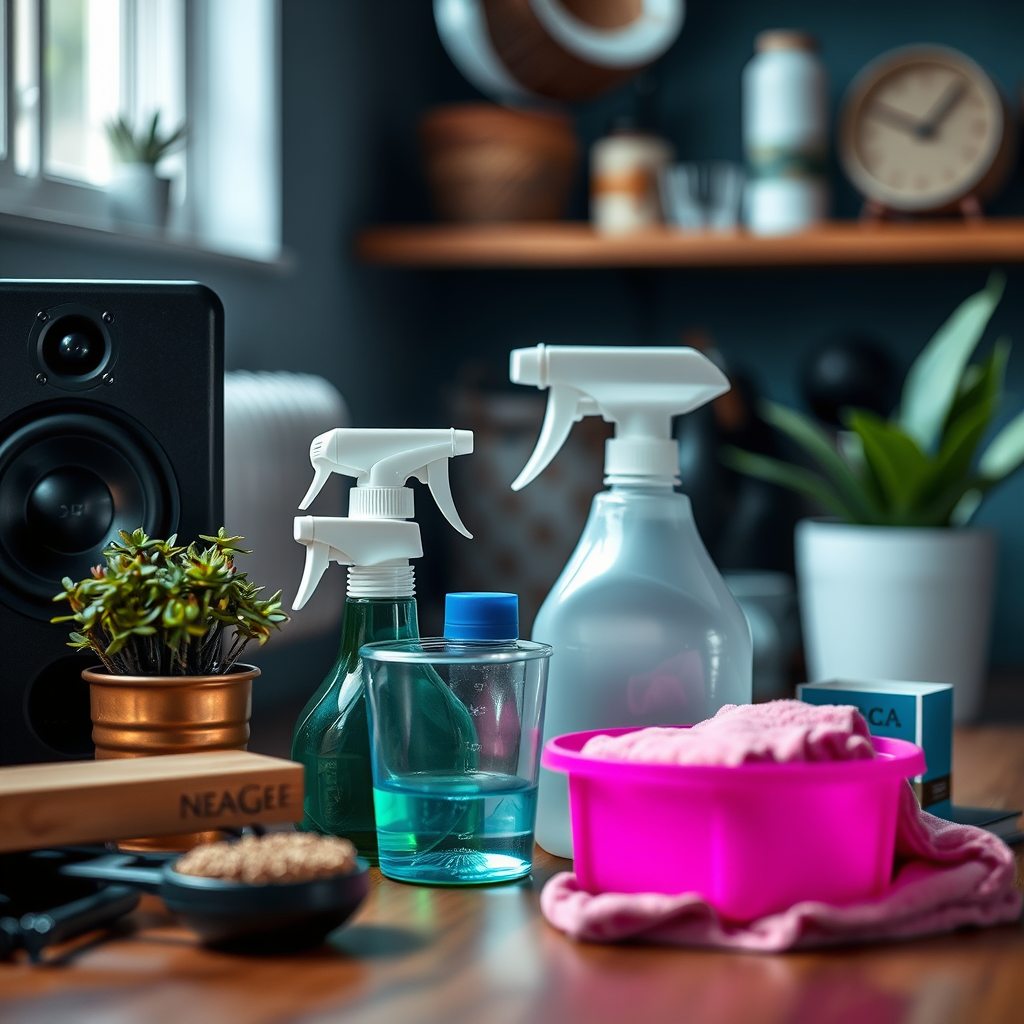
Before diving into the cleaning process, it’s essential to gather the right tools. Using appropriate cleaning supplies not only ensures you do the job effectively but also prevents any potential damage to your Mac’s components.
– Microfiber Cloth: A soft, non-abrasive cloth is crucial for cleaning electronic devices. Microfiber is designed to lift dust and dirt without scratching surfaces, making it the best option for cleaning your Mac speakers.
– Compressed Air Canister: This tool is excellent for blowing out dust and debris from hard-to-reach areas. The high-pressure air can effectively dislodge particles trapped within the speaker grills.
– Isopropyl Alcohol: Ideal for disinfecting and cleaning surfaces, isopropyl alcohol can be used to remove stains and sticky residues. It evaporates quickly, which minimizes the risk of moisture damage to your device.
Having these tools on hand will make your cleaning process much more efficient and effective.
Power Down Your Mac
To ensure safety while cleaning, it’s critical to power down your Mac before beginning the process.
– Turn Off Your Device: Shutting down your Mac completely prevents any accidental damage or interference during cleaning. This is especially important for electronic devices to avoid short circuits.
– Unplug All Cables: Disconnecting accessories like chargers, USB devices, and external monitors helps avoid static electricity build-up, which could harm your device. It also provides you with better access to the speakers.
Taking these precautions will help protect your Mac and make the cleaning process smoother.
Clean the Speaker Grills
Now that you have your supplies and your Mac is powered down, it’s time to focus on the speaker grills.
– Use Compressed Air: Hold the canister a few inches away from the speaker grills and give short bursts of air. This will help dislodge any dust particles without forcing them deeper into the speakers.
– Wipe with a Microfiber Cloth: After using compressed air, gently wipe the exterior of the speaker grills with a dry microfiber cloth. This will help remove any remaining dust on the surface without pushing debris further inside.
Taking care to clean the speaker grills is vital, as these are the entry points for sound and can significantly impact audio clarity if blocked.
Common Cleaning Issues with Mac Speakers and Solutions
| # | Issue | Symptoms | Solution |
|---|---|---|---|
| 1 | Dust Accumulation | Muffled Sound | Use compressed air |
| 2 | Sticky Residue | Dirt Build-Up | Wipe with isopropyl alcohol |
| 3 | Scratches | Visual Imperfections | Use microfiber cloth |
| 4 | Water Damage | Distorted Sound | Avoid moisture when cleaning |
| 5 | Electrical Issues | No Sound | Consult a technician |
| 6 | Loose Connections | Intermittent Sound | Check connections |
| 7 | Speaker Malfunction | Unusual Noise | Consult a technician |
Address the Speaker Surface
With the grills cleaned, it’s time to address the surfaces of your Mac speakers.
– Dampen a Microfiber Cloth: Lightly moisten the microfiber cloth with isopropyl alcohol. Ensure it’s not too wet, as excess moisture could seep into the device and cause damage.
– Wipe Gently: Use the damp cloth to wipe the surfaces of the speakers, focusing on areas with visible grime or fingerprints. Avoid applying excessive pressure, which could scratch the surface or push dirt deeper into the speaker components.
This step is crucial for maintaining not only the aesthetic appeal of your Mac but also its overall functionality and sound quality.
Check for Audio Issues
Once you’ve completed the cleaning process, it’s essential to test your Mac speakers to ensure that they are functioning correctly.
– Test the Speakers: Play various types of audio—music, video, or a sound test—to listen for clarity and quality. Pay attention to any distortions or muffled sounds that may indicate residual dirt or debris.
– Assess Volume and Balance: Check that the sound levels are even between the left and right speakers. Adjust the settings in your audio preferences if you notice any discrepancies in volume or balance.
This final check will confirm that your cleaning efforts have been effective and that your Mac speakers are performing as they should.
Maintain Regular Cleaning
To prolong the life of your Mac speakers and ensure consistent audio quality, it’s important to establish a regular cleaning routine.
– Set a Cleaning Schedule: Aim to clean your Mac speakers at least once a month, depending on your environment. If you live in a particularly dusty area or use your Mac frequently, you may want to clean them more often.
– Keep Your Workspace Dust-Free: Consider implementing practices to minimize dust accumulation in your workspace. Using air purifiers or regularly dusting your work area can significantly reduce the amount of debris that settles on your Mac.
Regular maintenance is key to ensuring that your Mac speakers continue to deliver high-quality audio for years to come.
In summary, cleaning your Mac speakers involves gathering the right supplies, turning off your device, and carefully cleaning both the grills and surfaces. Regular maintenance can significantly improve sound quality and prolong the life of your speakers. Don’t forget to test your audio after cleaning to enjoy a better listening experience!
Frequently Asked Questions
How do I safely clean my Mac speakers without damaging them?
To safely clean your Mac speakers, start by turning off your device and unplugging it. Use a soft, lint-free cloth slightly dampened with water or a mixture of water and isopropyl alcohol to gently wipe the speaker grille and surrounding areas. Avoid using any harsh chemicals or excessive moisture that could seep into the speaker components.
What tools do I need to clean the speakers on my Mac?
To clean your Mac speakers effectively, you will need a microfiber cloth, a can of compressed air, and optionally, a soft brush with bristles. The microfiber cloth is ideal for wiping surfaces without scratching, while the compressed air helps to dislodge dust and debris from hard-to-reach areas without physical contact.
Why is it important to clean my Mac speakers regularly?
Regularly cleaning your Mac speakers is important to maintain sound quality and prevent damage. Dust and debris can accumulate in the speaker grilles, leading to muffled audio or even speaker failure over time. Keeping them clean ensures optimal performance and extends the lifespan of your device.
What is the best method to remove dust from Mac speakers?
The best method to remove dust from Mac speakers is to use a combination of compressed air and a soft brush. Start by using the brush to gently loosen any dust around the speaker grilles, then use the compressed air to blow out the loosened particles. This technique minimizes the risk of pushing debris further into the speakers.
Which products should I avoid when cleaning my Mac speakers?
When cleaning your Mac speakers, avoid using abrasive cleaners, alcohol wipes, or any products containing ammonia, as these can damage the finish and internal components. Additionally, steer clear of paper towels or rough fabrics that can scratch the surface. Always stick to soft, non-abrasive materials for safe cleaning.
References
- https://support.apple.com/en-us/HT201262
https://support.apple.com/en-us/HT201262 - https://www.lifewire.com/how-to-clean-your-macbook-speakers-4177721
https://www.lifewire.com/how-to-clean-your-macbook-speakers-4177721 - https://www.macworld.com/article/671578/how-to-clean-your-macbook-speakers.html
https://www.macworld.com/article/671578/how-to-clean-your-macbook-speakers.html - https://www.pcmag.com/how-to/how-to-clean-your-macbook
https://www.pcmag.com/how-to/how-to-clean-your-macbook - https://scholar.google.com/scholar?q=how+to+clean+mac+speakers Google Scholar
https://scholar.google.com/scholar?q=how+to+clean+mac+speakers - Google Scholar Google Scholar
https://scholar.google.com/scholar?q=cleaning+macbook+speakers - https://scholar.google.com/scholar?q=macbook+maintenance+cleaning Google Scholar
https://scholar.google.com/scholar?q=macbook+maintenance+cleaning - https://www.verywellmind.com/how-to-clean-your-macbook-5192891
https://www.verywellmind.com/how-to-clean-your-macbook-5192891 - how to clean mac speakers – Search results
https://en.wikipedia.org/wiki/Special:Search?search=how+to+clean+mac+speakers - https://www.ncbi.nlm.nih.gov/search/research-articles/?term=how+to+clean+mac+speakers
https://www.ncbi.nlm.nih.gov/search/research-articles/?term=how+to+clean+mac+speakers
