
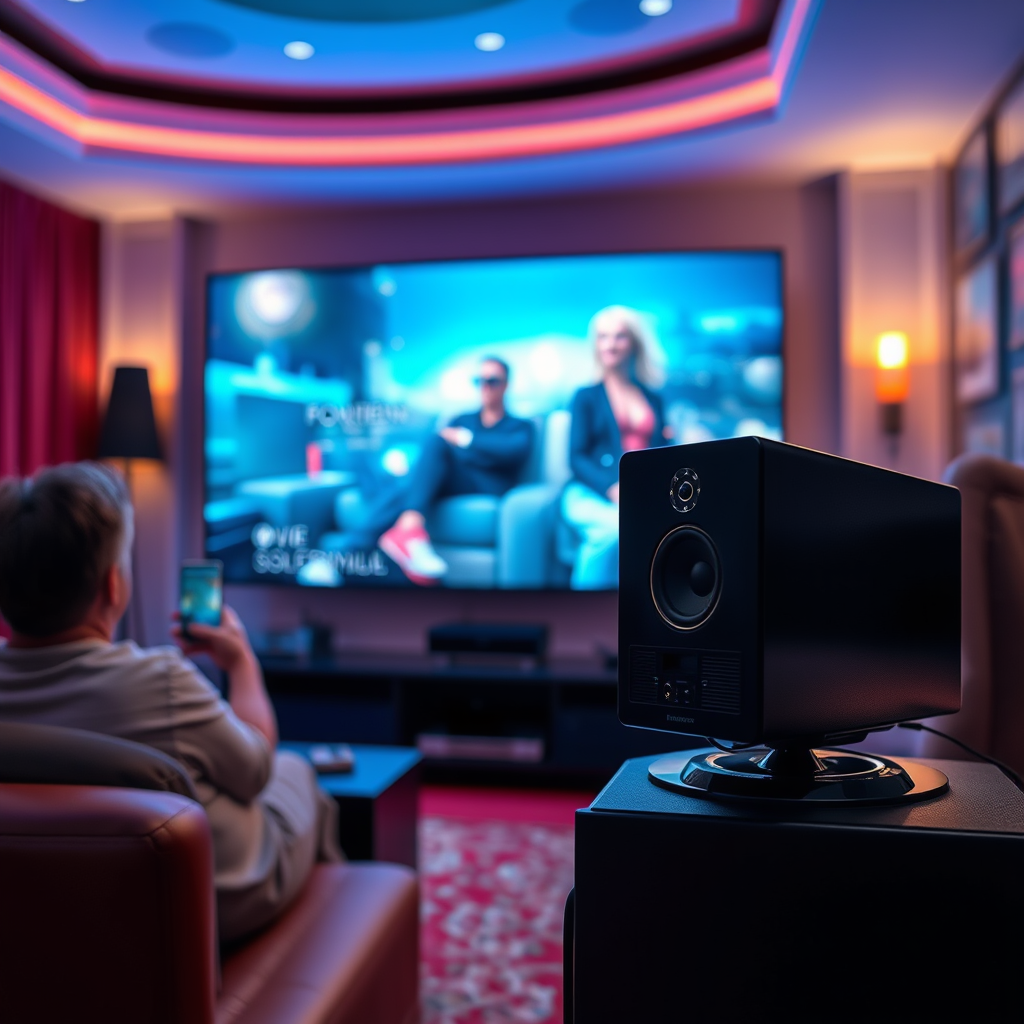

Connecting wired speakers to your TV is straightforward and can significantly enhance your audio experience. In just a few steps, you can set up your speakers to deliver high-quality sound for movies, music, and gaming. This guide will walk you through the process, ensuring you enjoy your entertainment to the fullest.
Understanding Your TV’s Audio Outputs
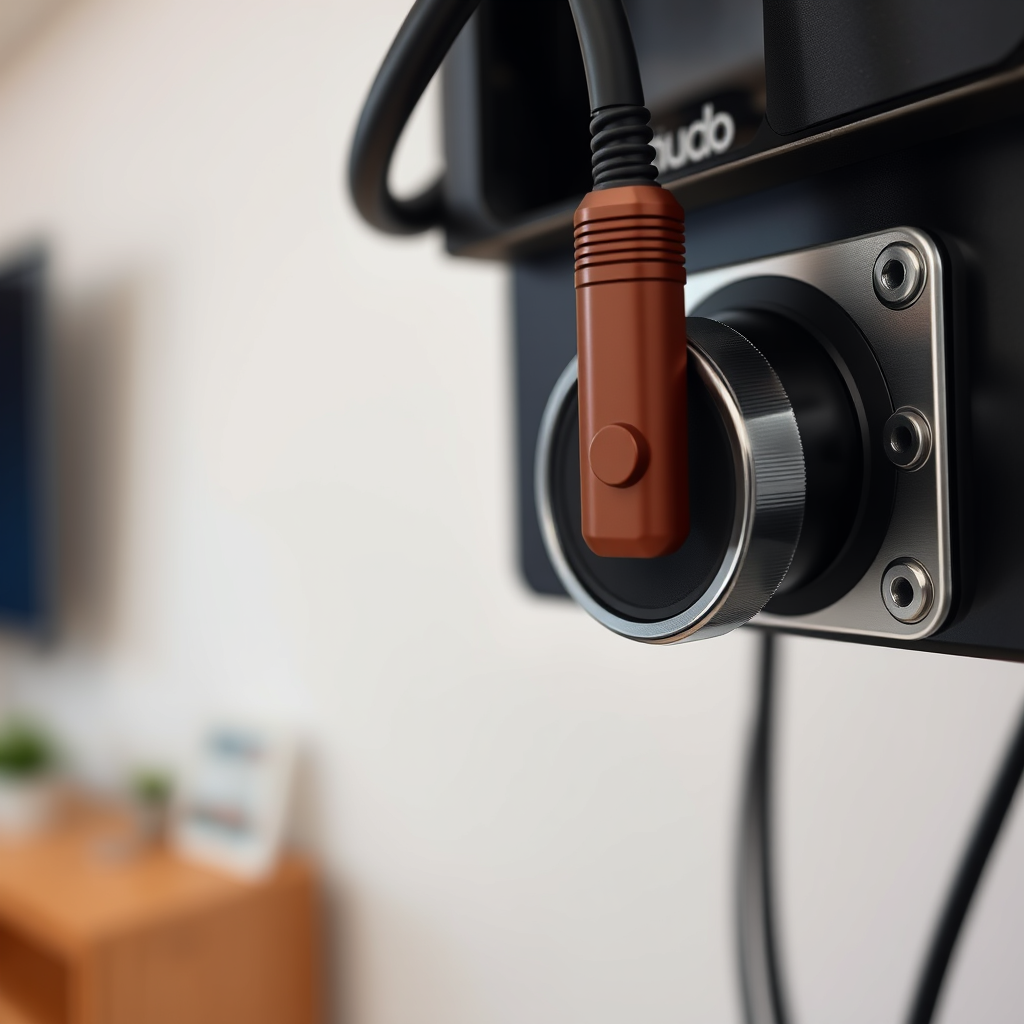
Before you begin connecting your wired speakers, it is essential to understand the various audio output options available on your TV. Most modern televisions come equipped with several types of audio outputs, including:
– RCA Outputs: These are typically color-coded red and white. RCA outputs provide an analog connection and are common among older TVs and many sound systems.
– 3.5mm Headphone Jack: This is a standard audio output found on most devices, including TVs. It allows you to connect speakers or headphones directly to the TV.
– Optical Output: Also known as TOSLINK, this digital output provides high-quality audio and is common in newer models, especially those that support surround sound.
Once you identify the audio outputs on your TV, check your speakers’ input options. Determine whether your speakers can accommodate RCA cables, a 3.5mm jack, or an optical input. Compatibility between these outputs and inputs is crucial for a successful connection.
Choosing the Right Cables
The next step is to select the appropriate cables for your connection. Here’s what you may need based on the type of speakers and TV outputs:
– RCA Cables: Ideal for connecting to RCA outputs. They typically come in pairs and are color-coded for easy connection.
– 3.5mm Audio Cable: If your speakers have a 3.5mm input, this cable can be directly plugged into the headphone jack of the TV.
– Speaker Wire: For a more permanent installation, especially if you’re connecting to a receiver or amplifier, you may need speaker wire. This wire connects directly to the speaker terminals.
It is vital to use high-quality cables to minimize sound loss and ensure clear audio. Investing in durable cables will provide a better listening experience and longevity.
Connecting the Speakers
Now that you have your cables ready, you can proceed with connecting the speakers to your TV:
1. Direct Connection: If you are using RCA or 3.5mm cables, simply plug one end into the corresponding output on your TV and the other end into the input on your speakers. Ensure the connections are secure.
2. Using a Receiver: If you have a home theater receiver, connect the TV to the receiver using an optical or HDMI cable, depending on available ports. Then, connect your speakers to the receiver. This method allows for more flexibility and better sound management.
Ensure that all connections are made securely and that the cables are not stretched or pinched, which could damage them over time.
Top Wired Speaker Types for TV Connection
| # | Speaker Type | Connection Type | Price Range | Sound Quality Rating |
|---|---|---|---|---|
| 1 | Bookshelf Speakers | RCA / 3.5mm | $150 – $500 | ★★★★☆ |
| 2 | Floorstanding Speakers | RCA / Speaker Wire | $300 – $1,500 | ★★★★★ |
| 3 | Soundbars | Optical / HDMI | $100 – $800 | ★★★★☆ |
| 4 | Computer Speakers | 3.5mm | $50 – $300 | ★★★☆☆ |
| 5 | Subwoofers | Speaker Wire | $200 – $1,000 | ★★★★☆ |
| 6 | Home Theater Systems | HDMI / Optical | $500 – $3,000 | ★★★★★ |
| 7 | Portable Speakers | 3.5mm / Bluetooth | $30 – $200 | ★★★☆☆ |
Configuring Audio Settings on Your TV
After successfully connecting your speakers, you need to configure the audio settings on your TV for optimal sound output. Follow these steps:
1. Access Audio Settings: Using your TV remote, navigate to the settings menu, typically found under “Audio” or “Sound” settings.
2. Select Output Option: Depending on your connection type, choose the appropriate audio output. If using RCA, select “External Speakers” or “Audio Out.” For optical connections, it might be labeled as “Digital Audio Out.”
3. Adjust Volume Levels: Set the master volume and any other relevant settings such as bass and treble to ensure a balanced audio profile. If your speakers have built-in EQ settings, consider adjusting them for better sound quality.
4. Test Surround Sound Options: If you have a multi-channel setup, explore the surround sound settings to enhance your viewing experience. Ensure that the audio format matches your speaker configuration.
By configuring these settings correctly, you can enjoy a more immersive audio experience that complements your visual entertainment.
Testing the Setup
With everything connected and configured, it’s time to test your setup. Here’s how to ensure everything is functioning correctly:
1. Play a Test Audio Track: Select a movie, streaming service, or music track with a rich audio profile. This will help you gauge the sound quality effectively.
2. Listen for Clarity and Balance: Pay attention to whether all frequencies are represented well. Test various audio outputs like dialogue, music, and sound effects to check for clarity and balance.
3. Make Adjustments: If the sound is too low or distorted, revisit your cable connections and TV settings. Adjust the volume settings on both the TV and the speakers as needed.
4. Consider Room Acoustics: If you notice echo or muddiness, it may be due to room acoustics. Experiment with speaker placement and angle for the best sound projection.
By conducting thorough testing, you can ensure that your wired speakers deliver the audio quality you expect.
Troubleshooting Common Issues
Sometimes, issues may arise during the setup process. Here are some common problems and their solutions:
– No Sound: If there’s no sound coming from the speakers, double-check all connections. Ensure that the speakers are powered on and that the volume on both the TV and speakers is turned up.
– Distorted Sound: Distortion can occur due to poor-quality cables or incorrect settings. Replace any damaged cables and revisit your audio settings to adjust levels.
– Intermittent Sound: If sound cuts in and out, inspect the cables for damage or loose connections. Try using different cables or ports to isolate the issue.
– Speaker Compatibility: Verify that your speakers are compatible with your TV’s audio output. If necessary, consider using a receiver or amplifier to bridge compatibility gaps.
By troubleshooting effectively, you can resolve most common issues and enjoy a seamless audio experience.
Connecting wired speakers to your TV can greatly improve your audio experience, and with the right setup, you’ll be ready to enjoy immersive sound right away. If you encounter issues, refer back to the troubleshooting tips for solutions. Remember, investing time in proper setup and configuration is crucial for maximizing your entertainment experience. Enjoy your enhanced audio journey!
Frequently Asked Questions
How do I connect wired speakers to my TV?
To connect wired speakers to your TV, start by identifying the audio output options on your TV, typically found at the back or side. Use an appropriate audio cable, such as RCA or a 3.5mm jack, to connect the speakers to the TV’s audio output. Ensure that the speakers are powered if they require an external power source, and adjust the TV’s audio settings to select the external speakers as the output source.
What type of cable do I need to connect wired speakers to my TV?
The type of cable you need depends on the audio output options available on your TV. Commonly, RCA cables (red and white connectors) or a 3.5mm audio cable are used for most connections. If your speakers support optical audio, you might need a Toslink cable for a digital connection, ensuring high-quality sound.
Why is my TV not recognizing my wired speakers?
If your TV is not recognizing your wired speakers, check the connection to ensure the cables are firmly plugged into both the TV and the speakers. Additionally, verify the TV’s audio settings to make sure the correct output source is selected. If issues persist, ensure that the speakers are powered on and functioning properly, as faulty equipment can lead to recognition problems.
What are the best wired speakers for connecting to a TV?
The best wired speakers for connecting to a TV depend on your budget and sound preferences. Brands like Bose, Klipsch, and Pioneer offer high-quality options that deliver excellent sound performance. Consider factors such as speaker size, power output, and whether you want a surround sound setup or simple stereo speakers to enhance your viewing experience.
Which audio settings should I adjust after connecting wired speakers to my TV?
After connecting wired speakers to your TV, access the audio settings in the TV menu to select the external audio output option. You may also need to adjust the audio format, such as switching to stereo or surround sound, based on your speaker configuration. Additionally, check the volume levels and sound modes to optimize the audio experience for your specific setup.
References
- https://en.wikipedia.org/wiki/Speaker_(audio
https://en.wikipedia.org/wiki/Speaker_(audio - https://www.lifewire.com/how-to-connect-wired-speakers-to-a-tv-1846875
https://www.lifewire.com/how-to-connect-wired-speakers-to-a-tv-1846875 - Google Scholar Google Scholar
https://scholar.google.com/scholar?q=connecting+speakers+to+tv - Google Scholar Google Scholar
https://scholar.google.com/scholar?q=audio+connections+for+televisions - Google Scholar Google Scholar
https://scholar.google.com/scholar?q=wired+speakers+setup+guide - Google Scholar Google Scholar
https://scholar.google.com/scholar?q=how+to+connect+wired+speakers+to+a+tv - how to connect wired speakers to a tv – Search results
https://en.wikipedia.org/wiki/Special:Search?search=how+to+connect+wired+speakers+to+a+tv - https://www.ncbi.nlm.nih.gov/search/research-articles/?term=how+to+connect+wired+speakers+to+a+tv
https://www.ncbi.nlm.nih.gov/search/research-articles/?term=how+to+connect+wired+speakers+to+a+tv
