
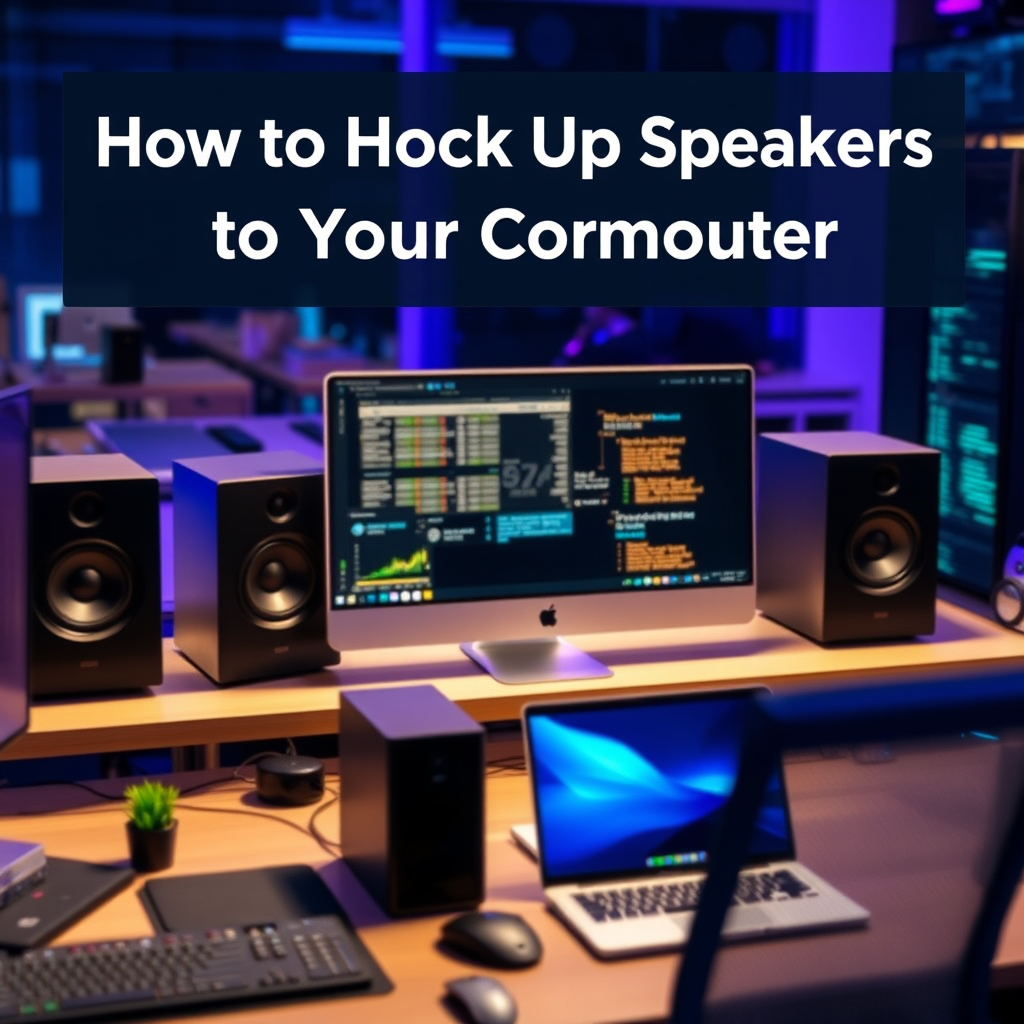

Connecting speakers to your computer is a straightforward process that can greatly enhance your audio experience. Whether you are using wired or wireless speakers, knowing the right steps will help you get set up quickly and efficiently. In this guide, you will learn how to properly connect your speakers, troubleshoot common issues, and optimize sound quality for the best listening experience.
Understanding Your Speaker Types
Before diving into the connection process, it is essential to understand the different types of speakers available. The choice between wired and wireless speakers can significantly impact ease of use and audio quality.
– Wired Speakers: These speakers typically connect to your computer via audio jacks (such as 3.5mm or RCA connectors) or USB ports. Wired connections are generally more stable, offering uninterrupted sound without the risk of interference. They are often favored by audiophiles and gamers who prioritize sound quality and responsiveness.
– Wireless Speakers: Wireless options commonly use Bluetooth or Wi-Fi connections. While they provide the convenience of mobility and a clutter-free setup, wireless speakers can sometimes suffer from latency issues or audio quality degradation if not properly configured. Bluetooth speakers are particularly popular for casual listening, streaming music, or gaming when mobility is desired.
Preparing Your Computer for Connection
Before connecting your speakers, you need to ensure your computer is ready to output audio.
– Check Audio Settings: Navigate to your computer’s sound settings, which can typically be found in the control panel or system preferences. Verify that the audio output is set to the correct device—this ensures sound is directed to your speakers rather than to internal speakers or other output devices.
– Update Drivers: To ensure optimal performance, check that your sound drivers are up to date. Manufacturers frequently release updates that can enhance compatibility and fix bugs. You can usually find driver updates through your device manager or the manufacturer’s website.
Connecting Wired Speakers
Connecting wired speakers is relatively simple, but it requires attention to detail to ensure a proper connection.
– Identify the Audio Jack: Look for the audio output port on your computer. This is usually a green-colored 3.5mm jack, but it may also be labeled as a headphone or speaker output. If you’re using USB speakers, find an available USB port.
– Plug in the Speakers: Once you have identified the correct port, securely connect the speaker cable to the audio output. If your speakers require power, make sure they are plugged into an outlet and turned on. Some models may have volume controls or switches that need to be adjusted to enable sound.
Connecting Wireless Speakers
Setting up wireless speakers involves a few more steps but offers greater convenience.
– Enable Bluetooth: On your computer, go to the settings menu and enable Bluetooth. This is usually found in the “Devices” section. If you are using Wi-Fi speakers, ensure that your computer is connected to the same network as your speakers.
– Pair the Device: Follow the pairing instructions provided with your specific speakers. Generally, this requires putting the speakers in pairing mode (often indicated by a blinking light) and selecting them from the list of available devices on your computer. Once connected, the speakers should be set as the default audio output.
Top 7 Wireless Speaker Brands (2024)
| # | Brand | Battery Life | Bluetooth Range | Water Resistance |
|---|---|---|---|---|
| 1 | JBL | 12 hours | 30 ft | IPX7 |
| 2 | Bose | 10 hours | 33 ft | IP55 |
| 3 | Sony | 16 hours | 33 ft | IP67 |
| 4 | Ultimate Ears | 15 hours | 100 ft | IP67 |
| 5 | Anker | 24 hours | 66 ft | IPX7 |
| 6 | Marshall | 20 hours | 30 ft | IPX4 |
| 7 | Bang & Olufsen | 15 hours | 33 ft | IP54 |
Testing Your Speakers
Once your speakers are connected, it is crucial to test them to ensure they are functioning correctly.
– Play Audio: Start by playing various types of media, such as music, videos, or games. This will help you assess the speaker’s performance across different sound frequencies and volumes. Pay attention to clarity, bass response, and overall sound quality to ensure that the speakers meet your expectations.
– Adjust Volume: Use your computer’s volume settings to find a comfortable listening level. Many speakers also have individual volume controls, which can help you fine-tune the output to your preference.
Troubleshooting Common Issues
Despite your best efforts, you may encounter a few common issues while setting up your speakers.
– No Sound: If you hear no sound, first check that your speakers are powered on and connected securely to the audio output. Next, revisit the audio settings on your computer to ensure the correct output device is selected. Additionally, check the volume levels both on your computer and the speakers themselves.
– Distorted Audio: If you experience distorted sound, the issue could stem from incorrect audio settings, such as an exaggerated equalizer profile or too high of a volume level. For wireless speakers, interference from other devices could also be a factor. Try moving other electronic devices away from the speakers and computer, or changing the Bluetooth channel if applicable.
Optimizing Sound Quality
To get the most out of your speakers, consider optimizing sound quality through various techniques.
– Equalizer Settings: Many computers and music applications feature built-in equalizers that allow you to adjust the frequency response of your audio output. Experiment with these settings to create a tailored sound profile that suits your listening preferences. Genres like classical music may require different settings compared to rock or hip-hop.
– Speaker Placement: Proper speaker placement can significantly affect sound quality. Ideally, position speakers at ear level and at an equal distance from your listening position. Avoid placing speakers in corners or against walls, as this can create unwanted resonances and muddy the sound.
In summary, connecting speakers to your computer is simple whether you choose wired or wireless options. By following the outlined procedures and troubleshooting tips, you can enhance your audio experience significantly. Now that you’re equipped with the knowledge, try connecting your speakers and enjoy superior sound quality!
Frequently Asked Questions
How do I connect speakers to my computer?
To connect speakers to your computer, first identify the type of connection your speakers use, such as 3.5mm audio jacks, USB, or Bluetooth. For wired speakers, plug the audio cable into the headphone or speaker output on your computer, then power on the speakers. If using Bluetooth speakers, enable pairing mode on the speakers and connect through your computer’s Bluetooth settings.
What type of speakers are best for a computer setup?
The best type of speakers for a computer setup depends on your needs. For general use, multimedia speakers with a subwoofer provide great sound quality for music and gaming. If space is a concern, compact desktop speakers or high-quality Bluetooth speakers can also deliver impressive audio without taking up much room.
Why aren’t my speakers working after connecting them to my computer?
If your speakers aren’t working after connecting them to your computer, first check the volume settings on both your computer and the speakers. Ensure that the correct audio output device is selected in your computer’s sound settings. Additionally, verify that the speakers are powered on and properly connected to the audio jack or USB port.
How can I set up surround sound speakers with my computer?
To set up surround sound speakers with your computer, you’ll need a compatible sound card that supports multiple audio channels. Connect the speakers to the corresponding audio ports on the sound card, typically color-coded for easy identification. Finally, configure the audio settings in your operating system to enable surround sound output for an immersive audio experience.
Which cables do I need to hook speakers up to my computer?
The cables you need to hook speakers up to your computer depend on the type of speakers you have. For wired speakers, a standard 3.5mm audio cable or RCA cables are commonly used, while USB speakers require a USB cable for connection. If you’re using Bluetooth speakers, no cables are needed, but ensure your computer has Bluetooth capability for wireless pairing.
References
- Computer speakers
https://en.wikipedia.org/wiki/Computer_speaker - https://www.lifewire.com/how-to-connect-computer-speakers-2626016
https://www.lifewire.com/how-to-connect-computer-speakers-2626016 - https://www.sony.com/electronics/support/articles/00000607
https://www.sony.com/electronics/support/articles/00000607 - Google Scholar Google Scholar
https://scholar.google.com/scholar?q=how+to+hook+speakers+up+to+computer - https://scholar.google.com/scholar?q=connecting+speakers+to+a+computer Google Scholar
https://scholar.google.com/scholar?q=connecting+speakers+to+a+computer - Google Scholar Google Scholar
https://scholar.google.com/scholar?q=computer+audio+connections+guide - how to hook speakers up to computer – Search results
https://en.wikipedia.org/wiki/Special:Search?search=how+to+hook+speakers+up+to+computer - https://www.ncbi.nlm.nih.gov/search/research-articles/?term=how+to+hook+speakers+up+to+computer
https://www.ncbi.nlm.nih.gov/search/research-articles/?term=how+to+hook+speakers+up+to+computer
