
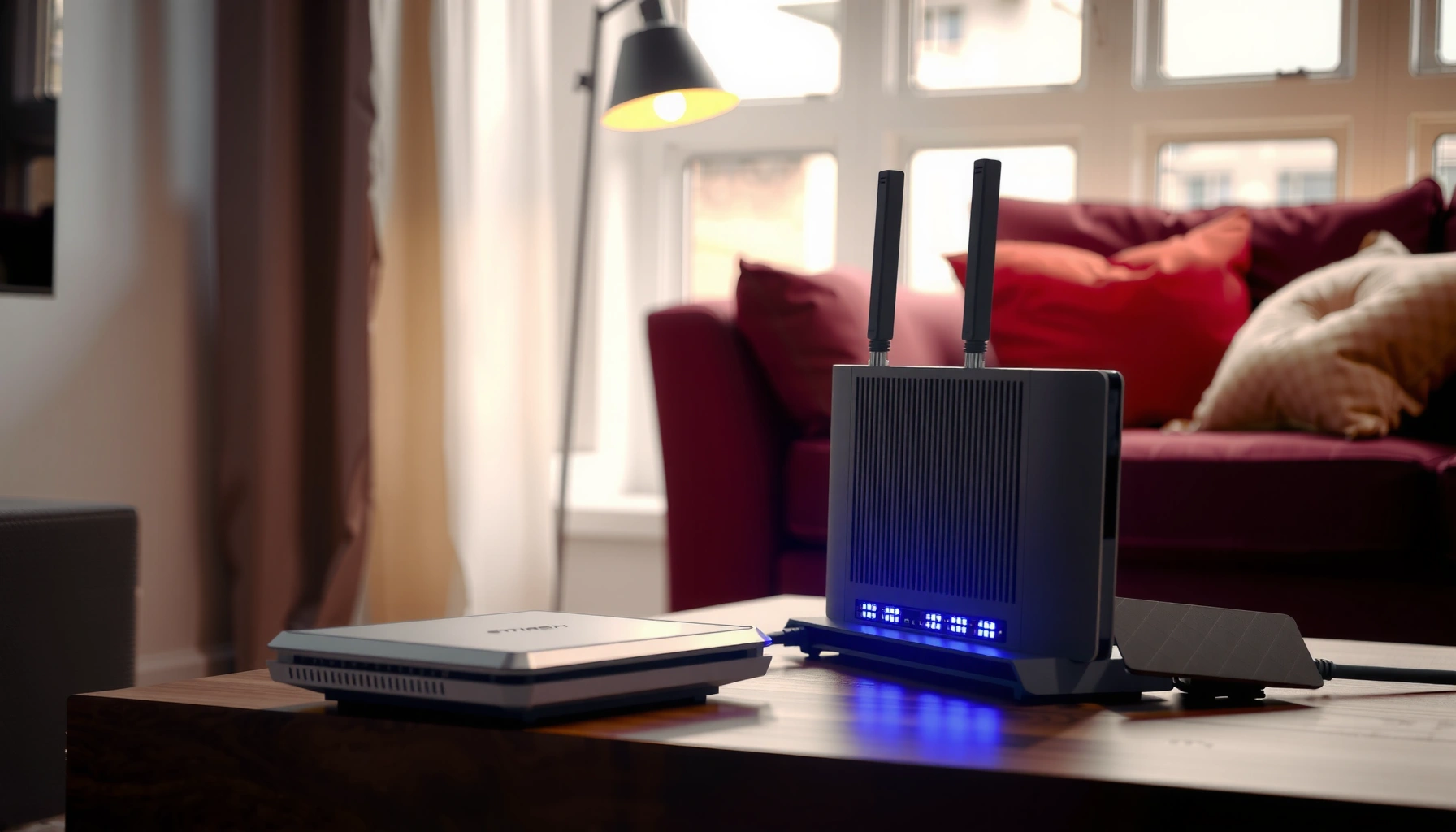

A modem is not a router: it connects you to your ISP and hands off internet to a device that can route traffic on your local network. Use a router when you need Wi‑Fi, multiple wired connections, and the ability to assign IP addresses across your home or office. If your goal is just getting online, you need the modem; if your goal is distributing that connection, you need the router—or a single combo unit that does both.
A modem and a router aren’t the same thing: a modem connects your home to your internet provider, while a router shares that connection with your devices over Wi‑Fi and Ethernet. Some ISP devices combine both functions in one “gateway,” but checking what your specific hardware actually does (and how it’s configured) is the fastest way to avoid “no Wi‑Fi” or “internet not working” problems.
This is for people setting up home internet, troubleshooting “no Wi‑Fi” problems, or deciding whether they need separate modem and router equipment (or an all‑in‑one gateway).
Modem vs. Router: The Core Jobs
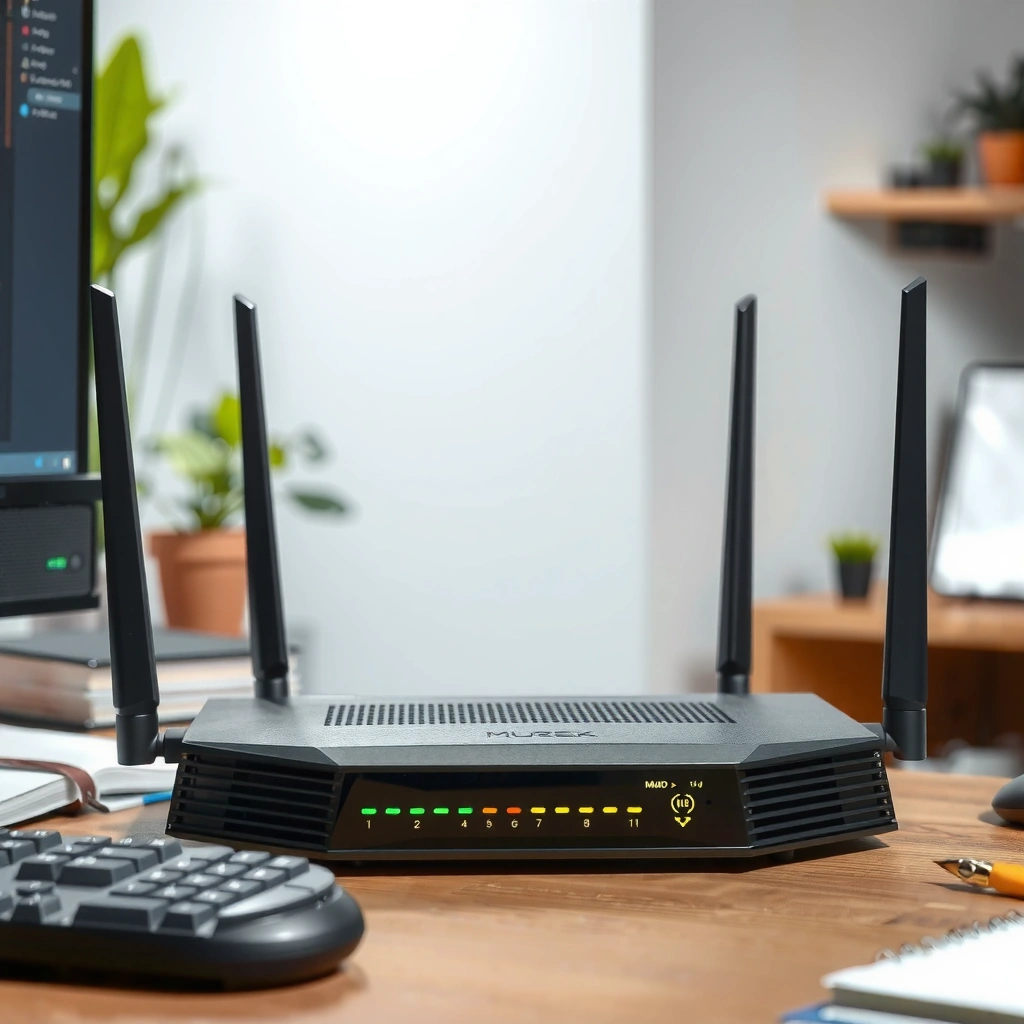
A modem’s job is to translate your ISP’s physical internet signal into an IP connection your home network can use. A router’s job is to distribute that IP connection to multiple devices using local networking (typically Wi‑Fi and LAN/Ethernet).
A modem is the device that interfaces with your ISP transport (for example, cable DOCSIS, DSL, or fiber), converting that signal into internet connectivity on your side.
A router typically manages LAN clients and uses functions like DHCP and NAT to let multiple devices share a single internet connection.
“NAT” describes translating private IP addresses to a routable public IP so many devices can access the internet through one address.
What the modem does (in practical terms).
When your ISP delivers service, it arrives in a technology-specific format: cable (often DOCSIS over coax), DSL (over telephone lines), or fiber (often via an ONT and then Ethernet). The modem’s practical purpose is to establish a working “WAN” (wide area network) path to the ISP. Once that path is up, your ISP device assigns or validates network parameters so your home has a usable internet route. If the modem isn’t online/provisioned, a router can show Wi‑Fi all day and still provide no actual internet access.
What the router does (in practical terms).
A router sits behind the modem and creates your internal network. Most routers do three things you’ll feel immediately:
– DHCP (Dynamic Host Configuration Protocol) hands out IP addresses to devices automatically—so you don’t have to manually configure phones and laptops. According to RFC 2131 (1997), DHCP is the protocol used for dynamic address assignment in IPv4 networks.
– NAT (Network Address Translation) allows multiple internal/private devices to share one public-facing internet identity. NAT-related concepts are described in RFC 3022 (2001) for IPv4 NAT.
– Traffic forwarding and firewalling so devices reach each other locally and access the internet under policy rules.
A quick technical anchor point. IPv4 addresses are 32-bit numbers (so the “address space” is finite compared to IPv6). According to RFC 791 (1981), IPv4 uses 32-bit addresses—one reason NAT became common for homes.
When a Modem Can Feel Like a Router
A combined ISP “gateway” can make the modem-vs-router distinction feel blurry because it performs modem and router functions in one chassis. The key is whether the device is only translating the ISP signal—or also running routing and Wi‑Fi for your local network.
ISP “gateways” often combine modem (WAN-facing) and router (LAN-facing) capabilities in one unit.
If a device broadcasts an SSID (Wi‑Fi network name), it is at least acting as a Wi‑Fi access point and likely handling local routing as well.
In many home setups, the gateway’s “admin interface” exposes both WAN/ISP status and LAN/DHCP/NAT settings, which signals combined functionality.
Here’s what usually causes the confusion:
– Marketing and labeling. You may see “modem router,” “gateway,” or “all‑in‑one” on the product name. Those terms often indicate multiple roles inside the same hardware.
– Multiple ports and multiple functions. Many combo devices have:
– A WAN/Internet connection interface (or integrated cable/DSL/fiber termination).
– LAN ports (Ethernet) that connect to your devices.
– Wi‑Fi radios and a local network configuration page.
– How the admin UI is structured. If you can log in and you see options like DHCP server, NAT, LAN IP, and Wi‑Fi settings, then the device is doing router work—not just modem translation.
Common real-world scenario.
If your ISP sent you a single gateway and it includes both Wi‑Fi and an “Internet” status page, you may not need separate router hardware at all—unless you want advanced features (separate VLANs, better Wi‑Fi coverage, or a more flexible security setup).
📋 DATA TABLE: How to recognize modem, router, and gateway behavior quickly
Home Internet Device Types and What They Commonly Handle (Typical Setup)
| # | Device type | Does it handle ISP signal? | Does it provide Wi‑Fi? | Typical “fix” when internet fails | Fit rating |
|---|---|---|---|---|---|
| 1 | Standalone cable modem (DOCSIS) | Yes | No | Verify modem online/provisioned | ★★★★☆ |
| 2 | Standalone DSL modem (no router) | Yes | No | Confirm PPPoE/VLAN credentials | ★★★★☆ |
| 3 | Fiber ONT (usually no Wi‑Fi) | Yes (termination) | No | Check ONT link + ISP service profile | ★★★☆☆ |
| 4 | ISP gateway (modem + router) | Yes | Yes | Re-check WAN auth + reset only if advised | ★★★★★ |
| 5 | Router only (behind a separate modem/ONT) | No | Yes | Ensure modem/ONT is online before blaming router | ★★★★☆ |
| 6 | Wi‑Fi extender (no internet gateway role) | No | Yes | Verify source gateway has working WAN/internet | ★★☆☆☆ |
| 7 | “Wireless router” with wrong WAN cabling | No | Yes | Move modem to router WAN/Internet port | ★☆☆☆☆ |
How to Tell What You Have (Fast Checks)
If you want the fastest answer, check for Wi‑Fi (SSID) and then confirm whether the device exposes router behaviors like DHCP or NAT in its admin settings. If the device has only ISP/WAN-side status and no LAN/Wi‑Fi management, it’s usually just a modem.
A device that exposes Wi‑Fi settings (SSID, security mode, channel) is doing more than modem translation—it’s handling local access.
Router-like functions typically show up in admin pages as DHCP server settings and NAT/firewall controls.
If the only management options relate to WAN/ISP connectivity, the device is likely acting as a modem and leaving routing to another device.
Look at the device label/model
Start with the manufacturer label and the exact model name. Terms like gateway, modem router, or all‑in‑one strongly suggest combined functionality. Conversely, “standalone modem,” “cable modem,” or “DSL modem” usually means Wi‑Fi is not part of the design.
Business reality: multiple brands use overlapping naming, so don’t stop at marketing terms—use the admin settings check if possible.
Check for a separate Wi‑Fi network name (SSID)
If your modem/gateway broadcasts Wi‑Fi, it’s almost certainly functioning as at least an access point—and often as the router too. In many households, the easiest confirmation is: Do you see one Wi‑Fi network name from your gateway/modem, or do you only see Wi‑Fi from a separate router?
Quick look in the settings
If you can reach the device admin page (commonly via a browser to the gateway IP you’re connected to), search for:
– Wi‑Fi (SSID, WPA2/WPA3, band 2.4/5 GHz)
– LAN (local IP range, static leases, connected clients)
– DHCP (server on/off, lease range)
– NAT (enabled/disabled, translation status)
– Firewall rules
If you only see ISP connection status (WAN) and no LAN/Wi‑Fi features, it’s likely just a modem.
Common Setup Confusions (and Fixes)
The most common failure mode is not the hardware type—it’s configuration mistakes like double-NAT, wrong cabling to the WAN port, or leaving your own router in the wrong operating mode. Fixing the network topology usually resolves the “it shows Wi‑Fi but no internet” confusion.
Double-NAT typically happens when an ISP gateway and a customer router both perform routing/NAT instead of one being placed into pass-through or bridge mode.
A router can display a configuration page even when there is no internet, because local management UI does not guarantee WAN connectivity.
Correct cabling matters: the modem (or gateway WAN) should connect to the router’s WAN/Internet port, not to a LAN port used for internal traffic.
– Using a standalone router without a working modem:
You may reach the router admin page and even configure Wi‑Fi, but devices can’t reach the internet until the router has an active WAN from the modem/ONT.
– Putting two routers in the network (or enabling both gateways’ routing):
When both units are routing, you can get:
– Double-NAT (complicates gaming, VPNs, some remote access apps)
– Slower throughput due to unnecessary translation layers
– Device discovery issues (especially for smart home and casting)
– Wrong cabling order:
Modem/gateway → router WAN/Internet port.
Router LAN ports go to devices (or to switches/APs). If you connect modem → router LAN, the router may treat it like internal traffic and never properly establish the upstream WAN session.
Pros/cons comparison: combined gateway vs. separate modem + router
- All‑in‑one gateway (modem + router in one box)
- Pros: fewer cables, simpler setup, fewer compatibility points.
- Cons: limited upgrade paths, sometimes weaker Wi‑Fi for large homes.
- Separate modem + router
- Pros: better upgrade flexibility (replace router for Wi‑Fi without touching ISP hardware).
- Cons: more setup steps; mistakes like port miswiring are more likely.
What Can Go Wrong
Double-NAT and WAN authentication problems are the two biggest “looks like Wi‑Fi works, but internet doesn’t” causes. If the ISP hasn’t provisioned your modem/gateway correctly, no amount of Wi‑Fi tweaking will restore internet access.
If the ISP device is not provisioned (service not authenticated), the WAN link can remain “up” at layer 2 while internet routing still fails.
In double-NAT setups, VPNs and some inbound connections can fail even though browsing appears inconsistent or slow.
Fiber and DSL provisioning differs by ISP, so “it works for one provider” does not guarantee compatibility with another.
– Double-NAT issues (ISP gateway + your own router):
If you want your own router to be the main router, many setups require bridge mode on the ISP gateway (or a pass-through feature). Otherwise, the internet traffic can be translated twice.
– “Wi‑Fi exists but internet doesn’t”:
This usually points to WAN-side issues:
– ISP authentication/credentials not applied
– WAN IP not assigned
– Modem/gateway not fully online
– Router WAN settings not matching the upstream method (DHCP vs PPPoE, etc.)
– ISP compatibility varies:
Even when the hardware is technically “a modem,” ISPs may require specific provisioning profiles, firmware support, or technical capabilities (especially for certain fiber/DSL architectures). Treat ISP compatibility as a requirement, not an afterthought.
Verdict: Do You Need a Modem or a Router?
If you already have an ISP all‑in‑one gateway, you may not need a separate modem or router—just configure it correctly. If you have only a modem, you do need a router (or gateway) to create Wi‑Fi and to connect multiple devices.
When your ISP device already provides both WAN connectivity and LAN/Wi‑Fi routing, adding a second router without configuration can create double-NAT.
When you have only a modem (no Wi‑Fi), a separate router is required to distribute internet to local devices via Ethernet and/or Wi‑Fi.
Before troubleshooting connectivity, confirm that your ISP account/service is provisioned and that the device shows an “online” WAN status.
What I recommend (practical rule of thumb):
– ISP provided gateway with Wi‑Fi: use it as your router unless you have a specific reason to separate.
– Standalone modem/ONT with no Wi‑Fi: add a router.
– ISP provided gateway + your own router: consider pass-through/bridge mode on the ISP device (only if your provider supports it).
Downsides / who should skip this approach.
If you’re on a managed or enterprise ISP setup with strict device policies, or you can’t access admin settings on the ISP gateway, your ability to change modes (like bridge/pass-through) may be limited. In that case, start with ISP support and ask what configuration they support for your specific gateway model.
Scan Checklist: Confirm Your Network Type
Use this as a quick pre-troubleshooting sanity check. It’s designed to catch the mistakes that cause the most “Wi‑Fi but no internet” complaints.
| Check | What “Yes” usually means |
|---|---|
| Does the device provide Wi‑Fi (has an SSID/network name)? | Gateway/router functionality is likely included |
| Does the modem/gateway have router settings like DHCP or NAT? | It’s acting as the router for at least part of the network |
| Is your modem connected to your router’s WAN/Internet port (not LAN)? | WAN handoff is correctly wired |
| Are you accidentally running two routers/gateways with routing enabled? | Double-NAT and connectivity edge cases become more likely |
| Does your ISP confirm your modem/gateway is provisioned and online? | WAN failures should stop being “mystery” problems |
FAQ
Can I use a router without a modem?
Usually no—you can route local traffic, but you need the modem (or an ISP gateway) to get internet access from your provider. A router alone doesn’t create the upstream internet connection; it only manages the local network once a WAN is available.
Do I need both devices if I have Wi‑Fi from my modem?
Not necessarily. If your ISP device is a modem/router gateway (or a modem with built-in routing), it may already be acting as the router and providing Wi‑Fi. Check the admin page for LAN/DHCP/NAT and confirm whether you’re double-routing.
What does bridge mode do?
Bridge mode typically turns a gateway/router into a pass-through device, so your own router handles routing (helpful for avoiding double-NAT). [ADD: source for your specific gateway model’s bridge mode behavior.]
How can I tell if I have double-NAT?
If you use your own router behind an ISP gateway and notice issues (or you see NAT happening in both layers), it may be double-NAT. [ADD: method your site recommends to detect it, specific to your router/gateway.]
Sources
– Manufacturer documentation for modem/router gateways and router admin settings (check your specific device’s manual or online user guide). [ADD: exact model numbers and the official docs you used]
– ISP support documentation on gateway/modem provisioning and device requirements. [ADD: provider name + official support article used]
– RFC 2131 (1997), Dynamic Host Configuration Protocol (DHCP).
– RFC 3022 (2001), Traditional NAT.
– RFC 791 (1981), Internet Protocol (IPv4).
Final takeaway
A modem connects you to your ISP, while a router connects your devices to the modem’s internet using LAN/Wi‑Fi services. When an ISP gateway combines both, the labels can mislead—so confirm what your hardware actually does (especially DHCP/NAT and WAN status). If you wire ports correctly and avoid double-routing, most “Wi‑Fi works but internet doesn’t” issues resolve quickly.
Frequently Asked Questions
Is a modem a router, or are they different devices?
A modem and a router are different devices with different jobs. A modem connects your home network to your ISP by converting the signal into one your devices can use, while a router creates and manages your Wi-Fi network and assigns IP addresses. Many providers offer a combined modem-router gateway, which can blur the distinction, but the core functions are still modem (ISP connection) and router (network distribution).
How do I know if my device is a modem or a router?
Check the labels and settings on the device: modems usually mention “modem,” “cable,” “DSL,” or “WAN/Internet,” while routers mention “Wi‑Fi,” “LAN,” “router,” and often have multiple Ethernet ports. If you can log in to a web admin page and see Wi‑Fi SSID settings, DHCP, and connected devices, that points to a router function. If your device only handles the ISP link and has limited network features, it’s more likely primarily a modem.
Why do I need both a modem and a router for my internet?
Your modem is required to establish the connection to your ISP, so it’s the bridge between the internet service and your home. Your router is then needed to distribute that connection to multiple devices using Wi‑Fi and Ethernet. Without a router, you may not be able to connect multiple devices properly or manage your home network settings like Wi‑Fi passwords.
Which should I buy: a combined modem-router or separate modem and router?
A combined modem-router can be convenient and reduce the number of devices and cables, which may be ideal for small homes. However, separate modem and router setups can offer better performance and flexibility because you can upgrade the router without replacing the modem (and vice versa). It’s also important to confirm modem compatibility with your ISP if you buy a modem separately, since not all modem models work with every provider.
What happens if I connect a modem to my router incorrectly?
If you connect the modem’s wrong port to your router’s LAN instead of the router’s WAN/Internet port, your router may not detect the internet connection and Wi‑Fi will not work as expected. You may see issues like “No Internet,” limited connectivity, or frequent reconnects. The correct setup is typically: ISP line → modem (or gateway) → modem output to router WAN/Internet, then connect devices to the router via Wi‑Fi or Ethernet.
📅 Last Updated: October 05, 2026 | Topic: is a modem a router | Content verified for accuracy and freshness.
References
- Modem
https://en.wikipedia.org/wiki/Modem - Router
https://en.wikipedia.org/wiki/Router - Residential gateway
https://en.wikipedia.org/wiki/Residential_gateway - Modem | Definition, Development, & Facts | Britannica
https://www.britannica.com/technology/modem - https://www.britannica.com/technology/router
- https://www.ncsc.gov.uk/guidance/secure-your-home-network
- modem – Glossary | CSRC
https://csrc.nist.gov/glossary/term/modem - router – Glossary | CSRC
https://csrc.nist.gov/glossary/term/router - Google Scholar Google Scholar
https://scholar.google.com/scholar?q=modem+vs+router - Google Scholar Google Scholar
https://scholar.google.com/scholar?q=is+a+modem+a+router
