
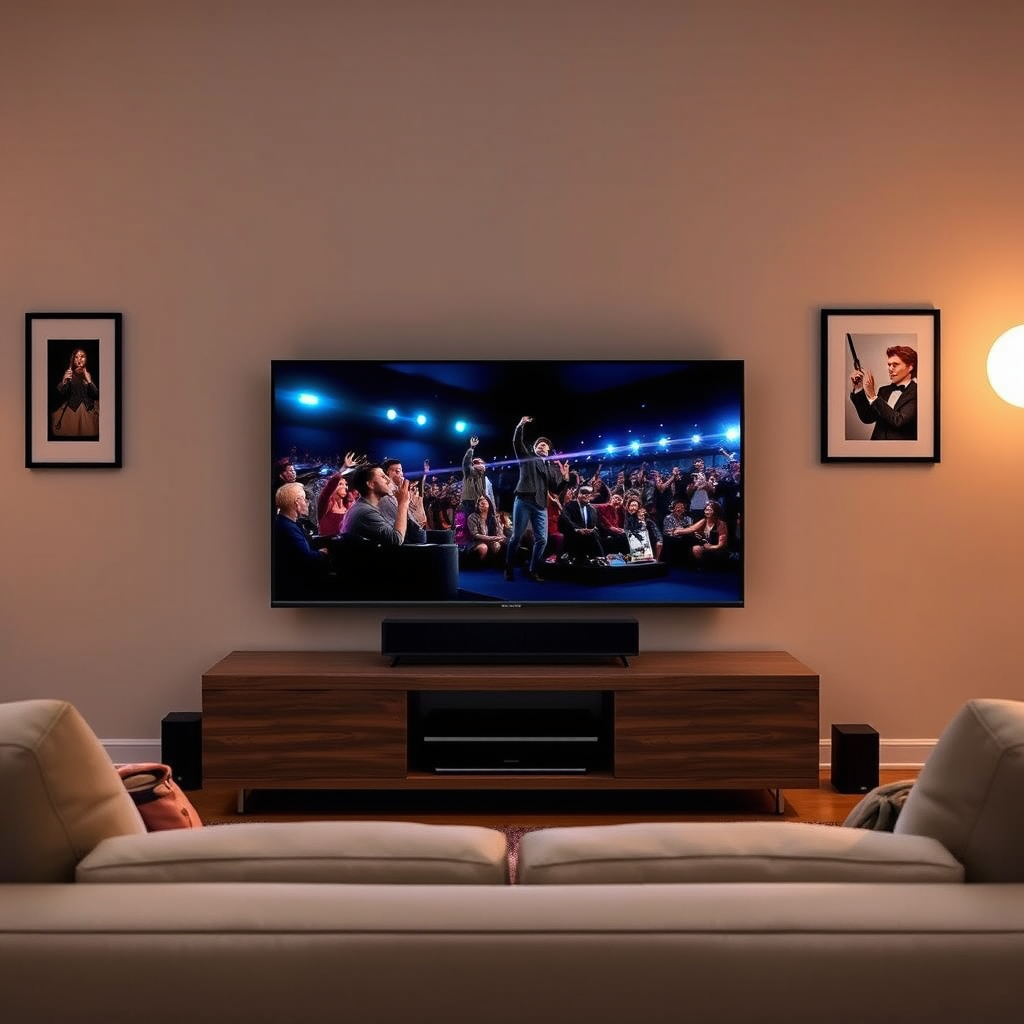

To connect Bose speakers to your TV, you typically need to use either Bluetooth or a wired connection, depending on your speaker model. This guide will walk you through the various methods to set up your Bose speakers seamlessly with your TV, ensuring you enjoy high-quality sound in no time. Whether you’re watching your favorite shows, playing video games, or listening to music, getting the audio right can significantly enhance your experience.
Understanding Your Bose Speaker Model
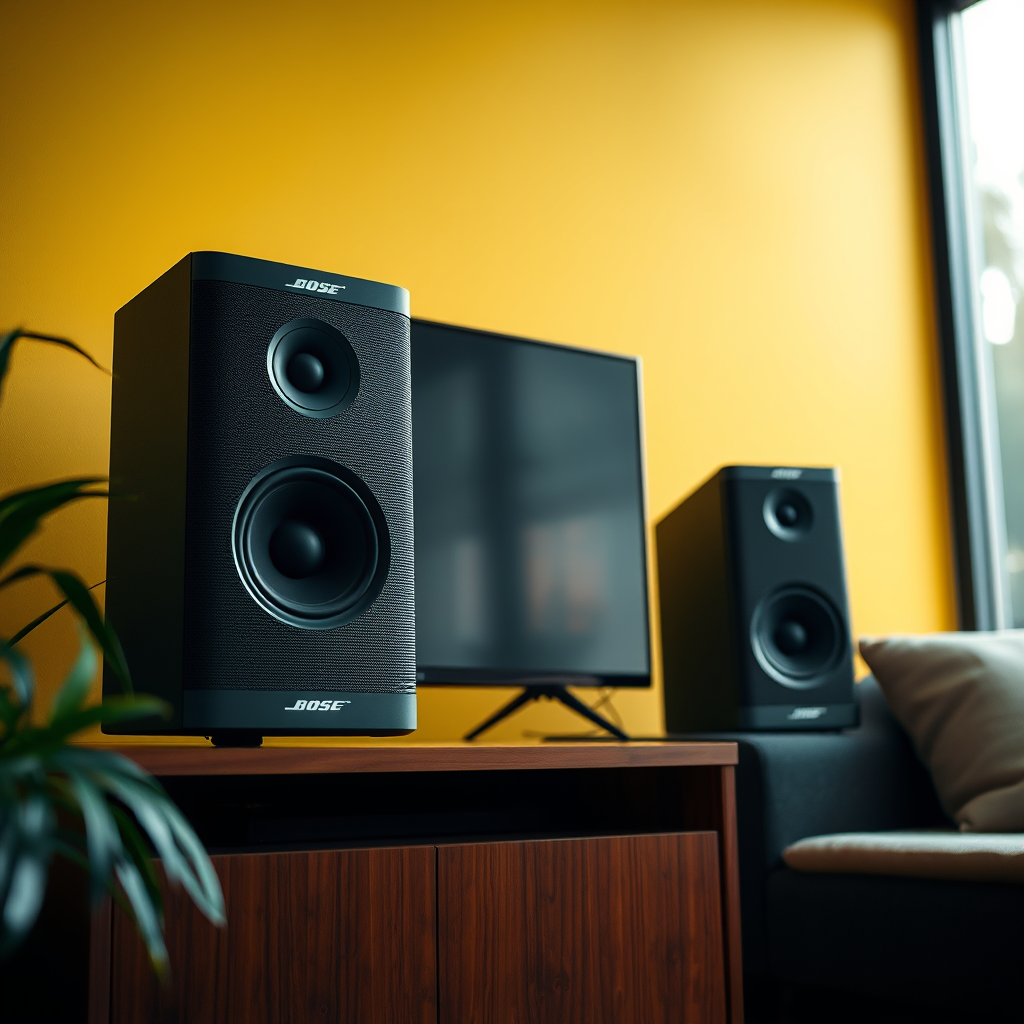
Before diving into the connection process, it’s crucial to identify the specific Bose speaker model you own. Bose offers a wide range of speakers, including Bluetooth-enabled options like the SoundLink series and wired systems such as the Bose Lifestyle or Companion series. Knowing whether your speakers are wireless or require a physical connection will guide your setup approach.
Additionally, check for compatibility with your TV’s audio output options. Most modern TVs feature HDMI, optical, and audio jack outputs, while older models might only have analog outputs. This compatibility will determine the method of connection that best suits your setup.
Connecting via Bluetooth
Connecting your Bose speakers via Bluetooth is one of the simplest and most convenient methods. Here’s how to do it:
1. Activate Bluetooth: Begin by turning on your Bose speakers and activating their Bluetooth mode. This is typically done by pressing the Bluetooth button on the speaker until you hear a voice prompt or see a blinking light.
2. Access TV Settings: On your TV remote, navigate to the settings menu and locate the Bluetooth settings. This can often be found under the ‘Sound’ or ‘Audio’ section, depending on your TV model.
3. Pairing: Select the option to search for available Bluetooth devices. Your Bose speakers should appear in the list of discovered devices. Select your speakers to initiate pairing. Once successfully connected, you’ll receive a confirmation tone from the speakers and a message on your TV screen.
This method allows for a clean setup with no wires, providing flexibility in speaker placement within your room.
Connecting via Optical Cable
If you prefer a wired connection, using an optical cable is an excellent option for achieving high-quality audio. Follow these steps:
1. Locate Outputs: Identify the optical audio output on your TV, usually labeled as “Optical” or “Digital Audio Out.” Then, find the optical input on your Bose speaker system, which may be labeled as “Optical In” or similar.
2. Connect Devices: Using a high-quality optical cable, connect one end to the TV’s optical output and the other end to the optical input on your Bose speakers. Ensure that both ends are securely plugged in.
3. Adjust Audio Settings: Once connected, you need to configure your TV’s audio settings. Navigate to the audio settings menu and select “Optical” or “Digital Audio Out” as the output option. This ensures that the TV sends audio through the optical connection to your speakers.
This method provides a reliable, interference-free audio signal, making it ideal for watching movies or playing games.
Connecting via HDMI ARC
For those with compatible devices, using HDMI ARC (Audio Return Channel) is arguably the best method for connecting Bose speakers to your TV, as it allows for high-definition audio and simplifies the connection process. Here’s how to set it up:
1. Check Compatibility: Ensure that both your TV and Bose speakers support HDMI ARC. Look for an HDMI port labeled “ARC” on your TV and HDMI output on your Bose system.
2. Connect HDMI Cable: Connect one end of an HDMI cable to the ARC port on your TV and the other end to the HDMI port on your Bose speaker system.
3. Enable HDMI ARC: Go to your TV settings and enable HDMI ARC. This option is usually found under the audio settings. Make sure to select the Bose speakers as the default audio output.
Using HDMI ARC not only simplifies the setup but also allows for control over the audio settings directly from your TV remote, enhancing user convenience.
Troubleshooting Common Issues
Even with the best setup, you may encounter connectivity issues. Here are some common troubleshooting tips:
1. Connectivity Errors: If audio isn’t playing, check that your speakers are powered on and within range of the TV (for Bluetooth connections). For wired connections, ensure the cables are securely connected.
2. Firmware Updates: Sometimes, connectivity issues stem from outdated firmware. Ensure that your TV and Bose speakers are updated to the latest firmware versions. This can often be done through the device’s settings menu or the respective apps.
3. Correct Audio Source: Ensure that the correct audio output source is selected on your TV. If you’re using Bluetooth, confirm that the TV is connected to the Bose speakers. For wired connections, check that the correct output (optical or HDMI) is selected.
Enhancing Your Audio Experience
Once your Bose speakers are connected, consider exploring additional settings and enhancements to elevate your audio experience:
1. Sound Customization: Use the Bose speaker app to access features like equalization settings, which allow you to tailor the sound profile to your preferences, enhancing clarity and bass response.
2. Adding a Subwoofer: If your setup allows, consider incorporating a subwoofer into your Bose system. This addition can significantly boost the bass, providing a richer audio experience, especially for movies and music.
3. TV Equalizer Settings: Adjusting your TV’s equalizer settings can help balance the sound output to better match your listening environment and content type.
By taking advantage of these enhancements, you can create a more immersive audio experience that complements your visual content.
Top 7 Bose Speaker Models for TV Connectivity (2024)
| # | Model | Connection Type | Bluetooth | Optical Input | HDMI ARC |
|---|---|---|---|---|---|
| 1 | Bose SoundLink Revolve+ | Bluetooth | Yes | No | No |
| 2 | Bose Companion 2 Series III | Wired | No | Yes | No |
| 3 | Bose Soundbar 700 | Wired/Wireless | Yes | No | Yes |
| 4 | Bose Lifestyle 650 | Wired/Wireless | Yes | Yes | Yes |
| 5 | Bose Home Speaker 500 | Wireless | Yes | No | No |
| 6 | Bose SoundLink Mini II | Bluetooth | Yes | No | No |
| 7 | Bose 301 Direct/Reflecting | Wired | No | Yes | No |
With these steps, you can easily connect your Bose speakers to your TV and enjoy an enhanced audio experience. Whether you prefer a wireless connection or a wired setup, following these guidelines will help you choose the best method for your needs. Don’t hesitate to explore your speaker’s features and settings for an even better sound experience. By ensuring you have the right connections and optimizing your settings, you can transform your TV viewing into an immersive audio-visual experience.
Frequently Asked Questions
How do I connect my Bose speakers to my TV using Bluetooth?
To connect your Bose speakers to your TV via Bluetooth, first ensure that your Bose speakers are in pairing mode. On your TV, navigate to the Bluetooth settings and search for available devices. Select your Bose speakers from the list, and once connected, you should hear audio from your TV through the speakers. Make sure both devices are sufficiently charged or plugged in to avoid interruptions.
What cables do I need to connect Bose speakers to my TV?
The cables needed to connect Bose speakers to your TV depend on the type of speakers you have. For wired connections, you may need an optical audio cable, HDMI ARC cable, or RCA cables. For wireless connections, ensure your Bose speakers support Bluetooth or Wi-Fi connectivity, which allows you to connect without additional cables.
Why won’t my Bose speakers connect to my TV?
If your Bose speakers won’t connect to your TV, check that both devices are powered on and within range. Ensure that Bluetooth is enabled on your TV and that your speakers are in pairing mode. Additionally, verify that there are no other devices connected, as this can interfere with the connection process.
What is the best way to connect Bose speakers to a Smart TV?
The best way to connect Bose speakers to a Smart TV is to use an HDMI ARC connection, as it allows for high-quality audio and easy control via your TV remote. If your Smart TV doesn’t have HDMI ARC, using an optical audio cable is another excellent option. Both methods provide a reliable and high-quality audio experience for your entertainment needs.
Which Bose speakers are compatible with my TV for a seamless connection?
Most Bose speakers, including the SoundLink series and Bose Home Speaker models, are compatible with TVs that support Bluetooth or Wi-Fi. For wired connections, check your speaker model and ensure it has the required audio input options, such as HDMI or optical. Always refer to the manufacturer’s specifications to ensure compatibility with your specific TV model.
References
- Customer Support
https://www.bose.com/en_us/support/articles/connect_bluetooth_speakers_to_tv.html - Customer Support
https://www.bose.com/en_us/support/articles/bose_speakers_tv_connection.html - Customer Support
https://www.bose.com/en_us/support/articles/connecting_bose_soundbar_to_tv.html - Google Scholar Google Scholar
https://scholar.google.com/scholar?q=how+to+connect+bose+speakers+to+tv - Google Scholar Google Scholar
https://scholar.google.com/scholar?q=Bose+speaker+TV+connection+guide - Google Scholar Google Scholar
https://scholar.google.com/scholar?q=wireless+audio+connections+for+TVs - https://www.bbc.com/news/technology-62546528
https://www.bbc.com/news/technology-62546528 - https://www.cdc.gov/healthcommunication/toolstemplates/entertainment/tv.html
https://www.cdc.gov/healthcommunication/toolstemplates/entertainment/tv.html - https://www.sciencedirect.com/science/article/abs/pii/S0306457317300985
https://www.sciencedirect.com/science/article/abs/pii/S0306457317300985 - Google Scholar Google Scholar
https://scholar.google.com/scholar?q=how+do+you+connect+bose+speakers+to+tv

[…] – On your phone, forget/unpair the TWS earbuds in Bluetooth settings […]
[…] hardware replacement for wireless earbuds, users often must remove the device from Bluetooth settings and re-pair to re-establish the correct audio profile. Apple Bluetooth troubleshooting conventions […]
[…] should see a “Connected” (or similar) status in Bluetooth settings after pairing to confirm the link is active. Testing left/right audio balance immediately after […]
[…] the earbuds are selected as the output device by checking your iPhone, iPad, Mac, or Android Bluetooth settings and choosing AirPods or the connected Apple earbuds. Then, remove and reinsert the earbuds to […]
[…] and an active scan on the phone (Bluetooth SIG). According to Apple support documentation, iPhone Bluetooth settings require the Bluetooth toggle to be enabled, and devices must appear under the Bluetooth device list […]
[…] What should I check before touching Bluetooth settings?Verify both earbuds are fully seated in the charging case and charged; poor contact often prevents […]