


Yes, you can access Apple TV without an iPhone, though there are some limitations and alternative options to consider. Apple TV is a versatile streaming service that allows users to enjoy a variety of content across multiple devices. This article will guide you through the various ways to access Apple TV, the advantages of using an iPhone, and other devices that can enhance your streaming experience.
Understanding Apple TV
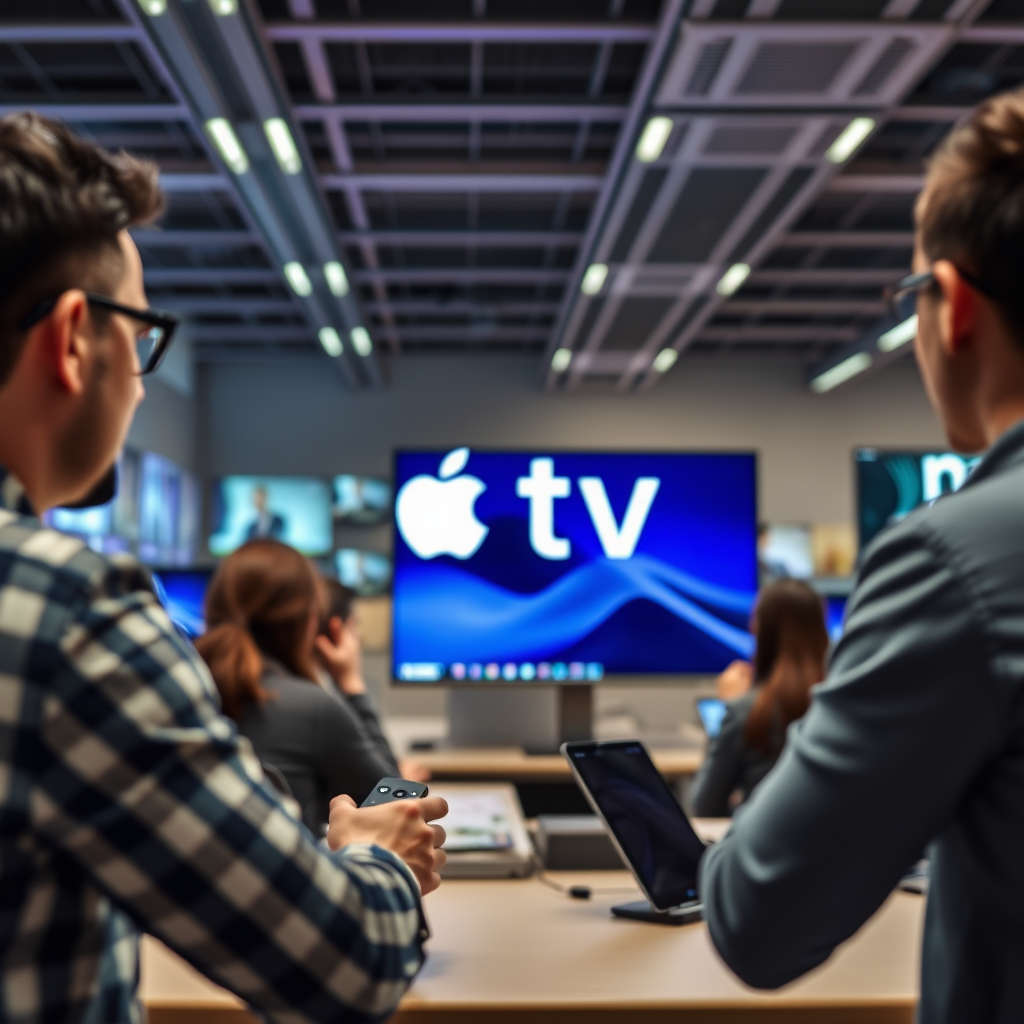
Apple TV is more than just a hardware device; it is a comprehensive streaming service that enables users to watch movies, TV shows, and live sports, as well as access original content produced by Apple. The service is designed to provide a seamless viewing experience across various platforms, not limited to iPhones. Apple TV offers a rich library of content that includes popular films, award-winning series, and exclusive shows that are not available on other platforms.
The Apple TV experience is further enhanced by features like personalized recommendations, family sharing, and the ability to rent or purchase content directly from the app. As streaming continues to grow in popularity, understanding how to access Apple TV without an iPhone can help you make the most of this service.
Accessing Apple TV on Different Devices
Apple TV can be accessed on a wide range of devices beyond just the iPhone. Here are some of the primary options available:
– Apple Devices: Users can enjoy Apple TV on iPads, Macs, and Apple TVs. The Apple TV app is pre-installed on these devices, providing easy access to the service.
– Smart TVs: Many smart TVs from brands such as Samsung, LG, and Vizio come with the Apple TV app built-in. This allows users to watch Apple TV content directly on their television without needing additional hardware.
– Streaming Devices: Devices like Roku, Amazon Fire TV, and Google Chromecast also support the Apple TV app. These devices can be connected to any TV with an HDMI port, making it easy to access Apple TV’s extensive library.
– Game Consoles: The Apple TV app is available on popular gaming consoles like PlayStation and Xbox, allowing gamers to switch between gaming and streaming seamlessly.
Setting Up Apple TV Without an iPhone
Setting up Apple TV on a device other than an iPhone is straightforward. Follow these steps:
1. Download the Apple TV App: Locate the Apple TV app in the app store of your chosen device, whether it’s a smart TV, streaming device, or tablet. Download and install the app.
2. Create or Sign In to Your Apple ID: If you don’t already have an Apple ID, you will need to create one. This is essential for accessing the Apple TV service. If you already have an Apple ID, simply sign in to the app using your credentials.
3. Customize Your Preferences: Once signed in, you can customize your viewing preferences, set up family sharing, and start exploring the content available on Apple TV.
Top Devices to Access Apple TV (2024)
| # | Device Type | Compatibility | Ease of Use | User Ratings |
|---|---|---|---|---|
| 1 | Apple TV | iOS, macOS, tvOS | Very Easy | ★★★★☆ |
| 2 | Smart TVs | Various Brands | Easy | ★★★★☆ |
| 3 | Roku | Yes | Easy | ★★★★☆ |
| 4 | Amazon Fire TV | Yes | Very Easy | ★★★★☆ |
| 5 | Game Consoles | PlayStation, Xbox | Easy | ★★★★☆ |
| 6 | iPads | iOS | Very Easy | ★★★★☆ |
| 7 | Android Devices | Limited | Moderate | ★★★☆☆ |
Benefits of Using an iPhone with Apple TV
While it is entirely feasible to access Apple TV without an iPhone, having one can significantly enhance your user experience. Here are some benefits of using an iPhone in conjunction with Apple TV:
– Easy Navigation: The iPhone provides a user-friendly interface for navigating the Apple TV app. You can easily search for content, manage your library, and access your watchlist.
– AirPlay Functionality: One of the standout features of using an iPhone with Apple TV is AirPlay. This allows you to stream content directly from your iPhone to your Apple TV, making it simple to share videos, photos, and music with others.
– Remote Control Features: The Apple TV Remote app, available on iPhones, enables you to control your Apple TV directly from your phone. This is especially useful for entering text or navigating complex menus.
– Personalized Recommendations: Your viewing habits on the iPhone can influence recommendations on your Apple TV, creating a more personalized experience tailored to your preferences.
Alternative Ways to Access Apple TV Features
If you choose not to use an iPhone, there are alternative methods to access certain Apple TV features:
– Apple TV Website: You can stream Apple TV content directly through your web browser by visiting the Apple TV website. This is a convenient option for users who prefer not to download the app.
– Third-Party Apps: Some third-party apps may offer access to specific Apple TV content. While these may not provide the full range of features, they can be useful for accessing select shows and movies.
– Family Sharing: Even if you don’t have an iPhone, you can still take advantage of Apple’s Family Sharing feature through other Apple devices. This allows multiple users to share subscriptions and purchased content.
Troubleshooting Common Issues
When using Apple TV on various devices, you may encounter some common issues. Here are some troubleshooting tips:
– Compatibility Issues: Ensure that your device is compatible with the Apple TV app. Check the Apple website for the latest compatibility lists for supported devices.
– Internet Connection: A stable internet connection is crucial for streaming. If you experience buffering or connection issues, check your Wi-Fi network or consider using an Ethernet cable for a more stable connection.
– App Updates: Keep the Apple TV app updated to avoid bugs and access new features. Regular updates ensure that you are using the most current version of the app.
Subscription and Content Availability
Before diving into Apple TV, it’s essential to understand the subscription options and content availability:
– Subscription Plans: Apple TV offers several subscription options, including Apple TV+ for original content and options for renting or purchasing movies and shows. Users can also subscribe to channels like Showtime or Starz through the Apple TV app.
– Content Range: The service boasts a diverse library that includes exclusive shows such as “Ted Lasso,” “The Morning Show,” and a variety of movies across genres. Apple continuously adds new content, ensuring subscribers have access to fresh and engaging material.
Summarizing the options available, you can indeed access Apple TV without an iPhone by using alternative devices and apps. If you have more questions or need further assistance, feel free to explore the Apple support website or check out the latest device compatibility lists. Enjoy your streaming experience!
Frequently Asked Questions
Can I use Apple TV without an iPhone?
Yes, you can use Apple TV without an iPhone. Apple TV can be set up and operated using a compatible remote control, a TV remote that supports HDMI-CEC, or the Apple TV Remote app on an iPad or iPod Touch. This allows you to access content and manage settings without needing an iPhone.
How do I set up Apple TV without an iPhone?
To set up Apple TV without an iPhone, connect the device to your TV using an HDMI cable and power it on. Follow the on-screen instructions using the included Apple TV remote. You can also sign in to your Apple ID directly on the Apple TV, allowing you to access all your purchased content and subscriptions without needing an iPhone.
What alternatives exist for controlling Apple TV without an iPhone?
If you don’t have an iPhone, you can control Apple TV using the physical Apple TV remote that comes with the device. Additionally, you can use the Apple TV Remote app on an iPad or iPod Touch, or even a compatible universal remote that can be programmed to work with Apple TV.
Why might someone want Apple TV without an iPhone?
Some users may prefer Apple TV without an iPhone due to personal preference, budget constraints, or simply not owning an iPhone. Apple TV offers a variety of entertainment options, including streaming services and Apple’s own content, making it an appealing choice for those who want a smart TV experience without relying on an iPhone.
Which devices can I use to access Apple TV content if I don’t have an iPhone?
If you don’t have an iPhone, you can still access Apple TV content through devices like an iPad, iPod Touch, or Mac. Additionally, you can use smart TVs that support the Apple TV app, streaming devices like Roku or Amazon Fire TV, and even some gaming consoles to enjoy Apple TV+ content without needing an iPhone.
References
- Apple TV app – Apple
https://www.apple.com/apple-tv-app/ - Apple TV
https://en.wikipedia.org/wiki/Apple_TV - https://www.bbc.com/news/technology-54012314
https://www.bbc.com/news/technology-54012314 - https://www.nytimes.com/2021/10/01/technology/apple-tv-plus.html
https://www.nytimes.com/2021/10/01/technology/apple-tv-plus.html - https://www.theguardian.com/technology/2020/nov/12/apple-tv-plus-launch
https://www.theguardian.com/technology/2020/nov/12/apple-tv-plus-launch - https://www.sciencedirect.com/topics/computer-science/apple-tv
https://www.sciencedirect.com/topics/computer-science/apple-tv - Google Scholar Google Scholar
https://scholar.google.com/scholar?q=can+you+get+apple+tv+without+an+iphone - Google Scholar Google Scholar
https://scholar.google.com/scholar?q=apple+tv+accessibility+without+iphone - Google Scholar Google Scholar
https://scholar.google.com/scholar?q=Apple+TV+features+without+iphone - can you get apple tv without an iphone – Search results
https://en.wikipedia.org/wiki/Special:Search?search=can+you+get+apple+tv+without+an+iphone
