

You can indeed turn your TV on without a remote by using various methods available on the television itself or through other devices. In this article, you’ll learn several ways to power on your TV without the need for a remote control, ensuring you can enjoy your favorite shows without hassle. Whether you’ve misplaced your remote or it’s simply not functioning, there are convenient alternatives that make it easy to access your entertainment.
Using the Power Button on the TV
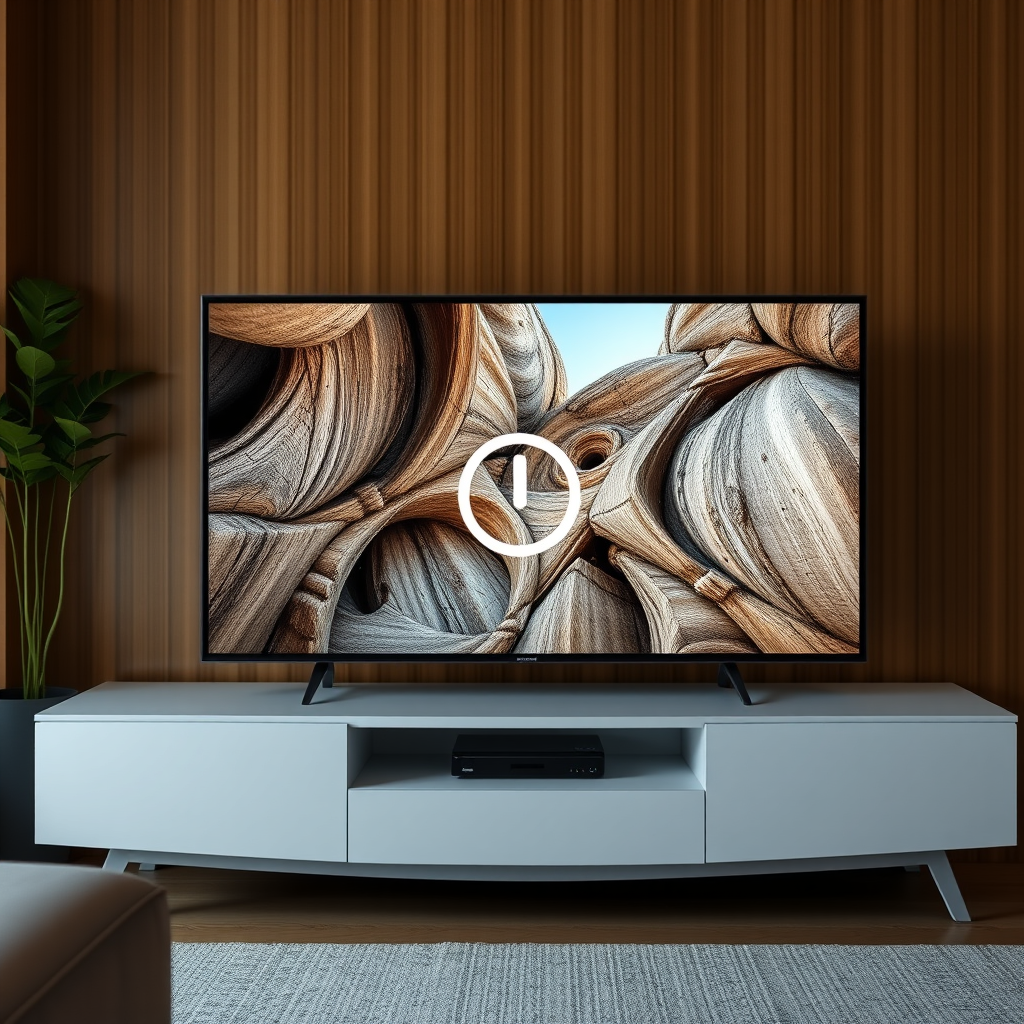
Most televisions are equipped with a physical power button, which is often the most straightforward method to turn on your device. The location of this button can vary significantly depending on the make and model of your TV.
Typically, you can find the power button on the front, side, or back panel of the TV. In some designs, it may be subtly integrated into the bezel or underneath the screen. Familiarizing yourself with the power button’s location can save you time and frustration in the future. If you’re unsure where to look, referring to your TV’s manual can provide specific guidance.
In addition, some TVs may have a touch-sensitive area, requiring a light tap instead of a traditional button press. This feature can be particularly useful for sleek, modern designs.
Utilizing a Smartphone App
Advancements in technology have made it possible to control many modern TVs through smartphone applications. Most major brands, such as Samsung, LG, and Sony, provide dedicated apps that include power functions among other features.
To use this method, you will need to download the appropriate app for your TV brand (e.g., Samsung SmartThings for Samsung TVs, LG ThinQ for LG TVs). Once installed, connect your phone to the same Wi-Fi network as your TV. This setup allows you to turn your TV on or off directly from your smartphone, providing a convenient alternative to a physical remote.
Moreover, these apps often come with additional functionalities, such as changing channels, adjusting volume, and accessing streaming services, making your viewing experience even more versatile.
Connecting a Streaming Device
If you own a streaming device, such as Roku, Amazon Fire TV, or Chromecast, you can use it to power on your TV. These devices typically come with their own remotes or mobile applications, allowing you to control your TV indirectly.
To utilize this method, ensure the streaming device is connected to your TV’s HDMI port. Many modern televisions are designed to recognize these devices and may automatically turn on when the streaming device is activated. For instance, pressing the power button on a Roku remote can often wake both the device and the TV simultaneously, streamlining your viewing experience.
Using HDMI-CEC Feature
Another useful feature to explore is HDMI-CEC (Consumer Electronics Control), which allows devices connected via HDMI to control your TV and vice versa. This means that if you turn on a connected device, such as a gaming console or Blu-ray player, it can automatically turn on your TV as well.
To use HDMI-CEC, you need to ensure that it is enabled in your TV settings. The naming conventions for this feature can differ between manufacturers—Samsung calls it Anynet+, while LG refers to it as SimpLink. Once activated, this feature can significantly enhance the convenience of switching between devices without the need for multiple remotes.
Employing a Universal Remote
If you have a universal remote, it can be programmed to control your TV, including turning it on and off. Universal remotes are designed to consolidate the functionality of multiple remotes into one device, making it a practical solution for those with various entertainment devices.
Setting up a universal remote involves following the manufacturer’s instructions, which typically include inputting codes for the specific brand of your TV. Once programmed, you can use the universal remote to access all the features of your TV, eliminating the need for the original remote control.
Exploring Alternative Control Methods
Some modern televisions come equipped with voice control features that can be activated through smart assistants like Amazon Alexa or Google Assistant. If your TV supports voice commands, you can turn it on by simply speaking the appropriate wake word followed by the command, such as “turn on the TV.”
This hands-free method not only enhances convenience but also adds a futuristic touch to your entertainment setup. To utilize this feature, ensure that your smart assistant is properly configured and linked to your TV.
Checking for Other Options
If you’re still having trouble turning on your TV without a remote, consider checking your TV’s manual or the manufacturer’s website for specific instructions on alternative power options. It’s possible that your particular model may have unique features or settings that can assist in this regard.
Additionally, keeping your TV’s firmware updated can enable new features and enhance compatibility with various control methods. Regular updates can improve performance and introduce new functionalities that may assist you in operating your TV without a remote.
Top 7 TV Brands by Popular Control Methods (2024)
| # | Brand | Power Button | Smartphone App | Streaming Device | HDMI-CEC |
|---|---|---|---|---|---|
| 1 | Samsung | Yes | Yes | Yes | Yes |
| 2 | LG | Yes | Yes | Yes | Yes |
| 3 | Sony | Yes | Yes | Yes | Yes |
| 4 | TCL | Yes | Yes | Yes | Yes |
| 5 | Vizio | Yes | Yes | Yes | Yes |
| 6 | Philips | Yes | Yes | Yes | Yes |
| 7 | Panasonic | Yes | Yes | Yes | Yes |
By following these methods, you can easily turn on your TV without the need for a remote. Each option provides a convenient way to access your entertainment without being reliant on a single device. As technology continues to evolve, these alternatives can enhance your viewing experience, making it smoother and more enjoyable.
Now that you know how to turn on your TV without a remote, try out these methods and keep your viewing experience seamless. If you have any tips or experiences, feel free to share them in the comments!
Frequently Asked Questions
How can I turn my TV on without a remote control?
You can turn your TV on without a remote by using the power button located on the TV itself. Most TVs have a physical button on the side or back panel, which you can press to power on the device. If your TV has a smart feature, you might also be able to use a smartphone app to control it.
What should I do if my TV remote is lost and I need to turn on the TV?
If your TV remote is lost, you can still turn on the TV using the physical buttons on the unit. In addition, many modern TVs can be controlled through mobile apps available for iOS and Android devices, allowing you to power on the TV from your smartphone.
Why won’t my TV turn on without a remote?
If your TV won’t turn on without a remote, it could be due to the power settings or the absence of physical buttons on some modern models. Additionally, TVs with smart features may require an initial setup through the remote, making it difficult to operate without it. Checking the user manual can provide specific instructions for your model.
What is the best way to turn on a smart TV without a remote?
The best way to turn on a smart TV without a remote is to use the built-in power button, which is typically located on the TV’s side or bottom. Alternatively, you can download the manufacturer’s mobile app, which often includes a virtual remote control feature, allowing you to turn on the TV and access other functions.
Which brands of TVs have physical buttons for power that can be used if the remote is missing?
Most TV brands, including Samsung, LG, Sony, and Vizio, typically have physical buttons for power on their models. However, the location and availability of these buttons can vary, so it’s important to refer to the specific user manual of your TV model for detailed information on how to find and use them.
References
- Television
https://en.wikipedia.org/wiki/Television - Exercise and chronic disease: Get the facts – Mayo Clinic
https://www.mayoclinic.org/healthy-lifestyle/consumer-health/in-depth/television-use-in-children/art-20046049 - https://www.bbc.com/news/technology-54607494
https://www.bbc.com/news/technology-54607494 - https://www.theguardian.com/us-news/2020/mar/28/tv-remote-control-how-to-use
https://www.theguardian.com/us-news/2020/mar/28/tv-remote-control-how-to-use - https://www.sciencedirect.com/topics/engineering/television
https://www.sciencedirect.com/topics/engineering/television - https://www.nytimes.com/2020/03/12/technology/personaltech/how-to-use-your-tv-without-a-remote.html
https://www.nytimes.com/2020/03/12/technology/personaltech/how-to-use-your-tv-without-a-remote.html - https://pubmed.ncbi.nlm.nih.gov/32010234/
https://pubmed.ncbi.nlm.nih.gov/32010234/ - Google Scholar Google Scholar
https://scholar.google.com/scholar?q=turn+tv+on+without+remote - Google Scholar Google Scholar
https://scholar.google.com/scholar?q=how+to+control+tv+without+remote - Google Scholar Google Scholar
https://scholar.google.com/scholar?q=tv+technology+manual+control
