


Controlling your Samsung TV without a remote is entirely possible. You can utilize your smartphone, a universal remote, or even built-in features on the TV itself. This article will guide you through various methods to effectively manage your TV settings and functions without needing the physical remote, ensuring you can enjoy your entertainment seamlessly.
Use the Samsung SmartThings App
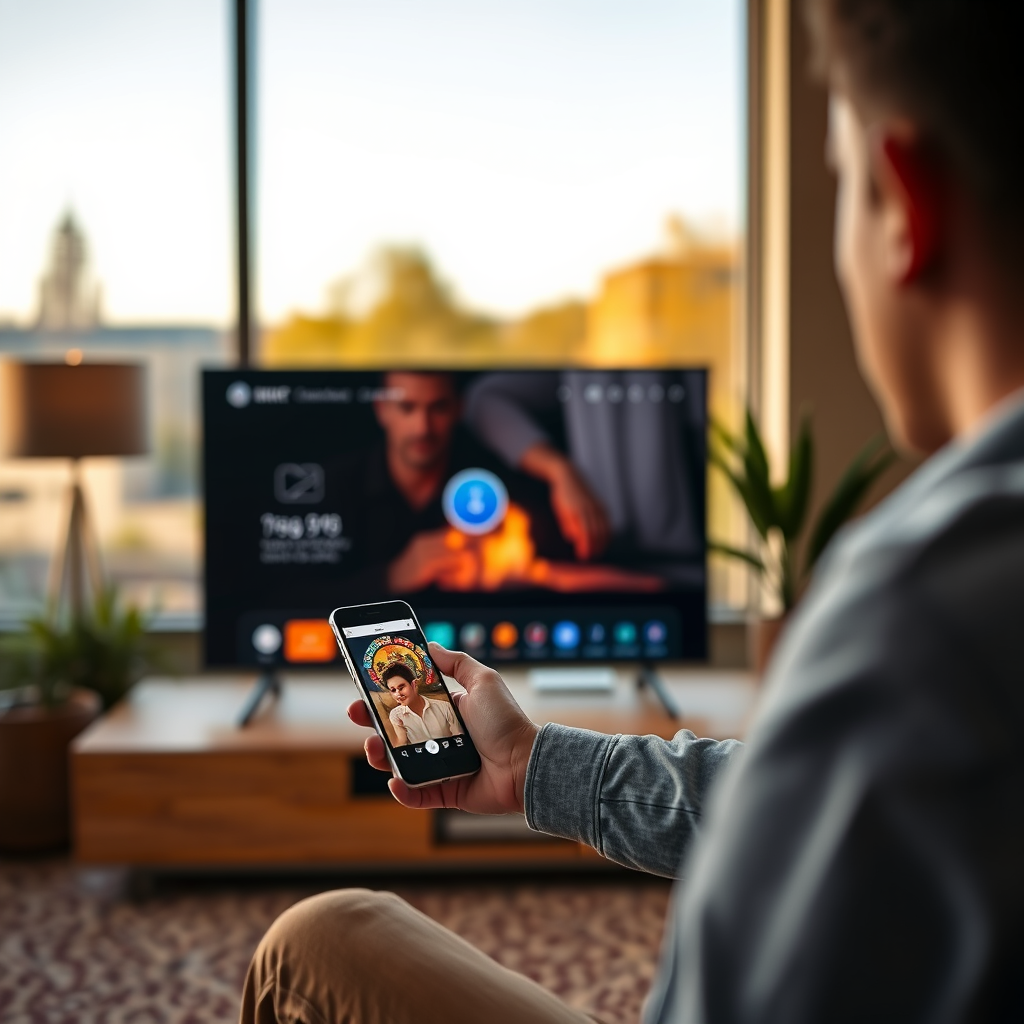
The Samsung SmartThings app is a powerful tool that allows you to control your Samsung TV directly from your smartphone. To start, download the SmartThings app from the Google Play Store or Apple App Store, depending on your device. Once installed, ensure your smartphone and TV are connected to the same Wi-Fi network. Open the app, and your TV should automatically appear in the list of devices. By selecting it, you gain access to a virtual remote control interface, enabling you to navigate menus, adjust volume, and change channels effortlessly.
The SmartThings app not only offers basic remote functionalities but also provides additional features such as screen mirroring and device management. This integration enhances your viewing experience, particularly for those who enjoy streaming content or accessing smart features.
Utilize the TV’s Built-in Buttons
In the event that your remote is lost or malfunctioning, your Samsung TV is equipped with built-in buttons that can be used to control basic functions. These buttons are typically located on the back or the side of the TV. Depending on the model, you may find a power button, volume control, and channel navigation buttons.
Using these buttons, you can navigate through the TV’s menu system to adjust settings like picture and sound quality or switch between inputs. While this method might be less convenient than using a remote, it serves as a reliable backup to ensure you can access your television’s features whenever needed.
Control via HDMI-CEC Devices
Another effective way to control your Samsung TV without its remote is through HDMI-CEC (Consumer Electronics Control) devices. HDMI-CEC allows devices connected via HDMI cables to communicate with each other, enabling control over multiple devices with a single remote. To utilize this feature, ensure that HDMI-CEC is enabled on your Samsung TV, which can typically be found in the settings menu under ‘External Device Manager.’
Once enabled, you can control your TV using the remotes from connected devices like gaming consoles or Blu-ray players. For instance, if you have a PlayStation or Xbox connected, you can power on your TV and switch inputs directly through the gaming console’s remote, streamlining your entertainment setup.
Voice Control Options
Modern Samsung TVs come equipped with voice control capabilities, making it easy to manage functions without a physical remote. You can use voice assistants such as Bixby, Google Assistant, or Amazon Alexa to control your TV. However, ensure that your specific Samsung TV model supports these features.
To set up voice control, you may need to link your TV to the respective voice assistant through its app. Once configured, you can issue commands like “Turn on the TV,” “Change the channel to HBO,” or “Increase the volume.” This hands-free approach not only enhances convenience but also integrates seamlessly into your smart home ecosystem.
Connect a Universal Remote
If you prefer the feel of a traditional remote, investing in a universal remote can be a practical solution. Universal remotes are designed to control multiple devices, including your Samsung TV, and can be programmed to replace your original remote. To use a universal remote, purchase one that is compatible with Samsung TVs and follow the manufacturer’s instructions for programming it.
Typically, this involves entering a code specific to your TV model, which allows the universal remote to communicate with your television effectively. Once set up, you can access all standard remote functions, ensuring you have a reliable alternative at your disposal.
Use a Keyboard or Mouse
For a more advanced control option, consider connecting a wireless keyboard or mouse to your Samsung TV. This can be done via a USB dongle or Bluetooth connection. Once connected, you can navigate the TV’s interface much like you would on a computer.
Using a keyboard and mouse is particularly useful for browsing the internet, accessing apps, or typing in search queries. This method enhances user experience, especially for users who frequently engage with online content or streaming services.
Troubleshooting Tips
If you encounter issues with any of the methods mentioned above, there are several troubleshooting steps you can take. First, check your TV’s settings to ensure the relevant features are enabled, such as HDMI-CEC or voice assistant capabilities. If you are using the SmartThings app, confirm that your smartphone is connected to the same Wi-Fi network as your TV.
Restarting your TV can also resolve temporary glitches. If you’re using a smartphone app, make sure it is updated to the latest version. Lastly, if you experience connectivity issues, verify that your TV is connected to the internet, as many remote features rely on an active connection.
Popular Methods to Control Samsung TVs Without a Remote (2024)
| # | Method | Ease of Use | Compatibility | Cost |
|---|---|---|---|---|
| 1 | SmartThings App | Easy | Samsung TVs | Free |
| 2 | Built-in Buttons | Moderate | All Models | Free |
| 3 | HDMI-CEC | Easy | Compatible Devices | Free |
| 4 | Voice Control | Very Easy | Samsung TVs | Free |
| 5 | Universal Remote | Easy | All TVs | $15 – $50 |
| 6 | Keyboard/Mouse | Moderate | All Models | $20 – $100 |
| 7 | Mobile App Alternatives | Easy | All Models | Varies |
Summarizing the various methods to control your Samsung TV without a remote, you have several options, from using apps and built-in buttons to voice control and universal remotes. Each method offers unique advantages, catering to different preferences and situations. Explore these options to determine which works best for your viewing habits, and don’t hesitate to reach out for more help or tips if needed!
Frequently Asked Questions
How can I turn on my Samsung TV without a remote?
You can turn on your Samsung TV without a remote by using the physical power button located on the TV itself. Typically, this button is found on the back or the side of the TV. You can also use the Samsung SmartThings app on your smartphone, which allows you to control your TV, including turning it on.
What are some ways to control my Samsung TV without a remote control?
Besides using the physical buttons on the TV, you can control your Samsung TV using a smartphone app like the Samsung SmartThings app, which provides features like volume control, changing channels, and accessing apps. Additionally, if your TV supports voice commands, you can use a compatible voice assistant device to control it hands-free.
Why is my Samsung TV not responding to the SmartThings app?
If your Samsung TV is not responding to the SmartThings app, ensure that both your TV and smartphone are connected to the same Wi-Fi network. Additionally, check if the app is updated and that your TV’s software is current. Restarting both devices can also help troubleshoot the issue.
Which Samsung TVs have built-in control features that eliminate the need for a remote?
Many modern Samsung Smart TVs come with built-in control features such as voice recognition and the SmartThings app integration. Models equipped with the Bixby voice assistant allow you to control the TV through voice commands, while models from the QLED series often have enhanced smart features for easier navigation without a remote.
What should I do if I lost my Samsung TV remote?
If you’ve lost your Samsung TV remote, you can use alternative methods like the TV’s physical buttons or the SmartThings app on your smartphone to regain control. Additionally, consider purchasing a universal remote or a replacement Samsung remote, which can be easily found online or at electronics retailers.
References
- https://support.smartthings.com/hc/en-us/articles/360000115367-How-to-Control-Your-Samsung-TV-With-SmartThings
https://support.smartthings.com/hc/en-us/articles/360000115367-How-to-Control-Your-Samsung-TV-With-SmartThings - https://www.samsung.com/uk/support/tv-audio-video/how-to-use-your-samsung-tv-without-a-remote/
https://www.samsung.com/uk/support/tv-audio-video/how-to-use-your-samsung-tv-without-a-remote/ - https://www.lifewire.com/how-to-control-your-tv-without-a-remote-5072359
https://www.lifewire.com/how-to-control-your-tv-without-a-remote-5072359 - https://www.reddit.com/r/Samsung/comments/d4f8a5/how_to_control_samsung_tv_without_remote/
https://www.reddit.com/r/Samsung/comments/d4f8a5/how_to_control_samsung_tv_without_remote/ - Google Scholar Google Scholar
https://scholar.google.com/scholar?q=control+Samsung+TV+without+remote - Google Scholar Google Scholar
https://scholar.google.com/scholar?q=how+to+use+Samsung+TV+without+remote - Google Scholar Google Scholar
https://scholar.google.com/scholar?q=alternative+ways+to+control+TV+without+remote - Google Scholar Google Scholar
https://scholar.google.com/scholar?q=how+can+i+control+my+samsung+tv+without+a+remote - how can i control my samsung tv without a remote – Search results
https://en.wikipedia.org/wiki/Special:Search?search=how+can+i+control+my+samsung+tv+without+a+remote - https://www.ncbi.nlm.nih.gov/search/research-articles/?term=how+can+i+control+my+samsung+tv+without+a+remote
https://www.ncbi.nlm.nih.gov/search/research-articles/?term=how+can+i+control+my+samsung+tv+without+a+remote

[…] Voice control capabilities can vary by TV firmware and region. Use the command table below as a reality check so expectations match what Alexa can translate through SmartThings. 📊 DATA […]
[…] and features may vary by model. Follow the pairing steps, test calls and controls, and use the troubleshooting tips if anything feels off—then enjoy reliable wireless […]
[…] icon in the browser search bar. If typing feels too slow, pairing a Bluetooth keyboard or using the Samsung SmartThings app as a remote can make browsing much easier. These options reduce friction when entering longer […]
[…] accounts, and getting apps ready to play. Follow it and you’ll be watching in minutes, with troubleshooting tips for the most common connection […]
[…] mirroring steps. If it doesn’t appear, use an alternative casting/mirroring method and the troubleshooting tips above—then test […]
[…] a physical Power button on the TV panel, you can press it to turn the set on. You can also use the Samsung SmartThings app on your smartphone to power on the TV if your phone is connected to the same Wi‑Fi network. For […]
[…] can control a Hisense Smart TV without a physical remote by using the TV’s built-in buttons and (if available) the Hisense RemoteNOW mobile app over Wi‑Fi. If you don’t have Wi‑Fi […]
[…] the built-in buttons don’t work, the issue may be that the TV is in a protected state, the remote sensor area is […]
[…] reliable steps to turn the sound up or down using your earbuds’ controls and the JBL app, with troubleshooting tips if the volume won’t respond. Follow these instructions and you’ll set the right level in […]
[…] matching input, and set your laptop’s display mode (Duplicate/Extend) right away. Follow the troubleshooting tips if you see “no signal” or poor image quality, then do a quick test before your […]
[…] the Samsung SmartThings app on your smartphone and make sure both your phone and Samsung Smart TV are connected to the same […]