


Connecting a Samsung soundbar to your TV is a straightforward process that can significantly enhance your audio experience. By employing the right method, whether it’s HDMI, optical, or Bluetooth, you can enjoy rich, immersive sound that truly complements your viewing experience. This guide will walk you through each connection method, offering detailed instructions to ensure you set up your soundbar effortlessly.
Understanding Your Soundbar Ports
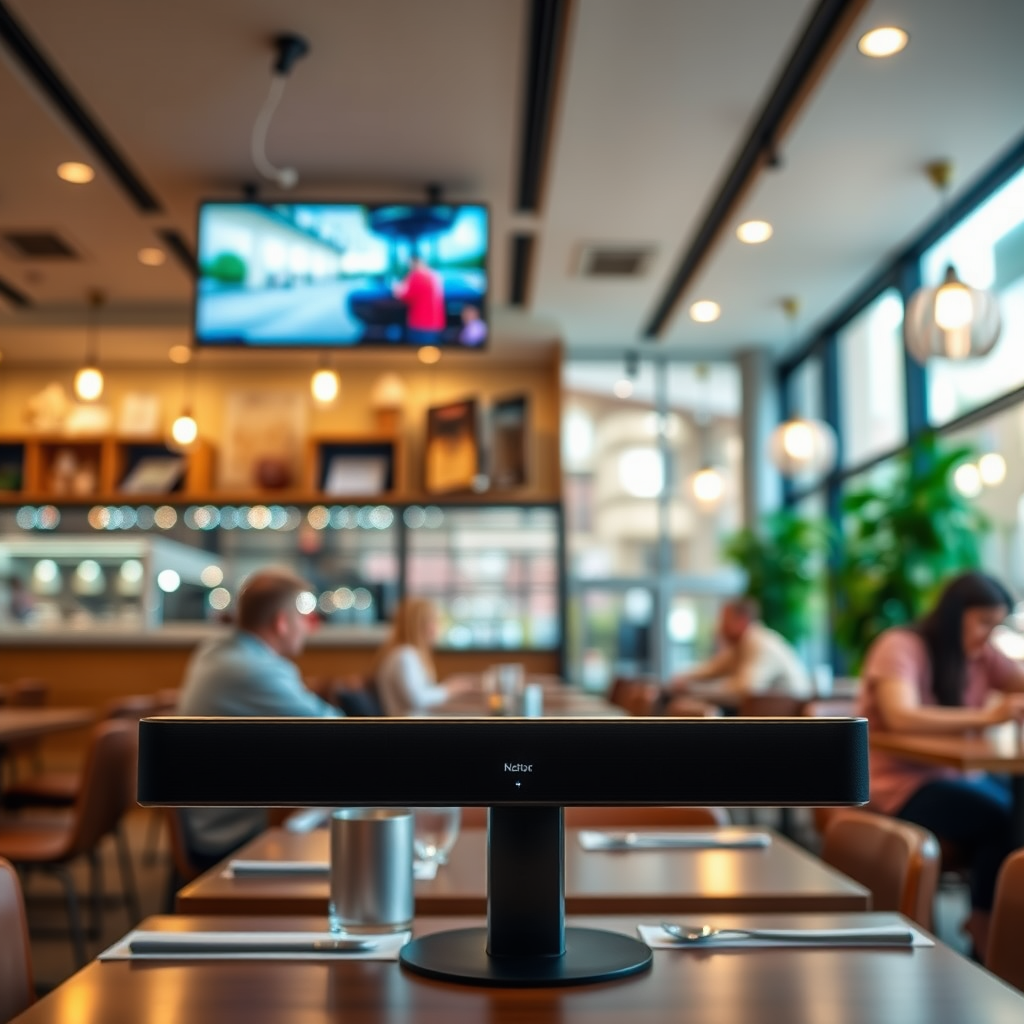
Before diving into the connection process, it’s essential to familiarize yourself with the different ports available on your Samsung soundbar. Typically, Samsung soundbars come equipped with the following ports:
– HDMI ARC (Audio Return Channel): This is often the best option for connecting your soundbar to your TV, allowing for high-quality audio and two-way communication between devices.
– Optical Digital Input: This port transmits audio signals in digital format, providing a good alternative should HDMI not be available.
– Auxiliary Input: This is a standard 3.5mm jack that can connect to various devices, though it doesn’t provide the same audio quality as HDMI or optical connections.
– USB Ports: Some soundbars include USB ports for firmware updates or playing audio files from USB drives.
Identifying the ports on your TV is equally crucial. Most modern TVs support HDMI and optical connections, while some older models may only have auxiliary inputs. Knowing which ports are available will help you choose the optimal connection method.
Preparing the Connection
Before establishing a connection, gather all the necessary cables based on your chosen method. For HDMI, you will need a high-speed HDMI cable; for optical connections, an optical audio cable is required; and for Bluetooth, ensure your soundbar is charged or plugged in.
Additionally, it’s advisable to power off both your TV and soundbar prior to beginning the connection process. This not only protects your devices but also ensures a smoother setup.
Connecting via HDMI ARC
To connect your Samsung soundbar via HDMI ARC, follow these steps:
1. Locate the HDMI ARC Port: Identify the HDMI ARC port on your TV. This is usually labeled as “ARC” next to one of the HDMI ports.
2. Connect the HDMI Cable: Plug one end of the HDMI cable into the HDMI ARC port on the TV and the other end into the HDMI OUT port on the soundbar.
3. Enable HDMI-CEC Settings: On your TV, navigate to the settings menu. Enable HDMI-CEC (Consumer Electronics Control) features, such as AnyNet+ for Samsung TVs, which allows for seamless control between your TV and soundbar.
This method not only transmits high-definition audio but also allows you to control the soundbar’s volume using your TV remote, enhancing user convenience.
Connecting via Optical Cable
For those who prefer using an optical connection, here’s how to do it:
1. Find the Optical Output: Locate the optical output on your TV. It is usually labeled as “Optical” or “Digital Audio Out.”
2. Connect the Optical Cable: Insert one end of the optical cable into the optical output of your TV and the other into the optical input on the soundbar.
3. Select Optical Input: Use the soundbar remote or onboard controls to select the optical input. You will also need to adjust the audio settings on your TV to ensure it outputs sound through the optical connection.
This connection method is highly effective, especially for those who prioritize audio quality and prefer a wired connection.
Connecting via Bluetooth
For a wireless connection, Bluetooth is a great option. Here’s how to connect your soundbar via Bluetooth:
1. Put the Soundbar in Pairing Mode: Press the Bluetooth button on your soundbar remote or control panel to initiate pairing mode. A blinking LED typically indicates that the soundbar is ready to connect.
2. Access Bluetooth Settings on Your TV: Go to the settings menu on your TV, navigate to the Bluetooth section, and ensure Bluetooth is enabled.
3. Select Your Soundbar: From the list of available devices, select your Samsung soundbar. Once connected, you should hear a confirmation sound from the soundbar.
This method offers the convenience of wireless connectivity, allowing for a clean setup without the hassle of cables, making it an attractive choice for many users.
Adjusting Audio Settings
Once your soundbar is connected, you’ll need to configure the audio output settings on your TV to ensure sound is directed to the soundbar. Here’s how to do that:
1. Access Audio Settings: Navigate to the audio settings in your TV’s menu. Look for options such as Speaker Settings or Audio Output.
2. Select External Speakers: Choose the option that allows you to output audio through external speakers. The exact wording may vary depending on your TV brand and model.
3. Explore Sound Modes on the Soundbar: Many Samsung soundbars come with various sound modes (like Standard, Surround, or Night mode). Experiment with these settings to find the one that best suits your listening preferences.
By fine-tuning these audio settings, you will enhance the overall sound experience, whether you’re watching movies, playing games, or enjoying music.
Troubleshooting Common Issues
If you encounter any issues during the connection process, here are some common troubleshooting steps:
– Check Cable Connections: Ensure that all cables are securely connected. Sometimes, a loose connection can interrupt audio transmission.
– Verify Input Selection: Double-check that the correct input source is selected on both the TV and the soundbar.
– Reset Devices: If your soundbar or TV fails to recognize each other, consider resetting both devices. Refer to the user manuals for specific reset instructions.
– Consult the User Manual: If problems persist, consult the user manual for both the TV and soundbar, as they may provide additional troubleshooting tips specific to your models.
These steps can help resolve most connectivity issues and ensure a smooth audio experience.
Top 7 Samsung Soundbars by Features (2024)
| # | Model | HDMI ARC | Optical Input | Bluetooth | Sound Modes | Rating |
|---|---|---|---|---|---|---|
| 1 | Samsung HW-Q950A | ✓ | ✓ | ✓ | 5 | ★★★★☆ |
| 2 | Samsung HW-S800B | ✓ | ✓ | ✓ | 4 | ★★★★☆ |
| 3 | Samsung HW-Q800A | ✓ | ✓ | ✓ | 5 | ★★★★☆ |
| 4 | Samsung HW-A650 | ✓ | ✓ | ✓ | 4 | ★★★☆☆ |
| 5 | Samsung HW-F450 | ✗ | ✓ | ✓ | 3 | ★★☆☆☆ |
| 6 | Samsung HW-A550 | ✓ | ✓ | ✓ | 4 | ★★★★☆ |
| 7 | Samsung HW-Q60T | ✓ | ✓ | ✗ | 3 | ★★★☆☆ |
Summarizing these steps will empower you to easily connect your Samsung soundbar to your TV and enjoy an immersive audio experience. Whether opting for HDMI, optical, or Bluetooth, each method offers unique advantages. After setting up, explore the sound settings to maximize your enjoyment, and don’t hesitate to refer back to this guide if you encounter any issues. Happy listening!
Frequently Asked Questions
How do I connect my Samsung soundbar to my TV using HDMI?
To connect your Samsung soundbar to your TV using HDMI, locate the HDMI ARC (Audio Return Channel) port on both devices. Use a high-speed HDMI cable to connect the HDMI OUT port on the soundbar to the HDMI ARC port on your TV. Make sure to enable HDMI-CEC in your TV settings for seamless control.
What is the best way to connect a Samsung soundbar to a TV without HDMI?
If your TV doesn’t have an HDMI ARC port, the best way to connect your Samsung soundbar is by using an optical audio cable. Simply plug one end of the optical cable into the TV’s optical output and the other into the soundbar’s optical input. Don’t forget to select the optical input on your soundbar to hear the TV audio.
Why is my Samsung soundbar not connecting to my TV?
If your Samsung soundbar is not connecting to your TV, check that all cables are securely connected and that you have selected the correct input on the soundbar. Also, ensure that your TV’s audio settings are configured to output sound through the soundbar. Restarting both devices can sometimes resolve connectivity issues.
Which Bluetooth method is best for connecting a Samsung soundbar to a TV?
Using Bluetooth is a convenient method to connect your Samsung soundbar to your TV, especially if you want to avoid wires. To do this, enable Bluetooth on your TV and soundbar, and then pair the devices by selecting the soundbar from the TV’s Bluetooth menu. This method is ideal for those who prefer wireless audio solutions.
How can I troubleshoot audio issues after connecting my Samsung soundbar to my TV?
If you’re experiencing audio issues after connecting your Samsung soundbar to your TV, first check that the soundbar is set to the correct audio input. Ensure that your TV’s volume is up and that the audio output settings are correctly configured to use the soundbar. If issues persist, try resetting both devices or updating their firmware to the latest version.
References
- https://www.pcmag.com/how-to/how-to-connect-a-soundbar-to-a-tv
https://www.pcmag.com/how-to/how-to-connect-a-soundbar-to-a-tv - Google Scholar Google Scholar
https://scholar.google.com/scholar?q=how+to+connect+a+samsung+soundbar+to+tv - Google Scholar Google Scholar
https://scholar.google.com/scholar?q=samsung+soundbar+connection+guide - Google Scholar Google Scholar
https://scholar.google.com/scholar?q=soundbar+to+tv+setup - how to connect a samsung soundbar to tv – Search results
https://en.wikipedia.org/wiki/Special:Search?search=how+to+connect+a+samsung+soundbar+to+tv - https://www.ncbi.nlm.nih.gov/search/research-articles/?term=how+to+connect+a+samsung+soundbar+to+tv
https://www.ncbi.nlm.nih.gov/search/research-articles/?term=how+to+connect+a+samsung+soundbar+to+tv
