
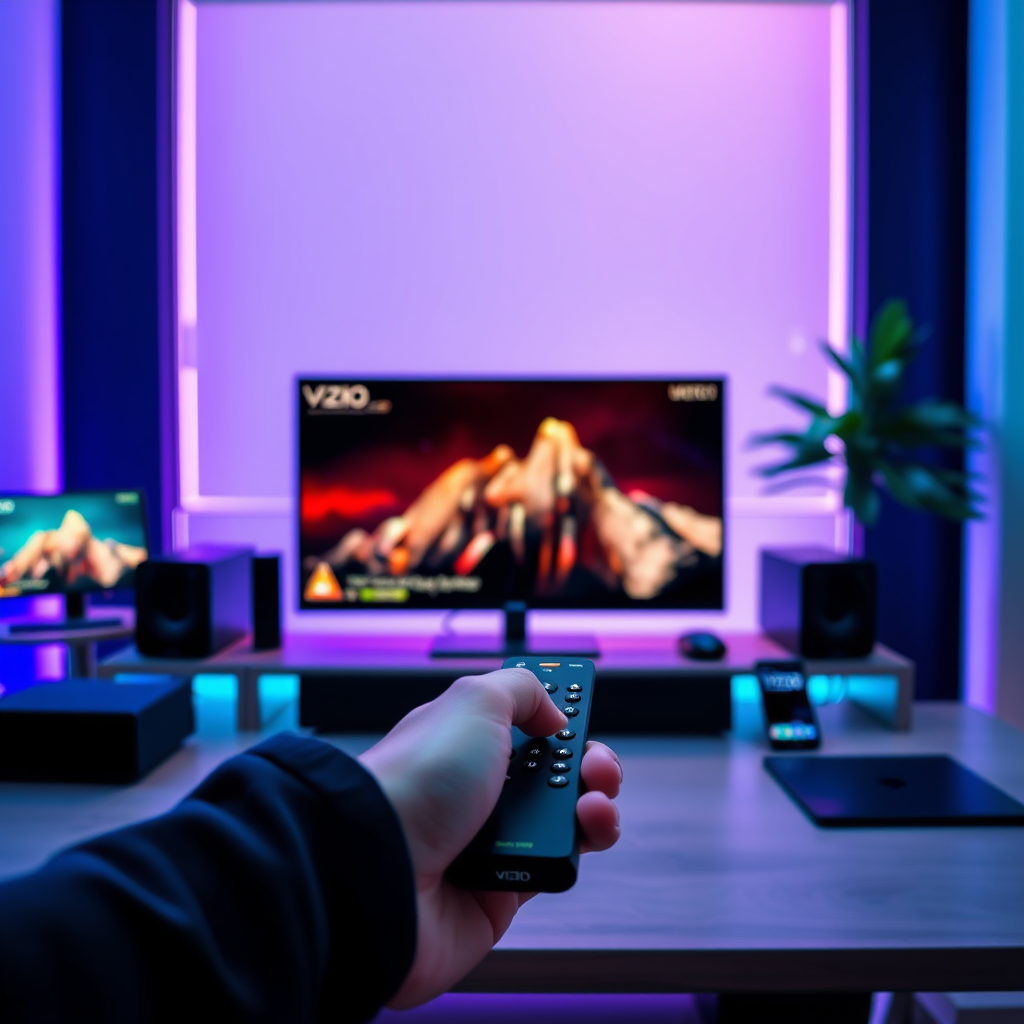

To pair your Vizio remote with your soundbar, start by ensuring both devices are powered on. Press and hold the “Pairing” button on your remote until the LED light blinks, then release it. Follow these simple steps to successfully connect your devices and enhance your audio experience. Establishing a seamless connection between your Vizio remote and soundbar not only simplifies your audio control but also enhances your overall viewing experience by providing richer sound quality.
Understanding Your Vizio Remote

Familiarizing yourself with your Vizio remote is crucial for effortless operation. The remote typically features a variety of buttons, including volume controls, input selection, and the all-important “Pairing” button. The “Pairing” button, often located near the top, is essential for connecting your remote to various Vizio devices. Understanding how each button functions will enhance your ability to navigate your audio settings efficiently.
Moreover, it’s important to check compatibility between your remote and soundbar model. Vizio produces a range of soundbars and remote controls, and not all remotes are designed to work with every soundbar. Refer to the user manual or Vizio’s official website to confirm that your remote is compatible with your specific soundbar model. This step will save you time and frustration during the pairing process.
Preparing Your Soundbar for Pairing
Before proceeding with the pairing process, ensure your soundbar is properly prepared. The first step is to power on your soundbar. Confirm that it is plugged into a power source and turned on, as a powered-down device cannot establish a connection with the remote.
Next, select the correct input source on your soundbar. Depending on your setup, you may need to choose the appropriate HDMI, optical, or auxiliary input that corresponds with the remote control pairing. This is essential, as an incorrect input selection can prevent the remote from communicating with the soundbar effectively.
Steps to Pair the Vizio Remote
Pairing your Vizio remote to the soundbar involves a few straightforward steps:
1. Press and hold the “Pairing” button: Locate the “Pairing” button on your remote and press it. Hold it until the LED light starts to blink. This indicates that the remote is entering pairing mode.
2. Wait for the LED light: Once you release the button, observe the LED light. If it blinks and then remains solid, this indicates a successful pairing with the soundbar. If the light continues to blink without turning solid, the pairing has failed, and you may need to repeat the process.
3. Test the remote: After pairing, test various functions such as volume control and input selection to ensure that the remote is fully operational with the soundbar.
Top Vizio Soundbar Models (2024)
| # | Model | Power Output | Connectivity | Price |
|---|---|---|---|---|
| 1 | Vizio SB36512-F6 | 36W | HDMI, Bluetooth, Optical | $299.99 |
| 2 | Vizio SB3621n-E8M | 40W | HDMI, Bluetooth | $179.99 |
| 3 | Vizio SB3831-D0 | 50W | HDMI, Optical | $249.99 |
| 4 | Vizio SB2920-C6 | 40W | Bluetooth, Auxiliary | $129.99 |
| 5 | Vizio SB4551-D5 | 90W | HDMI, Optical, Bluetooth | $399.99 |
| 6 | Vizio SB4051-C0 | 50W | HDMI, Bluetooth | $299.99 |
| 7 | Vizio SB36**1n-E8M | 20W | Bluetooth, Optical | $99.99 |
Troubleshooting Common Issues
Despite following the correct pairing procedure, issues may still arise. One of the most common problems is the remote not responding. If your Vizio remote is unresponsive, the first step is to check the battery levels. Replace the batteries if they are low or depleted. It is advisable to use high-quality batteries to ensure optimal performance.
Another frequent issue is when the soundbar does not connect to the remote. Ensure that there are no obstructions between the remote and the soundbar, as any physical barriers can disrupt the signal. Additionally, ensure that your soundbar is within the recommended range for remote operation, typically within 30 feet. If problems persist, consider resetting both the remote and the soundbar, and then attempt the pairing process again.
Additional Features of Your Vizio Remote
Beyond basic pairing, your Vizio remote offers a range of advanced features that can enhance your audio experience. Exploring these functionalities can provide additional control over your sound settings. For instance, many Vizio remotes allow for fine-tuning of volume levels, enabling you to adjust treble and bass settings for optimal sound quality.
Furthermore, the remote may include smart features that enable integration with other devices. This can include compatibility with smart TVs, streaming devices, and even voice control systems. Familiarizing yourself with these features can lead to a more unified and seamless multimedia experience, allowing you to control all your devices from a single point.
Maintaining Your Vizio Remote and Soundbar
Proper maintenance of both the Vizio remote and soundbar is essential for longevity and optimal performance. Regularly updating the firmware of your soundbar can significantly enhance its functionality. Manufacturers often release updates that improve performance, fix bugs, or add new features. Check Vizio’s official website periodically for any available updates and follow the instructions to install them.
Additionally, keeping your remote clean is vital. Dirt and dust can accumulate and interfere with the functionality of the buttons. Use a soft, dry cloth to wipe down the remote regularly. For more stubborn grime, a slightly damp cloth can be used, but ensure that no moisture enters the battery compartment. This simple maintenance can prolong the life of your remote and ensure reliable operation.
In summary, pairing your Vizio remote to your soundbar is a straightforward process that can greatly enhance your audio experience. By understanding your remote, preparing your soundbar, and following the pairing steps, you can enjoy seamless control over your sound settings. Should you encounter any issues, refer back to the troubleshooting tips provided. Additionally, exploring the advanced features and maintaining both devices will ensure you get the most out of your audio setup. Happy listening!
Frequently Asked Questions
How do I pair my Vizio remote to my soundbar?
To pair your Vizio remote to your soundbar, first ensure the soundbar is powered on. Then, press and hold the “Bluetooth” button on the soundbar until the Bluetooth indicator light starts flashing. Next, press and hold the “Pairing” button on your remote for a few seconds until you see the pairing confirmation on your TV screen. Follow any on-screen prompts to complete the pairing process.
Why won’t my Vizio remote connect to my soundbar?
If your Vizio remote won’t connect to your soundbar, check if the soundbar is in pairing mode and close enough to the remote. Additionally, ensure that the batteries in your remote are fresh and properly installed. If problems persist, try resetting the soundbar by unplugging it for a few seconds before attempting to pair again.
What is the best way to troubleshoot a Vizio remote not working with my soundbar?
To troubleshoot your Vizio remote not working with your soundbar, first, check for any obstructions between the remote and the soundbar. Make sure the soundbar is set to the correct input source. If it still doesn’t work, try replacing the remote batteries and resetting the soundbar to factory settings if necessary.
Which Vizio remotes are compatible with my soundbar?
Most Vizio remotes, especially those designed for Vizio TVs, are compatible with Vizio soundbars. However, specific models like the Vizio Smart TV remote or the Vizio Soundbar remote are designed to work seamlessly with soundbars. Check your soundbar’s user manual or Vizio’s official website for a list of compatible remote models.
How can I connect my Vizio soundbar to my TV without using the remote?
You can connect your Vizio soundbar to your TV without using the remote by utilizing the physical buttons on the soundbar itself. Look for the “Input” or “Source” button on the soundbar and cycle through the available inputs until you find the correct one for your TV. Additionally, you can use HDMI ARC or optical cables for a direct connection between the soundbar and the TV, enabling audio playback without needing the remote.
References
- https://www.vizio.com/en/support/faq/pairing-remote-to-sound-bar
https://www.vizio.com/en/support/faq/pairing-remote-to-sound-bar - https://www.vizio.com/en/support/faq/how-to-set-up-your-sound-bar
https://www.vizio.com/en/support/faq/how-to-set-up-your-sound-bar - https://www.hdmi.org/spec/
https://www.hdmi.org/spec/ - https://www.pcmag.com/how-to/how-to-connect-a-soundbar-to-your-tv
https://www.pcmag.com/how-to/how-to-connect-a-soundbar-to-your-tv - Google Scholar Google Scholar
https://scholar.google.com/scholar?q=how+to+pair+vizio+remote+to+soundbar - Google Scholar Google Scholar
https://scholar.google.com/scholar?q=Vizio+soundbar+remote+pairing - Google Scholar Google Scholar
https://scholar.google.com/scholar?q=connect+vizio+remote+to+soundbar - how to pair vizio remote to soundbar – Search results
https://en.wikipedia.org/wiki/Special:Search?search=how+to+pair+vizio+remote+to+soundbar - https://www.ncbi.nlm.nih.gov/search/research-articles/?term=how+to+pair+vizio+remote+to+soundbar
https://www.ncbi.nlm.nih.gov/search/research-articles/?term=how+to+pair+vizio+remote+to+soundbar
