


To connect Bytech earbuds, start by ensuring that your earbuds are charged and in pairing mode. This straightforward process typically involves holding down a button until a light indicator flashes. In this article, you’ll learn the step-by-step instructions for connecting your Bytech earbuds to various devices, troubleshooting tips, and some useful features to enhance your listening experience.
Getting Started: Charging Your Bytech Earbuds
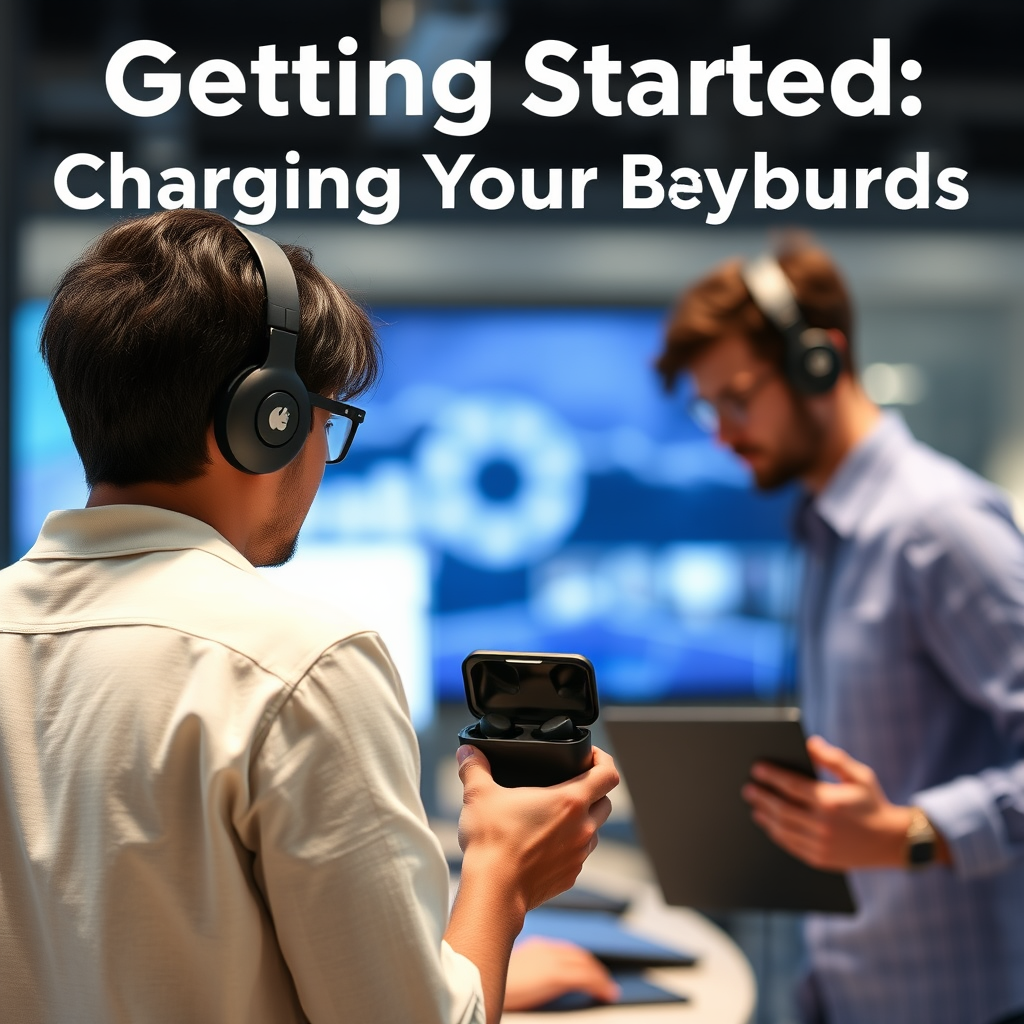
Before attempting to connect your Bytech earbuds, it is crucial to ensure they are fully charged. This not only guarantees a seamless connection process but also enhances your listening experience by providing optimal audio quality. Bytech earbuds typically come with a dedicated charging case or cable. When using the charging case, simply place the earbuds inside and close the lid; the case should indicate when they are charging, usually through LED lights. If you are using a cable, connect it to a power source and ensure the earbuds are plugged in properly. It’s advisable to charge them for at least 30 minutes before your first use or when the battery is low.
Activating Pairing Mode
To connect your Bytech earbuds to a device, you first need to activate pairing mode. Locate the power button on your earbuds; this is typically found on the side of one of the earbuds. Press and hold the button for a few seconds until the LED indicator flashes, signaling that the earbuds are in pairing mode. This flashing light is an essential indication that your earbuds are ready to connect to a Bluetooth device. If you see a solid light instead, it may indicate that the earbuds are turned on but not in pairing mode. Make sure to hold the button long enough to trigger the pairing state.
Connecting to Bluetooth Devices
Once your Bytech earbuds are in pairing mode, you can connect them to your Bluetooth-enabled devices such as smartphones, tablets, or laptops. Begin by opening the Bluetooth settings on your device. This is usually found in the settings menu under “Bluetooth” or “Connections.” Make sure Bluetooth is turned on. You should see a list of available devices; select your Bytech earbuds from this list. If prompted, confirm the pairing request. Once connected, a sound cue or a change in the LED indicator light may confirm the successful connection.
Top Features of Bytech Earbuds (2023)
| # | Feature | Specification | Battery Life | Water Resistance |
|---|---|---|---|---|
| 1 | Bluetooth 5.0 | Yes | 6 Hours | IPX4 |
| 2 | Noise Cancellation | Yes | 28 Hours (with case) | IPX5 |
| 3 | Touch Controls | Yes | 4 Hours | IPX6 |
| 4 | Voice Assistant Support | Yes | 5 Hours | IPX3 |
| 5 | Compact Design | Yes | 6 Hours | IPX4 |
| 6 | Quick Charge | Yes | 1 Hour (15 mins charge) | IPX5 |
| 7 | Multiple Pairing | Yes | 6 Hours | IPX4 |
Troubleshooting Connection Issues
If your Bytech earbuds do not appear in the Bluetooth settings, there are several troubleshooting steps you can take. First, ensure that the earbuds are indeed in pairing mode; the LED light should be flashing. If they are not, repeat the process of holding the power button. Additionally, ensure that your device’s Bluetooth is turned on. If the earbuds still do not show up, try moving them closer to the device. Sometimes, distance can impair the signal. Restarting both the earbuds and your device can also resolve persistent connection issues. If you continue to experience problems, consider resetting the earbuds to factory settings, as outlined in the user manual.
Utilizing Additional Features
To enhance your listening experience, familiarize yourself with the additional features available on your Bytech earbuds. Many models come equipped with touch controls that allow you to play or pause music, skip tracks, and answer calls with a simple tap. Moreover, voice assistant integration can elevate your experience by enabling hands-free operation; you can engage with digital assistants such as Siri or Google Assistant effortlessly. Consult the user manual for detailed instructions on utilizing these advanced functionalities and maximize your earbuds’ potential.
Maintaining Your Bytech Earbuds
Proper maintenance of your Bytech earbuds is essential to ensure longevity and optimal performance. Regularly clean the earbuds using a soft, dry cloth to remove any dirt or earwax that may accumulate. This not only helps maintain sound quality but also ensures hygiene. Store your earbuds in their charging case when not in use to protect them from physical damage and extend battery life. Avoid exposing the earbuds to extreme temperatures or moisture, as this can damage the electronic components.
Summarizing the connection process for Bytech earbuds, remember to charge them, activate pairing mode, and select them in your device’s Bluetooth settings. If you encounter issues, consult the troubleshooting tips provided. For more detailed information about features and maintenance, refer to the user manual or visit the Bytech website. Enjoy your music!
Frequently Asked Questions
How do I pair my Bytech earbuds with my smartphone?
To pair your Bytech earbuds with your smartphone, first ensure that the earbuds are charged. Then, press and hold the power button on the earbuds until you see a blinking LED light, indicating they’re in pairing mode. On your smartphone, navigate to the Bluetooth settings, search for available devices, and select your Bytech earbuds to complete the pairing process.
What should I do if my Bytech earbuds won’t connect to my device?
If your Bytech earbuds won’t connect, start by ensuring they are charged and in pairing mode. If they still won’t connect, try resetting the earbuds by turning them off and then holding the power button for about 10 seconds. Additionally, check your device’s Bluetooth settings to ensure it’s discoverable and not connected to another device.
Why are my Bytech earbuds disconnecting frequently?
Frequent disconnection of Bytech earbuds can occur due to several reasons, such as low battery, interference from other Bluetooth devices, or being out of range. Ensure that your earbuds are fully charged and within the appropriate range of your device. If the problem persists, try resetting the earbuds or updating the firmware if applicable.
Which devices are compatible with Bytech earbuds?
Bytech earbuds are generally compatible with most Bluetooth-enabled devices, including smartphones, tablets, and laptops. For the best experience, ensure that your device supports the Bluetooth version required by your earbuds, typically Bluetooth 4.0 or higher. Always check the manufacturer’s specifications for any device compatibility issues.
What is the best way to maintain my Bytech earbuds for optimal performance?
To maintain your Bytech earbuds, regularly clean them with a soft, dry cloth to remove dirt and moisture. Store them in their case when not in use to protect them from damage, and avoid exposing them to extreme temperatures. Additionally, keep the firmware updated if possible, and charge the earbuds regularly to ensure they perform at their best.
References
- https://www.lifewire.com/how-to-connect-bluetooth-earbuds-4174526
https://www.lifewire.com/how-to-connect-bluetooth-earbuds-4174526 - https://www.pcmag.com/how-to/how-to-pair-bluetooth-earbuds
https://www.pcmag.com/how-to/how-to-pair-bluetooth-earbuds - https://scholar.google.com/scholar?q=how+to+connect+bluetooth+earbuds Google Scholar
https://scholar.google.com/scholar?q=how+to+connect+bluetooth+earbuds - https://scholar.google.com/scholar?q=connecting+wireless+earbuds Google Scholar
https://scholar.google.com/scholar?q=connecting+wireless+earbuds - Google Scholar Google Scholar
https://scholar.google.com/scholar?q=Bluetooth+earbuds+pairing+guide - https://www.verywellhealth.com/how-to-connect-bluetooth-earbuds-5194111
https://www.verywellhealth.com/how-to-connect-bluetooth-earbuds-5194111 - Google Scholar Google Scholar
https://scholar.google.com/scholar?q=how+to+connect+bytech+earbuds - how to connect bytech earbuds – Search results
https://en.wikipedia.org/wiki/Special:Search?search=how+to+connect+bytech+earbuds - https://www.ncbi.nlm.nih.gov/search/research-articles/?term=how+to+connect+bytech+earbuds
https://www.ncbi.nlm.nih.gov/search/research-articles/?term=how+to+connect+bytech+earbuds

[…] do it in a deliberate order. First, check both earbuds are seated correctly (if your model uses a charging case). Next, power them on—some Lenovo ThinkPlus models auto-wake when removed from the case; others […]
[…] reduction step is to power off the earbuds right away and keep them physically separated from the charging case. This matters because moisture plus electronics can cause shorts and corrosion at the charging […]
[…] Indy Evo earbuds by placing them in the charging case and holding the case button (or using the earbuds’ touch controls) until the LED flashes—then […]
[…] extent only when your exact model has an official IP rating for the earbuds (and sometimes the charging case). If you want a practical answer—“can I wear them in workouts?”—the quickest route is to […]
[…] Charging case or earbuds fail to hold a stable […]