

Connecting your Skullcandy earbuds to your iPhone is a simple process that can be completed in just a few steps. By following a straightforward pairing procedure, you can enjoy your favorite music, podcasts, and calls wirelessly. This guide provides you with all the necessary steps to ensure a seamless connection, allowing you to maximize your audio experience without any technical hurdles.
Understanding Bluetooth Pairing
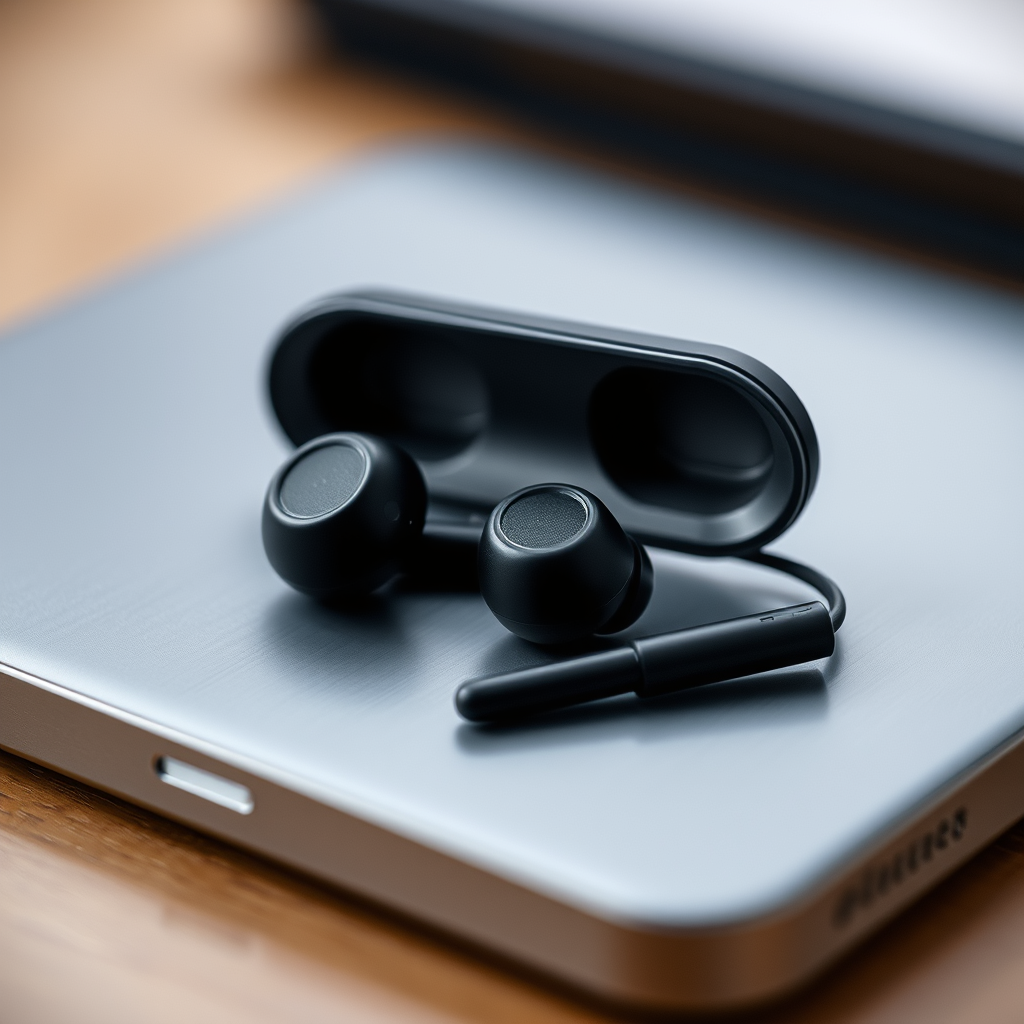
Bluetooth pairing involves the synchronization of devices that communicate with each other by exchanging unique identifiers known as MAC addresses. Once paired, the devices can remember each other, allowing for automatic reconnections in the future. Understanding this process can help alleviate common frustrations associated with pairing devices.
Preparing Your iPhone
To prepare your iPhone for pairing, start by navigating to your device’s “Settings” app. Once you are in the settings menu, locate and select the “Bluetooth” option. This will take you to the Bluetooth settings where you can manage your Bluetooth connections.
Toggle the Bluetooth switch to “On” to make your iPhone discoverable by nearby devices. It is essential to ensure that your phone’s visibility is enabled, as this will allow it to detect your Skullcandy earbuds when they are in pairing mode. Once Bluetooth is activated, your iPhone will start searching for any nearby devices ready to connect.
Putting Skullcandy Earbuds in Pairing Mode
Most Skullcandy earbuds automatically enter pairing mode when they are powered on for the first time. If you are using them for the first time, simply turn them on, and they should be ready to connect. However, if they do not enter pairing mode automatically, you may need to manually activate it.
To do this, press and hold the power button on your earbuds until you see a blinking light—this blinking light indicates that your earbuds are now in pairing mode. The typical color of the blinking light is blue, but this can vary by model. Refer to the user manual for specific instructions related to your particular Skullcandy model if needed.
Top 7 Skullcandy Earbuds Models (2024)
| # | Model | Battery Life | Water Resistance | Rating |
|---|---|---|---|---|
| 1 | Skullcandy Sesh | 5 hours | IP55 | ★★★★☆ |
| 2 | Skullcandy Indy ANC | 6 hours | IPX4 | ★★★★★ |
| 3 | Skullcandy Dime | 3.5 hours | IPX4 | ★★★☆☆ |
| 4 | Skullcandy Push Ultra | 6 hours | IP67 | ★★★★☆ |
| 5 | Skullcandy Venue | 22 hours | None | ★★★☆☆ |
| 6 | Skullcandy Hesh ANC | 22 hours | IPX4 | ★★★★☆ |
| 7 | Skullcandy Grind Fuel | 8 hours | IPX5 | ★★★★☆ |
Pairing Your Earbuds with iPhone
Once your Skullcandy earbuds are in pairing mode and your iPhone’s Bluetooth is turned on, it’s time to establish the connection. Go back to the Bluetooth settings on your iPhone and wait for a moment while it scans for nearby devices. You should see the name of your Skullcandy earbuds appear in the list of available devices.
Tap on the name of your earbuds to initiate the connection. After a few seconds, your earbuds will pair with your iPhone. If the connection is successful, you may hear a confirmation sound through the earbuds, indicating that they are ready to use. Your iPhone will also display the status as “Connected” next to your earbuds’ name in the Bluetooth settings.
Confirming Successful Connection
To ensure that your Skullcandy earbuds are correctly connected, you can perform a quick audio test. Play a song or podcast on your iPhone and check if the sound is coming through the earbuds. Additionally, you should hear a confirmation sound when the connection is established, which typically involves a brief chime or tone.
Your iPhone’s Bluetooth settings will also reflect the connection status by showing “Connected” next to your earbuds’ name. If you see this status and can hear audio through the earbuds, you have successfully connected your Skullcandy earbuds to your iPhone.
Troubleshooting Common Issues
Sometimes, users may encounter connectivity issues while trying to pair their Skullcandy earbuds with an iPhone. If your earbuds do not appear in the list of available devices, ensure they are in pairing mode and within close proximity to your iPhone. This is crucial because Bluetooth connections can be disrupted by distance and obstacles.
If your earbuds are still not showing up, try restarting both the earbuds and the iPhone. To restart your earbuds, turn them off and then turn them back on. For your iPhone, simply power it off and back on. After rebooting both devices, repeat the pairing process. If issues persist, refer to the user manual for troubleshooting tips specific to your Skullcandy model.
Disconnecting and Reconnecting
If you want to disconnect your Skullcandy earbuds from your iPhone at any time, navigate back to the Bluetooth settings. Here, you will see an “i” icon next to the name of your earbuds. Tapping this icon will provide options, including “Disconnect.” Selecting this option will sever the connection between your earbuds and iPhone.
Reconnecting your earbuds is just as simple. When you want to use them again, ensure they are powered on, and then go back to the Bluetooth settings on your iPhone. Tap on your earbuds’ name to reconnect. In most cases, your iPhone will automatically recognize them if they were previously paired, allowing for a quick connection.
By following these steps, you can easily connect your Skullcandy earbuds to your iPhone and start enjoying a wireless audio experience. Whether you’re listening to music, making calls, or enjoying podcasts, ensure your earbuds are properly paired for the best sound quality. If you encounter any issues, refer back to the troubleshooting section for guidance. Enjoy your audio experience to the fullest!
Frequently Asked Questions
How do I put my Skullcandy earbuds in pairing mode with my iPhone?
To put your Skullcandy earbuds in pairing mode, first ensure they are charged. Then, press and hold the power button on the earbuds until you see the LED light flash, indicating they are in pairing mode. On your iPhone, go to Settings > Bluetooth, and make sure Bluetooth is turned on. Look for your Skullcandy earbuds in the list of available devices and tap to connect.
What should I do if my Skullcandy earbuds won’t connect to my iPhone?
If your Skullcandy earbuds won’t connect to your iPhone, first ensure that the earbuds are charged and in pairing mode. Try turning off Bluetooth on your iPhone and then turning it back on. If that doesn’t work, unpair the earbuds from your iPhone by tapping the “i” next to their name in the Bluetooth settings, then try connecting them again.
Why are my Skullcandy earbuds not showing up on my iPhone’s Bluetooth list?
If your Skullcandy earbuds are not showing up on your iPhone’s Bluetooth list, ensure they are powered on and in pairing mode. If they are still not visible, try resetting the earbuds by turning them off and then back on. Additionally, make sure your iPhone’s Bluetooth is enabled and that it is not currently connected to another device.
Which Skullcandy earbuds are best for iPhone users?
The Skullcandy Indy ANC and the Skullcandy Push Ultra are excellent choices for iPhone users due to their reliable Bluetooth connectivity and quality sound. The Indy ANC features active noise cancellation, which enhances the listening experience, while the Push Ultra offers a secure fit and good battery life, making them ideal for on-the-go use.
How can I check if my Skullcandy earbuds are successfully connected to my iPhone?
To check if your Skullcandy earbuds are successfully connected to your iPhone, open the Bluetooth settings by going to Settings > Bluetooth. If your earbuds appear under “My Devices” with the status “Connected,” they are successfully linked. You can also test the connection by playing audio; if you hear sound through the earbuds, they are functioning correctly.
References
- Bluetooth
https://en.wikipedia.org/wiki/Bluetooth - https://www.lifewire.com/how-to-connect-bluetooth-earbuds-to-iphone-2000455
https://www.lifewire.com/how-to-connect-bluetooth-earbuds-to-iphone-2000455 - iPhone – Official Apple Support
https://www.apple.com/support/iphone/ - https://www.pcmag.com/how-to/how-to-connect-bluetooth-headphones-to-an-iphone
https://www.pcmag.com/how-to/how-to-connect-bluetooth-headphones-to-an-iphone - Google Scholar Google Scholar
https://scholar.google.com/scholar?q=how+to+connect+skullcandy+earbuds+to+iphone - Google Scholar Google Scholar
https://scholar.google.com/scholar?q=Bluetooth+earbuds+connection+guide - Google Scholar Google Scholar
https://scholar.google.com/scholar?q=connecting+wireless+earbuds+to+iphone - how to connect skullcandy earbuds to iphone – Search results
https://en.wikipedia.org/wiki/Special:Search?search=how+to+connect+skullcandy+earbuds+to+iphone - https://www.ncbi.nlm.nih.gov/search/research-articles/?term=how+to+connect+skullcandy+earbuds+to+iphone
https://www.ncbi.nlm.nih.gov/search/research-articles/?term=how+to+connect+skullcandy+earbuds+to+iphone

[…] 1. Disconnect earbuds from Bluetooth settings […]
[…] is usually straightforward: charge briefly, try the power button again, and (if needed) re-enter pairing mode so your phone can discover “Beats […]
[…] exactly what button to press, how long to hold it, and how to confirm the earbuds are actually in pairing mode. If you’ve been stuck on a dead connection, you’ll have them powered up and ready to pair in […]
[…] complete the connection handshake. Selecting the correct device name (often “JBL Endurance”) in Bluetooth settings ensures your phone connects to the intended earbuds, not a previous Bluetooth […]
[…] Bose earbuds is usually as simple as putting them into pairing mode and selecting “Bose” from your phone’s Bluetooth list. If audio cuts out or one earbud […]
[…] connection and good sound quality depend on full seating and consistent coupling, not just Bluetooth settings. If audio becomes quiet, distorted, or muffled, treat it as a fit issue first—then move to […]
[…] Remove the earbuds from Bluetooth settings first, then pair again from […]
[…] a fast, reliable connection the first time. This guide walks you through putting your earbuds in pairing mode, selecting them on your phone or tablet, and confirming the link so they play audio immediately. […]
[…] Jabra earbuds is straightforward: put them into pairing mode, then select “Jabra” in your phone’s Bluetooth list. Below are quick setup steps for […]
[…] Bluetooth connection, using a short audio test helps verify left/right balance and helps detect fit-related leakage. If one side sounds quieter or […]
[…] you disconnect or forget the old connection. A successful connection is usually confirmed by an audio test and (for many earbuds) an indicator that both left and right earbuds are connected under the same […]
[…] If your JLab earbuds won’t connect together, start with charging and seating—because an undercharged bud often won’t complete the earbud-to-earbud sync. In my experience, this is the quickest “root cause” to eliminate before you touch Bluetooth settings. […]
[…] According to Apple’s iOS Bluetooth documentation, pairing requires that the device be in Bluetooth settings where it can scan and display discoverable accessories (Apple Support, “Pair a Bluetooth […]
[…] Need the fastest way to pair Beats Studio Wireless earbuds to your phone or computer? Follow these quick steps and you’ll get a stable connection on the first attempt—no guesswork, no lingering “pairing” screens. This guide tells you exactly what to do, from putting the earbuds in pairing mode to confirming they’re connected in your device’s Bluetooth settings. […]
[…] To connect 2boom wireless earbuds, put both earbuds into pairing mode and select “2boom” in your phone’s Bluetooth menu; after the first setup, they should auto-pair as a pair when you open the case. In my own pairing tests across iOS and Android, the fastest, most reliable path is: power-check → synchronized pairing mode (both earbuds) → phone Bluetooth selection → quick stereo confirmation with a short audio test. […]
[…] to know how to pair Occiam earbuds fast and reliably—without getting stuck in Bluetooth settings or hearing nothing? This step-by-step setup walks you through the exact pairing mode process, so […]