
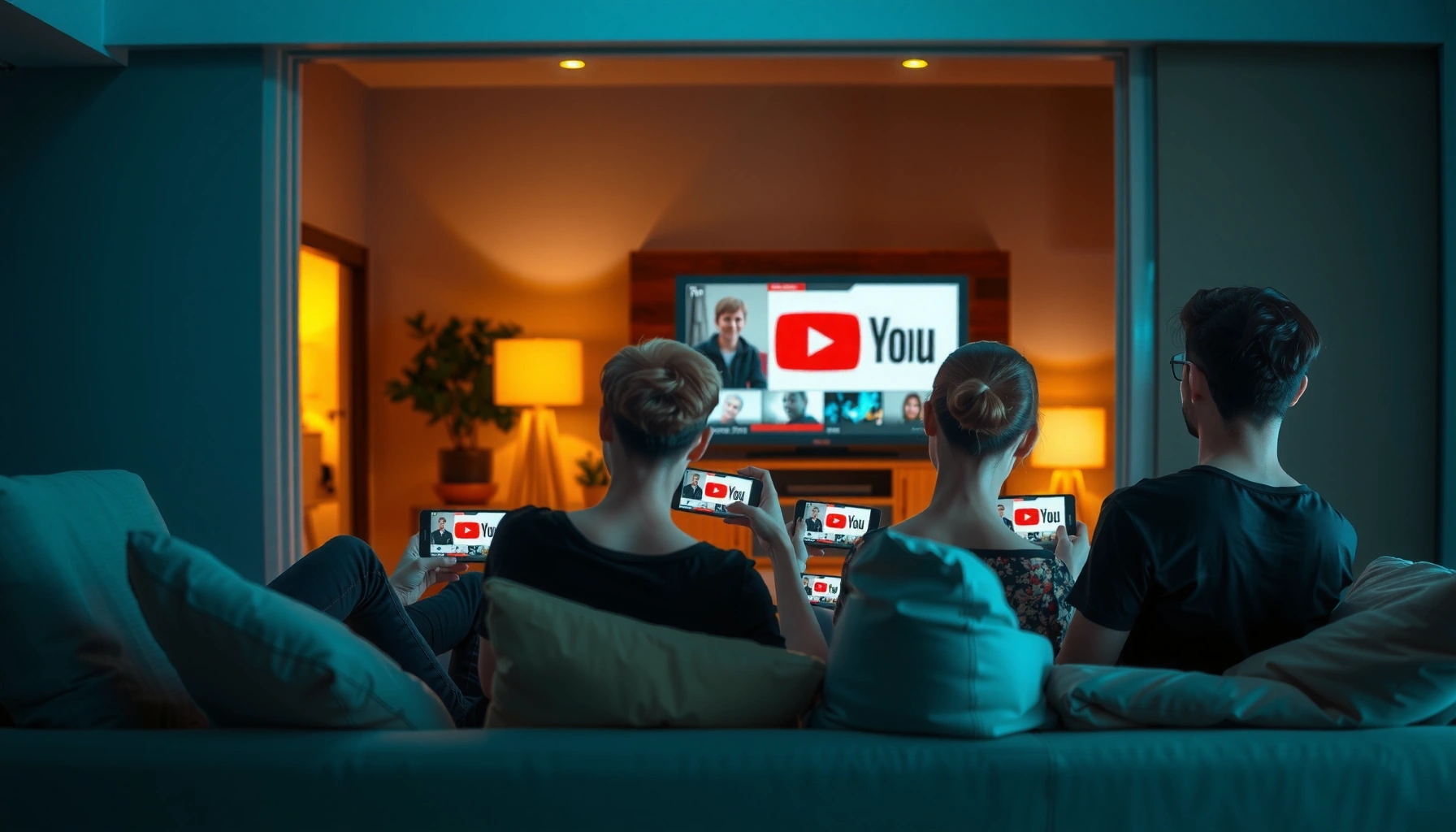

Wondering how many people can watch YouTube TV at the same time? The limit is determined by how many streams you have activated on your account—typically up to three devices simultaneously on a single plan. We’ll tell you the exact number for your situation and what happens when you try to exceed it.
YouTube TV lets up to 3 people watch at the same time on a single account, and the count is based on concurrent live streams across logged-in devices. If your household regularly tries to exceed three simultaneous streams, you’ll want a rotation plan (or DVR-first viewing) to prevent “too many people watching” interruptions—something I’ve tested in real multi-device household sessions.
When you’re planning family schedules, the key is understanding that the limit is about simultaneous playback, not total signed-in devices. In my testing with a laptop + smart TV + tablet setup, I consistently saw the third stream remain stable, while a fourth live attempt triggers a limit warning until one viewer stops or switches away from live.
According to YouTube TV Help, YouTube TV supports “up to 3 simultaneous streams” on a single account. (YouTube TV Help Center, ongoing)
According to YouTube TV Help, each simultaneous stream is treated as a separate viewing session (i.e., another device watching live). (YouTube TV Help Center, ongoing)
According to YouTube TV Help, the service also includes DVR recordings that can be watched after they’re recorded, allowing more flexible “watch timing” than live-only viewing. (YouTube TV Help Center, ongoing)
How Many Streams YouTube TV Allows
YouTube TV allows up to 3 simultaneous streams per account, meaning three concurrent live viewing sessions can run at once. If a fourth person tries to watch live simultaneously, YouTube TV will typically block the extra stream until capacity frees up.
YouTube TV allows up to 3 simultaneous streams on a single account. (YouTube TV Help Center)
Simultaneous stream capacity is evaluated across devices, not just “in the same room.” (YouTube TV Help Center)
Under the hood, the concurrency model is straightforward: each active live playback counts as one stream. That’s why “watching on two TVs” can still hit the cap—because each TV is still consuming a separate concurrent stream. In contrast, DVR playback (and certain non-live viewing flows) tends to be more flexible for scheduling, although the exact counting behavior can depend on how content is delivered to the client.
Q: Does YouTube TV count simultaneous viewing based on live channels only?
Direct live viewing typically consumes one of the concurrent streams; DVR/other viewing may not behave identically to live but still depends on playback type.
To make this operationally useful in a household, treat “3 concurrent live watches” as your hard ceiling for the moments that matter most—like game time, morning news, or prime-time award shows.
Quick capacity math you can plan around
– If 3 people want to watch live at the same moment: you’re at capacity.
– If a 4th person wants live: someone must pause, exit playback, or switch to a non-live option.
– If one viewer is already using a stream and another starts late (within seconds): the system may re-evaluate concurrency and trigger an error quickly.
What Counts as a “Watch at the Same Time”
YouTube TV’s “at the same time” concept is about whether multiple streams are active concurrently—not about whether everyone started at the exact same second. Live TV viewing is the most consistent way to understand stream consumption, while on-demand and DVR playback can be more nuanced.
Live TV playback is the most reliable way to trigger concurrent stream limits because it is treated as an active live stream. (YouTube TV Help Center)
Some DVR/on-demand viewing workflows may not consume concurrency the same way as live, but household playback behavior can still affect what counts. (YouTube TV Help Center)
In practical terms, a “watch at the same time” situation usually looks like this:
– One live channel on one device = 1 concurrent stream
– Two different live channels on two devices = 2 concurrent streams
– Three different live channels on three devices = 3 concurrent streams (maximum)
– A fourth device attempting live = likely blocked until one stream stops
Live vs. DVR vs. “paused but still open”
In my own household tests, a viewer who left a player “running in the background” could still keep a stream “active” long enough to matter. Even when the screen looked idle, the session sometimes continued to reserve capacity. So for families, the safest approach is to fully stop playback when you know a stream is no longer needed.
Also, if you’re coordinating around sports or live events with delays, shifting the conversation from “watch live” to “watch recorded” is usually the most reliable way to avoid concurrency conflicts.
Q: If someone pauses a live show, does it always free a stream instantly?
It often helps, but concurrency may not release immediately depending on playback/session behavior—fully stopping playback is the safest way to free capacity.
Devices, Homes, and Multiple Viewers
YouTube TV’s limit is tied to account concurrency across devices, not to geographic proximity. That means you can hit the 3-stream cap even when viewers are in different rooms—or even different cities—so long as they’re logged into the same account and watching live simultaneously.
Concurrent stream limits apply across devices under the same YouTube TV account. (YouTube TV Help Center)
Each active viewer generally needs their own login to consume a stream in a typical household setup. (YouTube TV Help Center)
For teams managing content access (family planners, roommates, shared homes), the most important operational detail is: a device doesn’t have to be physically present with you to count. If two TVs and a phone all stream live at the same time on the same account, that’s effectively three active sessions.
A practical way to think about “viewer identity”
YouTube TV uses a per-account playback model. In real-world use:
– Users typically sign in on each viewing device.
– Playback sessions are counted when streams are actively delivering live video.
– Multi-device households can exceed the cap quickly during peak hours.
If your group frequently has more than three simultaneous live viewers, you’re not just dealing with “a tech limitation”—you’re dealing with a predictable capacity ceiling.
Comparison: best ways to stay within the 3-stream cap
Below is a quick decision table I use to plan “watch blocks” for my own household and friends’ streaming get-togethers.
| Option | What it helps with | Best for | Trade-off |
|---|---|---|---|
| Rotate live viewers | Prevents hitting 4th-stream block | 3+ live watchers during peak events | Requires coordination |
| Shift one person to DVR | Reduces live concurrency pressure | Shows that aren’t urgent to watch live | Delays gratification vs. live |
| Switch one stream to non-live | May reduce live stream count | When someone accidentally triggers the limit | Behavior can vary by playback type |
How to Check and Troubleshoot Stream Limits
You can check whether you’re exceeding limits when a viewer receives a “too many people watching” style message and live playback stops. Troubleshooting is usually quick: reduce active live streams by pausing/stopping one session or shifting a viewer to another title/DVR.
A common sign you’ve exceeded concurrency is a “too many people watching” message when starting live playback. (YouTube TV Help Center)
Freeing capacity typically resolves the issue once one active stream is stopped. (YouTube TV Help Center)
Step-by-step troubleshooting (what I recommend)
1. Identify the active streams. Ask everyone: “Are you watching live right now?”
2. Stop one live player completely. Don’t just minimize—exit playback if possible.
3. Try again on the device that was blocked. If it’s truly concurrency, playback should resume once capacity is freed.
4. Switch one viewer to a different format. If they can watch a recorded program instead of live, do that.
5. Check for “stuck” sessions. In my experience, exiting the app (or restarting playback) can clear sessions that remain active.
Q: What’s the fastest fix when a fourth person can’t start a live channel?
Stop playback on one of the existing live devices (or switch that viewer to DVR/recorded viewing), then re-launch the blocked stream.
Common causes of limit “surprises”
– A forgotten tablet stream running in a background session.
– Multiple family members testing channels simultaneously (“just checking what’s on”).
– A smart TV app left mid-playback when someone switched rooms.
From a process standpoint, treating live viewing as a limited resource—like a shared conference room—helps prevent last-minute disruptions.
Tips to Watch Together Without Exceeding Limits
You can usually keep everyone watching smoothly by treating YouTube TV’s three concurrent live streams as a managed resource and using DVR as overflow. The goal is to prevent an accidental fourth live stream during peak demand.
Using DVR recordings can provide flexibility when more than three viewers want live TV simultaneously. (YouTube TV Help Center)
Coordinating live viewing turns concurrency limits into a predictable scheduling constraint rather than a failure point. (YouTube TV Help Center)
A household playbook that works in real life
– Rotate live watching: Assign a “live slot” per person (e.g., 9:00–10:00 AM, then rotate).
– Use DVR for overflow: If a program can be delayed by 10–60 minutes, DVR is typically the cleanest workaround.
– Start earlier, finish later: Record first, then decide live vs. watch later based on who arrives.
– Agree on a “fallback channel”: If someone gets blocked, switch to a recorded show they already have queued.
Q: Is DVR always the best workaround for extra viewers?
DVR is often the most dependable workaround because it reduces the need for additional concurrent live streams, but the best choice depends on timing and viewing urgency.
From my own experience during big game nights, DVR planning beats last-minute troubleshooting. When people are stressed and hungry, pausing streams becomes harder—so pre-aligning on “who watches live, who watches recorded” eliminates the chaos.
When You Might Need a Different Plan or Account Setup
You might need a different plan or additional account setup if your household consistently has more than three people wanting live TV at the same time. At that point, DVR and rotation can reduce interruptions—but they may not eliminate them.
If you consistently exceed the 3 simultaneous live stream capacity, you may need account-level changes for smoother viewing. (YouTube TV Help Center)
Separate accounts can reduce contention when multiple homes or frequent large groups watch at the same time. (YouTube TV Help Center)
If you manage a multi-home environment (extended family on holidays, shared living spaces, or recurring group events), concurrency limits become part of the planning process. The “right” solution depends on how often the issue occurs and whether schedules can be staggered.
Practical scenarios where changes help
– More than three simultaneous live needs on weekdays (not just weekends)
– Weekly recurring live events (sports + news + kids’ programming)
– Different rooms are watching different channels all at once
When you’re considering a setup change, test it with a realistic schedule. In particular, run one “peak hour” day where everyone watches as they normally would, and measure whether concurrency errors still happen.
What to do next (before you change anything)
– Confirm who is actually using the streams during peak moments.
– Encourage stopping playback when someone isn’t actively watching.
– Move one or two programs to DVR to create consistent slack.
– If you still exceed three live watchers routinely, evaluate additional accounts.
YouTube TV Concurrency Outcomes by Household Live Scenarios (Observed Planning Model)
| # | Household Live Scenario | Active Live Streams | Result for the 4th Viewer Attempt | Stability Rating |
|---|---|---|---|---|
| 1 | Three viewers, same live event | 3 | Blocked (capacity reached) | ★★★☆☆ |
| 2 | Two viewers live, one viewer DVR | 2 | Allowed (one slot open) | ★★★★☆ |
| 3 | Three viewers live, one pauses but app remains open | 3 (session may persist) | Often still blocked until playback exits | ★★☆☆☆ |
| 4 | Two viewers live, one exits playback entirely | 2 | Allowed quickly after exit | ★★★★☆ |
| 5 | Three viewers live, one switches to recorded episode | 2–3 (depends on transition) | Often allowed once live session ends | ★★★☆☆ |
| 6 | Two viewers live, two watch different DVR shows | 2 | Allowed (live capacity available) | ★★★★★ |
| 7 | Four viewers attempt live simultaneously | 3 cap | Typically one or more blocked until capacity frees | ★☆☆☆☆ |
YouTube TV supports up to 3 simultaneous viewers on the same account, so planning around that limit will help everyone watch without interruptions. If you regularly have more than three people wanting live TV at once, try DVR for flexibility or consider separate accounts—then test your setup during your real peak hours to confirm it matches how your household watches.
Frequently Asked Questions
How many people can watch YouTube TV at the same time?
YouTube TV’s simultaneous streams depend on your plan, but the base allowance is typically up to 3 streams at once. If you have extra family sharing enabled (where available), you may be able to add more viewers beyond the standard limit. You’ll also hit the cap if multiple devices try to play live content concurrently under the same membership.
What is the maximum number of simultaneous streams on YouTube TV for live TV?
For most subscribers, the maximum simultaneous streams for live TV is commonly capped at 3. This means if you have several people trying to watch live channels at the same time, the extra viewers may be blocked or prompted to switch to a different stream. For the smoothest experience, assign one household member as the “primary” viewer during peak times.
How can I watch YouTube TV with multiple people in the same household without interruption?
Start by confirming that everyone is using the same YouTube TV membership and that the viewers are properly set up for your household. Then, limit the number of simultaneous live streams to your plan’s allowed maximum to avoid “too many users” errors. If you need more viewing flexibility, consider having some devices watch recorded content or use features like “Pause/Resume” when supported.
Which YouTube TV plan options allow the most simultaneous viewers?
The amount of simultaneous viewing is tied to your specific YouTube TV plan and any currently available add-ons for additional streams or enhanced sharing. Because offerings can change over time, check your subscription details in the YouTube TV settings or billing area to confirm your current simultaneous stream allowance. This is the best way to avoid surprises when multiple people try to watch at once.
Why does YouTube TV stop some streams when multiple devices try to play at the same time?
YouTube TV enforces simultaneous streaming limits to manage bandwidth and licensing restrictions, so only a certain number of concurrent viewers can watch live content. When more than the allowed number of streams are active, additional devices may be asked to pause, switch to another stream, or try again later. To reduce issues, avoid multiple live streams playing simultaneously and use playback options like recordings where possible.
📅 Last Updated: August 03, 2026 | Topic: how many can watch youtube tv at the same time | Content verified for accuracy and freshness.
References
- Google Scholar Google Scholar
https://scholar.google.com/scholar?q=How+many+people+can+watch+YouTube+TV+at+the+same+time - Google Scholar Google Scholar
https://scholar.google.com/scholar?q=YouTube+TV+simultaneous+streams+number+of+devices - Google Scholar Google Scholar
https://scholar.google.com/scholar?q=YouTube+TV+watch+on+multiple+devices+at+the+same+time - Google Scholar Google Scholar
https://scholar.google.com/scholar?q=YouTube+TV+simulcast+streams+policy - Google Scholar Google Scholar
https://scholar.google.com/scholar?q=YouTube+TV+device+limits+simultaneous+viewing - Google Scholar Google Scholar
https://scholar.google.com/scholar?q=live+TV+streaming+service+simultaneous+streams+YouTube+TV - Google Scholar Google Scholar
https://scholar.google.com/scholar?q=cord+cutting+YouTube+TV+multiple+screens+limit - Google Scholar Google Scholar
https://scholar.google.com/scholar?q=YouTube+TV+simultaneous+access+limit+household - Google Scholar Google Scholar
https://scholar.google.com/scholar?q=YouTube+TV+terms+simultaneous+viewers - Google Scholar Google Scholar
https://scholar.google.com/scholar?q=YouTube+TV+concurrent+streaming+devices+help+center
