


Installing an antenna on your smart TV is a straightforward process that can enhance your viewing experience by providing access to free over-the-air channels. In just a few simple steps, you can connect the antenna, scan for channels, and enjoy your favorite shows without a cable subscription. This guide will walk you through the entire installation process.
Choose the Right Antenna
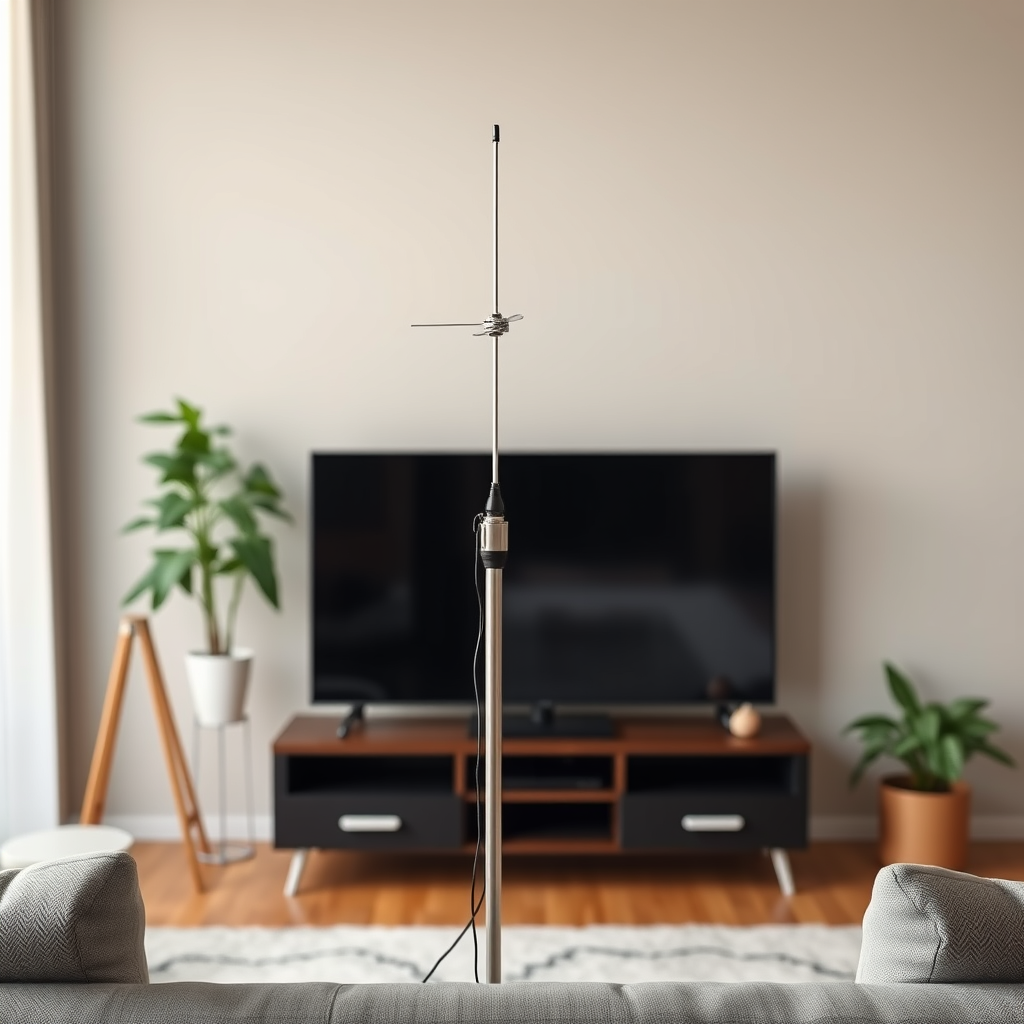
Choosing the right antenna is crucial for optimal performance and reception quality. Antennas generally fall into two categories: indoor and outdoor. Indoor antennas are typically easier to install and are best suited for urban areas where broadcast signals are stronger and closer. Outdoor antennas, on the other hand, are designed for rural or suburban locations, where distances from broadcast towers can be significant. These antennas usually provide better reception and can pick up signals from multiple directions.
When selecting an antenna, consider your geographical location and the distance from local broadcast towers. Websites like AntennaWeb can help you determine which channels are available in your area and the best antenna type for your needs. For instance, if you live within 20 miles of a broadcast tower, an indoor antenna may suffice. However, if you’re situated farther away, an outdoor antenna could be the better choice for ensuring clear reception.
Gather Necessary Tools
Before you begin the installation process, it’s essential to gather all the necessary tools and prepare your workspace. Here’s a list of essential tools you will need:
– Coaxial Cable: This cable connects the antenna to your smart TV. Ensure you have a length that accommodates your antenna’s location.
– Screwdriver: Depending on your antenna type, you may need a screwdriver to secure it properly.
– Level: For outdoor antennas, a level helps ensure your setup is straight, maximizing signal reception.
– Mounting Hardware: If you are installing an outdoor antenna, you may need brackets or mounts.
Preparing your workspace by clearing an area and having all tools within reach will streamline the installation process and minimize the chances of interruptions.
Connect the Antenna to Your Smart TV
Connecting the antenna to your smart TV is a simple yet crucial step. First, locate the antenna input on your TV, typically labeled as “ANT IN” or “TV Antenna.” Once you’ve identified this port, use the coaxial cable to connect the antenna securely to the TV. Make sure the cable is firmly screwed in to avoid any signal loss.
For smart TVs, this process usually does not require any software installation. However, ensure your TV’s firmware is up to date for optimal performance. This can usually be done through the settings menu.
Top 7 Antenna Brands (2024)
| # | Brand | Type | Range (miles) | Rating |
|---|---|---|---|---|
| 1 | Mohu | Indoor | 60 | ★★★★☆ |
| 2 | RCA | Indoor | 50 | ★★★★☆ |
| 3 | ClearStream | Outdoor | 70 | ★★★★★ |
| 4 | Antennas Direct | Outdoor | 100 | ★★★★☆ |
| 5 | Winegard | Outdoor | 75 | ★★★★☆ |
| 6 | Terk | Indoor | 50 | ★★★★☆ |
| 7 | 1byone | Indoor | 40 | ★★★☆☆ |
Position the Antenna for Optimal Reception
Positioning your antenna correctly is vital to achieving the best possible signal. Begin by experimenting with different locations for the antenna. Common placement options include near windows or on higher shelves, as these areas often provide clearer lines of sight to broadcast towers.
Using a signal strength meter or the built-in signal strength feature on your TV can help you determine the best orientation for your antenna. Remember, the direction of your antenna plays a significant role in signal reception; it may require some trial and error. If you are using an indoor antenna, try adjusting its position while monitoring the signal quality on your TV.
Additionally, if you opt for an outdoor antenna, ensure it is mounted securely and elevated to avoid obstructions like trees or buildings that could interfere with reception.
Scan for Channels
Once your antenna is connected and positioned, the next step is to scan for available channels. On most smart TVs, this can be done by navigating to the settings menu. Look for the option that says “Channel Scan,” “Auto Search,” or “Setup.” Follow the on-screen prompts to conduct a full scan for channels.
This process typically takes a few minutes, during which your TV will search for all available over-the-air channels. After the scan is complete, the TV will display a list of channels it has detected, allowing you to save them for easy access later. If you’re using a streaming device with your TV, ensure it is set to recognize the antenna input as well.
Troubleshooting Common Issues
Despite following the installation steps, you may encounter some common issues affecting your antenna’s performance. Here are a few potential problems and their solutions:
– Poor Signal Quality: If you experience pixelation or audio dropouts, try adjusting the antenna’s position or height. Even minor changes can significantly affect reception.
– Missing Channels: If certain channels are not appearing, ensure your antenna is directed toward the nearest broadcast tower. Re-scan for channels after adjusting the antenna.
– Interference: Electronic devices such as Wi-Fi routers or microwaves can interfere with signal reception. Try relocating your antenna away from such devices.
By systematically addressing these common issues, you can enhance your viewing experience and enjoy clearer reception.
Enjoy Your Over-the-Air Channels
Now that your antenna is successfully installed and channels are scanned, it’s time to enjoy the variety of over-the-air programming available to you. Local broadcast channels often include news, sports, and popular shows that can significantly enrich your viewing experience.
Moreover, with the rise of streaming services, combining over-the-air channels with platforms like Netflix or Hulu can create a more comprehensive entertainment package. This dual approach allows you to enjoy a broader range of content while potentially lowering your overall entertainment costs.
In addition, over-the-air channels often provide access to local events and community programming that may not be available through cable or streaming services. This can foster a greater connection to your local community while keeping you informed about events and happenings in your area.
By following these steps, you can easily install an antenna on your smart TV and start enjoying a variety of channels without monthly fees. Whether you are a novice or have some experience, this guide simplifies the installation process. Don’t hesitate to experiment with different settings and locations to maximize your antenna’s performance. Happy viewing!
Frequently Asked Questions
How do I connect an antenna to my smart TV?
To connect an antenna to your smart TV, first, locate the antenna input, usually labeled “ANT IN” on the back of the TV. Plug the coaxial cable from the antenna into this input, then turn on your TV. Use the remote to navigate to the settings menu, select “Channel Setup,” and choose “Antenna” to scan for available channels.
What type of antenna is best for a smart TV?
The best type of antenna for a smart TV depends on your location and viewing needs. For urban areas, a simple indoor antenna may suffice, while those in rural locations typically benefit from an outdoor antenna with a higher range. Look for antennas that can receive both UHF and VHF signals to maximize your channel options.
Why isn’t my antenna picking up channels on my smart TV?
If your antenna isn’t picking up channels, several factors could be at play. Ensure the antenna is properly connected and positioned; try moving it to different locations or heights to improve reception. Additionally, check your TV settings to ensure it is set to “Antenna” and not “Cable,” and perform a channel scan again.
How do I perform a channel scan on my smart TV after installing an antenna?
To perform a channel scan on your smart TV after installing an antenna, press the “Menu” or “Settings” button on your remote. Navigate to the “Channels” or “Broadcasting” section, select “Auto Scan” or “Channel Scan,” and let the TV search for available over-the-air channels. This should take a few minutes, and once complete, you’ll see a list of channels ready for viewing.
Which direction should I point my antenna for the best reception on my smart TV?
For optimal reception, point your antenna towards the nearest broadcast tower. You can use online tools or apps that provide the direction and distance to local towers based on your address. Experimenting with the antenna’s position, such as adjusting its height or angle, can also significantly enhance signal strength and the number of channels received.
References
- https://www.lifewire.com/how-to-install-an-antenna-5070964
https://www.lifewire.com/how-to-install-an-antenna-5070964 - https://www.researchgate.net/publication/267766243_How_to_install_a_digital_antenna_for_TV
https://www.researchgate.net/publication/267766243_How_to_install_a_digital_antenna_for_TV - https://www.usc.edu/dept/comm/etv/faq/installing_antenna.htm
https://www.usc.edu/dept/comm/etv/faq/installing_antenna.htm - Google Scholar Google Scholar
https://scholar.google.com/scholar?q=install+antenna+smart+tv - Google Scholar Google Scholar
https://scholar.google.com/scholar?q=tv+antenna+installation+guide - Google Scholar Google Scholar
https://scholar.google.com/scholar?q=how+to+install+an+antenna+on+a+smart+tv - https://www.bbc.com/news/technology-56322827
https://www.bbc.com/news/technology-56322827 - https://www.sciencedirect.com/topics/engineering/television-antenna
https://www.sciencedirect.com/topics/engineering/television-antenna - how to install an antenna on a smart tv – Search results
https://en.wikipedia.org/wiki/Special:Search?search=how+to+install+an+antenna+on+a+smart+tv - https://www.ncbi.nlm.nih.gov/search/research-articles/?term=how+to+install+an+antenna+on+a+smart+tv
https://www.ncbi.nlm.nih.gov/search/research-articles/?term=how+to+install+an+antenna+on+a+smart+tv
