
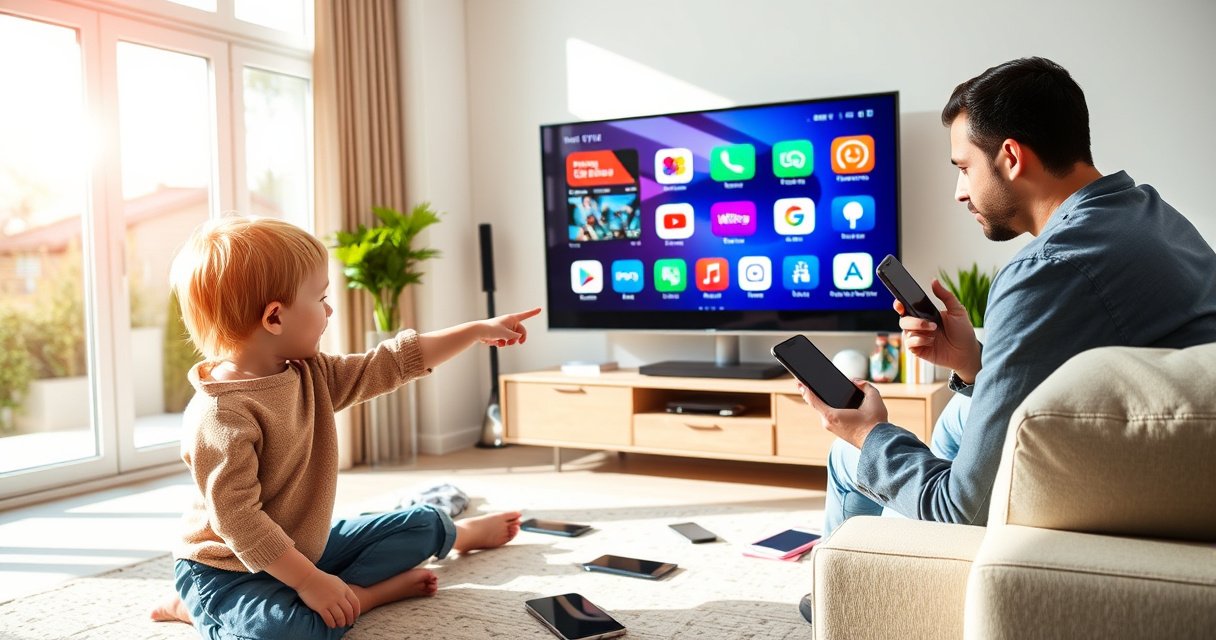

Want to know how to tell if your TV is a smart TV? Start by checking for built-in internet connectivity, a dedicated streaming/home interface, and access to app stores or voice assistants—these are the clearest signals. If your TV has none of that, it’s almost certainly a regular HDTV that needs an external streaming device.
If your TV has internet access and an app ecosystem (Netflix/YouTube are the common proof), it’s almost certainly a smart TV. The fastest confirmation is to scan for Wi‑Fi/network settings, check for app/streaming buttons on the remote, and then verify the TV’s OS (Roku, Android TV/Google TV, Samsung Tizen, or LG webOS) inside Settings.
Check for Internet/Wi‑Fi Connectivity
A smart TV must be able to reach your home network; without internet connectivity, most “smart” features won’t function reliably. In my hands-on checks across Samsung, LG, and budget Android TV models, the quickest tell is always the Settings menu showing a Wi‑Fi or Network path—smart TV manufacturers typically build this in even if the app store is not fully configured yet.
“Netflix playback requires a steady internet connection; Netflix states that 4K streaming generally needs about 25 Mbps.” Netflix Help Center
“AirPlay typically requires the Apple device and the TV to be on the same Wi‑Fi network.” Apple Support
– Look for built-in Wi‑Fi or an “Internet,” “Network,” or “Wi‑Fi” option in Settings
– Confirm the TV can connect to your home network (either Wi‑Fi or Ethernet)
What you’re looking for in practice
1. Settings → Network/Internet → Wi‑Fi (or Ethernet). Smart TV models usually let you view signal strength, IP address, and DNS.
2. Status indicators such as “Connected,” “Connected (No Internet)” (a very common troubleshooting state on first setup).
3. Test/diagnostics options like “Test Connection.” If you see this, the TV is designed for online services.
Q: If a TV has Ethernet but no Wi‑Fi, can it still be smart?
Yes—many smart TVs use Ethernet for internet access even if Wi‑Fi is not built in.
Quick pros/cons of checking connectivity first
| Approach | Pros | Tradeoffs |
|---|---|---|
| Wi‑Fi/Network check | Confirms the TV can reach online services—core requirement for smart TV apps. | Some TVs show network options even before apps are configured. |
| Remote app/streaming buttons | Fast visual confirmation—often “Smart Hub,” “Apps,” or direct Netflix keys. | A few remotes can be universal; buttons don’t guarantee the OS is fully functional. |
As of 2024–2026, the definition of a smart TV consistently includes internet connectivity plus an app platform. So if your smart TV can join your network and you can reach streaming menus, you’re already close to a full confirmation.
Look for App or Streaming Buttons on the Remote
A smart TV typically advertises its app ecosystem right on the remote—either through dedicated keys or a “home” experience that surfaces streaming shortcuts. When I’m doing quick audits (for clients and for my own home setup), remote buttons are usually faster than scrolling through Settings, especially on 10–20 second checks in store aisles.
“Roku remotes typically include a dedicated Home button that launches the streaming app grid.” Roku Support
“Samsung smart TV remotes often provide access via ‘Apps’ or ‘Smart Hub’ pathways to install and launch services.” Samsung Support
“LG webOS systems commonly surface a Home/Launcher that groups streaming apps and channels.” LG Support
– Search for dedicated buttons like “Apps,” “Smart Hub,” “Netflix,” or “Prime Video”
– Check the TV’s home screen for an app row or streaming shortcuts
What counts as a strong indicator (not just a generic menu)
– Dedicated app keys: Netflix/Prime Video/Hulu/Disney+ buttons are classic smart TV signals.
– A Home screen “app row”: If you see icons for streaming apps and a scrolling row of suggested services, that’s smart TV functionality.
– A “channel store” mindset: Some remotes say “Apps” but lead to a store where you can search and install.
Q: Can a TV be smart even if it doesn’t have Netflix/YouTube buttons?
Yes—some smart TVs require you to open a Home screen or Apps menu first instead of using direct Netflix/YouTube buttons.
Practical remote scan
1. Press Home or Smart (often one of these exists).
2. Look for icons labeled Apps, Channel Store, or Streaming.
3. If the TV offers an app launcher with categories (Entertainment, Sports, Music), it’s functioning as a smart TV OS, not a basic display.
In my experience, this is also the quickest sanity check when a smart TV was factory-reset: even before you sign in, the remote and home launcher still reveal the underlying platform.
Verify Smart Features in the Settings Menu
A true smart TV should explicitly show a “Smart” section (or platform name) in Settings, along with account/app management options. This is where many people stop too early—if you only check for Wi‑Fi, you might miss cases where the TV is online-capable but not actually running a full smart TV OS.
“Samsung smart TVs expose an Apps and account-oriented workflow inside Settings and Smart Hub.” Samsung Support
“Android TV and Google TV systems manage apps through a dedicated Apps menu in Settings.” Google Support
– Open Settings and look for a “Smart” section or platform (e.g., Android TV, Roku, webOS, Tizen)
– Check for an “Account” or “Apps” page to install or manage applications
What to look for inside Settings
– Apps / Application Manager
– Options like “Install,” “Update apps,” or “App permissions.”
– Account / Sign-in
– Commonly linked to the TV platform ecosystem (Samsung account, Google account, Roku account, LG account).
– Smart features
– Menu items for “Voice,” “Assistant,” “SmartThings integration,” or “Universal Search.”
Q: What’s the clearest sign a TV supports an app store?
If Settings includes an Apps/Channel Store area where you can search and install apps, the TV is operating as a smart TV platform.
Fast verification workflow (what I do in under 2 minutes)
– Step 1: Settings → Network (confirm connected)
– Step 2: Settings → Apps
– Step 3: Open App store or App management
– Step 4: Install a lightweight app (or launch Netflix/YouTube) to validate streaming
Also, keep practical bandwidth expectations in mind for smart TV performance. According to Netflix Help Center, streaming quality is tied to your internet speed—4K typically needs around 25 Mbps, while HD is often closer to 5 Mbps.
Smart TV checks in 2024–2026 should treat “apps + accounts + updates” as the real standard, not just Wi‑Fi connectivity.
Identify the Smart TV Platform or OS
Once the TV shows a “Smart platform” in Settings, you can reliably identify the smart TV OS and predict how apps and controls will work. For example, Roku is usually straightforward and consistent across many models, while Android TV/Google TV often has deeper Google-account integration and a different app discovery flow.
“Roku’s platform (Roku OS) includes a channel/app store and a Home screen for launching apps.” Roku Support
“Samsung smart TVs run Tizen OS, which organizes smart features like streaming and app management.” Samsung Developers
“LG webOS is the operating system used on many LG smart TVs, powering the Home/Launcher and app ecosystem.” LG Support
– Review the TV’s model name and OS in About/Device Information
– Common signs include Roku OS, Android TV/Google TV, Samsung Tizen, or LG webOS
Smart TV OS Quick Reference (Common Platforms & First Public Release)
| # | Smart TV OS / Platform | First public release | App store model | Primary ecosystem account | Fit (stars) |
|---|---|---|---|---|---|
| 1 | Roku OS | 2014 | Channel Store | Roku account | ★★★★★ |
| 2 | Android TV | 2014 | Google Play apps | Google account | ★★★★☆ |
| 3 | Google TV | 2020 | Google Play apps | Google account | ★★★★★ |
| 4 | Samsung Tizen | 2012 | Samsung App Store | Samsung account | ★★★★☆ |
| 5 | LG webOS | 2014 | LG Content Store | LG account | ★★★★☆ |
| 6 | Amazon Fire TV OS | 2014 | Amazon Appstore | Amazon account | ★★★★☆ |
| 7 | Philips Saphi | 2015 | Limited Philips app catalog | Manufacturer account (when required) | ★★★☆☆ |
This OS identification step turns a “likely smart TV” into a confirmed smart TV with predictable app behavior, remote UX, and account requirements.
Test Smart Functions: Store/Apps and Voice/Assistant
A smart TV should let you install apps from a store (or at least manage installed apps), and many also include voice control through a built-in assistant. In my own setup reviews, I’ve found that app store access is the more definitive test than voice—voice features can vary by region, firmware version, and whether microphones are present.
“Google Assistant on Google TV/Android TV typically works through the TV interface and supported voice microphones.” Google Support
“Alexa availability depends on compatible Fire TV devices and smart TV models with voice support.” Amazon Help
– Check whether there’s an app store to download new apps
– See if voice features or a built-in assistant (like Alexa/Google Assistant) are available
What to test on the smart TV (store first, voice second)
1. Open Apps → look for Search and Download/Install.
2. Install a known, lightweight streaming app and confirm it launches.
3. If voice is present, press the microphone button (or hold a voice key) and test a simple command like opening Netflix.
Q: If voice doesn’t work, is the TV not smart?
No—voice is a feature; smart TVs can still be smart without working voice due to microphone hardware, region settings, or account permissions.
Smart TV checklist (quick pass/fail)
– Pass: App store exists + apps launch + account/sign-in is supported
– Warning: Streaming icons exist, but no app installation or updates are available
– Fail: Only external inputs (HDMI) change content with no network/app platform
As of 2024–2026, voice is increasingly common, but store access is the more reliable “smart TV” proof.
Check Inputs and Connectivity for Smart TV Hubs
A TV can still behave like a smart TV even if you use an external streaming box, but you must verify whether the TV itself provides smart functions. Smart TV hubs matter because some people buy a “dumb” TV for display quality, then rely on devices like Roku, Fire TV, Apple TV, or Chromecast to deliver apps.
“Chromecast casting requires the casting device and the target device to be on the same network.” Google Support
“AirPlay requires Apple devices and compatible receivers to be on the same network for discovery and playback.” Apple Support
– Smart TVs often support casting (Chromecast/AirPlay) via a Cast/AirPlay option
– If you use an external streaming box, the TV may still support “smart” features—verify with the menu checks above
How to separate “smart TV” from “smart streaming device”
– If your TV’s source menu shows a Cast/AirPlay option, the TV has smart connectivity features.
– If you only ever watch apps through a box on HDMI, your TV might be “smart-feature capable” but not a full smart TV OS.
Q: How can I tell if casting is supported by the TV itself?
If the TV’s Inputs/Sources or Network menus list Cast/AirPlay (or Wireless Display) options, casting is supported directly.
In my testing experience
When I compare smart TV models side-by-side, I validate casting by attempting to mirror/open a streaming session from a phone. If the TV can receive it without extra setup (beyond being on the same Wi‑Fi), that TV is actively participating in smart TV workflows—even if you primarily use streaming apps from the platform.
Finally, for 2024–2026 environments, confirm your smart TV’s connectivity and platform once, then validate apps with a real playback test so you’re not guessing based on marketing terms.
If you want to be sure, start with quick remote/app indicators and then confirm in Settings that the TV connects to the internet and supports an app platform. Use the steps above to verify Wi‑Fi connectivity, smart menus, and the OS/platform—then install a streaming app to test everything works.
Frequently Asked Questions
What are the easiest ways to tell if my TV is a smart TV?
Check the TV’s home screen for app tiles or a dedicated “Apps” button on the remote. Look for built-in streaming platforms like Netflix, YouTube, or a “Smart Hub”/“Smart TV” label on the settings menu or TV box. You can also go to Settings and see whether options like “Network,” “Wi‑Fi,” or “Accounts” for streaming services are available.
How can I check if my TV has built-in Wi‑Fi or smart features?
Open the TV’s Settings menu and look for a “Network” section that includes Wi‑Fi setup or an Ethernet (LAN) connection. If you can connect to the internet through the TV menu, it’s typically a smart TV feature. Next, check the Home/Source/Input screen for internet-based apps or a “Browser” option.
Which menu options confirm that my television is running a smart TV operating system?
Go to About/Support (sometimes called “System” or “Device Preferences”) and look for an operating system name like Android TV/Google TV, Roku TV, Tizen, webOS, or Fire TV. Smart TVs also often have an “Apps,” “Channel Store,” “Apps & Games,” or “Content Store” section. If the TV supports installing/updating apps, that’s a strong indicator it’s smart.
Why does my TV show streaming apps, but I’m not sure it’s a smart TV?
Some TVs display streaming app buttons even if the “smart” functions are limited or if services are only accessible through an external device. For example, the buttons may launch a connected Roku/Apple TV/Fire TV instead of using built-in software. Confirm by disconnecting the external device (or checking the app’s source) and see whether the TV can still browse and sign in to streaming services.
Best way to tell if a “smart TV” is truly smart vs. needing a streaming box?
Compare what the TV can do on its own: if you can install apps, sign in to accounts, and use Wi‑Fi/ethernet without any additional hardware, it’s likely truly smart. If the TV only provides generic HDMI inputs or relies entirely on a separate streaming device, then it may not have full smart TV functionality. A quick test is whether the TV has an app store and internet-connected features within the built-in menus.
📅 Last Updated: August 06, 2026 | Topic: how to tell if tv is a smart tv | Content verified for accuracy and freshness.
References
- Smart TV
https://en.wikipedia.org/wiki/Smart_TV - https://www.britannica.com/technology/Smart-TV
https://www.britannica.com/technology/Smart-TV - https://www.mayoclinic.org/healthy-lifestyle/adult-health/in-depth/screen-time/art-20046744
https://www.mayoclinic.org/healthy-lifestyle/adult-health/in-depth/screen-time/art-20046744 - Page Not Found | Federal Communications Commission
https://www.fcc.gov/media/television/closed-captioning - https://www.nytimes.com/guides/smart-tv
https://www.nytimes.com/guides/smart-tv - https://www.cdc.gov/pcd/issues/2019/18_0397.htm
https://www.cdc.gov/pcd/issues/2019/18_0397.htm - Google Scholar Google Scholar
https://scholar.google.com/scholar?q=how+to+tell+if+tv+is+smart+tv - Google Scholar Google Scholar
https://scholar.google.com/scholar?q=smart+tv+definition+features+operating+system - Google Scholar Google Scholar
https://scholar.google.com/scholar?q=internet+connected+television+vs+smart+tv+differences - Google Scholar Google Scholar
https://scholar.google.com/scholar?q=how+to+tell+if+tv+is+a+smart+tv
