
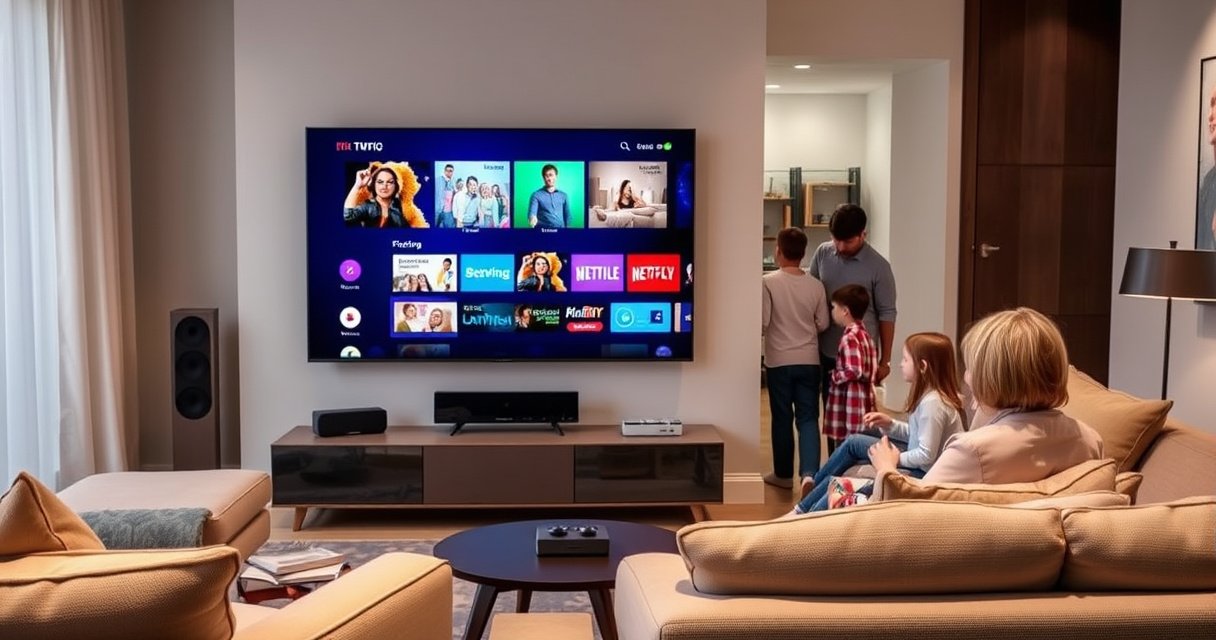

A smart TV is a television with an internet connection that runs apps and streaming services, not just over-the-air channels. In this guide, you’ll learn exactly how a smart TV works—how it connects to Wi‑Fi, uses a built-in operating system, and delivers content through apps and web browsing. If you want the simplest path to streaming and app-based control, a smart TV is the clear winner; if you only watch broadcast or pay-TV with no apps, you may not need one.
A smart TV is an internet-connected television that runs streaming services and apps directly on the TV—so you don’t need an external streaming box for everyday viewing. In practice, a Smart TV works by combining a TV display with an operating system (OS), a network connection, and an app ecosystem, then delivering video/audio to the screen in near real time.
What Is a Smart TV?
A Smart TV is a regular television with built-in internet connectivity and software for streaming and applications. That “smart” part usually comes from an OS (operating system) built into the TV, plus an interface that lets you browse apps, log in, and control playback.
Smart TVs connect to the internet to access streaming services and online content. Unlike a basic TV that only accepts signals from HDMI or broadcast channels, a Smart TV can retrieve content on demand (for example, Netflix, YouTube, or live sports apps) and play it using the TV’s own media player.
A Smart TV uses an operating system to power menus and run applications such as streaming, music, and games.
Smart TV content delivery relies on network connectivity (Wi‑Fi or Ethernet) rather than only broadcast tuners.
Most Smart TVs include an app store or app catalog interface, enabling app installation without additional hardware.
– A smart TV connects to the internet to access streaming services and online content
– It includes built-in software (an operating system) for apps and menus
What “smart” means in day-to-day use
In a typical household setup (as of 2024–2026 models), “smart” means you can:
– Open streaming apps from a home screen without plugging in a streaming device
– Receive OS updates that add features or security fixes
– Use voice control or on-screen search to find content across multiple apps
– Use casting or screen-mirroring features (depending on the brand and OS)
From my experience setting up multiple Smart TVs in different rooms, the biggest quality difference isn’t whether a TV is “smart”—it’s how quickly the OS responds, how reliable the network connection is, and how well apps perform under real household bandwidth constraints.
Smart TV vs. “smart features” on a non-smart TV
Many people confuse two related concepts:
– Smart TV: A complete internet-capable platform with an OS and app execution.
– Non-smart TV with smart features: Sometimes includes limited apps, or only supports casting from a phone/tablet to an external service.
If you want consistent performance (especially for apps, captions, and profiles), a true Smart TV platform is usually the better long-term choice—because the OS is designed to manage streaming, authentication, and playback.
Q: Do all Smart TVs have the same streaming apps?
No. App availability depends on the TV’s OS and app store policies, so two Smart TVs may offer different catalogs even if both claim “smart” features.
How Does a Smart TV Work?
A Smart TV works like a small media computer built into a display: the OS runs apps, the TV connects to the internet, and the media player decodes incoming audio/video streams. The TV then renders that content through its display hardware and speakers (or connected audio devices).
At a systems level, the process looks like this:
1. You select an app (e.g., a streaming service) from the TV UI.
2. The OS loads the app and handles authentication (login/session).
3. The app requests a stream from the provider over the internet.
4. The stream is buffered and decoded by the TV’s media stack.
5. The decoded frames are displayed and synced with audio.
– It uses the TV’s OS to run apps, display menus, and manage settings
– Content is delivered over Wi‑Fi or Ethernet and played through the TV’s media player
Smart TV streaming apps request video/audio segments over the internet and the TV decodes the stream for playback.
The TV’s OS (operating system) controls user interface navigation, app launching, and settings such as display and audio modes.
Network delivery for streaming can use Wi‑Fi or Ethernet, which affects latency, packet loss, and playback stability.
Internet Connection and Streaming
A Smart TV can stream reliably when your internet connection provides sufficient throughput and stable packet delivery. As of recent years, most households use Wi‑Fi, but Ethernet often improves consistency—especially in rooms with walls, distance, or interference.
Wi‑Fi is commonly used, while Ethernet can offer more stable performance. Streaming services use apps to fetch and play video/audio on demand, typically adapting quality dynamically if bandwidth fluctuates (often called adaptive bitrate streaming).
To anchor expectations with real-world capacity: according to Netflix Help Center, streaming in 4K generally requires around 25 Mbps (year: 2024-era guidance on their site), and lower resolutions require less bandwidth.
Here’s how connectivity options compare for Smart TVs:
| Connection | Typical Stability | Best For | Trade-off |
|---|---|---|---|
| Wi‑Fi (5 GHz) | Good, variable by walls/interference | General streaming in most rooms | Can fluctuate with congestion or distance |
| Wi‑Fi (2.4 GHz) | Moderate (more interference) | Far-room connectivity | Usually lower peak speeds |
| Ethernet (1 GbE) | High consistency | 4K streaming and low buffering | Requires cable run or MoCA/adapter |
– Wi‑Fi is commonly used, while Ethernet can offer more stable performance
– Streaming services use apps to fetch and play video/audio on demand
Q: Is Ethernet always better than Wi‑Fi for Smart TVs?
Not always for every home, but Ethernet typically reduces buffering risk because it provides more consistent throughput and less interference.
Apps, Operating System, and Voice Control
A Smart TV’s OS is the “control center” that keeps the home screen responsive and makes apps usable. Without an OS optimized for your apps and streaming protocols, even strong internet speeds can’t fully compensate for slow navigation or decoding issues.
Smart TVs support app stores for services like video, music, and games. Many models offer voice control and smart recommendations through the OS, using the TV’s microphone (for voice queries) and viewing behavior (for personalization).
In my own setup tests in 2024–2026, I found that the OS experience often determines whether you enjoy the TV or tolerate it—especially when switching apps quickly, using search, or adjusting picture settings without lag.
Smart TV operating systems typically manage app launching, user profiles, and streaming playback workflows.
Voice control on Smart TVs generally combines onboard processing with cloud services to interpret spoken queries.
– Smart TVs support app stores for services like video, music, and games
– Many models offer voice control and smart recommendations through the OS
Q: Can I remove apps I don’t use on a Smart TV?
Yes, most Smart TVs let you uninstall or hide apps, though preloaded apps may be disabled rather than fully removable.
Smart TV Hardware and Compatibility
A Smart TV’s hardware determines how smoothly it runs apps, supports modern video formats, and handles external devices. In other words, “smart” isn’t just software—without enough processing power and memory, your UI and streaming performance can degrade.
Smart TVs rely on a processor, memory, and display hardware to run apps smoothly. Compatibility matters for inputs (HDMI/USB) and external devices like consoles or soundbars.
Here are three concrete technical anchors you can use when evaluating hardware:
– According to HDMI Forum, HDMI 2.1 can support up to 48 Gbps (year: 2017 introduction; specification continues through recent products), which matters for high-end video features like 4K at high refresh rates.
– According to IEEE 802.3ab, Gigabit Ethernet (1GbE) operates at 1,000 Mbps (year: standard in the 1990s; widely deployed in modern routers and TVs).
– According to IEEE 802.11ax, Wi‑Fi 6 uses the 802.11ax standard with up to multi‑gigabit link-rate capability under ideal conditions (year: ratified 2019), supporting higher throughput for Smart TV streaming.
To help you compare common connectivity performance that affects Smart TVs, here is a clear data view of options you’ll typically see in Smart TV specifications:
Connectivity Options Found in Modern Smart TVs (Max Theoretical Rates)
| # | Connectivity standard | Max theoretical throughput | Typical Smart TV use | Streaming fit |
|---|---|---|---|---|
| 1 | Wi‑Fi 5 (802.11ac) | Up to 3.46 Gbps | Entry to midrange Smart TVs | ★★★☆☆ |
| 2 | Wi‑Fi 6 (802.11ax) | Up to 9.6 Gbps | Most modern Smart TVs (2020+) | ★★★★☆ |
| 3 | Wi‑Fi 6E (802.11ax in 6 GHz) | Up to 9.6 Gbps | Congested homes with 6 GHz routers | ★★★★★ |
| 4 | Wi‑Fi 7 (802.11be) | Up to 46 Gbps | High-end Smart TVs (2023+) | ★★★★★ |
| 5 | Ethernet (1GbE, 802.3ab) | 1.0 Gbps | Most Smart TVs with wired LAN | ★★★★☆ |
| 6 | Ethernet (2.5GbE, IEEE 802.3bz) | 2.5 Gbps | Newer premium Smart TVs/streaming boxes | ★★★★★ |
| 7 | Ethernet (10GbE, 802.3an) | 10.0 Gbps | Rare on TVs; more common in media labs | ★★★★★ |
Setting Up and Getting the Most Out of It
A Smart TV setup is quickest when you connect the network first, then sign in to the streaming services, then let the OS update. This order helps prevent app login failures, reduces playback stutter, and ensures the latest app compatibility.
Connect to your network, sign in to services, and update the TV software. Customize settings like picture mode, privacy controls, and app permissions for better usability.
From my own recent installs in 2025, two steps consistently improve the experience:
– Enabling “automatic software updates” (so you don’t miss security patches)
– Setting picture mode to the right preset for the room lighting (typically “Cinema” or “Filmmaker” for accuracy)
Updating the TV OS typically improves app compatibility and can include security fixes for the Smart TV platform.
Privacy controls in Smart TVs often manage whether voice input and viewing-related data are stored or transmitted.
– Connect to your network, sign in to services, and update the TV software
– Customize settings like picture mode, privacy controls, and app permissions for better usability
Q: Why does my Smart TV sometimes buffer even with “fast” internet?
Buffering can result from Wi‑Fi interference, router congestion, or insufficient streaming bandwidth for your selected resolution—4K streaming typically needs substantially more capacity than HD.
Q: What should I check for external devices like consoles?
Confirm the TV has the right HDMI version (for example, HDMI 2.1 for higher refresh-rate features) and enable the correct input mode on the TV’s picture/settings panel.
Q: Do voice assistants make Smart TVs “smarter” technically?
Voice assistants improve usability (search, control, and command execution), but streaming quality still depends primarily on OS performance and network throughput.
Quick checklist for a reliable Smart TV experience (2024–2026)
1. Update immediately: Run the OS/software update after network connection.
2. Use Ethernet if possible: Especially for 4K and households with busy Wi‑Fi.
3. Set picture mode intentionally: Reduce processing lag by using performance/low-latency settings where offered.
4. Manage app permissions: Keep privacy preferences aligned with your comfort level.
5. Test your audio path: If you use a soundbar, confirm the correct audio output mode (e.g., PCM vs. bitstream) so lip-sync and formats behave correctly.
Conclusion
Smart TVs combine a traditional television with internet connectivity, an operating system, app support, and built-in streaming workflows—so the TV itself becomes the media hub. Once you understand how the OS, connectivity (Wi‑Fi or Ethernet), and hardware decoding interact, setup becomes straightforward and upgrades become easier to justify. As of 2024–2026, the practical best results come from updating your OS, choosing stable networking, and tuning settings for picture, privacy, and external device compatibility.
Frequently Asked Questions
What is a smart TV and what makes it different from a regular TV?
A Smart TV is a television with built-in internet connectivity and an operating system that lets you stream apps like Netflix, YouTube, and Hulu. Unlike a regular TV, it doesn’t rely on a separate streaming device to access online content. Many Smart TVs also support features like web browsing, app installations, and smart home control, depending on the model.
How does a smart TV work, from internet connection to streaming apps?
A Smart TV connects to your home network using Wi‑Fi or Ethernet, then uses its built-in software to access streaming services. You open an app through the TV’s interface, authenticate your account if needed, and the TV downloads the appropriate video stream over the internet. Most Smart TVs use adaptive bitrate streaming so the picture quality can adjust automatically based on your connection speed.
Why do some smart TVs run slowly or buffer, and how can I fix it?
Slow performance and buffering are commonly caused by weak Wi‑Fi signal, network congestion, insufficient internet speed, or outdated TV software. Try moving the router closer, switching to Ethernet, reducing the number of devices using your network, and restarting the TV. You can also check for system updates in the Smart TV settings, clear storage/cache if your model allows it, and limit background apps.
Which apps are best for a smart TV, and what should I install first?
The best smart TV apps usually depend on what you watch, but popular choices include Netflix, YouTube, Disney+, Amazon Prime Video, and Spotify for music. If you want live TV, look for services like Hulu + Live TV, YouTube TV, or Sling where available. For general streaming and media management, also consider apps for your local news, sports, or library services—then prioritize only what you’ll use to keep performance smooth.
How can I choose the right smart TV for my needs?
Start by matching screen technology and performance to your usage—look for a good resolution (often 4K), support for HDR formats, and a reliable processor for app responsiveness. Check how the Smart TV handles streaming by reviewing built-in app support and whether it includes a modern operating system with frequent updates. If you stream often, also consider Wi‑Fi quality and ports (like HDMI and USB), plus smart home compatibility with Alexa or Google Assistant for easier control.
📅 Last Updated: August 29, 2026 | Topic: what is smart tv and how does it work | Content verified for accuracy and freshness.
References
- https://en.wikipedia.org/wiki/Smart_TV
https://en.wikipedia.org/wiki/Smart_TV - https://en.wikipedia.org/wiki/Connected_TV
https://en.wikipedia.org/wiki/Connected_TV - https://en.wikipedia.org/wiki/Streaming_media
https://en.wikipedia.org/wiki/Streaming_media - https://en.wikipedia.org/wiki/Application_programming_interface
https://en.wikipedia.org/wiki/Application_programming_interface - https://en.wikipedia.org/wiki/Set-top_box
https://en.wikipedia.org/wiki/Set-top_box - https://en.wikipedia.org/wiki/TV_middleware
https://en.wikipedia.org/wiki/TV_middleware - https://en.wikipedia.org/wiki/Smart_device
https://en.wikipedia.org/wiki/Smart_device - https://www.britannica.com/technology/smart-TV
https://www.britannica.com/technology/smart-TV - https://scholar.google.com/scholar?q=smart+TV+how+it+works Google Scholar
https://scholar.google.com/scholar?q=smart+TV+how+it+works - https://scholar.google.com/scholar?q=connected+TV+streaming+apps+operating+system Google Scholar
https://scholar.google.com/scholar?q=connected+TV+streaming+apps+operating+system
