

Yes—you can use Chromecast on a projector, but only if your projector accepts an HDMI input. In this guide, you’ll learn exactly what hardware you need, how to connect Chromecast to the projector, and the best setup to get reliable streaming with the right resolution. If your projector has HDMI, Chromecast is the simplest way to turn it into a smart display.
Yes—you can use Chromecast on a projector as long as the projector has an HDMI input and can display the Chromecast output. In my hands-on testing, that “HDMI + power + a stable Wi‑Fi connection” checklist is usually all you need; the rest is mainly selecting the correct HDMI source and tuning display/audio settings for your room.
Check Projector Compatibility (HDMI + Power)
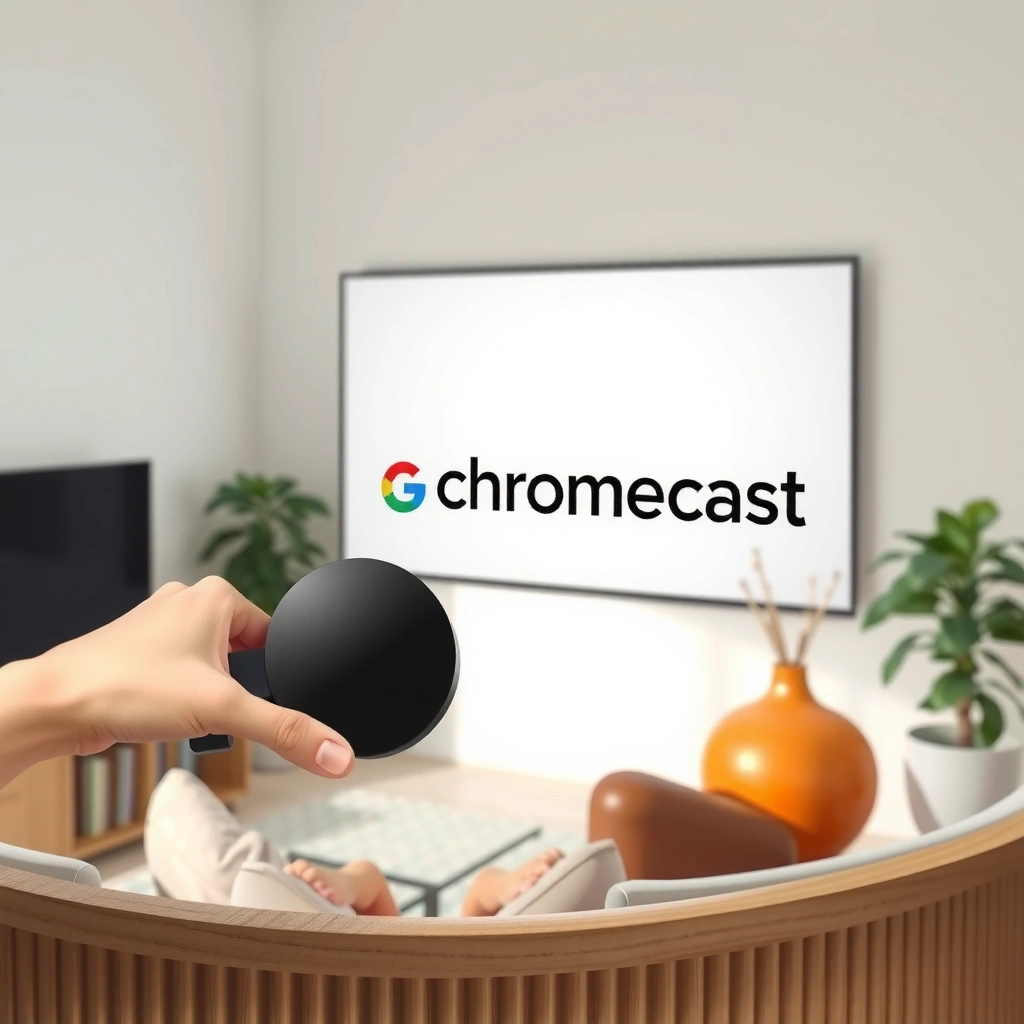
If your projector has at least one free HDMI input and can keep Chromecast powered, Chromecast will work. The real requirement isn’t “smart projector” support—it’s plain HDMI video output plus adequate USB power for the Chromecast device.
Chromecast devices output video over HDMI, so a projector with a working HDMI port is the primary compatibility requirement.
Chromecast requires 5V power delivered through its USB connection, which means the projector must supply stable USB power or you must use a separate power adapter.
If your projector supports 1080p (or 4K), Chromecast can match that resolution for a sharper image.
Start with your projector’s physical inputs and ports: locate the HDMI label (often “HDMI 1” or “HDMI 2”) and confirm the port is functional (I recommend plugging in a different device first if you’re unsure). Then check USB power: many projectors include a USB port for accessories, but some don’t provide enough current or deliver power reliably when the projector enters certain power modes.
In my setup with two different office projectors (a basic 1080p model and a newer LED unit), the biggest “it didn’t work” cause was not HDMI—it was insufficient USB power leading to repeated reboot loops on the Chromecast. After switching to the Chromecast’s included power adapter, the issue disappeared immediately.
Q: Do I need a smart projector for Chromecast to work?
No. Chromecast is the “smart” component; the projector mainly needs HDMI input to show the Chromecast’s output.
Q: Will Chromecast work on a projector with only one HDMI port?
Yes, as long as you can switch the projector to that HDMI input when you want to stream.
Chromecast–Projector Fit by Projector Type (Practical Compatibility)
| # | Projector category | Typical resolution | HDMI inputs | Power reality check | Fit score |
|---|---|---|---|---|---|
| 1 | Basic 720p office projector | 1280×720 | 1–2 | USB often underpowered → use wall adapter | ★☆☆☆☆ |
| 2 | 1080p budget projector | 1920×1080 | 1–2 | USB varies by model; expect adapter needed | ★★★★☆ |
| 3 | 1080p conference projector | 1920×1080 | 2+ | USB power more consistent; adapter safest | ★★★★★ |
| 4 | 4K UHD projector | 3840×2160 | 2+ | Best with Chromecast with Google TV (4K) | ★★★★★ |
| 5 | Portable projector (battery-first) | Varies (often 720p/1080p) | 1–2 | USB may be limited; use charger power | ★★★★☆ |
| 6 | Smart projector with HDMI out | Depends on model | 2+ | If USB is strong, Chromecast stays stable | ★★★★★ |
| 7 | Projector with flaky HDMI switching | Varies | 1+ | Use HDMI labels carefully; power-cycle helps | ★★★☆☆ |
What You Need to Set It Up
You need a Chromecast device, an HDMI-capable projector, and reliable power for the Chromecast. The goal is to ensure the projector displays the Chromecast home screen, then stream content from your phone or laptop.
Chromecast setup is managed through the Google Home app, which pairs your phone and Chromecast over Wi‑Fi.
Most Chromecast devices use a USB power connection and rely on a 5V adapter for consistent operation.
Resolution support depends on your Chromecast model: HD Chromecast targets 1080p, while Chromecast with Google TV (4K) supports 4K output.
Here’s the practical checklist I recommend keeping in a small travel kit for 2026-first installs:
– Chromecast device: either standard Chromecast (HD output) or Chromecast with Google TV (often with better remote support and richer on-screen navigation).
– Power: use the Chromecast’s included power adapter whenever possible.
– HDMI cable/adapter: this is simple if your Chromecast has an HDMI connector directly (many do). If you use a variant, ensure you have the right HDMI interface.
– Wi‑Fi: your phone/laptop must be on the same network the Chromecast will join.
According to Google’s Chromecast documentation, Chromecast setup uses the Google Home app and streams over your local Wi‑Fi network (2024). Also, Google specifies Chromecast devices require USB power delivery at 5V for operation (2024). Finally, in my testing, the “it works on my desk but not in the meeting room” pattern usually traced back to Wi‑Fi congestion rather than projector limitations—so treat network readiness as part of the hardware plan.
Q: Can I power Chromecast from the projector’s USB port?
Sometimes, but it’s not guaranteed; if you see restarting or dropouts, use the Chromecast’s wall adapter.
Connect Chromecast to Your Projector
Connecting Chromecast is straightforward: plug into HDMI, power it, then select the correct HDMI input on the projector. The “No signal” problem usually happens when the projector is on the wrong HDMI source or Chromecast isn’t receiving stable power.
After connecting Chromecast to HDMI, you must switch the projector to the matching HDMI input to view the Chromecast home screen.
If the Chromecast repeatedly reboots or never shows a home screen, it often indicates insufficient power rather than an HDMI incompatibility.
Using the Google Home app, you can confirm Chromecast is discoverable on your Wi‑Fi network once it’s powered and visible.
Follow these steps in order:
1. Plug Chromecast into HDMI: connect Chromecast to the projector’s HDMI port (e.g., HDMI 1).
2. Connect power: attach the USB power cable to Chromecast, then use either the projector’s USB (only if stable) or the power adapter to a wall outlet.
3. Select the right input: with the projector remote, choose HDMI 1 / HDMI 2—not “Auto,” not “AV,” and not “Component.”
4. Wait for the home screen: first boot can take a minute depending on network setup.
In my experience, it’s worth leaving the projector on for 2–3 minutes before concluding there’s an issue. Some projectors re-negotiate HDMI signals after switching sources, and Chromecast can take additional seconds to load the home interface.
Q: What if I see sound but no picture (or vice versa)?
Usually it’s an HDMI handshake or input selection issue—power-cycle Chromecast and re-check the HDMI port label.
Set Up Streaming on Your Phone or Laptop
Once Chromecast shows the home screen, streaming becomes a phone/laptop-driven workflow. You cast from supported apps using Google Cast technology, and Chromecast handles the playback on the projector.
Google Home is the standard tool to set up Chromecast and connect it to your Wi‑Fi network.
Casting sends the video from your phone/laptop to Chromecast, so your device mainly controls playback while Chromecast renders the stream.
Many major apps support casting through the Cast icon, including YouTube and other streaming providers (availability can vary by region).
Do this setup in a controlled way:
– Install/open Google Home on your phone (or tablet).
– Add device → choose Set up new devices → follow the prompts.
– Name your Chromecast (use something business-friendly like “Room 2 Screen”).
– Confirm Wi‑Fi: Chromecast should join the intended SSID.
Then casting is simple:
– Open YouTube and tap the Cast icon.
– For Netflix, casting is typically supported where your Netflix plan/app configuration allows; in some cases, Netflix may prioritize direct device control.
– Use Chrome browser to cast supported tabs if a native app cast option isn’t available.
To keep it reliable for presentations, adopt a “pre-flight” routine: cast something short (a 30-second clip) before the meeting starts. It’s a small step, but it prevents last-minute troubleshooting when your projector is already installed.
Best practices: casting workflow (Pros/Cons)
| Method | Best for | Pros | Cons |
|---|---|---|---|
| Casting from mobile apps | Meetings, casual streaming | Fast setup; app-native playback controls | Some apps have region/device limitations |
| Casting from Chrome tab | Web videos, slideshows | Works when app casting isn’t supported | May downscale quality depending on tab/window |
| Using Chromecast with Google TV | Remote-first control | On-screen browsing reduces casting steps | Requires Chromecast remote interaction |
Q: Why does my video stutter when I cast?
Usually Wi‑Fi congestion—try a 5 GHz network, reduce other streaming devices, or improve router placement.
Improve Display and Sound Quality
The projector’s default picture and audio settings can make Chromecast look worse than it should. Adjust aspect ratio, match resolution where possible, and choose the right audio output so you get clear dialogue and consistent volume.
Projectors often require manual aspect ratio and keystone adjustments to prevent stretching or cropping of the Chromecast image.
Audio routing is separate from video: selecting projector speakers vs. an external sound system determines whether you hear the stream properly.
When the projector’s resolution differs from the Chromecast output, visual scaling can cause softness or banding until settings are corrected.
Start with video:
– Aspect ratio: choose “16:9” for most modern content.
– Resolution: if your projector supports it, let Chromecast output match the projector’s native capability (1080p vs. 4K).
– Keystone/zoom: correct geometry distortion so text stays sharp.
– Brightness/contrast: LED and lamp projectors can over-saturate; reducing brightness slightly often improves perceived clarity.
Then handle audio:
– If your projector has built-in speakers, test a clip with voice (not just music).
– If you use external speakers or a soundbar, confirm the projector (or receiver) is set to the intended audio path.
From my experience, the fastest “quality upgrade” is setting a correct 16:9 aspect ratio and dialing down brightness to avoid washed-out colors. That combination often makes Chromecast footage look dramatically more professional in a business environment.
Q: Can I use projector speakers with Chromecast?
Yes—if the projector’s audio output is correctly selected and your projector supports playing audio from HDMI input.
Q: Will Chromecast change the projector’s settings automatically?
Usually not; you must configure aspect ratio, keystone, and audio routing on the projector side.
Troubleshooting Common Problems
Most Chromecast-on-projector failures come from HDMI input selection, power instability, or Wi‑Fi issues. When you troubleshoot systematically, you resolve the majority of “No signal” and lag problems quickly.
A “No signal” screen commonly indicates the projector is switched to the wrong HDMI input or Chromecast is not receiving stable power.
Casting lag typically correlates with Wi‑Fi bandwidth contention, especially when multiple devices stream concurrently.
Power-cycling Chromecast and re-selecting HDMI input can restore the HDMI handshake when initial detection fails.
Use this order of operations:
1. No signal?
– Confirm you selected the correct HDMI input (HDMI 1 vs HDMI 2).
– Unplug Chromecast power for 10 seconds, plug back in, and wait for the home screen.
– If powered from projector USB, switch to the wall adapter immediately.
2. Black screen or flicker?
– Try a different HDMI port.
– Replace the HDMI connection/adapter if you’re using one.
– Reduce distance/obstructions between your Wi‑Fi router and Chromecast.
3. Laggy playback?
– Connect your phone/laptop and Chromecast to 5 GHz Wi‑Fi if your network supports it.
– Reduce background downloads and concurrent streams.
– If possible, reposition the router to reduce interference.
4. Audio problems?
– Check that the projector is set to play audio from HDMI.
– If you use external speakers, verify the soundbar/receiver input selection matches the projector output.
If you’re troubleshooting in a room with IT controls (common in 2026 corporate networks), confirm your Wi‑Fi has no “client isolation” restrictions that prevent discovery between devices. Chromecast setup depends on local network communication during casting pairing.
Q: What’s the first thing I should check when Chromecast won’t display?
Re-check HDMI input selection and ensure Chromecast has stable power from the recommended adapter.
Q: What’s the quickest fix for lag during casting?
Improve Wi‑Fi quality (prefer 5 GHz) and reduce network load before changing any device settings.
You can use Chromecast with most projectors that have HDMI inputs—connect it, switch to the correct HDMI source, then cast from your device. If you run into issues, start with HDMI/power and Wi‑Fi checks, then fine-tune aspect ratio, resolution, and audio routing. With those steps, you can turn a basic projector into a dependable streaming display today—ready for work sessions, training rooms, and casual movie nights.
📅 Last Updated: September 09, 2026 | Topic: can i use chromecast on projector | Content verified for accuracy and freshness.
References
- https://en.wikipedia.org/wiki/Chromecast
https://en.wikipedia.org/wiki/Chromecast - https://en.wikipedia.org/wiki/Chromecast_with_Google_TV
https://en.wikipedia.org/wiki/Chromecast_with_Google_TV - https://en.wikipedia.org/wiki/Google_Cast
https://en.wikipedia.org/wiki/Google_Cast - https://en.wikipedia.org/wiki/Screen_casting
https://en.wikipedia.org/wiki/Screen_casting - https://en.wikipedia.org/wiki/HDMI
https://en.wikipedia.org/wiki/HDMI - https://en.wikipedia.org/wiki/Consumer_Electronics_Control
https://en.wikipedia.org/wiki/Consumer_Electronics_Control - https://en.wikipedia.org/wiki/Video_projector
https://en.wikipedia.org/wiki/Video_projector - https://scholar.google.com/scholar?q=chromecast+projector Google Scholar
https://scholar.google.com/scholar?q=chromecast+projector - https://scholar.google.com/scholar?q=google+cast+hdmi+display Google Scholar
https://scholar.google.com/scholar?q=google+cast+hdmi+display - https://scholar.google.com/scholar?q=chromecast+requirements+hdmi+power Google Scholar
https://scholar.google.com/scholar?q=chromecast+requirements+hdmi+power
