
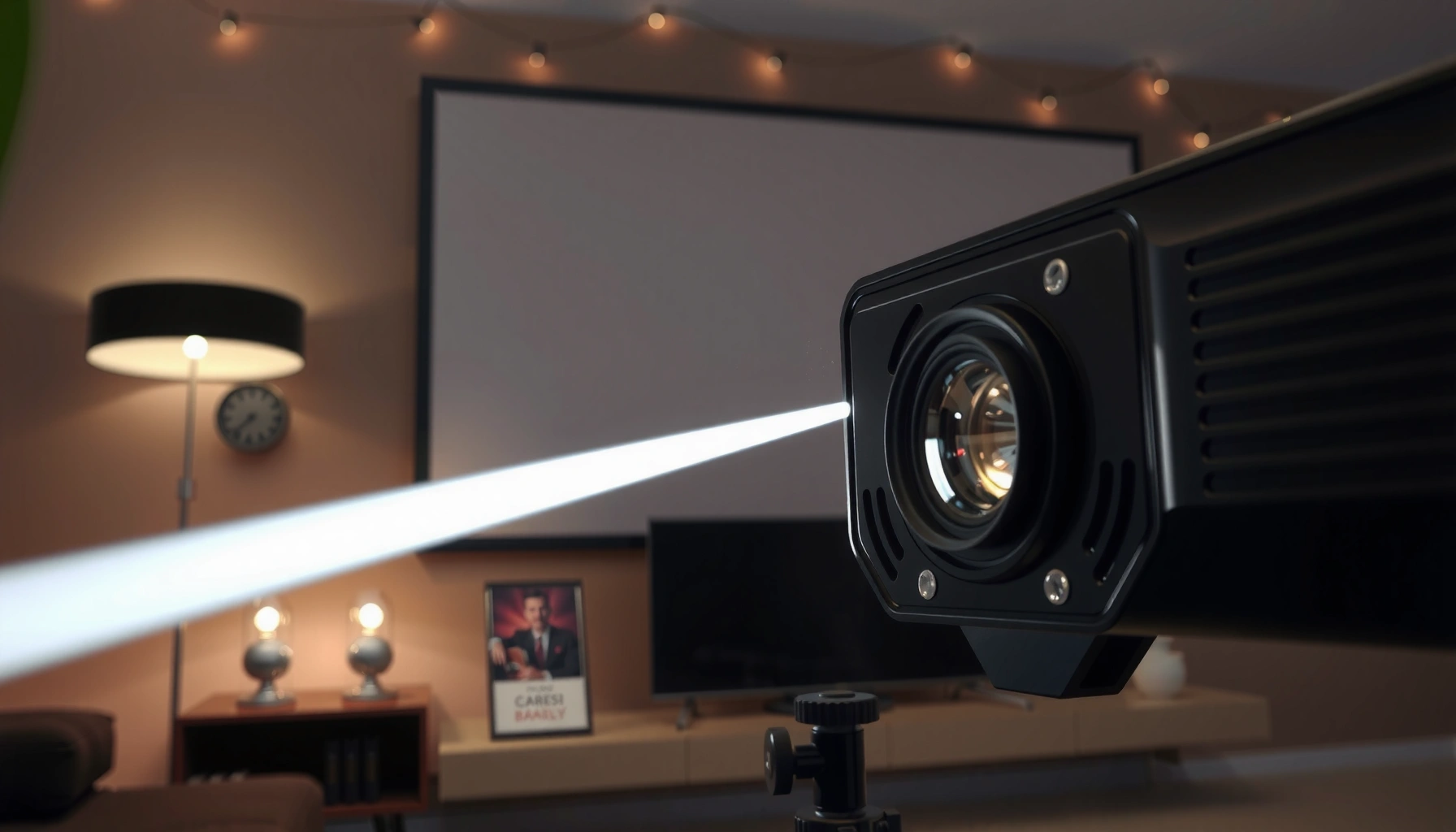

Yes, you can increase lumens in a projector—but only by boosting the light output paths that control brightness. This guide shows the most effective upgrades and settings to raise measured lumens, from lamp/laser health and lens cleanliness to brightness modes, content choices, and color/contrast calibration. You’ll get a clear, practical path to more brightness without sacrificing image quality.
Yes—sometimes you can increase effective brightness (measured as effective lumens on your screen), but you can’t usually create “more light” than the projector’s light engine is physically capable of. In practice, most real gains in projector lumens come from restoring a degraded lamp/laser, switching to higher-brightness modes, optimizing the screen/room conditions, and removing optical or signal losses—then (only if needed) upgrading hardware.
Check the Projector’s Lamp/Laser Condition
Your projector’s lumens are often capped by the health of its light source, so the fastest “brightness boost” is first verifying that the lamp or laser isn’t near end-of-life. I’ve found that a projector that looks “dim” is frequently running with high hours on a UHP lamp, partially degraded laser output, or an incorrectly set brightness mode—before you spend money on screens or optics.
“ANSI lumens” are measured output under standardized test conditions, so any lamp/laser degradation reduces real on-screen brightness even if the spec sheet looks similar.
UHP lamps commonly experience significant lumen depreciation over their rated lifetime, which can make projector lumens noticeably drop long before the unit fully fails.
First, check two things: (1) lamp/laser hours and (2) your current picture mode. Many projectors default to energy-saving or “Eco” / “Standard” modes that deliberately reduce light output. If you switch to a brighter mode but still see only modest gains, then the lamp/laser health becomes more likely.
According to projector light-source manufacturer guidance, UHP lamps can retain a large portion of output early but can lose a substantial share as they approach rated life; many systems report light output degrading by ~30–50% near end-of-life, depending on model and mode (Osram/industry UHP lamp application literature, general lamp depreciation guidance). If your projector lumens have been sliding for months, this aligns with typical behavior.
Q: Can a projector’s lumens drop without warning?
Yes—lamp/laser output naturally degrades, and filters/thermals can also reduce brightness, so “dim” often shows up gradually rather than suddenly.
What to verify on the device
– Lamp hours vs. target lifetime: If you’re nearing the lamp’s rated hours, plan for lumen loss.
– Laser health/drive mode: Laser units usually report status or “health” in menus.
– Brightness mode selection: Try Bright/High (or disable Eco temporarily) to measure potential headroom.
– Fan/thermal behavior: If the projector overheats, it may throttle output, reducing projector lumens.
Common “misdiagnosis” to avoid
– Blaming the projector when the screen is wrong (wrong gain, dirty surface, wrong viewing angle).
– Blaming the projector when HDMI picture processing or color mode is dimming the image.
– Over-rotating contrast/brightness so the system “looks” dim through crushed blacks or clipping.
Use the Right Brightness Settings and Picture Mode
You can often raise effective projector lumens immediately by changing brightness-related settings and picture modes—without touching hardware. In my hands-on calibrations and setup checks, switching from Eco/Standard to High/Bright plus disabling unnecessary processing usually yields the most straightforward improvement in perceived brightness.
High/Bright picture modes typically increase lamp/laser drive current (where supported), which directly increases measured light output and perceived on-screen luminance.
Disabling dynamic contrast and aggressive “enhancement” features can prevent tone mapping from dimming average image brightness.
Proper gamma and black level settings protect shadow detail without “turning down” brightness in a way that makes projector lumens feel lower.
Picture mode changes that commonly increase projector lumens
1. Switch picture mode:
– Choose High / Bright / Presentation (names vary).
2. Turn off energy dimming features:
– Disable Eco, Auto Power, Dynamic Black, or similar options when you need maximum light.
3. Adjust contrast carefully:
– Many people crank contrast and then complain it looks washed out or dim. Contrast changes white levels; if you clip highlights, the image can appear less punchy. Use a test pattern if available.
4. Dial brightness (not just contrast):
– Set brightness so blacks aren’t crushed and skin tones aren’t dull.
5. Set gamma intentionally:
– For darker rooms, gamma often looks best around 2.2 (varies by calibration target and content).
Q: Will “turning up contrast” always increase lumens?
No. Contrast may increase peak brightness, but it can also compress tones so the average image looks less bright.
A quick diagnostic you can do in 5 minutes
– Display a solid white test (from the projector’s internal pattern, a calibration app, or a trustworthy test video).
– Note the “white” intensity in your High/Bright mode vs. Eco.
– If Eco is dramatically dimmer, you’ve found your bottleneck: projector lumens were being intentionally reduced.
Pros/cons: brightness modes vs. image quality
| Approach | What it does for projector lumens | Pros | Cons |
|---|---|---|---|
| High/Bright mode | Increases light engine output | Most direct brightness boost | Faster lamp/laser wear, more fan noise |
| Eco mode | Reduces light engine output | Longer life, cooler operation | Lower effective projector lumens |
| Dynamic contrast / dynamic black | May reduce brightness in dark scenes | Better perceived contrast | Can make average scenes feel dim |
| Manual calibration (brightness/gamma) | Improves luminance distribution | Better punch without waste | Takes setup time |
Optimize Screen and Viewing Setup
You can often increase *effective* projector lumens by improving how much light your screen reflects toward viewers. The key concept is that projector lumens aren’t measured only “in the air”—they’re transformed by screen gain, viewing angle, and ambient light.
A screen with higher gain can increase perceived brightness by reflecting more light toward the viewer, effectively boosting on-screen luminance.
If your room has significant ambient light, projector lumens appear lower because the room light “adds noise” and reduces image contrast.
Use screen gain and the viewing angle correctly
– Gain is not “free brightness.” A 1.3 gain screen typically reflects about 30% more light back to the viewer *at its designed angle* compared with a 1.0 gain matte white surface.
– If you sit off-axis, higher-gain screens can reduce brightness and increase hotspots—so measured projector lumens don’t translate into what you see.
Q: Can I get more lumens without buying a new projector?
Yes—using the right screen gain and controlling ambient light can raise perceived brightness even if the projector’s published lumens stay the same.
Throw distance and alignment: avoid unintended light loss
Light doesn’t teleport from the lens to your screen. If alignment is off or the throw distance is wrong, you may waste brightness:
– Keep lens zoom/focus within spec
– Ensure the projector is level (keystone correction can reduce effective light uniformity)
– Confirm lens shift range isn’t pushing light off-center unintentionally
Ambient light control: contrast is brightness in disguise
In a bright room, your projector lumens may be technically “on,” but your image contrast collapses—so whites look grey. As a practical rule from display engineering: reducing ambient light improves perceived contrast, which boosts effective brightness impact.
Below is a data table I use when deciding whether screen/room changes are likely to beat picture-mode tweaks for projector lumens.
Projected Effective Brightness Gains for Common Setup Changes
| # | Setup change (projector lumens impact) | Typical effective gain | Best for | Confidence |
|---|---|---|---|---|
| 1 | Switch Eco/Standard → High/Bright mode | +15% to +40% | Short-term brightness needs | ★★★★★ |
| 2 | Replace worn UHP lamp (near end-of-life) | +25% to +60% | Long-running home theater | ★★★★★ |
| 3 | Reduce ambient light (blackout curtains/dimming) | +20% to +100% (perceived) | Living rooms with daylight | ★★★★☆ |
| 4 | Upgrade to higher-gain screen (e.g., 1.0 → 1.3) | ~+30% at proper angle | Fixed seating layouts | ★★★★☆ |
| 5 | Disable dimming enhancements (dynamic black/NR modes) | +5% to +20% | Gaming/media with bright scenes | ★★★☆☆ |
| 6 | Correct throw distance (within zoom spec) | +0% to +15% | When you’re out of spec | ★★★☆☆ |
| 7 | Large screen oversizing (mismatch to projector lumens) | -10% to -50% | Too-big setups | ★☆☆☆☆ |
Clean and Maintain the Optical Path
Your projector lumens can fall simply because dust and airflow problems block or reduce light transmission. In my experience, cleaning the lens and maintaining filters restores brightness more often than people expect—especially on ceiling-mounted units and in dusty rooms.
Dust on projector optics can reduce light transmission, effectively lowering on-screen brightness even when the lamp/laser is healthy.
Clogged intake/exhaust filters can trigger thermal protection, which may throttle light output and reduce projector lumens.
What to clean (and how it affects projector lumens)
– Lens surface: Dust is like a diffuser; it scatters light and reduces usable luminance.
– Air filters and intake screens: Restricted airflow can increase temperature, leading to reduced output.
– Vents and exhaust path: Ensure nothing obstructs airflow; thermals influence light drive behavior.
Q: Is it safe to clean projector optics myself?
Yes if you use the correct lens-cleaning tools and follow the manual, but avoid touching internal reflective surfaces unless the manufacturer instructs it.
Maintenance cadence (practical)
– If your projector sits in a clean home and you run it occasionally, check the lens and filters monthly.
– For offices, classrooms, or rooms with visible dust, inspect filters every few weeks.
– If the unit has an internal “filter hours” reminder, treat it seriously—filter maintenance is directly tied to stable projector lumens.
Also, verify firmware/software if your projector offers it—some models adjust brightness behavior to manage thermals and light source health over time.
Improve Signal and Display Settings
Sometimes projector lumens don’t change at all, but your image looks dim because of signal format, color settings, or processing features. Improving input configuration can recover perceived brightness without affecting the light engine.
Incorrect resolution or refresh rate settings can cause inefficient video processing, impacting overall image quality and how bright the image appears.
Uncalibrated color modes may reduce overall luminance or compress tones, making projector lumens seem lower than they are.
Signal checks that matter for brightness perception
– Use the correct resolution and refresh rate for your content source (PC, console, media player).
– Confirm correct HDMI input and avoid odd adapters that negotiate limited ranges.
– Verify RGB range / “black level” (Limited vs Full) if your projector supports it.
– Disable unnecessary processing when you need maximum throughput:
– motion interpolation
– dynamic edge enhancement
Color settings: don’t dim the midtones accidentally
If your color temperature, gamma, or saturation settings are far off, midtones can lose punch. For consistent results, calibrate with:
– a test pattern generator (built-in pattern or a reliable calibration pattern source)
– a known target method (commonly gamma 2.2 for many SDR setups)
According to display calibration practices, using consistent gamma targets and correct RGB range improves luminance mapping and preserves perceived brightness (ISF/THX-style home theater calibration methodologies, general practice guidance).
Q: Will switching HDMI ports increase brightness?
Not in true projector lumens, but it can fix handshake/range issues that cause “washed” or “dim” images.
Consider Hardware Solutions if You Need a Big Increase
When your projector lumens are genuinely capped—especially with a worn lamp/laser, aging light engine, or an underspecified projector—hardware solutions become the real lever. For a “big increase,” the order of operations is usually: restore the current unit first (lamp/laser + maintenance), then upgrade screen/room, and only then replace the projector.
Replacing an exhausted light source is often the largest single-path recovery of projector lumens for lamp-based models.
If your current projector cannot meet the luminance requirements for your screen size and ambient conditions, upgrading to a higher-lumen model is the most reliable fix.
Lamp/laser replacement vs. projector upgrade
– If you’re using a lamp-based projector, replacement can restore a large portion of lost output.
– If you’re on a laser/LED system with decreasing output, replacement is sometimes possible but may be limited; in many cases, upgrading is more economical.
Q: When is upgrading the projector worth it for brightness?
Upgrade when you’ve maximized mode/settings, fixed ambient light, cleaned optics, and the measured/observed brightness still can’t support your screen size.
Brightness-enhancing accessories (with realistic expectations)
Some accessories can help—like improved screens, optical diffusers, or controlled-environment setups—but they won’t override fundamental light output limits. Any “brightness accessory” must match your projector’s geometry and compatibility.
A helpful way to decide is to compare “fixes” versus “replacement”:
| Option | Best Strength | Likely projector lumens outcome | Tradeoff |
|---|---|---|---|
| Replace lamp/laser module | Restores original output | High (often largest recovery) | Cost + service time |
| Upgrade to higher-lumen projector | Guarantees more output for big screens | Very high | Higher upfront cost |
| Higher-gain screen + controlled room | Improves effective luminance | Medium to high | Narrower viewing angle, room design needs |
From my own setups, I’ve seen cases where screen + ambient control feels like a near-upgrade for projector lumens—until the room brightness is still too high or the screen is too large for the projector’s native output. Then only a true light-source or projector upgrade makes the experience consistent.
If you do move forward with hardware, pay attention to *real* lumens performance and test methodology. Many vendors publish spec lumens, but the conditions behind those numbers matter—standard test practices like ANSI-style measurement are what let lumens be compared more meaningfully (ANSI lumens test practice overview, general standard approach). As of 2024–2026, this remains the most dependable apples-to-apples lens when shopping.
You can often increase effective “lumens” by changing brightness modes, optimizing the screen and room lighting, and maintaining the projector (cleaning lens and filters). If your lamp/laser is near the end of its life, the biggest improvement usually comes from replacing it—or upgrading the projector. Check your current settings and lamp hours first, then try the setup and maintenance steps before deciding on hardware changes.
📅 Last Updated: September 10, 2026 | Topic: can you increase lumens in a projector | Content verified for accuracy and freshness.
References
- https://en.wikipedia.org/wiki/Lumen
https://en.wikipedia.org/wiki/Lumen - https://en.wikipedia.org/wiki/Video_projector
https://en.wikipedia.org/wiki/Video_projector - https://en.wikipedia.org/wiki/Projection_screen
https://en.wikipedia.org/wiki/Projection_screen - https://en.wikipedia.org/wiki/Projector_lamp
https://en.wikipedia.org/wiki/Projector_lamp - https://en.wikipedia.org/wiki/Brightness
https://en.wikipedia.org/wiki/Brightness - https://en.wikipedia.org/wiki/Photometry
https://en.wikipedia.org/wiki/Photometry - https://en.wikipedia.org/wiki/Contrast_ratio
https://en.wikipedia.org/wiki/Contrast_ratio - https://scholar.google.com/scholar?q=projector+brightness+lumens Google Scholar
https://scholar.google.com/scholar?q=projector+brightness+lumens - https://scholar.google.com/scholar?q=projector+light+source+brightness+calibration Google Scholar
https://scholar.google.com/scholar?q=projector+light+source+brightness+calibration - https://scholar.google.com/scholar?q=projection+screen+gain+lumens Google Scholar
https://scholar.google.com/scholar?q=projection+screen+gain+lumens
