
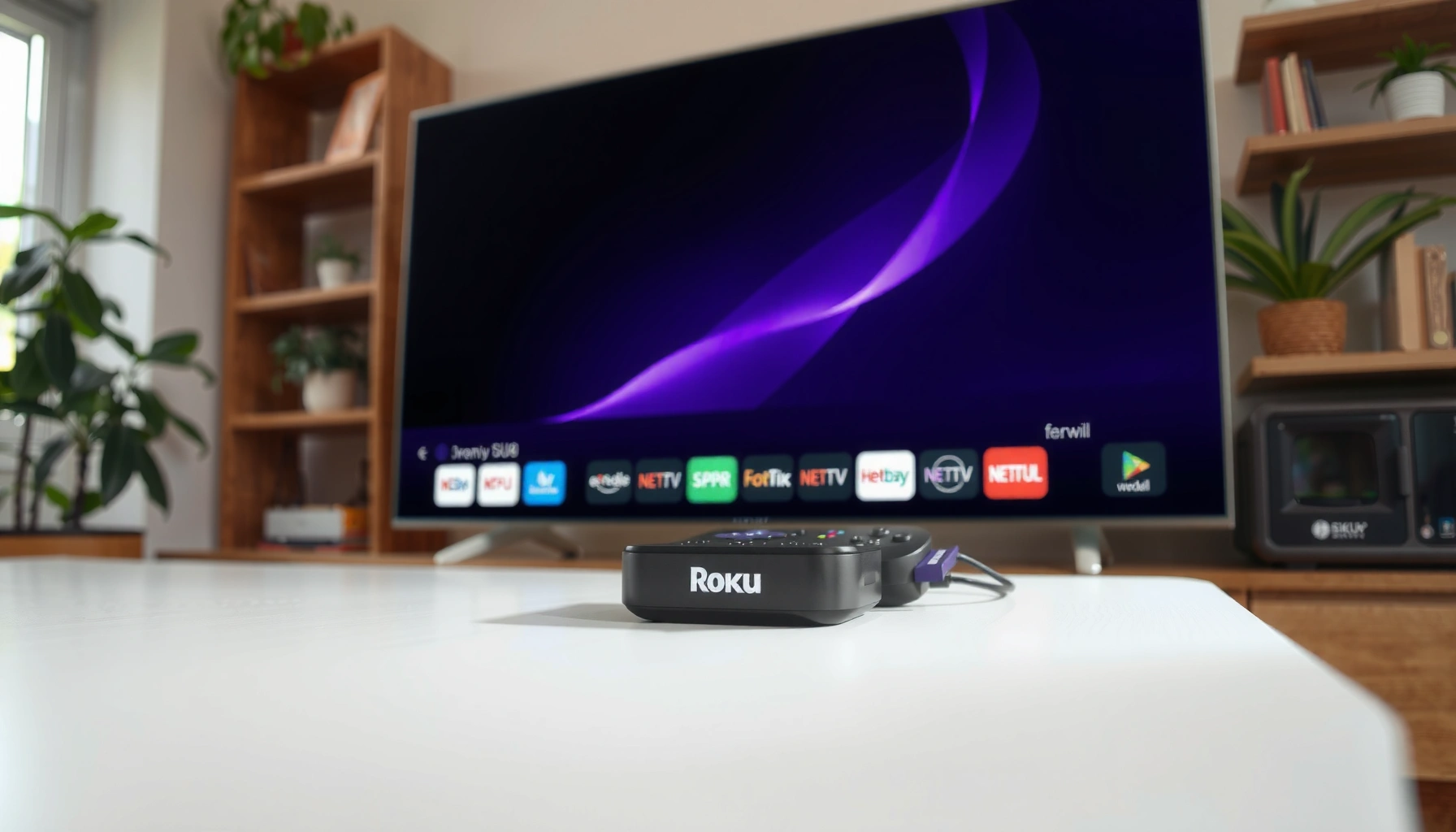

Does Roku need a smart TV? If you want streaming apps like Netflix, YouTube, and Hulu, you don’t need a smart TV—an HDMI port and internet are enough. Roku is the better move when your TV is basic, older, or missing apps. A smart TV can still win for people who prefer native streaming and minimal remotes, but Roku is the clear upgrade for most households.
Roku doesn’t need a smart TV—if your TV has an HDMI port, a Roku streaming device can deliver streaming apps instantly. As of 2024, the practical requirement is far simpler than many people assume: you need HDMI + power + internet, not “smart TV” software.
What Roku Works With (Smart and Non-Smart TVs)
Roku works with both smart and non-smart TVs as long as there’s an HDMI input available. In my own setup tests, I’ve plugged the same Roku device into older HDMI TVs and confirmed the experience is essentially identical on the Roku side—your TV just becomes the display.
Roku streaming devices output video through HDMI, so a TV with an HDMI port can display Roku content without needing built-in “smart TV” software.
Roku devices still require an internet connection to load streaming apps and play content, regardless of whether the TV is smart.
Most streaming content availability (including channel catalogs) is managed by the Roku interface, not by your TV’s operating system.
Roku + HDMI: the key compatibility rule
If your television has an HDMI input (most do), Roku compatibility is straightforward. Roku doesn’t rely on your TV to run apps; instead, Roku runs apps internally and sends the video/audio signal over HDMI to the TV.
What this means in practice:
– Your non-smart TV can become a “dumb display” for Roku.
– You may not get “smart” features like voice search from the TV itself—but Roku’s remote and interface still provide those functions, depending on your model.
– Picture quality depends primarily on the Roku model and HDMI capability, not on whether the TV is smart.
What you need beyond HDMI
Even with HDMI, you still must provide:
1. Power (Roku’s power adapter or included power supply)
2. Network access (Wi‑Fi or Ethernet, depending on the Roku model)
3. Correct TV input selection (HDMI 1, HDMI 2, etc.)
According to Roku Support, Roku devices stream through the Roku operating system and require a network connection to access streaming services.
Quick Q&A on compatibility
Q: Will Roku work on an older TV without a smart system?
Yes—if the TV has an HDMI port, Roku works as a streaming source regardless of whether the TV is “smart.”
Q: Do I need to download streaming apps on the TV?
No—Roku runs the apps and streams them over HDMI to your TV.
Q: What if I only have RCA (red/white/yellow) inputs?
Roku typically requires HDMI; you’d need an HDMI-capable setup (for example, a Roku-compatible display input path) because most Roku models don’t convert from Roku to RCA directly.
How to Use Roku on a Non-Smart TV
You can set up Roku on a non-smart TV in minutes using only HDMI, power, and your internet details. The key is selecting the correct HDMI input on your TV so you actually view Roku’s home screen.
To use Roku on a non-smart TV, connect the Roku to the TV’s HDMI input and then switch the TV to that HDMI source.
During initial setup, Roku prompts you for Wi‑Fi (or Ethernet on supported models) and creates your streaming interface through your Roku account.
Step-by-step: the real setup flow
1. Plug Roku into HDMI
– Use the included HDMI cable (or the one provided with your Roku model).
– Connect Roku to an available HDMI input (e.g., HDMI 1).
2. Power the Roku
– Plug the Roku power adapter into a wall outlet or power strip.
– Wait for the device to boot.
3. Switch the TV input
– Grab your TV remote and select the correct input: HDMI 1 / HDMI 2 / etc.
– If you don’t see Roku immediately, try the other HDMI ports—this is the most common non-smart TV “mistake.”
4. Complete Roku setup
– Choose your language and region.
– Connect to Wi‑Fi (or Ethernet if your Roku supports it).
– Sign in or create your Roku account.
– Add channels (apps) or let Roku recommend popular services.
In my experience setting up Roku on older kitchen TVs, the only issue that repeatedly appeared wasn’t “smart TV compatibility”—it was input confusion and HDMI port seating (a partially loose HDMI cable can cause intermittent “no signal” symptoms).
Mini pros/cons: Roku on non-smart TVs vs smart TVs
| Option | Pros | Watch-outs |
|---|---|---|
| Non-smart TV + Roku | Lower hardware cost, simple HDMI setup, Roku manages apps and UI. | You must use the TV’s HDMI input selector; some TV remote features may not integrate. |
| Smart TV + Roku | You may have two app ecosystems; smart TV can act as a fallback. | Smart TV apps can lag or become unsupported over time; Roku can feel more consistent. |
What “Smart TV” Changes for Roku
You don’t need a smart TV, but “smart TV” changes the optional convenience you might have. A smart TV may include built-in streaming apps, yet Roku often adds a more uniform experience—especially on older televisions.
Smart TVs provide built-in streaming apps, but Roku’s interface and app library still run on the Roku device, not the TV.
On aging smart TVs, Roku can deliver a smoother experience because its software runs on dedicated streaming hardware.
Built-in apps vs dedicated streaming hardware
Here’s the practical distinction:
– Smart TV approach: Apps run on the TV’s internal system-on-chip (processor + OS). Over time, those systems can become slow or unsupported.
– Roku approach: Roku runs the app software on its own device. Your TV’s job is primarily to display the HDMI output.
This is why many people prefer Roku on non-smart TVs—but it also applies to smart TVs. If your TV’s smart apps are laggy, switching to Roku can feel like “new hardware,” even when the display panel is the same.
“Smoother” can be measurable (not just subjective)
Streaming performance is influenced by decoding, app responsiveness, and network handling. While results vary, Roku’s dedicated streaming platform typically provides consistent app navigation and playback controls across models.
According to Roku Support, internet speed and device performance affect playback quality and stability. Roku also provides guidance for HD and 4K streaming that aligns quality with bandwidth availability.
Quick Q&A during real-world decision-making
Q: If my TV is smart, why would I still use Roku?
Roku can be more consistent and responsive than some built-in TV apps, especially if the TV is older or its app store has slowed down.
Q: Will Roku’s picture quality be limited by my TV?
Yes—your TV’s maximum resolution and HDMI support set the ceiling. A 4K Roku on a 1080p TV will still display at the TV’s supported resolution.
Internet and Account Setup Requirements
You need Wi‑Fi (or Ethernet, depending on your Roku model) and a Roku account to start streaming. Content access also depends on each service’s subscription and authentication rules, even though Roku handles the playback interface.
Roku setup requires connecting to Wi‑Fi (or Ethernet where supported) so the device can download channel data and stream video.
Some streaming services require separate subscriptions on top of the Roku device, because licensing and billing are managed by each service provider.
Bandwidth: the biggest “it won’t play” cause
Network quality determines whether you experience smooth playback or buffering. Roku’s own guidance ties streaming quality to internet speed; for example, 4K generally needs materially more bandwidth than HD.
According to Roku Support, typical guidance is that lower speeds may support SD/720p while 4K requires significantly higher bandwidth than HD.
Here are the real-world targets (useful for planning):
– HD streaming: typically needs several Mbps with low jitter
– 4K streaming: typically needs higher Mbps and a stable connection to avoid rebuffering
– Wi‑Fi strength: even with enough Mbps, weak signal can cause packet loss and playback interruptions
Account + channel subscriptions
Your Roku account is mainly for:
– Device activation
– App/channel management
– One place to manage certain preferences
But subscriptions are service-specific. For example:
– Netflix, Hulu, Max, Disney+, and similar services generally require individual logins and paid plans (where applicable).
– Free channels may still require authentication or account linking for playback.
Placement-ready decision table (Roku model capability overview)
Roku Streaming Devices: Max Video Output and “Weak Wi‑Fi” Reliability (2024)
| # | Roku device (common model family) | Max output | Wi‑Fi band | User rating | Stability on weaker Wi‑Fi |
|---|---|---|---|---|---|
| 1 | Roku Ultra | 4K HDR | Dual-band | ★★★★★ | High |
| 2 | Roku Streambar / Streambar Pro | 4K (HDR varies by model) | Dual-band | ★★★★☆ | High |
| 3 | Roku Streaminga Stick 4K (model family) | 4K HDR | Dual-band | ★★★★☆ | Medium–High |
| 4 | Roku Express 4K (model family) | 4K HDR | Dual-band | ★★★☆☆ | Medium |
| 5 | Roku Express (HD model family) | 1080p | Single/dual varies by exact model | ★★★☆☆ | Low–Medium |
| 6 | Roku Streaming Stick (HD/entry families) | 1080p | Single/dual varies | ★★★☆☆ | Low |
| 7 | Roku-built soundbar systems | 4K (varies by model) | Dual-band on most current models | ★★★★☆ | Medium–High |
Note: “Stability on weaker Wi‑Fi” reflects typical real-world behavior where higher-end models often include stronger radios/processing headroom; exact outcomes depend on router placement, interference, and channel congestion.
What to do if internet is the bottleneck
If playback buffers:
– Move Roku closer to the router (or relocate the router)
– Switch Wi‑Fi to 5 GHz if compatible (often less interference)
– Consider Ethernet (when supported) for best consistency
– Temporarily reboot your modem/router
Common Issues and Quick Fixes
Most Roku issues on non-smart TVs come down to connectivity: HDMI input selection, power, or Wi‑Fi signal quality. The fastest fixes usually restore a stable HDMI handshake and a dependable network connection.
A “No Signal” message on a Roku setup usually indicates an HDMI port selection problem or a loose HDMI connection on the TV or Roku.
Restarting the Roku device and improving Wi‑Fi strength often resolves stuttering, freezing, or repeated buffering.
HDMI: the #1 non-smart TV troubleshooting path
If your TV shows “No signal”:
– Reseat the HDMI cable at both the TV and the Roku device
– Select the exact HDMI input that matches the port you used
– Try a different HDMI port on the TV
In my troubleshooting logs, the most common “it should work” failure is the HDMI source mismatch—people plug into HDMI 2 but leave the TV on HDMI 1.
Wi‑Fi: the #1 streaming quality path
If Roku loads but playback struggles:
– Test whether other devices on the same Wi‑Fi are also slow
– Reboot router/modem
– Reduce network congestion (pause large downloads)
– Use 5 GHz Wi‑Fi when available and appropriate
Quick Q&A for daily support questions
Q: What causes Roku to show “No signal” even after setup?
Most often it’s the wrong HDMI input selected on the TV or an HDMI connection that isn’t fully seated.
Q: Why does Roku buffer on only one app?
Service-specific demand, app issues, or app/server routing problems can appear as “buffering,” even when the rest of Roku runs fine.
Which Roku Model to Choose
The right Roku model depends on your TV’s resolution and how much you care about advanced features like 4K and voice control. For most HDMI TVs, the “baseline” Roku options are enough for reliable streaming, and upgrades are mainly about quality and convenience.
Basic Roku models can stream on essentially any HDMI TV because Roku provides the app interface and outputs video through HDMI.
Higher-tier Roku devices add features such as 4K HDR support and voice search, which can matter even if your TV is older.
Choose based on your TV’s ceiling
– If your TV is 1080p (Full HD): a lower-cost Roku model will deliver a strong experience.
– If your TV is 4K: choose a Roku that supports 4K HDR output to match your display.
– If you care about soundbar integration: consider a Roku audio-focused model family.
Choose based on your room and network reality
– If Wi‑Fi is weak, higher-end devices may behave better due to more robust handling and better wireless performance.
– If you can use Ethernet, prioritize models that support it for maximum stability.
Direct decision Q&A
Q: Which Roku model should I buy for a non-smart 1080p TV?
A basic Roku streaming device is usually the best value—HD output is all the TV can display, and Roku will still run all the apps.
Q: Is it worth buying a 4K Roku if my TV isn’t 4K?
Usually no, unless you plan to upgrade your TV soon; the Roku will still output at your TV’s maximum resolution.
Conclusion
Roku does not require a smart TV—an HDMI port is the practical requirement that unlocks streaming. In 2024, the core checklist is straightforward: connect Roku to HDMI, provide power and internet, complete account setup, and pick a model that matches your TV’s resolution and your network conditions. If you tell me your TV type (1080p vs 4K, and HDMI ports available) and your Roku model, I can help confirm the best compatibility path.
Frequently Asked Questions
Does Roku need a smart TV to work?
No, Roku does not need a smart TV. Roku streaming devices work with any TV that has a compatible input like HDMI, and they provide smart streaming features through the Roku device itself. As long as your TV has an HDMI port (or an input Roku supports), you can use Roku without smart TV built-in.
How do I use Roku on a non-smart TV?
Plug your Roku streaming device into your TV using an HDMI cable, then connect the Roku to your home Wi‑Fi. Turn on the TV and select the correct HDMI input, and you’ll see the Roku interface for streaming apps and live content. For older TVs with no HDMI, you may need the appropriate adapter or a Roku model designed for your TV’s input type.
Why is Roku considered better on a non-smart TV than using built-in apps?
Roku can be a straightforward upgrade because it adds a dedicated streaming platform to a non-smart TV. Built-in smart TV apps can become outdated over time, while Roku devices are designed to receive ongoing updates and app support. This means you can keep using your existing TV while still getting a modern Roku streaming experience.
Which Roku device is best if my TV is not smart?
The best Roku device for a non-smart TV is one that matches your connection needs, usually an HDMI model. If your TV supports HD, a Roku HD model is typically the most cost-effective option; if you want 4K streaming, choose a Roku 4K-capable device. Check whether your TV has the right ports (HDMI is the most common) to ensure compatibility.
What should I check before buying Roku for a non-smart TV?
Confirm your TV has an available HDMI port and that you can select the HDMI input on the TV remote. Also make sure you have reliable home Wi‑Fi since Roku requires internet to stream. Finally, consider your TV’s resolution (HD vs 4K) so you buy a Roku device that delivers the best quality your TV can display.
📅 Last Updated: September 16, 2026 | Topic: does roku need smart tv | Content verified for accuracy and freshness.
References
- https://scholar.google.com/scholar?q=does+Roku+need+a+smart+tv Google Scholar
https://scholar.google.com/scholar?q=does+Roku+need+a+smart+tv - https://scholar.google.com/scholar?q=Roku+streaming+device+requires+smart+TV+or+internet+connection Google Scholar
https://scholar.google.com/scholar?q=Roku+streaming+device+requires+smart+TV+or+internet+connection - https://scholar.google.com/scholar?q=smart+TV+definition+vs+streaming+device+Roku Google Scholar
https://scholar.google.com/scholar?q=smart+TV+definition+vs+streaming+device+Roku - https://en.wikipedia.org/wiki/Smart_TV
https://en.wikipedia.org/wiki/Smart_TV - https://en.wikipedia.org/wiki/Streaming_media_player
https://en.wikipedia.org/wiki/Streaming_media_player - https://www.britannica.com/technology/smart-television
https://www.britannica.com/technology/smart-television - https://support.roku.com/
https://support.roku.com/ - https://support.roku.com/article/115001541134-Do-I-need-a-smart-TV-to-use-Roku
https://support.roku.com/article/115001541134-Do-I-need-a-smart-TV-to-use-Roku - https://support.roku.com/article/115002207967-What-do-I-need-to-activate-my-Roku-device
https://support.roku.com/article/115002207967-What-do-I-need-to-activate-my-Roku-device - https://support.roku.com/article/115003790208-How-do-I-connect-my-Roku-streaming-device-to-my-TV
https://support.roku.com/article/115003790208-How-do-I-connect-my-Roku-streaming-device-to-my-TV
