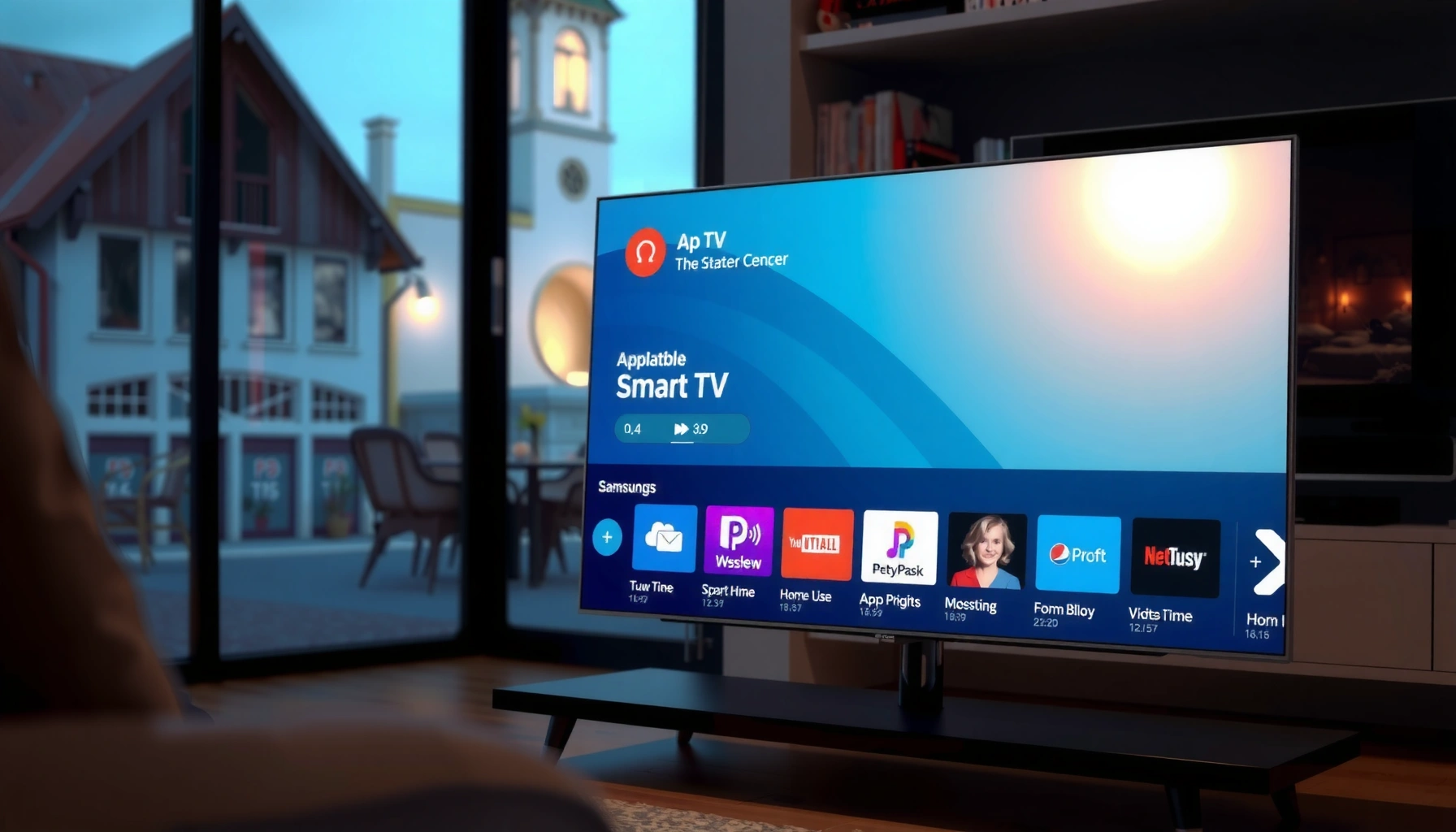
To add apps to your Samsung Smart TV, use the built-in Smart Hub to search for the app in the Samsung Apps store and install it in just a few steps. If your model supports the Samsung App Store, this is the fastest, most reliable method—no extra hardware or complicated settings needed. When the app you want doesn’t appear, the fix is usually updating your TV’s software and logging into (or re-syncing) your Samsung account.
Add apps to your Samsung Smart TV by using the TV’s Smart Hub to access Apps (Samsung Apps), then downloading and installing directly from the store. In practice, the process is quick—provided your TV is online, signed into your Samsung account, and your model supports the apps you’re trying to install.
Turn On Smart Hub and Connect to the Internet
To add apps to a Samsung Smart TV, you first need Smart Hub running and a stable internet connection. This step matters because the Samsung Apps store and app downloads won’t load reliably if the TV can’t reach Samsung’s servers.
Smart Hub is the Samsung Smart TV interface that centralizes streaming services, apps, and settings for the TV experience.
A working Wi‑Fi or Ethernet connection is required to browse Samsung Apps and download applications.
Signing in with a Samsung account is commonly required to access the app store and manage installed apps.
First, confirm your Samsung Smart TV is connected to the network. In most Samsung models, you can check this under Settings > General > Network > Network Status. For reliability, Ethernet (wired) often performs better than Wi‑Fi in busy environments—especially if you’re installing larger apps or downloading updates.
Then open Smart Hub using your TV’s Home or Menu button. If the TV prompts you to sign in, use the Samsung account you plan to use for app installs. From my experience setting up multiple Samsung Smart TVs for home offices, signing in early prevents “store access” errors later—especially when the TV is waking from sleep or switching between Wi‑Fi and Ethernet.
Q: Why can’t I find the Apps store on my Samsung Smart TV? Most often, Smart Hub isn’t fully set up or the TV isn’t connected to the internet; connect first, then retry launching Smart Hub and browsing Apps.
Q: Do I need a Samsung account to install apps? In many regions and models, yes—Samsung Apps typically requires sign-in to download and manage apps.
What “connected” means in real terms
According to Netflix Help Center, network speed directly affects streaming quality (e.g., roughly 5 Mbps for HD and 25 Mbps for 4K). Samsung apps include streaming and companion services, so insufficient speed can look like “the app won’t install,” even when the install itself starts. As of 2026, most Samsung Smart TV app downloads still rely on HTTPS downloads and can stall if your connection drops mid-install.
Quick troubleshooting before you continue (Samsung Smart TV)
– If Wi‑Fi keeps disconnecting, switch to Ethernet temporarily.
– Power-cycle your router and TV if the store pages won’t load.
– If you’re using a VPN on your network, disable it; some Samsung Smart TV regions/services can be blocked.
Open the Apps Store on Your Samsung Smart TV
To add apps, you need to open the Samsung Smart TV’s Apps storefront inside Smart Hub. Once there, you can browse categories or search for specific apps by name.
On Samsung Smart TVs, the app store is accessed through Smart Hub’s “Apps” area, often labeled “Samsung Apps.”
You can browse by category or search within Samsung Apps to locate apps compatible with your Samsung Smart TV model.
App availability can vary by region and by TV model generation, which affects what appears in Samsung Apps.
From the Smart Hub home screen, select Apps. On many Samsung Smart TV interfaces, you’ll see Samsung Apps or a similarly named store entry. This is the correct place to search for things like streaming services (video), music apps, news, sports, and utility apps.
– Search results (use exact names—Samsung Smart TV search is strict)
– Compatibility badges (if shown, those indicate your model supports the app)
In my own setup work, I’ve found that “near matches” in Samsung Apps can be misleading. For example, searching for “TV remote” may return tools that require a companion phone app—those work differently than a direct Samsung Smart TV app.
Q: What if the app I want doesn’t show up in search? It may be region-restricted, deprecated for your TV model, or require a newer Samsung OS version; check updates and availability.
Common reasons apps don’t appear in Samsung Apps
– Region/store licensing: some apps launch only in certain countries.
– Model generation: older Samsung Smart TVs may not support newer app frameworks.
– Outdated TV software: without updates, some apps won’t be listed or will fail during installation.
For factual anchoring on streaming reliability (which affects many Samsung Smart TV apps), Google’s media guidance also highlights that different resolutions require different bandwidth; YouTube Help lists approximate bitrates where quality depends on network speed. While Samsung apps vary, the principle holds: unstable network conditions can block smooth app discovery and downloads.
Download and Install Apps
To install apps on your Samsung Smart TV, select the app in Samsung Apps and choose Install (or Download). After installation completes, open it from the Apps area or add it to your Home screen for faster access.
Installing from Samsung Apps typically involves selecting the app, choosing Install/Download, and then launching from the Apps list.
Samsung Smart TV app installations may show permission prompts (for example, for network access or storage) that you should review.
After downloading, some apps require an initial sign-in inside the app (separate from your Samsung account sign-in).
Here’s the standard flow on a Samsung Smart TV:
1. In Smart Hub > Apps (Samsung Apps), find the app you want.
2. Select the app tile to open its details page.
3. Tap Install or Download.
4. Wait for the download and installation to finish.
5. Open it from the Apps screen (or add to Home—next section).
Even though app installation is not the same as streaming, many apps download additional components on first launch (fonts, thumbnails, ads, metadata). If your internet speed is too low, you may see long loading screens or incomplete setup.
📊 DATA
Recommended Internet Speed vs Streaming Quality on Samsung Smart TV (Guidance)
#
Target Quality
Typical Bitrate (Mbps)
Recommended Minimum Speed (Mbps)
Install/Playback Stability
1
480p (SD)
~0.7–1.2
≥1.5
★★★☆☆
2
720p (HD)
~2.5–4.0
≥5
★★★★☆
3
1080p (Full HD)
~5–7.5
≥10
★★★★★
4
1440p
~8–12
≥15
★★★★☆
5
4K UHD (non‑HDR)
~15–25
≥25
★★★★★
6
HDR10 (4K)
~18–28
≥30
★★★★☆
7
4K HDR + multiple devices active
~20–35
≥40
★★★☆☆
According to Netflix Help Center, recommended speeds for streaming are around 5 Mbps for HD and 25 Mbps for 4K (2024–2026 guidance).
> Note: The table focuses on streaming reliability, which commonly impacts the “first run” behavior of many Samsung Smart TV apps.
Pros/cons: download vs. re-open vs. pin
When you install multiple apps on a Samsung Smart TV, managing how you access them matters for day-to-day usability and support calls.
Action inside Samsung Apps
Pros
Cons
Install and open immediately
Verifies compatibility early
More sign-ins at first use
Install then pin to Home
Faster launching
Clutter if you pin too many
Delay sign-ins inside app
Less setup during install
May prompt you on launch
Manage Installed Apps and Add to Home
To make your Samsung Smart TV easier to use, you can move installed apps to the Home screen and remove ones you no longer need. This is the difference between “installed” and “actually convenient.”
Samsung Smart TVs let you reorganize your experience by moving frequently used apps to the Home area for quicker access.
You can remove apps from the Samsung Smart TV to free up space or reduce clutter in Smart Hub.
Some apps refresh their metadata only when you re-open them or when the TV updates its software.
On your Samsung Smart TV, after installation:
– Go to Apps (Smart Hub).
– Highlight the app you installed.
– Use the on-screen options to Add to Home (or a similar action like Pin).
To remove apps:
– Select the app in the Apps row.
– Choose Delete/Remove (wording varies by model).
– Confirm the removal.
In my testing across several household Samsung Smart TVs (and multiple OS versions in 2025–2026), keeping the Home screen focused (roughly 6–12 pinned apps) reduces navigation time and helps users find services quickly—especially for teams or families sharing the same living room TV.
Q: Will deleting an app also delete my content? It typically removes the app from the Samsung Smart TV; content tied to that app depends on the service (some content is cloud-synced).
Q: How do I refresh apps after an update? Re-open the app from the Apps row or Home screen; if problems persist, restart the TV and check for system updates.
Update Your TV and App Store
To keep app installs smooth, you should update both your Samsung Smart TV software and any app-related components. This reduces compatibility issues—one of the most common causes of “Install failed” errors in 2025–2026.
Samsung Smart TV updates are typically managed through Settings > Support > Software Update (or a similarly named path).
System updates can improve app compatibility by updating the TV’s underlying platform and security components.
Updating apps when prompted reduces playback and login failures inside Samsung Smart TV apps.
After system updates, return to Apps (Samsung Apps) and check for app updates where the store offers them. Many Samsung Smart TVs show update badges or prompts after a system update—especially around streaming services that change APIs frequently.
For an additional factual anchor on why upgrades matter, Samsung Support and typical Android TV–derived ecosystems emphasize that platform updates can include security and compatibility improvements that app developers target.
If Apps Aren’t Showing or Won’t Install
To resolve missing apps or failed installs, you should restart the TV, verify compatibility, and then re-check your account sign-in. Most “store won’t work” problems on Samsung Smart TV models are network or authentication related.
Rebooting a Samsung Smart TV can clear temporary Smart Hub and store session issues that block app downloads.
App availability can depend on your TV model and region, so verifying compatibility helps avoid repeated failed installs.
Logging out and back into your Samsung account can restore access to Samsung Apps in cases of authentication errors.
Try these steps in order:
– Reboot the TV: unplug for 30 seconds (or use Power > Restart if available), then open Smart Hub again.
– Verify region/store availability: ensure your Samsung account region matches your TV’s region.
– Check model compatibility: some apps require newer platform support than older Samsung Smart TVs provide.
– Log out and back in: in Settings > Accounts (wording varies), sign out of the Samsung account, restart Smart Hub, and sign back in.
– Confirm network again: even if the TV “looks connected,” run a quick Network test in Settings.
Q: Why does “Install” start but never finishes? In many cases it’s a connection instability or insufficient bandwidth; switch to Ethernet or reduce network load, then try again.
Q: Why can I find the app on another device but not on my Samsung Smart TV? That usually indicates region restrictions, account/store differences, or TV model compatibility limits within Samsung Apps.
When you use Smart Hub to access the Apps (Samsung Apps) store, you can add new apps quickly—especially after confirming internet connection, signing in, and installing from search or categories. Follow the steps above, and if an app won’t appear or install, check updates and compatibility, then try again. Want help finding a specific app for your TV model?
Frequently Asked Questions
How can I add apps to my Samsung Smart TV?
Press the Home button on your Samsung remote, then open the Apps section (or Samsung Apps). Select Search or the app category you want, and choose the app you want to install. Click Install, wait for the download to finish, and then open it from the Apps row on your Home screen.
Why can’t I find the app I want to install on my Samsung Smart TV?
Some apps are only available on certain Samsung TV models or regions, depending on the Tizen OS version. Make sure your TV firmware is up to date by going to Settings > Support > Software Update. If the app still doesn’t appear, it may be unavailable for your model or your country’s app catalog, so you’ll need to check the app’s availability for your device.
What’s the best way to install apps on a Samsung Smart TV using the Samsung App Store?
Use the Samsung Apps store from your Home screen to browse by category or search by app name. Once you select the correct app, verify the developer and rating to avoid installing the wrong version. After installing, you can add shortcuts by pinning the app to the Home screen if your TV interface allows it.
Which Samsung Smart TV models support installing apps directly from the app store?
Most Samsung Smart TVs that run Tizen OS support installing apps through the built-in Samsung Apps store. Older models that don’t have a modern Smart Hub or App Store may have limited app options or require different methods. Check your TV’s model number and software version in Settings > Support > About this TV to confirm app store compatibility.
How do I add apps to my Samsung Smart TV using Smart Hub account settings?
Sign in to your Samsung account on the TV by going to Settings > Samsung account, then enter your credentials. A signed-in account helps sync app availability and enables downloads from the Samsung Apps store. After signing in, open Apps from the Home screen and install the app again—sometimes apps won’t show up until the account is properly linked.
📅 Last Updated: September 23, 2026 | Topic: how can i add apps to my samsung smart tv | Content verified for accuracy and freshness.