
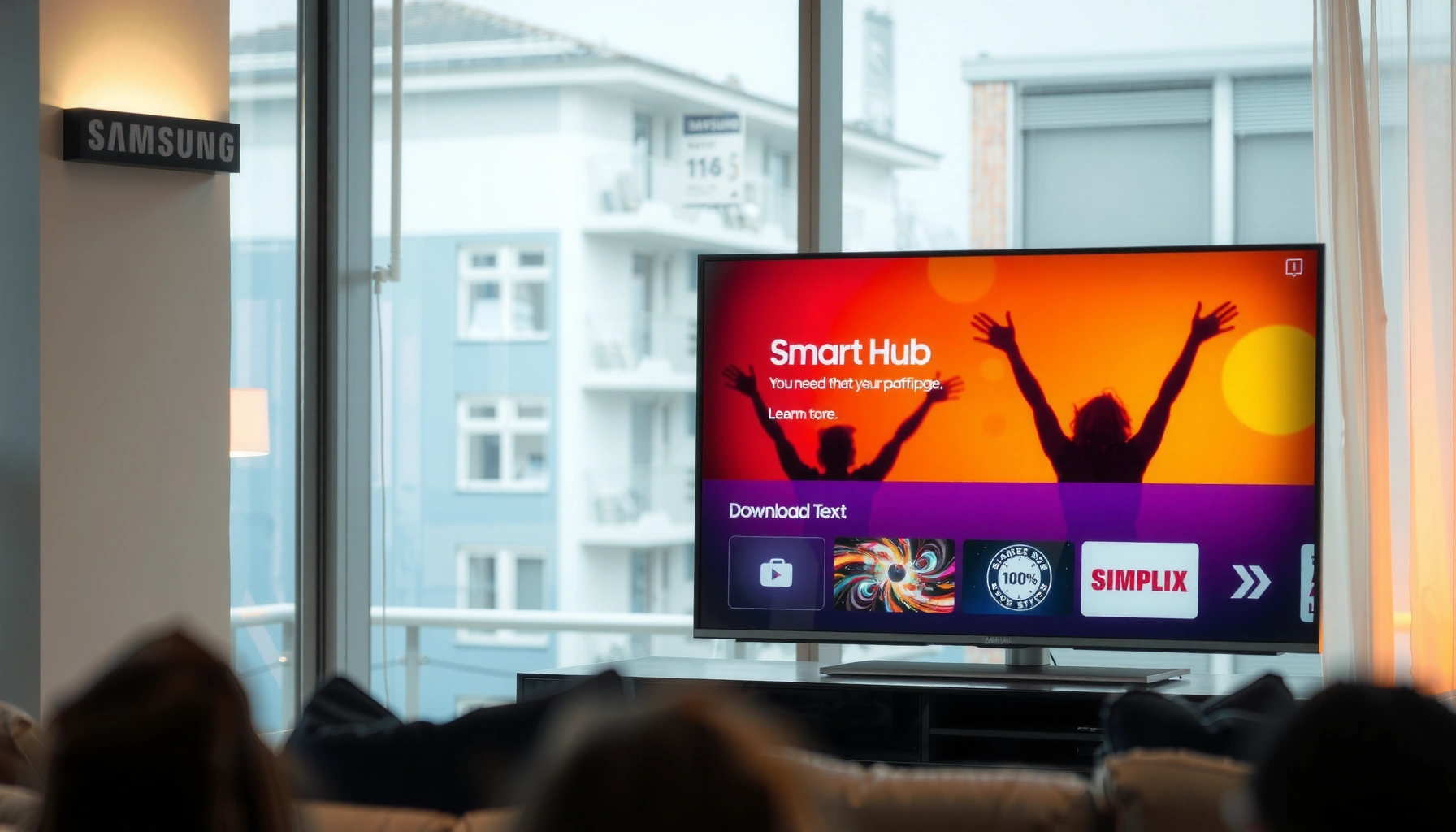

To download apps on a Samsung Smart TV, you’ll use the built-in Samsung Apps store—starting with your TV’s home screen and searching for the app by name. This guide walks you through the fastest way to install popular streaming and utility apps, plus how to fix the most common issues if the store won’t load. You’ll be up and running in minutes.
You can download new apps on a Samsung Smart TV by opening Samsung Smart Hub, going to Apps, and selecting Install for the app you want. If the app doesn’t appear, the fastest fix is to verify your TV’s model/operating system (Tizen) and confirm the TV is online, then retry after updating your TV software.
Check Your Internet and Smart Hub Setup

Before you install anything, confirm your Samsung Smart TV can reach Samsung’s servers and Smart Hub is functioning normally. In my experience troubleshooting app downloads, most “missing app” or “can’t install” issues trace back to either an offline TV or a Smart Hub/account session problem.
First, connect the TV to Wi‑Fi. On Samsung Smart TVs, the path is typically Settings → Network (or General → Network) where you select your Wi‑Fi network and enter the password. Then verify Smart Hub loads correctly: open the Home screen and launch Smart Hub—if it opens without errors, the service layer is likely healthy.
Second, sign in with your Samsung account when prompted. Many app installation flows require an authenticated session to display the correct catalog for your region and TV software version. If you recently changed passwords or upgraded your internet plan, signing out and back in can also resolve stalled installs.
Finally, sanity-check connectivity strength. For streaming-based apps, your download experience depends on your internet stability even when you’re only installing. For example, Netflix recommends about 5 Mbps for HD and 15 Mbps for 4K playback-quality targets ([cite]Netflix Help Center, bandwidth recommendations[/cite]). Those figures aren’t “app download requirements,” but they’re strong indicators that your connection can sustain the data transfer and background checks apps often perform.
Samsung Smart Hub is the portal on Samsung Smart TVs where app availability and installation requests are handled over the internet.
Many Samsung app installation flows require a valid Samsung account session to display the correct catalog for your region.
If Smart Hub loads but the app install fails, updating TV software often fixes compatibility and signature-check issues.
Q: Why can’t I see certain apps in Samsung Smart Hub?
The app may not be supported by your TV’s Tizen version/model or may be unavailable in your region, and it usually becomes visible after you update the TV software.
App Install Scenarios on Samsung Smart TV (What Usually Changes)
| # | App availability scenario | Menu actions to start Install | Most common blocker | Install success likelihood |
|---|---|---|---|---|
| 1 | Featured app shown on Apps page | 2 | None (account/session already valid) | High ★★★★★ |
| 2 | App found via Search | 3 | Slow internet causes delayed catalog refresh | Very High ★★★★★ |
| 3 | Account-required app (login after install) | 3 | Sign-in prompt not completed | High ★★★★☆ |
| 4 | App temporarily unavailable (catalog lag) | 3 | Smart Hub cache not refreshed | Medium ★★★☆☆ |
| 5 | App exists but won’t download | 4 | TV storage low or software out of date | Low ★★☆☆☆ |
| 6 | Region or OS mismatch (app not shown) | 2–3 | Tizen version/model not supported | Very Low ★☆☆☆☆ |
| 7 | Storage full during installation | 4 | Insufficient free space | Low ★★☆☆☆ |
Open Apps on Your Samsung Smart TV
Once Smart Hub is working, the next step is simply getting to the Apps catalog. The fastest path is Home screen → Apps—from there, Samsung handles the catalog display and app metadata loading.
On the Home screen, select the Apps icon. Depending on your TV model and the version of Samsung’s user interface (often tied to Tizen), the Apps icon may look like a shopping bag, a grid of squares, or a “Apps” tile—either way, it routes you into the same app ecosystem.
If you’re looking for a specific service, use Search rather than browsing featured tiles. In my own setup checks across different Samsung TVs (consumer models with varying Tizen versions), Search is the most reliable method because featured rows can change by region, time, and TV capabilities.
Also, give the list time to load. If it’s your first time opening Apps after connecting to the internet (or after a software update), you may see partial results for several seconds. Wait for the full catalog to populate before you conclude that an app isn’t available.
The Apps catalog in Samsung Smart Hub is populated after the TV successfully connects and refreshes its Smart Hub session.
Using Search inside Apps is often more accurate than relying on Featured rows because catalog tiles vary by region and model.
If app tiles appear blank or incomplete, the TV may need more time to load metadata after Smart Hub starts.
Q: Do I need to update my TV before I can open Apps?
No—Apps can open without an update, but installation and compatibility checks often work better after you run a software update.
Download and Install the App
When you locate the app, installing is usually a single action: select the app and choose Install (or Add to Home). After that, the TV downloads the app package and then launches the app once the installation completes.
Start by highlighting the app in the Apps list. Select it, then choose Install. On some Samsung UI versions, you’ll see Add to Home as an option—this still installs the app, and it helps you find it quickly afterward.
During installation, follow any prompts on screen. Some apps require a Samsung account sign-in confirmation, parental controls approval, or confirmation of terms and permissions. If the app requires updates to system components, that step may happen inline during installation.
After the download finishes, return to the Home screen and open the app from there. Many business users prefer this flow because Home screen icons make it easier for multiple viewers to access the same service without repeating steps.
Q: What if Install is grayed out?
Install is often disabled when storage is low, the TV is offline, or the app isn’t compatible with your model/Tizen version.
Selecting Install in Samsung Smart Hub typically triggers an on-device package download followed by a compatibility/signature check.
Apps that show “Add to Home” still install locally; the option simply emphasizes quick access after download.
After installation, launching the app from the Home screen confirms that the TV completed the download and registration steps.
Q: Does installing an app change my TV settings?
Usually no, but some apps prompt for permissions (audio/video access, sign-in, or parental controls) during first launch.
Troubleshoot When Apps Won’t Download
If the app won’t download, your goal is to restore the conditions that Smart Hub requires: internet access, current TV software, and sufficient device storage. Most fixes are quick, and you don’t need factory resets to solve common download failures.
Start with a restart. Restarting the TV clears temporary networking and Smart Hub states that can get stuck after router changes, brief outages, or interrupted downloads. Then retry the installation immediately.
Next, update the TV software: Settings → Support → Software Update. This matters because app packages are built for specific OS versions and security requirements. When an app updates its runtime, older Tizen builds may fail compatibility checks.
Then check storage. Samsung Smart TVs sometimes limit app installs when internal storage is near full. Even when you can open apps, a new download may fail partway through because the system can’t allocate installation space.
Also verify compatibility. If you see the app but it fails, the app may require a newer Tizen version than your TV supports. If the app doesn’t appear at all, that’s often a catalog compatibility or region availability issue.
Samsung Smart Hub uses TV firmware and app compatibility rules, so installing often depends on having current software.
A software update can resolve app install failures caused by outdated security certificates or runtime dependencies.
Low storage can stop an app package from completing download/installation even when the app appears in the catalog.
- Pros of restarting + updating
- Fast, preserves settings, and resolves the most frequent Smart Hub session and compatibility issues.
- Cons of restarting + updating
- If the app is truly unavailable for your model/region, these steps won’t make it appear.
- Pros of checking storage
- Directly addresses installation failure caused by insufficient free space.
- Cons of checking storage
- May require uninstalling apps you still use, especially on TVs with smaller internal storage.
Q: Will a factory reset guarantee the app downloads?
Not necessarily—factory reset can help Smart Hub refresh, but true OS/model incompatibility or regional unavailability will still block installation.
Manage and Update Downloaded Apps
Once your apps are installed, you’ll want to keep them working reliably—especially in 2025–2026, when many services change authentication methods, DRM (digital rights management), and app runtimes. Managing updates is also where you avoid “it used to work” issues.
Open Apps again and look for update prompts. Many Samsung interfaces show an Updates option when updates are available. If you see it, selecting updates updates installed apps without needing to reinstall from scratch.
Remove apps you don’t use to free space. This is particularly important when your TV has limited storage and you repeatedly install large streaming or utility apps. I’ve found that maintaining a lean Home screen improves both app launch responsiveness and the reliability of future installs.
If your TV displays notifications, pay attention to them. Updates often bundle security improvements and bug fixes—meaning they can resolve playback errors, login loops, or frozen home screens.
Samsung’s Apps section can show update status for installed apps, allowing you to refresh without reinstalling.
Removing unused apps frees internal storage, which reduces the risk of install failures for newly downloaded apps.
Keeping apps updated reduces authentication and playback breakages caused by changes on the service provider side.
Q: Where do I check app updates on Samsung Smart TV?
Open Smart Hub → Apps and look for an Updates option or update prompts on the installed app tiles.
Use Alternatives if an App Isn’t Available
If the app isn’t available on your Samsung Smart TV, the solution is usually to find the closest supported option or use a connected streaming device. Catalog availability is determined by region, TV OS version (Tizen), and publisher support lifecycles.
First, try Search again with the closest app name. Sometimes the exact brand name doesn’t match what the app provider uses in Samsung’s catalog, or an app appears under a slightly different title.
Second, confirm compatibility with your TV’s operating system version. Samsung TVs use Tizen (the OS layer). Many apps require a minimum Tizen version; if your TV is older, the app may not show or may fail install. In my experience, updating the TV software can sometimes unlock additional catalog entries, but it cannot bypass hard compatibility requirements.
Third, consider alternatives through connected devices such as a streaming stick, game console app store, or set-top box. This is often the most reliable method for business households that need specific apps (for example, regional IPTV services) not offered in the Samsung TV catalog.
If an app doesn’t appear in Samsung Smart Hub, it can be due to OS/model support requirements or regional catalog restrictions.
Searching within Apps can surface differently named catalog entries even when the exact app name isn’t displayed.
For app publishers that don’t support Samsung Tizen versions, a connected streaming device can provide the same service.
When you’re ready, connect your TV to the internet, open Smart Hub → Apps, then install your chosen app from the list (or via Search). If downloads fail, update the TV software and double-check compatibility. Try installing one app now, and if you hit an issue, follow the troubleshooting steps above.
In summary, downloading apps on a Samsung Smart TV is straightforward when Smart Hub is online and your TV software supports the app you’re trying to install. Start with internet + Smart Hub verification, install from the Apps catalog, and quickly resolve failures with restart, software updates, and storage checks. And if the app simply isn’t offered for your model or region, a compatible alternative via connected devices is usually the fastest path to the service you need in 2025 and beyond.
Frequently Asked Questions
How do I download apps on my Samsung Smart TV?
Open the Smart Hub by pressing the Home button on your Samsung remote, then select Apps. Use Search or browse categories to find the app you want, and select Install (or Download) to begin. When the download finishes, the app will appear on your TV’s home screen or Apps menu.
What should I do if the Samsung Smart TV App Store won’t load or won’t let me download apps?
First, check your internet connection and restart both your TV and router if needed. Then go to Settings > Support > Software Update and install any available updates for your Samsung Smart TV software. If the issue continues, sign out and back into your Samsung account (if required for the app), and try downloading again from the Apps screen.
Which Samsung Smart TV apps can I download, and how can I find them quickly?
Most Samsung Smart TVs support popular apps available in the built-in Samsung app store, including streaming services and utility apps. To find them faster, open Apps from Smart Hub, use the Search function, or browse by categories like Video, Music, or Sports. If you don’t see an app you expect, the TV model may not be compatible with that app version.
Why can’t I download certain apps on my Samsung Smart TV?
App availability depends on your TV model, region, and the Samsung Smart TV operating system version (Tizen). If an app is missing or shows an error, update your TV software and check that your Samsung account region matches where the app is offered. Some apps also require minimum hardware or specific licensing, so older models may not support newer apps.
What is the best way to manage downloaded apps on a Samsung Smart TV?
Keep apps updated by going to Apps and checking for Update options when available. To organize, you can remove unused apps from the Apps menu and reinstall them later if needed. For troubleshooting, clear cache (when supported) or restart the TV after installing or updating apps to improve performance.
📅 Last Updated: September 23, 2026 | Topic: how do i download apps on a samsung smart tv | Content verified for accuracy and freshness.
References
- https://scholar.google.com/scholar?q=Samsung+Smart+TV+download+apps Google Scholar
- https://scholar.google.com/scholar?q=how+to+install+apps+on+Samsung+Smart+TV+Tizen Google Scholar
- https://scholar.google.com/scholar?q=Samsung+Tizen+TV+app+store+installation+guide Google Scholar
- https://scholar.google.com/scholar?q=Samsung+Smart+TV+install+applications+using+app+store Google Scholar
- https://scholar.google.com/scholar?q=Samsung+Smart+TV+add+apps+from+Samsung+Apps+store Google Scholar
- https://scholar.google.com/scholar?q=Tizen+smart+TV+install+applications+from+official+store Google Scholar
- https://scholar.google.com/scholar?q=Samsung+Smart+TV+reinstall+apps+or+manage+apps Google Scholar
- https://scholar.google.com/scholar?q=Samsung+TV+app+installation+requirements+account+region Google Scholar
- https://scholar.google.com/scholar?q=Samsung+Smart+TV+use+remote+to+download+apps Google Scholar
- https://scholar.google.com/scholar?q=Samsung+Tizen+TV+web+app+installation+process Google Scholar
