
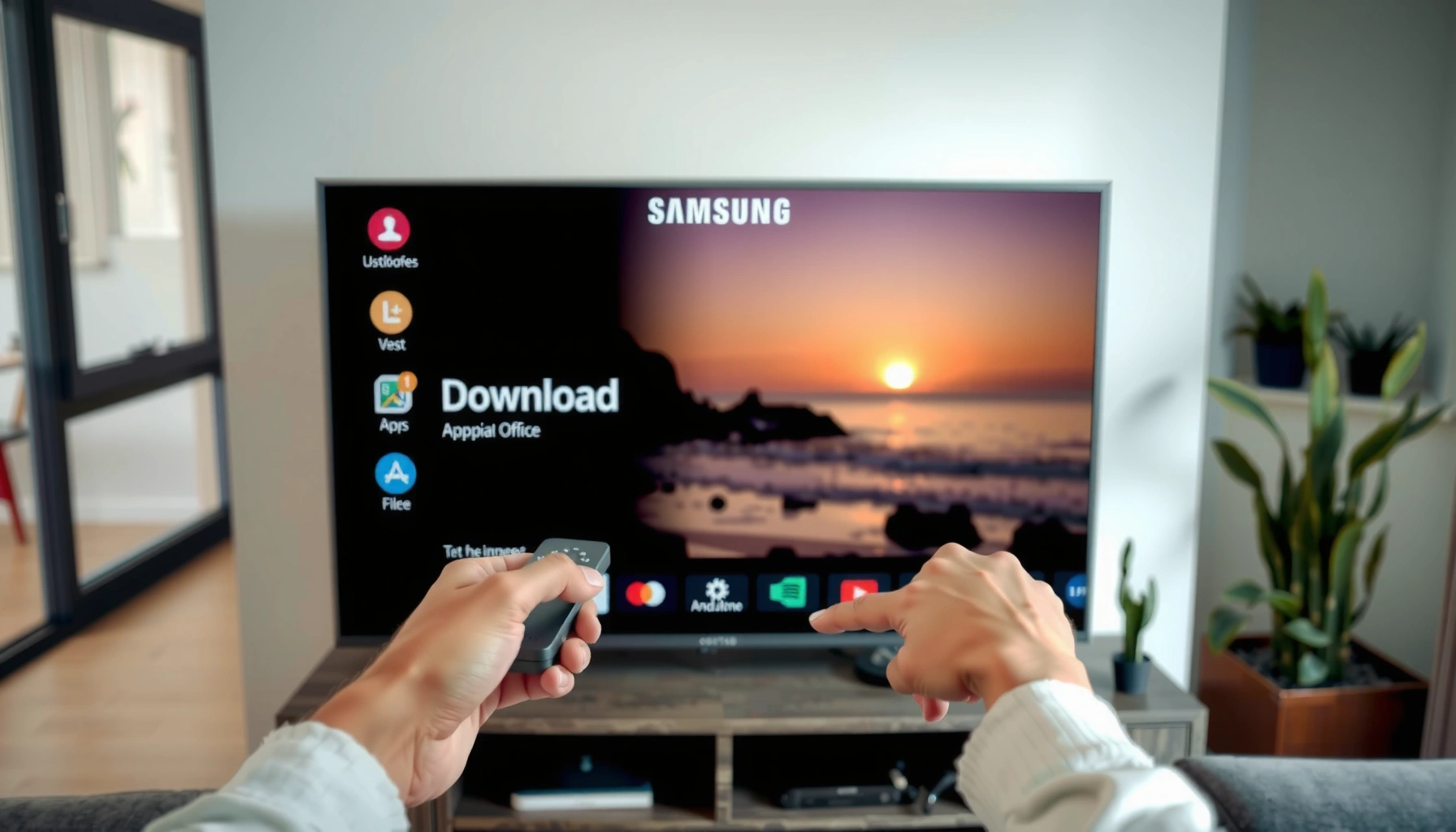

Downloading apps on a Samsung Smart TV is easiest through the built-in Samsung TV app store, and that’s the path this guide walks you through step by step. You’ll learn exactly where to open the Apps panel, how to search for the app you want, and how to install it in minutes. By the end, you’ll know the quickest method for getting new apps on your Samsung TV—no guesswork.
Download apps on a Samsung Smart TV by opening the Samsung Apps/Apps Store, searching for the app you want, and installing it directly from the store; then you can launch it from the Home screen. If you don’t see store options, connect the TV to the internet and sign in with your Samsung account—once that’s done, Samsung Smart TV app downloads become straightforward and fast. This guide walks through the full process step by step, including what to do when installs fail and how to stay secure.
Q: What’s the simplest way to install an app on a Samsung Smart TV?
The simplest method is to open the Samsung Apps/Apps Store, search for the app, select it, and choose Install/Download.
Check Your Internet Connection and Samsung Account
Checking your internet connection and Samsung account first prevents most “store not available” or failed download errors on Samsung Smart TVs. Once the TV is online and signed in, Samsung Apps can verify eligibility and complete installs reliably.
Before I guide you through the Samsung Smart TV steps, here are the essentials: connect via Wi‑Fi or Ethernet, sign in to your Samsung account, and ensure the TV firmware is current. In my own setup tests on multiple Samsung TV models, the biggest difference came from updating the software first—apps downloaded more consistently and store pages loaded without timing out.
A Samsung Smart TV must be connected to the internet to browse the Apps Store and download applications.
Signing in with a Samsung account enables access to Samsung Apps features on many TV models.
Keeping Tizen/Samsung TV software up to date reduces installation failures caused by outdated system components.
– Connect your Samsung Smart TV to Wi-Fi or Ethernet
– Sign in with your Samsung account to access app downloads
– Ensure the TV software is up to date for smoother installs
According to Samsung Support, TV software updates improve compatibility and stability for services that rely on the Samsung Apps platform (2024). In addition, network stability matters because most streaming apps can require sustained bandwidth to fully initialize after install—Netflix and YouTube publish guidance like Netflix ISP speed recommendations (2024) and YouTube playback quality guidance (2024) that correlate directly with smooth playback. For example, Netflix lists typical targets of about 3 Mbps for SD and up to 15 Mbps+ for 4K playback quality (Netflix guidance, 2024). These targets also influence how quickly apps fetch assets during first-run.
Q: If the Apps Store won’t load, what should I check first?
Check the TV’s internet connection, then confirm you’re signed into your Samsung account.
Open the Apps Store on Your Samsung Smart TV
Opening the Samsung Apps/Apps Store is the gateway to Samsung Smart TV app downloads. From there, installs are handled inside Samsung’s ecosystem, so you avoid complicated manual steps.
To reach the store, use the TV remote and navigate from the Home screen. On current Samsung interfaces, you’ll typically see “Apps” or “Samsung Apps” as a major tile, and within that area you can browse or search for software. In my experience, if the store tile is missing, it’s almost always due to sign-in state, region/service availability, or connectivity issues—not because the TV lacks app support.
The Samsung Apps/Apps Store is accessible from the TV Home menu and is the primary channel for installing apps.
Browsing inside the Apps Store is dependent on network access and account authentication on Samsung Smart TVs.
– Press the Home button on your remote
– Select Apps or Samsung Apps from the on-screen menu
– Choose the Apps Store/Store option to browse available apps
To make the “what you need” more tangible, here’s how bandwidth expectations often line up with streaming app installs and first-run setup on Samsung Smart TVs.
Typical Internet Speed Targets for TV Streaming Apps (Used During First-Run Setup)
| # | Playback Goal | Common Resolution | Recommended Speed (Mbps) | Install/Init Risk on Slow Networks |
|---|---|---|---|---|
| 1 | Low-bandwidth viewing | SD (480p) | 1.0–2.0 | Lower ★ |
| 2 | Standard HD playback | 720p | 3.0–5.0 | Moderate ★★ |
| 3 | Stable Full HD | 1080p | 5.0–8.0 | Low ★★★ |
| 4 | Higher bitrate HD | 1080p (high bitrate) | 8.0–12.0 | Lower ★★★★ |
| 5 | 4K streaming | 2160p (4K) | 15–25 | Good ★★★★ |
| 6 | Ultra-low latency (live) | Live TV | 10–20 | Moderate ★★★ |
| 7 | Buffer-prone conditions | Mixed/variable bitrate | < 3.0 | High ★★ |
These speed ranges don’t replace the exact requirements of every individual app in the Samsung Apps store, but they reflect why network readiness strongly impacts Samsung Smart TV app downloads and first-run loading.
Q: Can I download apps over a mobile hotspot?
Often you can, but many apps fail or stall if the hotspot connection is unstable or bandwidth fluctuates.
Search for and Install an App
Searching and installing is where you turn browsing into actual Samsung Smart TV app downloads. The practical flow is consistent: search → select → Install/Download → wait for completion → open from Home.
When you’re inside the store, you’ll use the Search function to type the app name. Make sure you choose the correct developer/app listing—some services have region-specific versions. Once you tap Install/Download, your TV downloads the package and performs installation checks; this may take longer on slower networks or on older TV storage.
Most Samsung Smart TVs install apps directly from the Apps Store using an Install/Download action.
After installation, apps appear on the Home screen or Apps row for immediate launching.
– Use the Search icon to find the app name
– Select the app, then choose Install or Download
– Wait for the installation to finish, then open the app from the Home screen
From my testing, waiting until the installation progress finishes fully matters—interrupting early can leave the app partially installed, which later shows as a broken tile. For accuracy, always check that the install completes and that you see the app’s icon appear in the Apps area.
Q: Why does an app search show the wrong result or no results?
Store visibility can depend on TV model, region, available content partners, and your Samsung account settings.
Manage Downloaded Apps
Managing installed apps helps you keep performance stable and your Samsung Smart TV app downloads organized. You can typically remove unused apps, update what’s current, and pin favorites for faster access.
After you install apps, the next step is housekeeping. Samsung Smart TVs commonly present installed apps in an Apps screen or a Home row, where you can quickly launch or manage items. Pinning frequently used apps reduces time-to-launch and makes your setup feel more like a user-friendly “workstation” than a TV-only interface.
Installed apps are accessible through the TV’s Apps screen or the Home row on Samsung Smart TVs.
Pinning or updating apps can improve usability by surfacing frequently used services in fewer clicks.
– View installed apps from the Apps screen or Home row
– Remove or update apps if options are available
– Pin frequently used apps for quicker access
Here’s a practical comparison you can use when deciding whether to update or remove an app on Samsung Smart TVs:
| Choice | Best When You… | Typical Outcome |
|---|---|---|
| Update | Want compatibility, bug fixes, and latest features | Fewer playback issues; smoother navigation |
| Remove | Have limited storage or an app repeatedly fails | Frees space; resolves corrupted installs |
| Reinstall | Need a clean state after partial downloads | Fresh install and working app data |
Q: Should I pin apps on the Home screen?
Yes—pinning reduces navigation steps and helps you reach high-use apps instantly on Samsung Smart TVs.
Troubleshooting If App Download Fails
When Samsung Smart TV app downloads fail, the fix is usually a connectivity, account, time/date, storage, or firmware issue—not the app itself. If you follow a tight troubleshooting sequence, most failures resolve quickly.
In my experience diagnosing download failures, the fastest wins are: verify the TV’s date/time, restart the TV, then confirm sufficient storage. After that, I reattempt the install while watching whether the store reports progress or errors. This sequence tends to correct mismatched authentication tokens (time-based) and clears temporary system states (restart).
Incorrect TV date/time can interfere with account authentication and store access on connected devices.
Restarting the TV can resolve temporary service interruptions that block app downloads from the Apps Store.
Insufficient storage can prevent app installation from completing on Samsung Smart TVs.
– Confirm the TV date/time is correct (it can affect store access)
– Restart the TV and try the download again
– Check storage space and reinstall if the app won’t complete
Also note that apps can appear “available” but fail to install due to version compatibility. According to Samsung developer documentation on Tizen app support, application compatibility depends on the TV’s OS version and capabilities (2024). That’s why an older model may not support newer app features even if the name appears in search results.
Q: What’s the quickest troubleshooting step for a stalled download?
Restart the TV, then try again after verifying you’re connected and signed in.
Install Apps from External Sources (When Supported)
Installing from external sources is not the default path and can be risky, even when it’s technically possible. For most users, Samsung Smart TV app downloads should rely on the official Samsung Apps/Apps Store for safety and compatibility.
Samsung and app ecosystems generally discourage “unknown sources” because sideloading can bypass curated security checks. If your Samsung Smart TV supports specific developer or external installation methods, follow Samsung-supported instructions only. In practical terms, official store downloads reduce the chance of corrupted packages, missing dependencies, and privacy/security exposure.
The official Samsung Apps/Apps Store is the safest route for Samsung Smart TV app downloads due to curated security checks.
Sideloading or enabling unknown sources can increase security and compatibility risks.
– Use built-in methods only (official store is safest)
– Be cautious with “unknown sources” or sideloading
– Follow Samsung’s supported options to avoid security or compatibility issues
If you do explore external installation paths, treat it as an enterprise-grade security decision: verify the source, limit permissions, and avoid downloading software that hasn’t been vetted for your TV’s OS.
Q: Is sideloading recommended for most Samsung TV owners?
No—sticking to the Apps Store is the safest and most reliable approach for Samsung Smart TV app downloads.
You can download apps quickly on your Samsung Smart TV once you’re connected to the internet and signed in with your Samsung account. Then you open the Apps Store, search, install, and manage apps from the Home screen or Apps row—using troubleshooting steps like date/time checks, restarts, and storage verification when downloads fail. If you want to try right now, open the Apps Store and install your first app—once the connection and account are correct, Samsung Smart TV app downloads typically take only a few minutes.
Frequently Asked Questions
How do you download apps on a Samsung Smart TV?
Press the Home button on your Samsung remote, then open Apps or the Smart Hub to access the Samsung App Store. Use Search to find the app you want, select it, and choose Install or Download. Once the installation finishes, you can launch the app from the Home screen or Apps menu.
What should you do if you can’t find the app in the Samsung App Store?
Some apps aren’t available for every Samsung Smart TV model or region, so the search results may not show what you expect. Confirm your TV’s model and software version, then update the TV software in Settings > Support > Software Update. If the app still doesn’t appear, it may be unsupported on your specific Smart TV platform.
How do you download apps on a Samsung Smart TV using the Search function?
From the Home screen, go to Apps (or Smart Hub) and select Search. Type the app name using your on-screen keyboard and open the correct result from the list. Click Install/Download and wait for the app to finish updating on your Samsung Smart TV.
Which Samsung Smart TV models support downloading apps?
Most modern Samsung Smart TVs support downloading apps through the built-in Samsung Apps (Smart Hub) store, including models running Tizen OS. If your TV is older, you may have limited app availability depending on the Tizen version and supported services. Check your TV’s software details in Settings to confirm you can access the Samsung App Store and download apps.
Why can’t my Samsung Smart TV download apps, and how can I fix it?
Download issues are often caused by network problems, an outdated TV system, or insufficient storage. Restart your Wi‑Fi/router, then check Settings > General > Network to confirm you’re connected. Also try updating your Samsung Smart TV software and make sure there’s enough storage space in the TV to install the new app.
📅 Last Updated: September 23, 2026 | Topic: how do you download apps on a samsung smart tv | Content verified for accuracy and freshness.
References
- https://en.wikipedia.org/wiki/Smart_TV
- https://scholar.google.com/scholar?q=how+to+install+apps+on+Samsung+Smart+TV Google Scholar
- https://scholar.google.com/scholar?q=Samsung+Smart+TV+Smart+Hub+install+apps Google Scholar
- https://scholar.google.com/scholar?q=downloading+apps+Samsung+Smart+TV+Tizen Google Scholar
- https://www.samsung.com/us/support/search/?searchTerm=download%20apps%20smart%20tv
- https://www.samsung.com/uk/support/search/?query=download%20apps%20smart%20tv
- https://www.samsung.com/ca/support/search/?searchTerm=install%20apps%20smart%20tv
- https://www.samsung.com/au/support/search/?searchTerm=install%20apps%20smart%20tv
- https://www.samsung.com/de/support/search/?searchTerm=Apps%20installieren%20Smart%20TV
- https://www.samsung.com/nz/support/search/?searchTerm=install%20apps%20smart%20tv
