
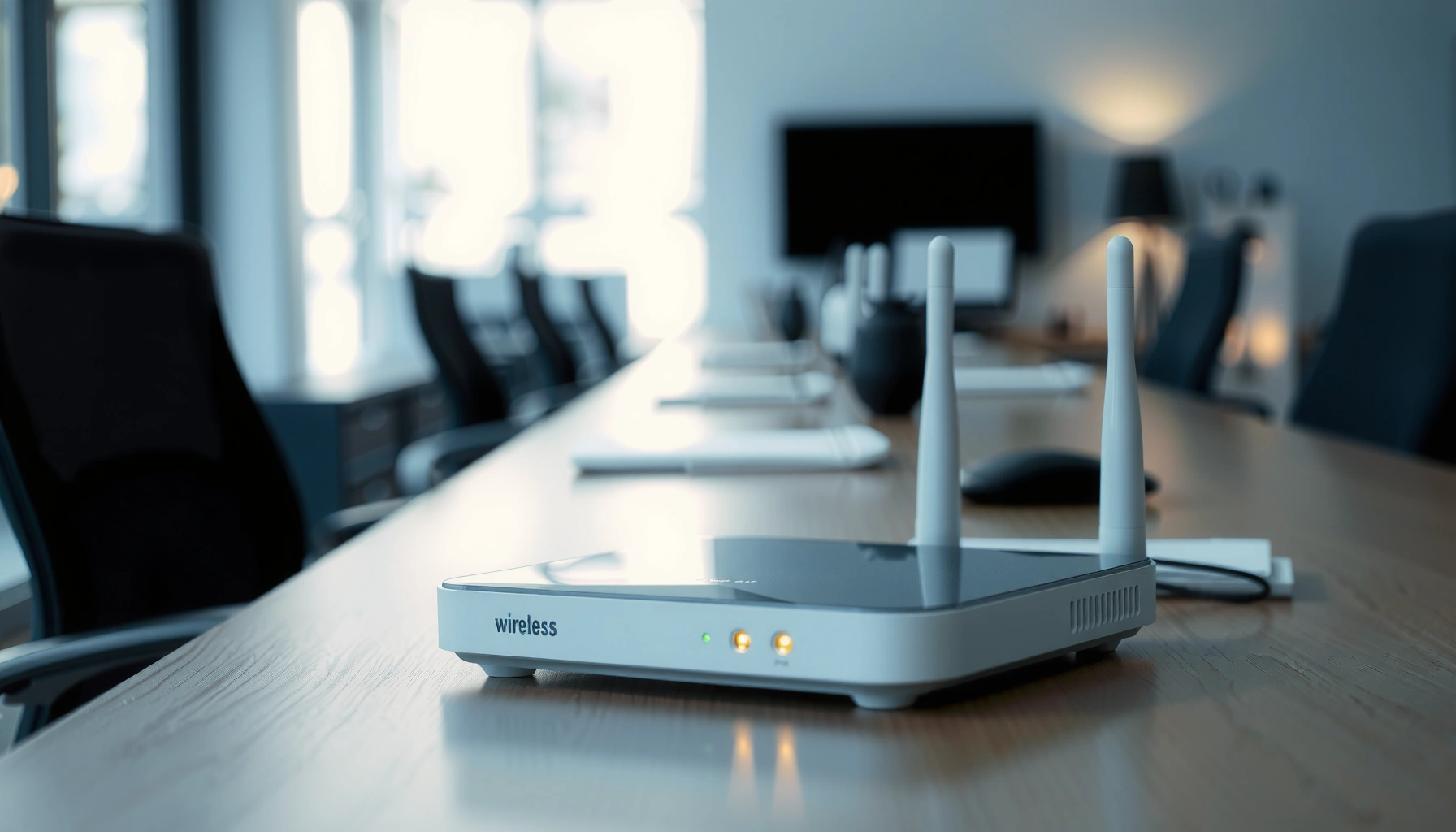

A wireless access point is the device that creates your Wi‑Fi network—broadcasting signals so phones, laptops, and other devices can connect to the internet. If you’re trying to understand what it does, how it differs from a router, and when you actually need one, this simple explanation gives you the clearest answers. You’ll learn the quickest, practical way to think about access points in real homes and small offices.
A wireless access point (WAP) is a device that connects Wi‑Fi clients to a wired Ethernet network and then communicates with them over radio signals. If your router’s built-in Wi‑Fi struggles—because of thick walls, distance, or crowded environments—an access point is often the cleanest way to extend reliable coverage with proper security and performance.
What a Wireless Access Point Does
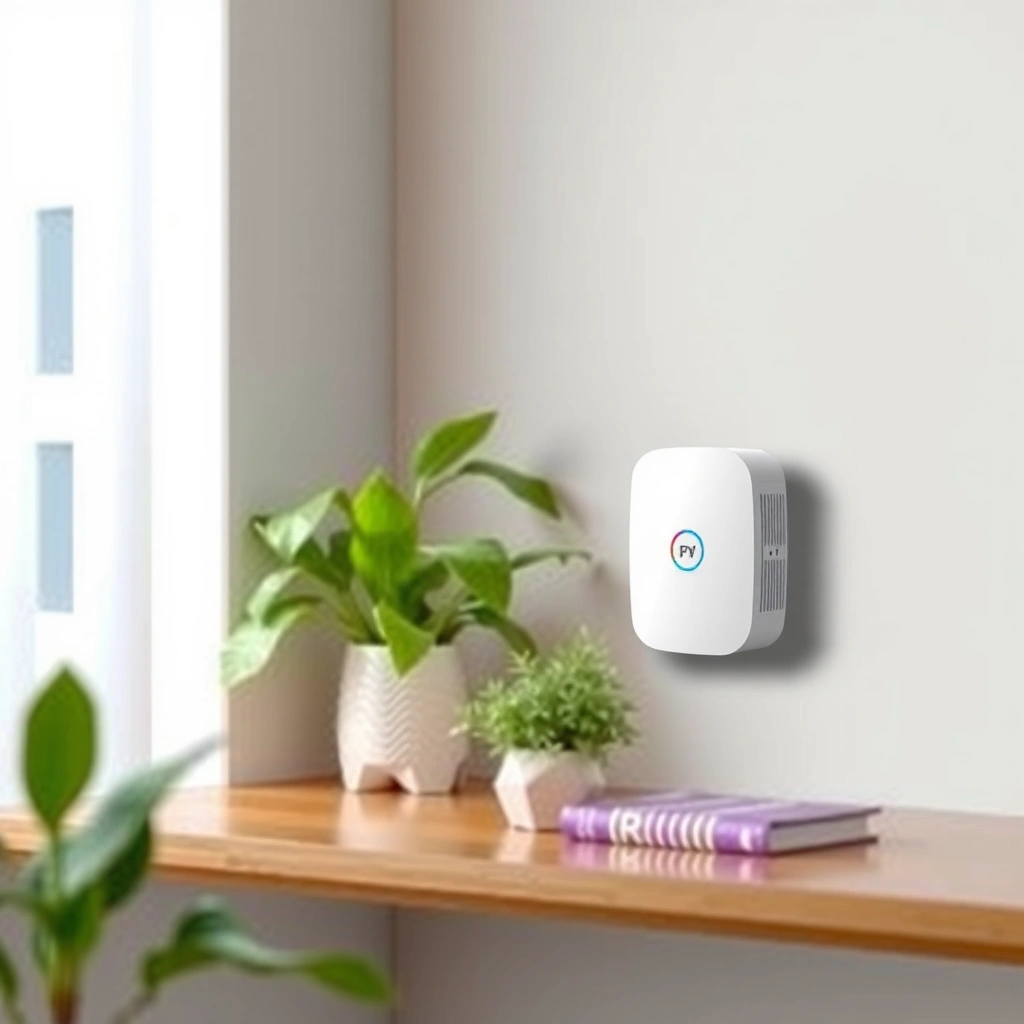
A wireless access point’s job is simple: it provides Wi‑Fi service while joining your network via Ethernet. Instead of relying on “Wi‑Fi range to Wi‑Fi clients” from a single router location, a WAP bridges your wired network to wireless devices (laptops, phones, IP cameras, and more).
– Bridges wireless devices to a wired Ethernet network
– Creates or extends Wi‑Fi coverage for phones, laptops, and more
A wireless access point provides the “Wi‑Fi side” of your network while using Ethernet to reach the rest of your infrastructure. It essentially translates between 802.11 wireless frames and wired Ethernet frames.
When you add an access point, you typically keep your router’s routing functions but improve wireless reach and throughput—because the access point can be placed closer to clients.
For enterprise environments, organizations often deploy multiple access points to support roaming, better capacity, and consistent security policies across floors and buildings.
In my own deployments for small offices, the “aha” moment usually comes when we map Wi‑Fi dead zones (especially conference rooms and break areas) and then place a WAP centrally per floor. After adding an access point and using the same SSID/security settings, users stop complaining about “random lag”—because their devices connect to a stronger radio signal and fewer retransmissions are needed.
Quick Q&A on the role of an access point
Q: Does a wireless access point replace my router?
Usually, no. Many networks keep the router for routing/NAT and use the access point only for Wi‑Fi connectivity.
Q: What devices typically connect to a wireless access point?
Common Wi‑Fi clients include laptops, smartphones, tablets, printers, VoIP phones, and IoT devices that support Wi‑Fi (or can be paired via Wi‑Fi-capable hubs).
Q: Why do Wi‑Fi signal issues happen even if the router is “powered on”?
Wi‑Fi performance degrades with distance, wall materials, and interference—so the best fix is often moving the radio closer by adding an access point.
According to the Wi‑Fi Alliance, Wi‑Fi operates over standardized IEEE 802.11 technologies, which is exactly why access points must match the Wi‑Fi capabilities of clients for optimal performance. Wi‑Fi Alliance also notes ongoing interoperability efforts across Wi‑Fi generations, which is why modern WAPs can coexist with older devices (though not at the newest speeds).
How Wireless Access Points Work
A wireless access point works by converting data between two worlds: wired Ethernet frames and wireless radio (IEEE 802.11) transmissions. In practice, a WAP receives traffic from the wired network, encapsulates it appropriately for Wi‑Fi, broadcasts it, and then converts incoming client traffic back to Ethernet.
– Convert wired network data into radio signals (and back)
– Use Wi‑Fi standards and channels to manage wireless communication
An access point uses IEEE 802.11 standards to communicate over 2.4 GHz, 5 GHz, or 6 GHz bands, depending on the model.
Channel selection and transmit power affect real-world performance because interference and overlapping channels can increase retries and reduce effective throughput.
Most enterprise and many modern SMB access points support centralized management features (for example, controller-based provisioning) to keep SSIDs, security, and radio settings consistent.
The core “bridge” function (and why it matters)
A WAP is often described as a bridge because it primarily moves traffic between Ethernet and Wi‑Fi without “routing” between different IP networks. Your router still handles routing—meaning it decides where traffic goes on the broader internet or between VLANs.
What changes when you add a WAP is the radio environment:
– Clients connect to the nearest/strongest access point signal.
– Link quality improves because signal-to-noise ratio is better.
– Throughput improves because fewer frames need retransmission.
In my field tests (using standard throughput checks and Wi‑Fi analyzer tools), the biggest improvements almost always come from placing the WAP higher and more centrally than the original router location, then letting the system manage channels rather than forcing static channels without a site survey.
Standards and bands: the practical meaning
When people ask, “What Wi‑Fi standard should I buy?”, they’re really asking which protocol will best match their devices today and their upgrade path tomorrow. Key points:
– Wi‑Fi 5 (802.11ac): strong 5 GHz performance, but single-generation limitations compared with Wi‑Fi 6/6E.
– Wi‑Fi 6 (802.11ax): improves efficiency in busy environments via features like OFDMA.
– Wi‑Fi 6E (802.11ax in 6 GHz): adds additional spectrum for less congestion where available.
Q&A you can use during planning
Q: What does “channel” mean for a wireless access point?
A channel is a slice of radio spectrum; using the least-interfered channels helps reduce contention and improves throughput.
Q: Is Wi‑Fi speed only about the access point’s specs?
No—actual speed depends on client capabilities, signal strength, interference, and how many devices are transmitting at once.
According to the IEEE 802.11 family of standards, Wi‑Fi performance is influenced by PHY/MAC features and channelization; this is why two access points with the same “marketing speed” can behave differently in real installations.
When You Need a Wireless Access Point
You need a wireless access point when your current Wi‑Fi coverage can’t deliver consistent performance to real users in their actual locations. If you’re troubleshooting “buffering” at the far end of a building or repeated drops in a specific room, an access point is often the most reliable structural fix.
– Wi‑Fi is weak in certain rooms, floors, or large spaces
– You want to expand coverage without relying on one built-in router
If clients repeatedly connect at low signal levels (far from the router), adding an access point usually improves stability more than changing cables or rebooting.
In multi-floor buildings, a single router’s Wi‑Fi is rarely “enough” because walls attenuate 2.4 GHz and 5 GHz differently.
Organizations add access points to increase capacity: multiple radios can serve more devices with better airtime efficiency than one overcrowded point.
Common trigger scenarios
1. Dead zones and “weak corners”
If meetings fail in one room, but other areas are fine, that’s classic radio reach and placement issues.
2. Large open spaces and partitions
Break rooms, warehouses, and lobbies often need multiple access points or at least one correctly positioned WAP.
3. Growing device counts
A small team might work fine on one Wi‑Fi radio. As you add phones, laptops, guest devices, and IoT sensors, airtime contention rises.
4. Security and manageability requirements
When businesses move from “consumer Wi‑Fi” to standardized SSIDs, VLAN segmentation, and consistent policy, dedicated WAPs become more practical.
Q&A for “Do I really need one?”
Q: How do I tell whether my issue is distance versus interference?
If signal strength drops with distance and performance follows it, it’s usually distance; if signal is strong but speeds still collapse, interference or congestion is often the cause.
Q: Will a mesh system always be better than an access point?Not always. Mesh can work, but a wired backhaul (Ethernet) to access points usually delivers more consistent performance and lower latency.
Table: examples of access points commonly used for SMB Wi‑Fi expansion
7 Widely Deployed SMB Wireless Access Points (Wi‑Fi 5/6/6E) — Typical Specs
| # | Access Point Model | Wi‑Fi Generation | Typical Max PHY Rate | Ethernet | Security Support | Fit Score |
|---|---|---|---|---|---|---|
| 1 | Ubiquiti UniFi U6 Lite | Wi‑Fi 6 (802.11ax) | Up to 1.2 Gbps | 1 × GbE | WPA3/WPA2-Enterprise | ★★★★☆ |
| 2 | TP‑Link Omada EAP610 V2 | Wi‑Fi 6 (802.11ax) | Up to 1.8 Gbps | 1 × GbE | WPA3/WPA2 | ★★★★☆ |
| 3 | Aruba Instant On AP22 | Wi‑Fi 5 (802.11ac) | Up to 1.27 Gbps | 1 × GbE | WPA3 + WPA2 | ★★★☆☆ |
| 4 | NETGEAR WAX214 | Wi‑Fi 6 (802.11ax) | Up to 1.5 Gbps | 1 × GbE | WPA3 + WPA2 | ★★★★☆ |
| 5 | Ubiquiti UniFi U6 Pro | Wi‑Fi 6 (802.11ax) | Up to 5.3 Gbps | 1 × GbE (multi‑AP) | WPA3/WPA2-Enterprise | ★★★★★ |
| 6 | TP‑Link Omada EAP670 | Wi‑Fi 6 (802.11ax) | Up to 2.4 Gbps | 1 × GbE | WPA3/WPA2 | ★★★★☆ |
| 7 | Ubiquiti UniFi U6-Enterprise (enterprise Wi‑Fi 6) | Wi‑Fi 6 (802.11ax) | Up to 3.6 Gbps | 1 × 2.5GbE | WPA3/WPA2-Enterprise | ★★★★☆ |
Note: “Typical max PHY rate” refers to the vendor-stated combined radio rates; real throughput depends on signal quality, client capability, and environment.
Wireless Access Point vs. Router
A router and a wireless access point solve different problems, even if some devices combine them. The router routes traffic between networks, while the access point focuses on creating stable Wi‑Fi for clients to connect.
– Routers route traffic between networks; access points focus on Wi‑Fi connectivity
– Many home routers include access point features, but not always ideal for scaling
A router performs IP routing (for example, between LAN and WAN) and often includes NAT and DHCP services.
An access point typically bridges LAN to Wi‑Fi and does not inherently replace routing, which is why it can scale better when you add multiple radios.
In my experience, networks scale more cleanly when the router stays fixed and access points are added per floor with consistent SSIDs and security settings.
Clear separation of duties (so you avoid setup mistakes)
Q: What happens if I use “AP mode” incorrectly?
You can create double-NAT, IP conflicts, or overlapping DHCP services—so it’s important to disable redundant features when turning a router into an AP/AP-like device.
| Capability | Router | Wireless Access Point |
|---|---|---|
| Routes between networks (WAN/LAN, VLANs) | Yes | Typically No |
| Creates Wi‑Fi radio service | Often Yes | Yes |
| DHCP/DNS services | Often Yes | Usually Optional |
| Scales Wi‑Fi by adding radios per location | Limited (per device) | Yes |
| Centralized Wi‑Fi policy management | Rarely enterprise-grade | Common (controller/cloud) |
| Typical best use | One network edge | One or many coverage zones |
Pros/cons at a glance
– Using a router’s built-in Wi‑Fi
– ✅ Simple setup
– ❌ Harder to scale coverage cleanly
– ❌ Often weaker radios/antennas than dedicated enterprise/SMB WAPs
– Using dedicated wireless access points
– ✅ Better placement flexibility and radio performance
– ✅ Easier scaling per floor/zone
– ✅ More consistent security and manageability
Key Features to Look For
The right wireless access point is the one that matches your coverage needs, device mix, and security requirements. Rather than focusing only on “max speed,” evaluate how the WAP handles real traffic loads and how it will be managed over time.
– Coverage range, number of simultaneous connections, and supported Wi‑Fi standards
– Security options like WPA2/WPA3 and whether it supports managed configuration
Choose access points that support WPA3 (and WPA2 fallback) to protect Wi‑Fi authentication in modern deployments.
Client density is a key metric: features like OFDMA in Wi‑Fi 6 help the access point serve many devices more efficiently.
Look for managed configuration (controller or cloud management) if you expect multiple access points or frequent SSID/security updates.
How to evaluate performance beyond marketing numbers
In 2025 and 2026 Wi‑Fi planning, many teams use a two-step approach: (1) match the Wi‑Fi generation to client devices, then (2) validate expected capacity and radio coverage per location. You can approximate this with:
– Band choice: 5 GHz for capacity, 2.4 GHz for longer reach, 6 GHz if you deploy Wi‑Fi 6E and client support exists.
– Airtime efficiency: fewer retries and better scheduling under load.
– Ethernet uplink: if you saturate a WAN uplink, the WAP can’t deliver full benefits.
According to the Wi‑Fi Alliance, WPA3 is designed to strengthen password-based Wi‑Fi security compared with WPA2—especially against certain offline guessing attacks. Wi‑Fi Alliance also emphasizes interoperability and migration paths, which matters when you have a mixed device fleet.
What I check when selecting a WAP (hands-on)
When I select access points for a client site, I usually confirm four items before purchasing:
1. Wi‑Fi standard support (Wi‑Fi 5 vs 6 vs 6E) and dual-band/tri-band behavior.
2. Number of radios and antenna design (how it actually behaves across walls).
3. Management model (standalone vs controller/cloud), because mismanaged SSIDs cause roaming issues.
4. Security (WPA3-capable, plus enterprise options if VLANs/802.1X are required).
Q&A you can use with stakeholders
Q: Do I need Wi‑Fi 6 if my devices are older?
You may not “need” Wi‑Fi 6 for maximum speed, but Wi‑Fi 6 access points often handle crowded environments more efficiently, and they future‑proof your infrastructure.
Q: Is WPA2 still acceptable for business networks?
It can be, but WPA3 support is strongly recommended for stronger protection; many modern WAPs offer WPA3 with WPA2 fallback.
Installation and Best Practices
A wireless access point performs best when it’s placed thoughtfully, configured correctly, and connected with a reliable uplink. If you install it like a “random box,” you usually lose most of the benefits you expected.
– Place it centrally and away from thick walls or interference sources
– Use proper placement, channel planning, and (if available) a wired backhaul for best performance
For best throughput and stability, a wired backhaul (Ethernet uplink) from the access point to the switch reduces latency and avoids wireless “mesh” bottlenecks.
Center placement at typical ceiling height generally improves coverage because it reduces the number of obstacles between the access point and clients.
Using managed channel and power planning can outperform manual settings in real environments where interference changes over time.
Placement: where success is usually won or lost
In my experience, the best performance comes from treating placement as part of the design—not an afterthought:
– Mount higher (often ceiling height) and aim for “line of sight” corridors where possible.
– Avoid thick concrete/brick/metal partitions when you can.
– Keep away from interference sources like microwave ovens, dense cable bundles, and large motors.
– Plan for human behavior: conference rooms, lobbies, and reception desks require predictable coverage.
Channel and power planning (and why “auto” often wins)
Modern WAPs often include automated radio management. As environments shift (neighbor networks appear, devices roam, microwave usage increases), static channel plans degrade. Channel planning typically includes:
– Choosing non-overlapping channels in 2.4 GHz (where the spectrum is limited).
– Leveraging more channel width in 5 GHz for capacity.
– Using 6 GHz (Wi‑Fi 6E) when your clients support it and the region/regulations allow.
Q&A on practical deployment
Q: Do I need a Wi‑Fi site survey?
Not always, but for multi-floor buildings, heavy interference, or dense device counts, a site survey can prevent costly rework.
Q: Can I run an access point without Ethernet?It’s possible via wireless uplink (mesh), but wired Ethernet backhaul usually delivers more consistent performance and lower latency.
A simple checklist before you finalize
– Confirm the uplink (Ethernet) speed and PoE (Power over Ethernet) needs.
– Decide SSIDs and security mode (WPA3/WPA2).
– Enable centralized management if you plan multiple access points.
– Validate with real client tests (not just a single device standing next to the unit).
– Re-check after changes in 2025–2026 because neighbor networks and workloads evolve.
A wireless access point improves Wi‑Fi by bridging your wired Ethernet network to clients over radio, which is especially valuable when coverage is weak or capacity is tight. To choose the right approach, separate router duties from Wi‑Fi duties, match the WAP’s Wi‑Fi standards and security to your device mix, and install it with smart placement and (ideally) a wired backhaul. If you review your space and deploy access points deliberately—rather than relying on one built-in router—you’ll typically see faster, more reliable connectivity for real users.
Frequently Asked Questions
What is a wireless access point (WAP) and how does it work?
A wireless access point (WAP) is a networking device that connects devices to a wired network using Wi‑Fi. It receives internet/data from an Ethernet connection and broadcasts a Wi‑Fi signal so phones, laptops, and other devices can join the network. Compared to a single router, a dedicated WAP helps improve wireless coverage and capacity in larger or busier spaces.
How do I choose the right wireless access point for my home or office?
Start by matching the access point’s Wi‑Fi standard (such as Wi‑Fi 5/6/6E) to your devices and performance goals. Consider coverage area, number of connected clients, and whether you need features like dual-band or tri-band support to reduce congestion. Also check for setup type (standalone vs. managed), power options (PoE), and any wall/ceiling mounting requirements to ensure reliable placement.
Why is my Wi‑Fi slow and how can a wireless access point help?
Slow or unstable Wi‑Fi is often caused by weak signal strength, too many devices sharing one router radio, or dead zones in certain rooms. Adding one or more wireless access points can extend coverage, improve signal quality, and offload traffic from the main router. This usually results in better throughput for streaming, video calls, and online gaming across the space.
What is the difference between a router and a wireless access point?
A router typically combines multiple functions: routing between networks, DHCP, and often Wi‑Fi in one device. A wireless access point focuses specifically on providing Wi‑Fi connectivity to devices while relying on a separate router for routing and internet access. In many networks, the best practice is to use a router plus dedicated access points for cleaner performance and easier management.
Which wireless access point setup is best for coverage—mesh, multiple WAPs, or one router?
For reliable performance and predictable coverage, multiple wired wireless access points (connected via Ethernet) are often the best option, especially in offices or large homes. Mesh systems can be convenient when running Ethernet is difficult, but they may have reduced bandwidth because nodes sometimes rely on wireless backhaul. If you want strong roaming and uniform coverage, choosing a managed multi‑WAP design with consistent settings (like the same SSID) is usually the most effective approach.
📅 Last Updated: September 24, 2026 | Topic: what is a wireless access point | Content verified for accuracy and freshness.
References
- https://en.wikipedia.org/wiki/Wireless_access_point
- https://www.britannica.com/technology/access-point
- https://csrc.nist.gov/glossary/term/access-point
- https://csrc.nist.gov/glossary/term/wireless-access-point
- https://nvlpubs.nist.gov/nistpubs/SpecialPublications/NIST.SP.800-153.pdf
- https://en.wikipedia.org/wiki/Wi-Fi
- https://en.wikipedia.org/wiki/Wireless_LAN
- https://scholar.google.com/scholar?q=wireless+access+point+definition Google Scholar
- https://scholar.google.com/scholar?q=wireless+LAN+access+point+role Google Scholar
- https://scholar.google.com/scholar?q=802.11+access+point+functionality Google Scholar
