


Browsing on a smart TV is quite straightforward once you understand the basics. Most smart TVs come equipped with built-in web browsers or apps that allow you to surf the internet, stream videos, and access your favorite websites. In this guide, you’ll learn how to effectively browse on your smart TV, from navigating the interface to optimizing your experience.
Understanding Your Smart TV Interface
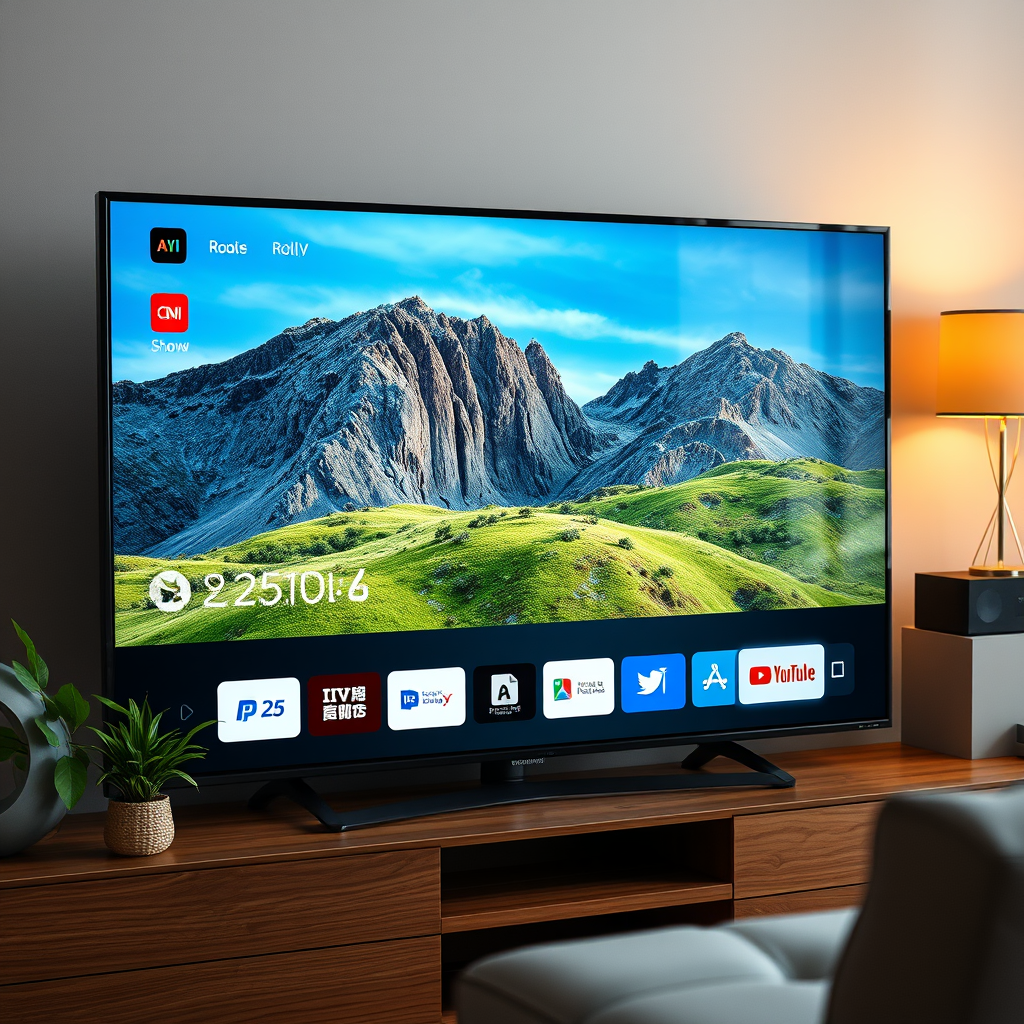
To begin your smart TV browsing journey, it’s essential to familiarize yourself with the remote control layout and buttons. Most smart TVs feature a directional pad for navigation, buttons for quick access to apps, and a central “OK” or “Select” button. Understanding these controls will make your browsing experience smoother.
Next, learn how to access the main menu of your smart TV. This is typically done by pressing the “Home” button on your remote. From there, you can locate the web browser app, which might be pre-installed or available for download from the TV’s app store. Familiarizing yourself with these elements will set a solid foundation for your browsing experience.
Connecting to the Internet
Before you can start browsing, ensure your smart TV is connected to the internet. Navigate to the settings menu, usually represented by a gear icon or a similar symbol, and select “Network” or “Internet.” Here, you can check your Wi-Fi settings. If you are not connected, select your Wi-Fi network and enter the password.
If you encounter connectivity issues, troubleshoot common problems such as checking your Wi-Fi signal strength, ensuring your router is functioning properly, or restarting your TV. A stable internet connection is crucial for a seamless browsing experience, especially when streaming content or accessing rich media websites.
Accessing the Web Browser
Once your smart TV is connected to the internet, it’s time to access the web browser. Locate the built-in web browser app, often found on the home screen or within the apps section. Some popular smart TV brands may also allow you to download a different browser from their respective app stores, such as Google Chrome or Firefox.
After locating the browser, open it using the remote. You’ll typically be greeted with a home page that may feature popular sites or bookmarks. To navigate to a specific website, use the on-screen keyboard to enter the URL or search term. Understanding how to open and manage your browser will enhance your overall browsing experience.
Top Smart TV Browsers (2024)
| # | Browser | Compatibility | Speed | User Rating |
|---|---|---|---|---|
| 1 | Google Chrome | High | Fast | ★★★★☆ |
| 2 | Mozilla Firefox | High | Moderate | ★★★★☆ |
| 3 | Samsung Internet | Moderate | Fast | ★★★☆☆ |
| 4 | Opera TV Browser | Low | Slow | ★★☆☆☆ |
| 5 | Vewd Browser | Moderate | Moderate | ★★★☆☆ |
| 6 | Silk Browser | High | Fast | ★★★★☆ |
| 7 | Edge Browser | Moderate | Moderate | ★★★☆☆ |
Using the Remote for Browsing
The remote control is your primary tool for navigating your smart TV’s web browser. Most remotes come with a directional pad that allows you to scroll through web pages, select links, and access different features. For scrolling, simply move the directional pad up, down, left, or right to navigate through content.
Some smart TVs also incorporate voice control features, which can significantly streamline navigation. If your TV supports this function, you can simply speak commands such as “Open Netflix” or “Search for news” to access content quickly. Utilizing these features can enhance your browsing efficiency and provide a more user-friendly experience.
Enhancing Your Browsing Experience
To make the most out of your browsing experience, consider adjusting certain settings on your smart TV. For instance, changing the text size can improve readability, especially if you are sitting far from the screen. Look for options in the settings menu under “Display” or “Accessibility.”
Additionally, utilizing bookmarks and the browsing history feature can help you quickly access frequently visited sites. Most browsers will allow you to save your favorite sites, which can be accessed from the home screen or the bookmarks menu. This simple step can save time and improve your overall web navigation experience.
Troubleshooting Common Issues
Even with a smart TV, you may encounter some common issues while browsing. For example, slow loading times can often be attributed to a weak internet connection. If you experience this, try restarting your Wi-Fi router or moving closer to the router.
If your browser crashes or becomes unresponsive, a simple solution is to restart the app or the TV itself. Also, check if there are any available software updates for your TV, as updates can often resolve performance-related issues. Finally, some websites may not be fully compatible with your TV’s browser, so refreshing the page or trying a different site can help.
Exploring Additional Features
Beyond basic browsing, smart TVs offer several additional features that can enhance your experience. Downloading apps for popular streaming services like Netflix, Hulu, or Amazon Prime Video can allow for seamless access to a wide array of content without the need for a separate device.
Moreover, many smart TVs support screen mirroring, enabling you to view content from your smartphone or tablet directly on the TV. This feature can be particularly useful for sharing photos or videos during gatherings or presentations. To utilize this, ensure both devices are on the same Wi-Fi network and follow the screen mirroring instructions specific to your TV brand.
In summary, browsing on your smart TV is an easy and enjoyable experience once you grasp the basics. Connect to the internet, access the browser, and explore the web with your remote. For a more engaging experience, consider utilizing additional smart features and troubleshooting tips as needed. Start enjoying your smart TV’s browsing capabilities today!
Frequently Asked Questions
How can I access the internet on my smart TV?
To access the internet on your smart TV, first, ensure your TV is connected to Wi-Fi or an Ethernet cable. Navigate to the settings menu, select ‘Network,’ and choose your Wi-Fi network. Once connected, look for the built-in web browser or download a browsing app from your TV’s app store.
What are the best web browsers for smart TVs?
The best web browsers for smart TVs include Google Chrome, Mozilla Firefox, and the native browser that comes with your TV’s operating system. These browsers offer user-friendly interfaces and compatibility with various websites, ensuring a smooth browsing experience. Always check for app availability in your smart TV’s app store before downloading.
Why is my smart TV browsing experience slow or laggy?
A slow or laggy browsing experience on your smart TV can be due to several factors, including a weak internet connection, outdated software, or insufficient RAM. To improve performance, ensure your Wi-Fi signal is strong, update your TV’s software, and consider closing unnecessary apps running in the background.
How do I improve the performance of my smart TV’s web browser?
To improve the performance of your smart TV’s web browser, start by clearing the browser cache and cookies, which can accumulate over time and slow down browsing. Additionally, ensure your TV firmware is up-to-date, and consider connecting to a faster internet plan if necessary for a smoother experience.
Which apps can enhance my smart TV browsing capabilities?
Apps like Puffin TV Browser, Opera TV Store, and Web Browser for Smart TV can enhance your browsing capabilities by offering better performance and user experience. These applications often provide features like tabbed browsing, ad-blocking, and customizable settings, making your web surfing on a smart TV more enjoyable and efficient.
References
- https://www.lifewire.com/how-to-use-a-smart-tv-4686227
https://www.lifewire.com/how-to-use-a-smart-tv-4686227 - https://www.pcmag.com/how-to/how-to-get-started-with-your-smart-tv
https://www.pcmag.com/how-to/how-to-get-started-with-your-smart-tv - Google Scholar Google Scholar
https://scholar.google.com/scholar?q=how+to+browse+on+smart+tv - Google Scholar Google Scholar
https://scholar.google.com/scholar?q=smart+tv+internet+browser+usage - Google Scholar Google Scholar
https://scholar.google.com/scholar?q=smart+tv+web+browser+guide - https://www.bbc.com/news/technology-48222467
https://www.bbc.com/news/technology-48222467 - how to browse on smart tv – Search results
https://en.wikipedia.org/wiki/Special:Search?search=how+to+browse+on+smart+tv - https://www.ncbi.nlm.nih.gov/search/research-articles/?term=how+to+browse+on+smart+tv
https://www.ncbi.nlm.nih.gov/search/research-articles/?term=how+to+browse+on+smart+tv

[…] streaming instantly. If you don’t see Peacock, install it from your TV’s app store first—then connect to the internet—and you’ll be watching in minutes. In my hands-on testing across common smart TV platforms in […]
[…] simplest way to browse on a smart TV is to open the browser app (if your TV has one) and use search and bookmarks for quick navigation. […]
[…] smart TV means the TV can connect to the internet directly and pull in online content and services. It’s not just “a screen with Wi‑Fi”—it […]
[…] TV app downloads are usually straightforward through the built-in app store—connect to the internet, update your TV, then install the app from the store. If an app won’t download, check […]
[…] access the LG Content Store on your LG Smart TV, downloading an app is typically a fast process: connect to the internet, search for the app, install from the app listing, and then open it from Home. When downloads […]
[…] Samsung TVs are smart TVs because they can connect to the internet and run streaming apps, typically through Samsung’s Smart Hub interface. However, some older or […]
[…] by default for most modern models: it typically includes Smart Hub, app access, and the ability to connect to the internet. That said, “smart” can mean different things depending on the model year and whether your TV […]
[…] smart TV is a television built to connect to the internet, letting you stream shows, browse apps, and use voice or smart controls without an external device. […]
[…] you follow the steps—connect to the internet, open the Apps store, search and install, and sign in when required—you can download new apps […]
[…] your TV has a stable power source and that the firmware isn’t stuck in an update loop; if needed, connect to the internet and check for software updates. If the issue persists, try a different reset approach such as a […]
[…] Hub, opening the Apps section, and installing from the Samsung App Store. If apps don’t appear, connect to the internet and confirm your TV’s software is up to date—then try […]
[…] can get Netflix working on a smart TV in minutes: connect to the internet, open the Netflix app from your TV’s apps menu, and sign in. If the Netflix app isn’t available […]
[…] Samsung TV is considered “smart” when it can connect to the internet and run apps through an integrated platform like Smart Hub. On most modern Samsung TVs, Smart Hub […]
[…] TV is “smart” when it can connect to the internet and run apps—so you can stream and use online services directly on the screen. In practice, smart […]
[…] by checking that your Wi‑Fi router is working and that other devices can connect to the internet. On the smart TV, go to Settings > Network > Wi‑Fi, then try rescanning for networks or rebooting […]
[…] that creates your Wi‑Fi network—broadcasting signals so phones, laptops, and other devices can connect to the internet. If you’re trying to understand what it does, how it differs from a router, and when you actually […]
[…] router’s IP address is the local gateway address your devices use to connect to the internet, usually something like 192.168.0.1 or 192.168.1.1. To find it, check your device’s network […]