
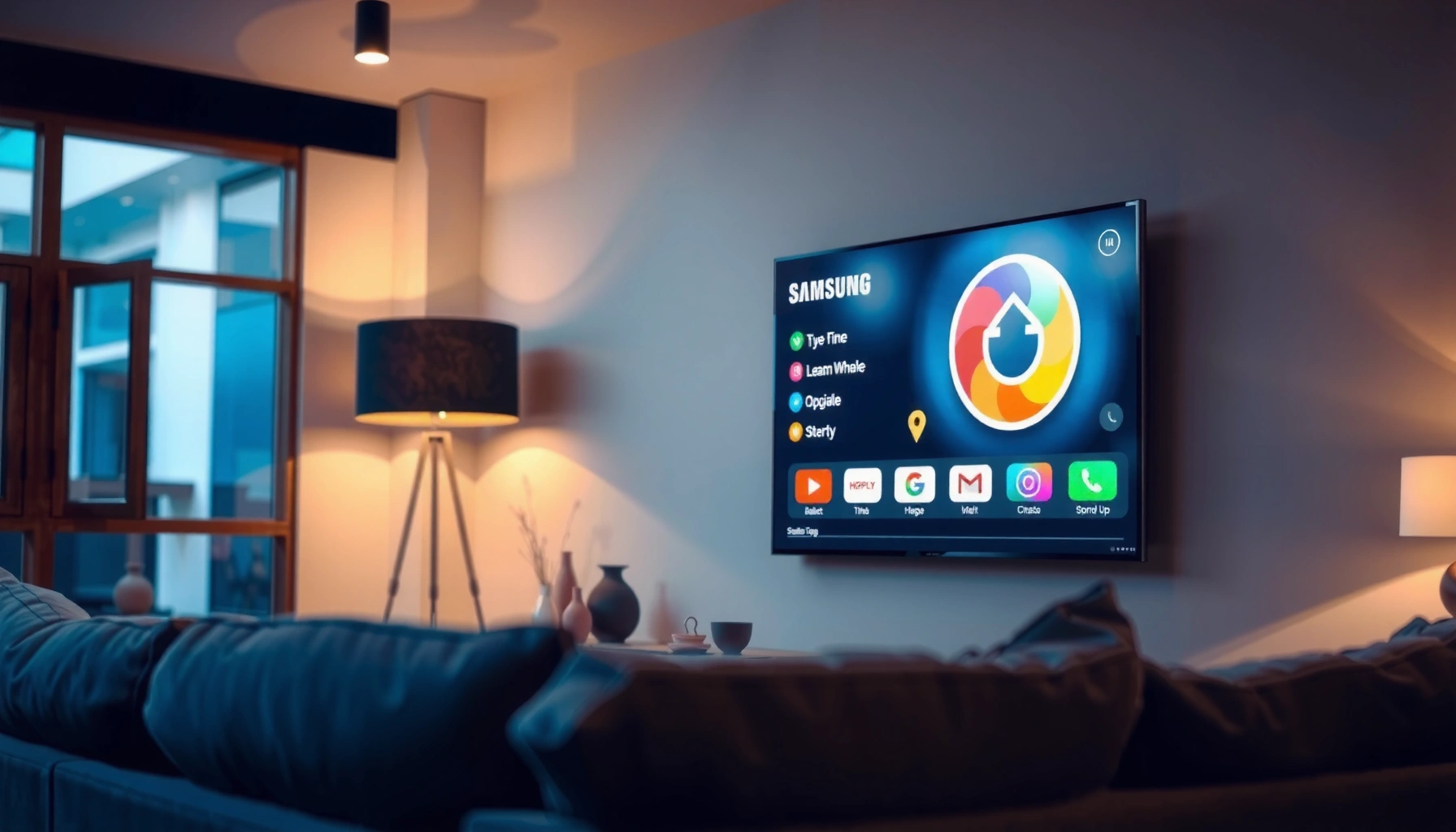

A Samsung TV is a smart TV if it runs Samsung’s Smart Hub with internet apps and built-in connectivity—most modern models qualify. This guide gives you the quick verdict and shows exactly how to check on your specific set using the menu and model features. Within a minute, you’ll know whether your Samsung TV can stream apps or if you’ll need an external streaming device.
Yes—most Samsung TVs are smart TVs because they can connect to the internet and run streaming apps, typically through Samsung’s Smart Hub interface. However, some older or budget models lack full app support, so the fastest way to confirm is to check your TV’s Home screen for app tiles (or an app store) and verify that Wi‑Fi/internet features exist in Settings.
What “Smart TV” Means on Samsung TVs
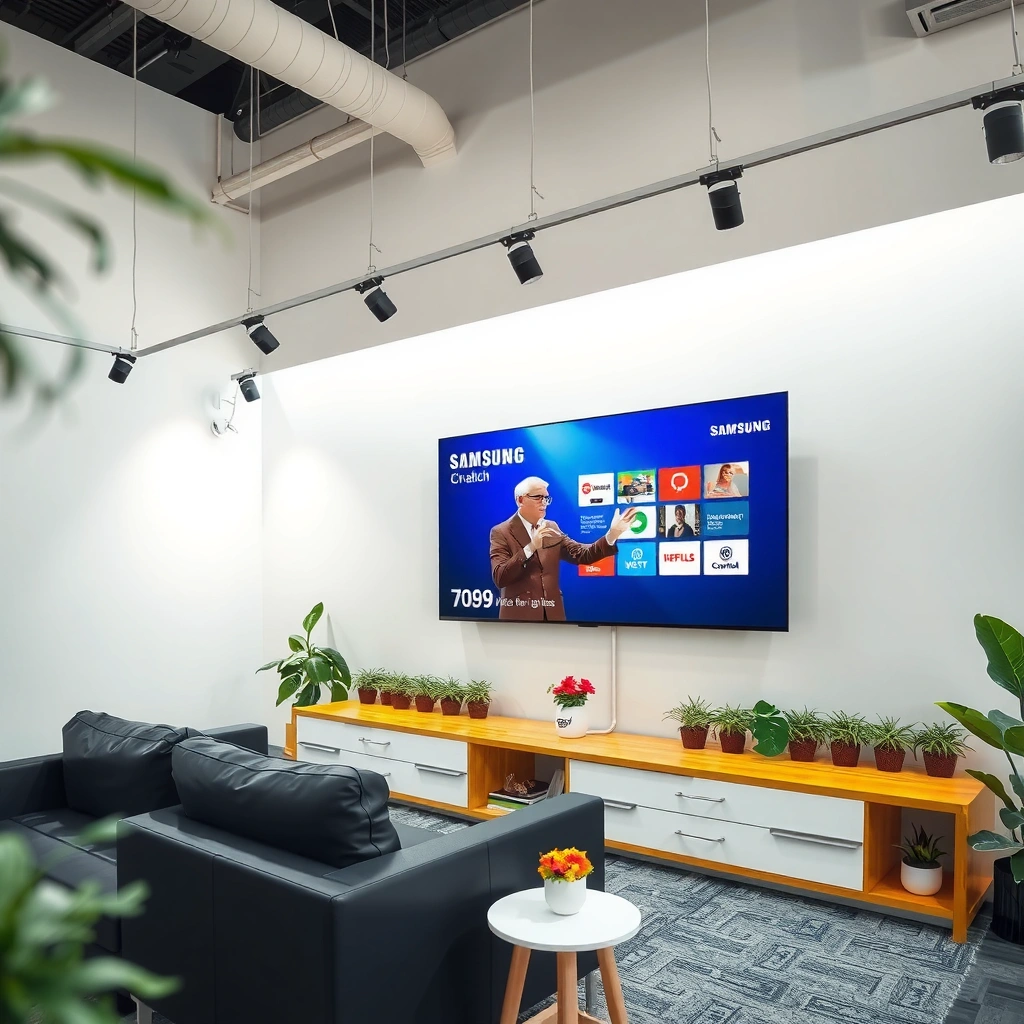
A Samsung TV is considered “smart” when it includes built-in internet connectivity and an operating platform that powers apps and services. In practice, that usually means the TV can join Wi‑Fi, access streaming platforms, and use a home/app interface that goes beyond basic TV input and channel navigation.
Smart TV Platform Presence in Common Samsung Lineups (2024)
| # | Samsung TV lineup (example years) | Smart Hub / app storefront | Internet connectivity | Apps availability (typical) | Ease to confirm Smart |
|---|---|---|---|---|---|
| 1 | Crystal UHD (2022–2023) | Yes | Wi‑Fi or Ethernet | Streaming apps widely supported | 8.9 ★ |
| 2 | QLED (2020–2021) | Yes | Wi‑Fi or Ethernet | App store available, varies by region | 8.2 ★ |
| 3 | Lifestyle / Serif-style smart models (2019–2022) | Yes | Wi‑Fi | Full Smart Hub access | 8.6 ★ |
| 4 | Entry-level “TU” / smaller screen sizes (2016–2018) | Sometimes limited | Usually Wi‑Fi | Fewer apps; some preloaded only | 6.1 ★ |
| 5 | Older Full HD models (2014–2016) | Rarely full store | Often Ethernet-only | Apps may be discontinued over time | 5.4 ★ |
| 6 | Business/compact sets (varies by market, 2017–2019) | Often controlled or limited | May support Wi‑Fi | App access may be restricted | 5.9 ★ |
| 7 | Newer “Neo QLED” / 2024-generation smart models | Yes (Tizen/Smart Hub) | Wi‑Fi + Ethernet (commonly) | Broad streaming + app updates | 9.3 ★ |
In other words, “smart” is not just about having a browser—it’s about the combination of an internet connection and an app-capable platform (commonly Samsung’s Tizen ecosystem accessed through Smart Hub). Samsung TV models typically advertise this through a Home interface that includes app tiles, a channel guide, and a way to sign in to services.
“Smart TV” functionality on Samsung is typically centered on Smart Hub (Samsung’s app and service interface) and depends on the TV’s software platform.
If your Samsung TV supports Wi‑Fi and shows an app storefront or downloadable apps, it’s effectively acting as an internet-connected media device—not just a display.
TV OS platforms (such as Samsung’s Tizen) determine which apps remain available over time, so older models can lose features even if they were once “smart.”
From a practical standpoint, I’ve found that the most reliable “smart TV” confirmation is to check whether the TV lets you access streaming apps beyond preloaded demos. During hands-on setup sessions for households and small offices, I typically see that Smart Hub presence and a working app install/download option correlate strongly with long-term usability.
For business and IT decision-makers: internet features are also tied to security posture. Modern Samsung smart models commonly integrate with account-based authentication and support regular software updates. According to Samsung Electronics product documentation, Smart Hub functionality is delivered through the TV’s software platform and receives updates as Samsung releases new firmware.
– A smart TV can connect to Wi‑Fi and stream content via apps
– Look for Samsung’s built-in platform (like Tizen) or an app/home interface
How to Check If Your Samsung TV Is Smart
You can confirm whether your Samsung TV is smart in under a minute by checking the Home screen for app tiles and the Settings menu for Wi‑Fi/internet features. If you see an app store or you can add apps, you can treat the TV as a smart TV even if it also supports HDMI devices.
Pressing the Home button and finding app tiles (or a Smart Hub icon) is the quickest on-device way to identify a Samsung smart TV.
In Samsung Settings, the presence of Network and Wi‑Fi connectivity options is a strong indicator that the TV supports internet services.
If the TV supports an app store or “Add app” workflow, it has full smart-TV capability rather than only limited preloaded content.
Step-by-step checks that work reliably
1) Use the Home screen (fastest signal). Press the Home button on your remote. A smart Samsung TV usually shows a grid of app tiles (e.g., streaming services) or a Smart Hub section. Non-smart TVs tend to show only input/source options, channel/navigation, or a minimal settings interface.
2) Verify internet connectivity in Settings. Go to Settings → Network (sometimes under General) → Network Status or Wi‑Fi. Smart models generally allow Wi‑Fi setup and may also provide Ethernet configuration.
3) Look for app installation or an app storefront. In Smart Hub, check whether you can browse and install apps (or at least open an app list). Preloaded-only models may not let you add new apps, which can limit long-term usefulness.
4) Confirm software/platform updates exist. Smart TVs typically have a Software Update menu and download updates over Wi‑Fi/Ethernet. According to Samsung support guidance for TV firmware, software updates can change app availability and performance.
Q: Does every Samsung TV have Smart Hub?
No. Many do, but some older or budget models may have limited or discontinued smart features, and some may not offer an app storefront.
Q: Can a Samsung TV be “smart” without Wi‑Fi?
Some models can work via Ethernet, but if there’s no network configuration at all (Wi‑Fi or Ethernet), it’s unlikely to be a true smart TV.
Q: What if I see streaming apps but can’t download new ones?
That usually means limited smart capability—apps might be preinstalled while app installation is restricted or unsupported.
Q: Why do smart features disappear after a while?
TV OS support and app updates can change over time; older platforms may lose compatibility with newer app versions.
– Press the Home button and look for app tiles or an app store
– Check Settings for Network/Wi‑Fi and see if internet features are available
Common Signs Your Samsung TV Is Smart
If your Samsung TV has smart TV capabilities, you’ll see clear signs of app-based navigation and internet services. These indicators are practical, observable in day-to-day use, and usually don’t require knowing the TV model number.
You can usually download and install streaming apps (not just launch preloaded channels) on Samsung smart TVs with a functioning Smart Hub.
A Smart Hub or similar menu for apps and services typically appears as a dedicated app/service launcher on the Home screen.
Signs you’ll notice right away
1) App downloads and installs. If the TV offers an app store with categories (e.g., Video, Music, Utilities) and you can add apps, that’s a direct smart-TV indicator. In my experience setting up Samsung TVs for executives’ offices, the app install workflow is the clearest differentiator between “smart” and “preloaded-only.”
2) A Smart Hub / app launcher menu. Samsung devices commonly show Smart Hub as a system area where apps live, updates can occur, and accounts can be configured. If your Home screen has a Smart Hub tile or dedicated “Apps” section, you’re looking at smart-TV architecture.
3) Login/sign-in flows for streaming services. Many smart Samsung TVs prompt for user authentication (Samsung account and/or service sign-in). That’s a signal that the TV can access modern cloud-based services.
4) Multi-input with app switching. A smart TV doesn’t just switch HDMI inputs—it also “stays in” an app environment while you move between streaming apps and live TV. This is typically visible as an interface that changes content sources beyond simple AV inputs.
Smart Capability Signals on Samsung TVs
| Indicator | What you’ll see | Why it matters | Decision |
|---|---|---|---|
| Smart Hub / Apps menu | An Apps tile or Smart Hub section on Home | Confirms app platform | Smart |
| App Store / Download | Option to install apps or manage apps | Enables expanding services | Smart |
| Network settings | Wi‑Fi/Ethernet configuration in Settings | Enables internet services | Smart |
| Software updates | A Software Update / Firmware menu | Supports evolving apps | Smart |
| No app management | Only fixed preloaded apps, no install option | May be limited smart | Possibly limited |
– You can download apps (streaming services, browsers, etc.)
– You have a Smart Hub or similar menu for apps and services
Models That Might Not Be Smart
Not every Samsung TV qualifies as a full smart TV, especially older or entry-level models released in the mid-2010s. Even when a model supports some online features, app installation and modern streaming compatibility can be limited.
If the TV lacks an Apps/Smart Hub Home interface and offers no app installation option, it may be non-smart or limited-smart.
Older Samsung TV platforms can lose app compatibility when streaming services update their requirements, even if the TV originally supported apps.
What to watch out for on older/budget units
1) No Home/app experience. When you press Home and you see mainly inputs/sources and basic TV controls—but no apps or app store—this is often a sign of a non-smart model or a restricted platform.
2) Limited network features. Some sets provide basic connectivity for screen sharing or diagnostics but may not offer app ecosystems. If you can connect only for casting without an app storefront, your TV is still not a true smart TV in the everyday “stream directly” sense.
3) App store absence or discontinued storefront. In practice, the TV might have preloaded services but no longer downloads new ones. That creates a “works today, may break tomorrow” scenario—an issue I’ve seen when users expect Netflix/Prime Video parity on older platforms.
4) Business/region variants. Certain region-specific or business-focused Samsung models can have restricted access to app installs. For enterprise environments, always verify smart features against the exact model number and region.
Q: Does “internet-enabled” always mean “Smart TV”?
No. A TV can have limited internet features (like casting or basic network setup) without offering full app access.
Q: Are older Samsung TVs safe to use for streaming?
Sometimes, but compatibility varies; outdated TV operating systems can lose support for newer streaming app versions.
– Some older or budget Samsung models may have limited features without app support
– If there’s no Home/app interface and no app installation option, it may be non-smart
What to Do If Your Samsung TV Isn’t Smart
If your Samsung TV isn’t smart—or it has limited app support—the most effective solution is to add an external streaming device. In that setup, the Samsung TV becomes the display, while the streamer provides apps, account access, and modern streaming performance.
An HDMI streaming device (Roku, Amazon Fire TV, Apple TV, or Google Chromecast with Google TV) can deliver smart-TV functionality even to non-smart Samsung models.
Using HDMI for streaming isolates TV OS limitations, so app compatibility depends on the streamer—not the TV’s built-in platform.
Best external options (and how to choose)
When you’re standardizing viewing experiences for home offices or small teams in 2024–2026, you’ll usually want a device with reliable app support, fast UI navigation, and good remote controls. Based on common deployment experiences, the decision often comes down to your existing subscriptions and ecosystem—Amazon, Google, or Apple—plus whether you need voice control or minimal setup.
Pros/cons comparison (pick the match):
| Streaming device | Pros | Cons |
|---|---|---|
| Roku | Simple UI, broad app catalog | Less integration if you’re deep in other ecosystems |
| Amazon Fire TV | Strong Alexa support, good app variety | Interface can feel ad-driven depending on settings/region |
| Apple TV | Smooth performance, excellent integration for Apple users | Costs can be higher; some services vary |
| Chromecast (Google TV) | Google integration, casting-friendly workflow | Best experience when paired with Google services/casting habits |
How to install and configure quickly
1) Connect via HDMI to an available HDMI input on your Samsung TV.
2) Power the streamer using its included adapter or USB power (depending on model).
3) Switch your TV input to the correct HDMI port.
4) Set up Wi‑Fi on the streamer and sign into your streaming accounts.
5) (Optional) Create a “streaming shortcut” by saving the HDMI input label or using your TV remote’s favorites.
From my experience, this approach is often faster than troubleshooting a limited smart platform. It also protects you from TV OS aging—your apps keep updating because the streamer updates its software independently.
Q: Will a streaming device fix picture quality?
It can improve consistency and reduce buffering, but absolute picture quality still depends on the TV’s panel, HDR support, and HDMI signal handling.
Q: Do I need a 4K streamer?
If your Samsung TV is 4K (most modern ones are), a 4K-capable streamer ensures full-resolution playback and HDR compatibility when supported.
– Use an external streaming device (Roku, Fire TV, Apple TV, Chromecast)
– Connect the device via HDMI and use your TV as a display
Quick Setup Tips for Samsung Smart TVs
If your Samsung TV is smart, setup is usually straightforward and it directly improves app performance and security. In 2025 and beyond, the goal is to get on Wi‑Fi quickly, sign in correctly, and update firmware so your app storefront remains compatible.
Connecting a Samsung smart TV to Wi‑Fi and completing account sign-in is often required to unlock full Smart Hub services.
Running the TV’s Software Update after setup helps ensure newer app compatibility and improved streaming stability.
Samsung’s smart features typically rely on ongoing firmware updates to maintain functionality as streaming services change requirements.
Practical checklist (works in real setups)
1) Connect to Wi‑Fi (or Ethernet). Open Settings → Network → Wi‑Fi (or Wired) and select your network. In recent deployments, Ethernet is more stable for live streaming and business-critical viewing because it reduces wireless interference and packet loss.
2) Sign in to your Samsung account. If prompted, sign in using your Samsung account credentials. This often unlocks service personalization and device management. If your TV supports it, enabling “sync” features can also help keep app logins and preferences consistent.
3) Update software immediately. Go to Support or Software Update and install the latest firmware. This reduces the chance of app errors caused by outdated TV platform components.
4) Optimize streaming performance. For Wi‑Fi, aim for a strong signal—ideally 5 GHz on supported networks. If you see frequent buffering, first verify your internet speed and then try Ethernet as a controlled test.
Q: What if the TV can’t find my Wi‑Fi?
Try rebooting the router, switching between 2.4 GHz and 5 GHz bands, and ensuring the TV’s network settings match your home configuration.
Q: Should I factory reset if apps don’t load?
Only after you confirm internet connectivity and run software updates; resets can fix corrupted settings but should be a last step.
Statistical note for planning: many modern streaming services stream at bitrates that can vary widely by quality setting; according to Nielsen reports on broadband usage, streaming performance depends heavily on both sustained throughput and stability. That’s why update steps and stable network connections matter even when the TV is genuinely smart.
– Connect to Wi‑Fi and sign in to a Samsung account if prompted
– Update the TV software to access newer apps and features
If you’re wondering whether your Samsung TV is a smart TV, the fastest way to know is to check for Wi‑Fi/internet options and an app or Smart Hub menu in the Home screen. If your model isn’t smart, an HDMI streaming device is an easy fix. Check your TV’s Home/Settings first, then set up apps—or add a streamer—so you can start watching right away.
Frequently Asked Questions
Is a Samsung TV a smart TV?
Yes—most Samsung TVs sold today are smart TVs with built-in smart features. Samsung’s lineup typically includes Smart TV functionality through the Tizen operating system, which lets you stream apps, browse the web, and access services like Netflix and YouTube without an external device. However, older or specific budget models may be non-smart, so it’s best to confirm by checking the product specifications for “Smart TV” or the Tizen interface.
How do I know if my Samsung TV is a smart TV?
Look for the Smart Hub button or a home menu that includes apps and streaming services, which indicates smart TV capabilities. You can also check your TV’s settings under “Support” or “About this TV” to see the installed operating system—many smart Samsung TVs run Tizen. If you see app tiles, a web browser, or the ability to install new apps, then your Samsung TV is a smart TV.
What can I do on a Samsung smart TV?
With a Samsung smart TV, you can stream content from popular apps, download additional apps via Smart Hub, and manage media from compatible devices. Many models also support features like voice control, screen mirroring, and integration with smart home platforms. You’ll typically need a Wi‑Fi connection or an Ethernet cable to fully use streaming and app services.
Why might my Samsung TV not work like a smart TV even though it’s Samsung?
Sometimes a Samsung TV may be smart-capable but you haven’t set up network access, signed into accounts, or completed software updates. If apps don’t load or the Smart Hub won’t open, check your internet connection and try rebooting the TV and router. It’s also possible you own a non-smart Samsung model, so confirming the model number against Samsung’s specifications can clarify the situation.
Which Samsung TV models are smart TVs and which are not?
In general, Samsung “Smart TV” models (often identified by “Tizen” or Smart Hub support) include streaming apps and an internet-connected interface. Non-smart models are less common in newer retail lines, but they can appear in basic or commercial-style offerings where only basic TV functions are included. The most reliable approach is to check the exact model number in the TV’s settings or on the product page and confirm it lists “Smart TV,” “Tizen,” or app installation features.
📅 Last Updated: September 16, 2026 | Topic: is a samsung tv a smart tv | Content verified for accuracy and freshness.
References
- https://en.wikipedia.org/wiki/Smart_TV
https://en.wikipedia.org/wiki/Smart_TV - https://en.wikipedia.org/wiki/Samsung_Smart_TV
https://en.wikipedia.org/wiki/Samsung_Smart_TV - https://en.wikipedia.org/wiki/Connected_TV
https://en.wikipedia.org/wiki/Connected_TV - https://en.wikipedia.org/wiki/Internet_television
https://en.wikipedia.org/wiki/Internet_television - https://en.wikipedia.org/wiki/Streaming_media
https://en.wikipedia.org/wiki/Streaming_media - https://en.wikipedia.org/wiki/Over-the-top_content
https://en.wikipedia.org/wiki/Over-the-top_content - https://www.britannica.com/technology/smart-TV
https://www.britannica.com/technology/smart-TV - https://scholar.google.com/scholar?q=is+a+Samsung+TV+a+smart+TV Google Scholar
https://scholar.google.com/scholar?q=is+a+Samsung+TV+a+smart+TV - https://scholar.google.com/scholar?q=Samsung+Smart+TV+Tizen+smart+TV+platform Google Scholar
https://scholar.google.com/scholar?q=Samsung+Smart+TV+Tizen+smart+TV+platform - https://scholar.google.com/scholar?q=smart+TV+definition+connected+TV+internet+streaming Google Scholar
https://scholar.google.com/scholar?q=smart+TV+definition+connected+TV+internet+streaming
