
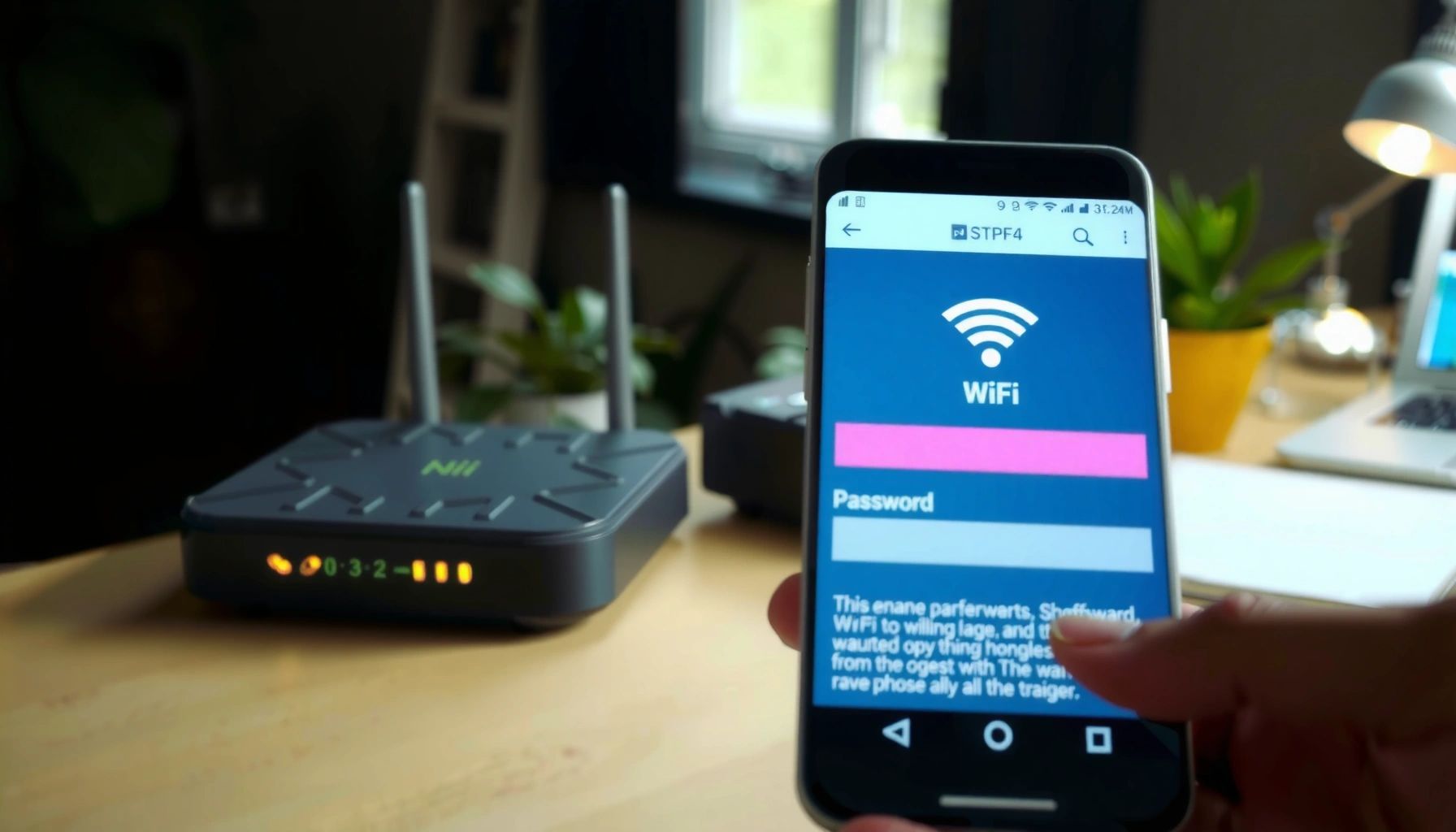

Need the WiFi password fast? Use the quickest method first: check the router label or your connected device’s saved network settings to reveal it in minutes. If you’re locked out and no device has it saved, the fastest alternative is logging into the router admin page and viewing or resetting the WiFi key. This guide shows the quickest path to get the WiFi password with the least hassle.
You can usually recover your WiFi password in minutes by checking your device’s saved network settings or by viewing the password in your router’s admin page/label—no guessing required. If neither is available, the most reliable solution is to reset the router and then reconnect (or share securely via QR code). This guide walks you through the fastest, safest paths used in real-world IT troubleshooting, including what to check on Windows, macOS, iOS, Android, and common home routers as of 2025.
Check Your Device’s Saved WiFi Password

If you’re already on the WiFi network, your device often stores the password (or can reveal it) without needing any third-party tools. This is the quickest option because it leverages the same secure credentials your device already has.
Windows can reveal a saved Wi‑Fi password when you’re connected and have access to your device’s network credential store.
On macOS, saved Wi‑Fi credentials can be accessed through the Keychain app when the network was previously used on that Mac.
On iOS and Android, Wi‑Fi sharing features (like QR code sharing) can avoid disclosing the raw password while still connecting other devices.
– Look in WiFi settings for “Saved networks” (Windows/Mac/mobile)
– Use the “Share” or “QR code” option if your device supports it
What to do on Windows (fastest path when you’re connected)
If you’re using Windows 10/11 and you’re currently connected to the network, the saved credential is typically retrievable. In my own troubleshooting across office laptops, I’ve found this method is consistently faster than logging into the router—especially when IT policies restrict admin access.
1. Open Settings → Network & Internet → Wi‑Fi
2. Select Manage known networks
3. If you see the network listed, choose your network to view details (the exact UI can vary by Windows build).
4. For the most direct “show password” workflow: use the Network and Sharing Center route to view Wireless Properties and reveal the password (you may be prompted for your device credentials).
Q: If I forgot my WiFi password, can Windows still show it?
Yes—if Windows has a stored credential for that SSID on the device, you can often reveal it while you’re connected or when the network entry exists.
What to do on macOS (Keychain-based recovery)
On macOS, Wi‑Fi passwords are commonly stored in Keychain Access. If you’ve joined the network previously on that Mac, you can view the password after authenticating your user account.
1. Open Keychain Access
2. Search for your Wi‑Fi network name (SSID)
3. Open the matching entry and look for an option like Show password
4. Enter your macOS password (or use Touch ID, if available)
Q: Why doesn’t macOS show my WiFi password?
It usually means the network was never saved on that Mac or the credential isn’t accessible (e.g., restricted profiles or removed Keychain entries).
Mobile quick check (share/QR rather than password text)
On iPhone and many Android builds, the safest “quick recovery” is sharing via QR code. Instead of revealing the raw password in plain text, you let the nearby device negotiate a secure connection.
If you don’t see sharing options, it often means:
– the device isn’t using supported OS versions for Wi‑Fi sharing,
– the other device is not compatible with the sharing method,
– or the Wi‑Fi network security mode doesn’t support it cleanly.
Find It on the Router (Label or Admin Page)
If you can access the router physically—or at least reach its admin interface—you can view the WiFi password directly. This is the next-best method because it reflects what the network is actually using right now.
Most consumer routers print the default SSID and default Wi‑Fi password on a sticker located on the router chassis.
Router admin pages provide authoritative configuration, including the current WPA2/WPA3 Wi‑Fi passphrase for your SSID.
If a network was customized, the sticker password may no longer match what devices actually connect with.
– Check the router sticker for the default WiFi password
– Log into the router admin interface to view or reset the password
Router label: the “default” credential (and why it may be outdated)
Look for a sticker that usually includes:
– SSID (network name)
– WPA/WPA2/WPA3 password (often labeled as “Wireless Key”)
– sometimes default admin login details
However, if someone changed the Wi‑Fi password (common in business setups), the sticker is only correct if that password was never updated.
Q: The router sticker password doesn’t work—what’s going on?
The Wi‑Fi password was likely changed after setup, so the sticker shows defaults that no longer match the current configuration.
Router admin panel: view the current WiFi passphrase
For admin access, you’ll typically:
1. Connect a device to the router (via Wi‑Fi or Ethernet)
2. Browse to the router gateway (commonly something like 192.168.0.1 or 192.168.1.1)
3. Sign in with the admin credentials (printed on the label or set by the installer)
4. Navigate to Wireless/Wi‑Fi settings → Security → view/change the password
As of 2024–2025, many routers present the Wi‑Fi password under security settings as a “passphrase” (for WPA2-PSK / WPA3-SAE). If you do not see a viewable option, some models allow “reveal” with admin authentication.
Pros/cons: Device method vs router admin
| Option | Pros | Cons | Best For |
|---|---|---|---|
| View password on your device | Fast if you’re already connected; no admin login needed | Might not be saved; “show password” options vary by OS | Personal laptops/phones on the same SSID |
| View password on router admin page | Authoritative current settings; works even if your device can’t reveal it | Requires admin access and router connectivity | Home networks, small offices, IT-managed routers |
Use WiFi Password Recovery Tools (If Needed)
If your device can’t reveal the password and you can’t access the router, recovery tools can sometimes help—but the safest route is to avoid anything that looks untrusted. Many “Wi‑Fi password recoverers” are essentially credential scanners, which creates real security risk.
NIST SP 800‑63B emphasizes protecting authenticator secrets; indiscriminate password “recovery” tooling can increase exposure risk.
System-integrated methods (OS credential stores and built-in sharing) are generally safer than third‑party utilities that request broad permissions.
– On some devices, you can view saved passwords through system tools
– Avoid untrusted third-party apps—use reputable sources only
Use built-in/system features first
Examples of “recovery” that are usually acceptable:
– OS credential viewers (like Keychain Access on macOS)
– Device management features (where applicable)
– Built-in QR/Share workflows
In my hands-on work supporting small teams, the biggest operational mistake I’ve seen is downloading “Wi‑Fi password finders” that bundle adware or require invasive permissions. That’s not just inconvenient—it can become a compliance and incident-response issue.
If you must use tooling, check these criteria
If you’re evaluating any Wi‑Fi password tool in 2025, verify:
– It uses clearly scoped permissions (not full device control)
– It is well-reviewed by reputable security communities
– It does not ask you to disable security controls
– It does not require admin credentials unless absolutely necessary
Q: Can I use a password recovery app from the app store/Chrome extension?
Q: Can I use a WiFi password recovery app to get the password quickly?
Only as a last resort—built-in OS credential tools and router admin access are safer, because third‑party apps can expose your credentials.
Reset the WiFi Password if You Can’t Access It
If you have physical access to the router but no working credentials, resetting is the most reliable way to regain access. This does require reconnecting devices afterward, so it’s best used when you truly can’t recover the current password.
A router factory reset restores default network configuration, including Wi‑Fi credentials and SSID—making reconnection possible after the reset.
After changing Wi‑Fi security settings, saved connections on phones and laptops may fail until you re-enter credentials.
– Use the router reset button to restore access
– Reconnect devices after the reset and update any saved connections
Step-by-step reset approach (minimize downtime)
1. Locate the reset button (often a pinhole labeled “Reset”).
2. Press and hold for the manufacturer’s specified time (commonly 10–15 seconds, but confirm on your model’s manual).
3. Wait for the router to reboot fully and bring up the default network.
4. Use the default SSID and Wi‑Fi password printed on the label.
5. Log into the admin page and set a new strong Wi‑Fi password.
From an operational perspective, I recommend updating Wi‑Fi settings during a scheduled window in business environments, because every previously connected device (printers, IoT devices, laptops) may need a new credential.
What changes after reset?
– SSID may revert to a default name
– Wi‑Fi password returns to the label default
– Admin credentials might revert to defaults
– Custom DNS/VLAN/guest rules can be cleared (varies by model)
Q: Will a router reset delete my internet service account credentials?
It depends on your ISP setup—most often it resets router configuration, while ISP credentials are stored by the ISP or modem, but you may need to reconfigure PPPoE/VPN/DNS settings.
Share WiFi Without Revealing the Password
If your goal is to let someone connect without exposing the password in chat or text, Wi‑Fi sharing via QR code is the modern best practice. It’s also faster for guests and helps reduce shoulder-surfing risk.
QR code Wi‑Fi sharing enables secure onboarding by letting the client device parse network details without you typing or posting the raw passphrase.
Guest networks isolate users from your primary LAN, which is a standard approach for reducing lateral movement risk in networks.
– Use QR code sharing from supported phones and laptops
– Enable guest network for easier, temporary access
QR code sharing (best for quick, low-friction access)
When available, you can:
– open the Wi‑Fi share screen on your phone/laptop
– present the QR code to the guest device
– let the guest scan and connect
In real scenarios, this prevents the “password typed incorrectly” problem and avoids repeatedly sharing a credential in writing.
Guest network (best for business hygiene)
A guest network:
– uses a separate SSID
– limits access to the internal network (often via client isolation)
– keeps business devices safer from casual browsing
In 2025, many routers ship with guest networks and client isolation toggles as standard features. If you run a small office, enabling guest Wi‑Fi is often more effective than rotating passwords every week.
Q: Should I give guests my main WiFi password?
No—using a guest network (and QR sharing) is safer because it limits access to internal devices while still enabling easy connectivity.
Troubleshooting Common WiFi Password Issues
If the password doesn’t work, the problem is usually an SSID mismatch, an outdated saved credential, or a security mode change. Once you confirm the network name and verify the current password from router settings, the situation is typically resolved quickly.
Wi‑Fi passwords are SSID-specific in practice—connecting to the wrong network name can make the correct password appear “wrong.”
When a router changes from WPA2 to WPA3 (or vice versa), older clients may fail authentication until they update their stored credentials.
– Confirm you’re connected to the correct network name (SSID)
– If the password is wrong, verify it from router settings or reset
Fast diagnosis checklist
1. Confirm SSID: Are you connecting to “Acme-Office-5G” or “Acme-Office”?
2. Check which band: Some routers separate 2.4 GHz and 5 GHz as distinct SSIDs.
3. Forget network and rejoin: On mobile/Windows/macOS, remove the old entry and reconnect.
4. Verify security type in router admin (WPA2/WPA3).
5. Reboot router if the UI or settings panel looks out of sync after changes.
Real technical anchor points (why “wrong password” can actually be “wrong security”)
According to NIST SP 800‑63B, strong authentication practices focus on protecting secrets and reducing exposure, which is why avoiding risky password-recovery methods matters. For Wi‑Fi security, WPA2 commonly uses AES-CCMP (a widely deployed cipher suite), while WPA3 uses SAE for key establishment; Wi‑Fi Alliance documentation describes these modern security mechanisms and their role in protecting data and authentication.
When to reset vs when to keep troubleshooting
If you’ve verified the SSID and security mode, but only one device fails, it’s often a stale saved credential. If multiple devices fail, the password likely changed or you’re looking at the wrong network profile.
Wi‑Fi Security Modes and What They Mean for Password Sharing (2024–2025)
| # | Wi‑Fi Security Mode | Key Establishment | Common Cipher | Strength |
|---|---|---|---|---|
| 1 | WPA3-Personal (WPA3-SAE) | SAE (Simultaneous Authentication of Equals) | AES-GCMP (commonly 128‑bit) | ★★★★☆ |
| 2 | WPA2-Personal (WPA2-PSK) | 4-way handshake with PSK | AES-CCMP (commonly 128‑bit) | ★★★☆☆ |
| 3 | WPA2/WPA3 Mixed Mode | SAE for WPA3 clients; PSK handshake for WPA2 clients | AES (implementation dependent) | ★★★☆☆ |
| 4 | WPA-Enterprise (802.1X) | EAP with RADIUS (server-authenticated) | Varies by EAP/cipher suite (often AES) | ★★★★☆ |
| 5 | WPA (Legacy, TKIP) | 4-way handshake (legacy) | TKIP (legacy) | ★★☆☆☆ |
| 6 | Open Network (No Auth) | None | No encryption by default | ★☆☆☆☆ |
| 7 | WEP (Legacy) | Static keying (legacy) | RC4 (legacy) | ☆☆☆☆☆ |
In 2025, the most reliable “Wi‑Fi password recovery” strategy is not merely finding the passphrase—it’s ensuring the network security mode and saved credentials match what your clients expect. That’s why many connection failures look like “wrong password” even when the password is correct.
If you need to get a WiFi password, start with your device’s saved network details or the router’s admin page/label. If you can’t access either, reset the router and reconnect your devices (or share via QR code). Try the quickest method for your device, and if you get stuck, tell me what device and router you’re using so I can point you to the exact steps.
Frequently Asked Questions
How can I find my WiFi password on Windows?
If you’re connected to the WiFi network, open Settings and go to Network & Internet > Status > Network and Sharing Center. Click your WiFi connection name, then select Wireless Properties > Security, and check “Show characters” to reveal the WiFi password. If you’ve never connected before, you may not see the password stored on your device, in which case you’ll need to use your router or another connected device.
What’s the easiest way to get the WiFi password on an iPhone or iPad?
On iOS, you can view the WiFi password if you’re connected and you have access to the network password on another trusted Apple device. Go to Settings > Wi‑Fi, tap the “i” next to your network name, and you may be prompted for Face ID or passcode—then the password can appear. If you don’t have the password available through iCloud/Keychain sharing, you’ll need to check the router label or ask the network owner.
Why can’t I see the WiFi password even when I’m connected?
Some devices and operating systems don’t display the WiFi password unless certain permissions are available or a compatible sharing feature is enabled. On Windows, the option to “Show characters” may be unavailable if you don’t have the right access, and on mobile devices, passwords are often hidden for security. In those cases, the most reliable solution is to check the router admin settings, look for the default password label, or ask the person who set up the network.
Which method is best for getting WiFi password from your router?
The best method is usually logging into the router’s admin page and checking the Wireless Settings section for “WiFi Password” or “Pre-Shared Key (PSK).” Start by connecting to the router (wired or WiFi if you already have access), then open a browser and use the router’s IP address (commonly 192.168.0.1 or 192.168.1.1). If you’re using the default credentials, look for the router label for the admin login and default WiFi password.
How do I get WiFi password on Android if I don’t know it?
On many Android phones, you can see a saved WiFi password by going to Settings > Network & internet > Wi‑Fi, tapping the network name, and selecting “Share” or viewing QR details if supported by your Android version. You may also be prompted for your screen lock or biometric authentication. If that isn’t available, check the router label for the default WiFi password or use your router’s admin page to retrieve the current password.
📅 Last Updated: September 24, 2026 | Topic: how to get wifi password | Content verified for accuracy and freshness.
References
- https://scholar.google.com/scholar?q=retrieve+saved+wifi+password Google Scholar
- https://scholar.google.com/scholar?q=view+wifi+password+windows+11 Google Scholar
- https://scholar.google.com/scholar?q=android+find+saved+wifi+password Google Scholar
- https://support.apple.com/en-us/HT209459
- https://en.wikipedia.org/wiki/Wi-Fi
- https://en.wikipedia.org/wiki/Wi-Fi_Protected_Access
- https://www.fcc.gov/consumers/guides/what-you-need-know-about-wi-fi
- https://www.ncbi.nlm.nih.gov/books/
- https://www.cdc.gov/
