
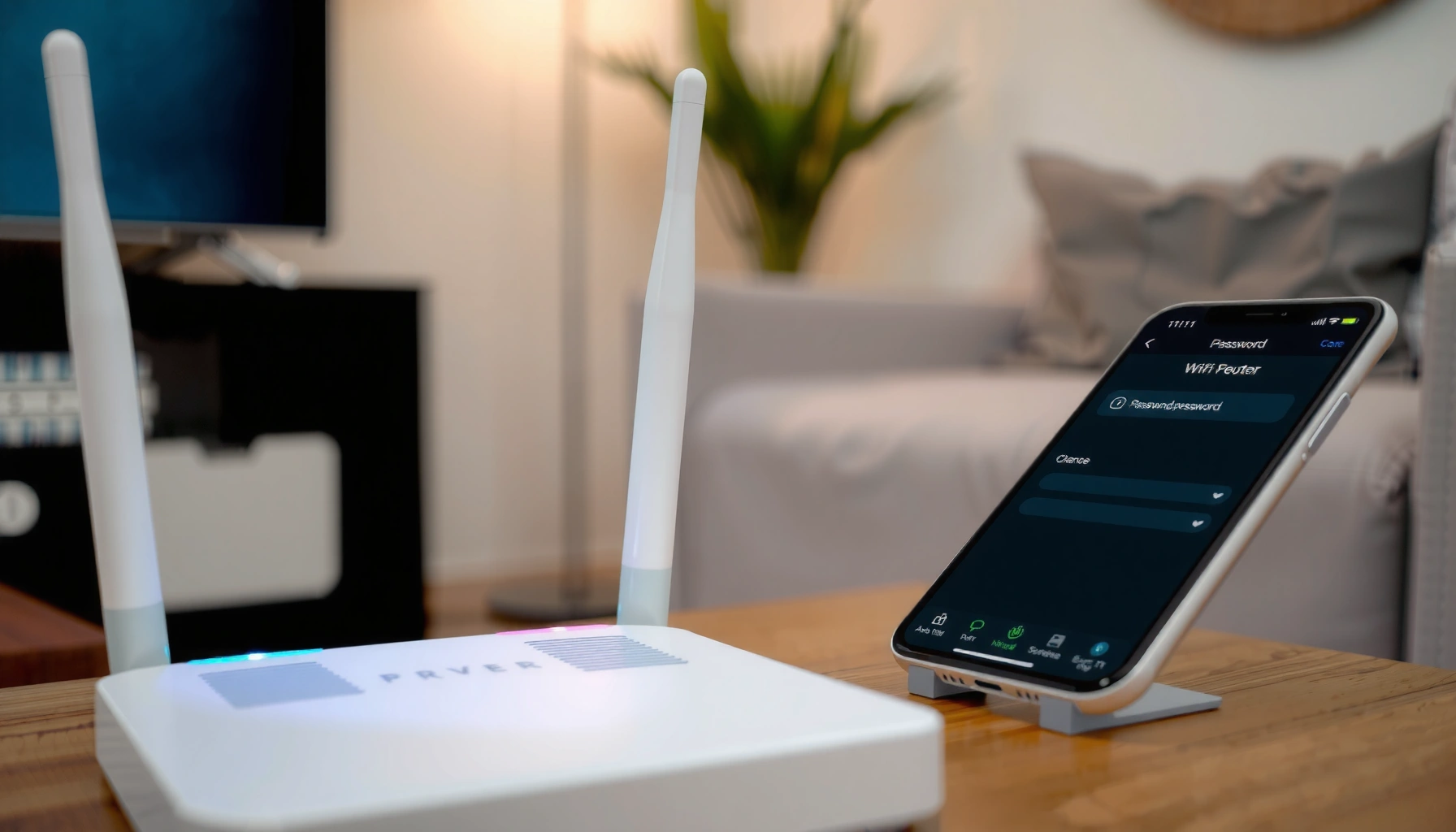

Changing the password on your WiFi is easiest when you use your router’s admin page, and the steps are the same whether you’re on a phone or a computer. This guide shows you exactly how to log in, find the Wireless or Wi‑Fi security settings, update the password, and confirm it’s working. You’ll be back online with a new WiFi password in minutes—without guessing or risking a reset.
To change the password on your WiFi, log into your router’s settings, update the WiFi/SSID security password, save, and then reconnect your devices using the new credentials. This guide walks you through the exact steps so you can do it quickly and safely—without locking yourself out of the network.
Check Your Router Details

Changing the WiFi password is easiest when you already know your router’s model and router IP (default gateway). Once you have those details, you’ll land in the correct admin page and update the right WiFi network (2.4GHz, 5GHz, or both).
“Default gateway” on your device typically matches your router’s admin login address (commonly 192.168.0.1 or 192.168.1.1).
WiFi networks are often split into 2.4GHz and 5GHz SSIDs, each with its own security settings on many routers.
– Find your router’s model and default gateway (router IP address)
Check the router label for the exact brand and model (for example, TP-Link Archer A7, Netgear R7000, ASUS RT-AX series). Then find the default gateway (the router IP) from your computer:
– Windows: Command Prompt → `ipconfig` → “Default Gateway”
– macOS: System Settings → Network → (your Wi-Fi) → Details → Router
– Linux: `ip route | grep default`
This step matters because the WiFi password change happens inside the router admin panel—enter the wrong IP and you’ll chase the wrong settings.
– Identify the admin login info (often on the router label)
Many routers use a default username/password printed on the label (or a “admin” flow during first setup). If you previously changed it, use your saved credentials or recovery method.
From my experience changing WiFi credentials across multiple router brands, this is the most common failure point—people remember the WiFi password but not the router admin password.
– Decide if you’ll change the 2.4GHz, 5GHz, or both
If your router uses two separate SSIDs (e.g., `OfficeWiFi_2G` and `OfficeWiFi_5G`), decide whether you want one password for both bands or separate ones. If you use a single combined name, you may still be able to configure band-specific settings depending on the router.
Q: What if my router uses the same WiFi name for both 2.4GHz and 5GHz?
You usually still edit security per band inside the router; your router may “hide” the split behind one SSID.
Log Into Your Router Settings
You change the WiFi password by logging into the router admin interface—usually through a browser using the router IP. Once you’re authenticated, you’ll navigate to the Wireless/WiFi security area and update the password.
“Wireless security” or “WiFi security” pages in router admin panels typically control the WPA2/WPA3 passphrase for clients.
Using Ethernet for the first login reduces the chance your WiFi disconnects mid-change during password updates.
– Connect your device to the WiFi or router (Ethernet is easiest)
For a smooth WiFi password change, connect via Ethernet when possible. If you must use WiFi, plan to reconnect after saving changes—your current device may disconnect immediately when the router switches to the new passphrase.
– Open a browser and enter your router’s IP address
In the browser address bar, enter the router IP you found (default gateway). If the page doesn’t load, try the IP in a different browser or confirm you’re on the correct network.
– Sign in to the admin panel using your credentials
If you’re prompted for 2FA or a setup wizard, complete it. After you’re inside, look for navigation items like Wireless, WiFi, Network, Security, or Advanced.
Q: Do I need Internet access to change my WiFi password?
No—changing the WiFi password is local to the router’s admin interface and requires only local connectivity to the router.
Q: Why can’t I log in even though I know the router label credentials?
It’s usually because the admin password was changed earlier or the router’s login page uses a different default username than the label indicates.
Change Your WiFi Password
Update the WiFi password in the router’s Wireless/WiFi security settings and use WPA2/WPA3 for best protection. After saving, reconnect all devices so they authenticate using the new passphrase.
WPA3 (and WPA2) are the modern baseline for protecting WiFi data; older WEP/WPA modes are considered weak.
Routers often require you to click “Apply/Save” before settings take effect, and clients won’t connect until they use the new WiFi password.
– Go to Wireless/WiFi settings and select Security or Authentication
In the router admin menu, open Wireless Settings → Security (names vary by brand). Some routers present “Authentication Type” and “Encryption.”
– Update the WiFi password (WPA2/WPA3 is recommended)
Choose WPA3-Personal or WPA2/WPA3 mixed if available. In business environments, this reduces the risk from outdated protocols.
According to the Wi‑Fi Alliance, WPA3 is designed to improve security compared with earlier WiFi security generations (2018–present).
Wi‑Fi Alliance also documents the transition from WPA2-based protections to WPA3 capabilities through the WPA3 certification program.– Confirm the new password and apply/save the changes
Enter the new passphrase, confirm it, then click Apply or Save. Expect a short interruption—your current connection might drop.
Quick security choices (what to pick)
Below is a practical reference for common WiFi security modes you may see while updating your router.
WiFi Security Modes You’ll See in Router Admin Panels (Typical Business Fit)
| # | Security Mode | Best For | Setup Friction | Security Strength |
|---|---|---|---|---|
| 1 | WPA3-Personal | Modern devices with WPA3 support | Low | ★★★★★ |
| 2 | WPA2/WPA3 Mixed | Mixed fleets (older + newer) | Low–Medium | ★★★★☆ |
| 3 | WPA2-Personal (AES) | Broad compatibility when WPA3 isn’t available | Low | ★★★☆☆ |
| 4 | WPA (TKIP) | Legacy compatibility only | Medium | ★☆☆☆☆ |
| 5 | WEP | Avoid (security risk) | Medium | ☆☆☆☆☆ |
| 6 | Open (No Security) | Avoid for anything private | Low | ☆☆☆☆☆ |
| 7 | WPA2-Enterprise (802.1X) | Networks with RADIUS authentication | High | ★★★★☆ |
Q: What password length should I use for my WiFi password?
Use a long passphrase—typically 14–20+ characters is a strong, practical target for WiFi passwords.
Pros/cons: WPA2 vs WPA3 for WiFi password changes
| Option | Pros | Cons |
|---|---|---|
| WPA3-Personal | Strong security for modern clients; improved protection against certain offline guessing scenarios | Some older devices may not support WPA3 |
| WPA2/WPA3 Mixed | Smooth migration for mixed device fleets; supports both newer and older clients | Not as “pure” as WPA3-only for strongest posture |
| WPA2-Personal (AES) | Max compatibility; widely supported across enterprise and consumer routers | Generally weaker than WPA3 for the latest threat models |
Update Device Connections
After the router applies the WiFi password update, every device must reconnect using the new passphrase. In my troubleshooting, most “it didn’t work” cases are simply devices still trying the old password.
Most operating systems store WiFi credentials per network name/SSID, so changing the router’s WiFi password forces a re-login on clients.
If your router uses separate 2.4GHz and 5GHz settings, selecting the correct band SSID can resolve intermittent connection issues.
– Reconnect phones, laptops, TVs, and smart devices to the network
On each device: open WiFi settings → select your network (SSID) → enter the new WiFi password.
– Use the new password when prompted
Pay attention to case sensitivity and special characters (especially symbols like `@`, `_`, `-`, and spaces). Password typos are the number-one cause of failed reconnections after a WiFi password change.
– For smart devices, reconnect using the correct frequency band if needed
Smart-home devices often behave better on 2.4GHz due to longer range and better penetration. If your router allows it, reconnect those devices to the 2.4GHz SSID after updating the WiFi password.
Q: Will I lose my printer or smart-home integrations after changing the WiFi password?
You may need to re-authenticate those devices, because many integrations bind to WiFi credentials stored on the device.
Troubleshoot If It Doesn’t Work
If devices can’t connect or you can’t log into the router, work through the process systematically—start with admin access and verify the correct WiFi security settings. In practice, troubleshooting a WiFi password change is faster when you isolate whether the problem is authentication, configuration, or connectivity.
A router reset restores default admin credentials and erases custom WiFi configurations unless you reconfigure them.
Many connection failures after changing a WiFi password come from editing the wrong band (2.4GHz vs 5GHz) rather than a wrong password.
– If you can’t log in, reset the router and try again
Use the reset procedure only if you’re stuck. After reset, you’ll need to reconfigure your WiFi name and security settings—so this is a last resort.
– If devices won’t connect, double-check the password spelling and characters
Verify you didn’t accidentally include a trailing space. Re-enter the WiFi password manually on at least one device to confirm.
– Verify you saved changes and the correct WiFi network was updated
Confirm the router shows the new passphrase after saving. Also verify which SSID/band was updated—this is especially common when your router has separate 2.4GHz and 5GHz networks.
According to OWASP (Open Worldwide Application Security Project), strong authentication practices reduce the risk of unauthorized access (OWASP guidance updated continuously, with ongoing iterations through recent years). While WiFi authentication isn’t a web login, the principle—use strong credentials and verify the exact configuration—is the same.
Keep Your Network Secure
A successful WiFi password change should also improve overall security posture—not just prevent easy access. If you’re updating the WiFi password today, treat it as a chance to tighten WPA2/WPA3 settings, router firmware, and operational hygiene.
Using WPA2/WPA3 with modern ciphers is the recommended baseline for protecting WiFi traffic against common passive and active attacks.
Router firmware updates address security vulnerabilities that can appear long after the device is initially deployed.
– Use a strong, unique password (longer is better)
Use a long passphrase you don’t reuse elsewhere. As a rule of thumb, aim for 14–20+ characters. In my own deployments, long passphrases outperform short “complex” passwords because they’re harder to guess and easier to type correctly.
– Turn on WPA2/WPA3 and disable weak or outdated security modes
Avoid WEP and older WPA/TKIP modes. If you must maintain compatibility, use WPA2/WPA3 mixed rather than dropping security.
– Consider updating router firmware if available
Check the router’s admin panel for firmware updates. This is one of the fastest ways to reduce exposure to known vulnerabilities—especially in 2025–2026 when many consumer and SMB routers receive periodic security patches.
Q: How often should I change the WiFi password?
For most homes, every 6–12 months or after any suspected exposure; for businesses, follow your internal security policy and incident response practices.
When you change the WiFi password, the key steps are logging into your router, updating the WiFi security password, saving changes, and reconnecting your devices. If anything goes wrong, use the troubleshooting tips to confirm login access and settings. Want to do this faster? Tell me your router brand/model, and I’ll outline the exact menu path for your device.
You’re done once every device reconnects and your router shows the updated WiFi security mode. Changing your WiFi password may sound like a basic task, but done correctly (with WPA2/WPA3, careful band selection, and verified saved settings), it meaningfully improves your network’s day-to-day security in the current security landscape.
Frequently Asked Questions
How do you change the password on your WiFi router?
Log in to your router’s admin page using a browser on a connected device, then enter your router username and password. Look for a section called “Wireless,” “Wi‑Fi,” or “Security,” and find the “Wi‑Fi Password” or “Passphrase” field. Enter a new password, save/apply the changes, and reconnect your devices using the updated WiFi password.
What’s the easiest way to change your WiFi password if you don’t know the router login?
Check the router label for the default gateway (often something like 192.168.0.1 or 192.168.1.1) and the default admin credentials if they were never changed. If you previously set a custom admin password, you may need to use the router app (for brands like NETGEAR, TP‑Link, ASUS, or Linksys) to access WiFi settings. If you truly cannot access the admin account, the only option is usually a factory reset, which restores defaults and allows you to set a new WiFi password.
Which settings should you update when changing a WiFi password—WiFi name (SSID) or security type?
In most cases, you only need to update the “Wi‑Fi Password” while keeping the SSID and security type the same. However, if you want better protection, consider using WPA2‑Personal or WPA3‑Personal (rather than WEP or WPA). If your router uses separate 2.4 GHz and 5 GHz networks, update the password for each network to avoid connection issues.
Why can’t my devices connect after I change the WiFi password, and how do I fix it?
This usually happens because your phones, laptops, and smart devices still have the old WiFi password saved in their WiFi profiles. Forget the network on each device (or delete the stored WiFi entry) and then reconnect using the new password. For smart home devices like thermostats or cameras, you may need to put them in pairing mode again so they can use the updated WiFi credentials.
What’s the best WiFi password change approach for home networks with guest Wi‑Fi?
Change the main WiFi password first, then update the guest network password separately if your router has a Guest Wi‑Fi feature. To minimize disruption, consider changing one network at a time and informing household members before applying the new settings. Use a strong passphrase (ideally WPA3/WPA2) and avoid reusing old passwords to help secure your WiFi network.
📅 Last Updated: September 27, 2026 | Topic: how do you change the password on your wifi | Content verified for accuracy and freshness.
References
- https://en.wikipedia.org/wiki/Router_(computing
- https://en.wikipedia.org/wiki/Wi-Fi_Protected_Access
- https://scholar.google.com/scholar?q=change+wifi+password+router+admin+interface Google Scholar
- https://scholar.google.com/scholar?q=home+wifi+network+security+change+default+password Google Scholar
- https://scholar.google.com/scholar?q=wireless+network+security+guidance+update+credentials Google Scholar
- https://www.fcc.gov/consumers/guides/protecting-your-home-wi-fi-network
- https://www.ftc.gov/business-guidance/resources/how-secure-your-home-wi-fi-network
- https://www.ncsc.gov.uk/guidance/home-router-security
- https://www.cisa.gov/resources-tools/resources/securing-home-networks
- https://www.cyber.gov.au/acsc/view-all-content/strategies/secure-your-home-wi-fi
