
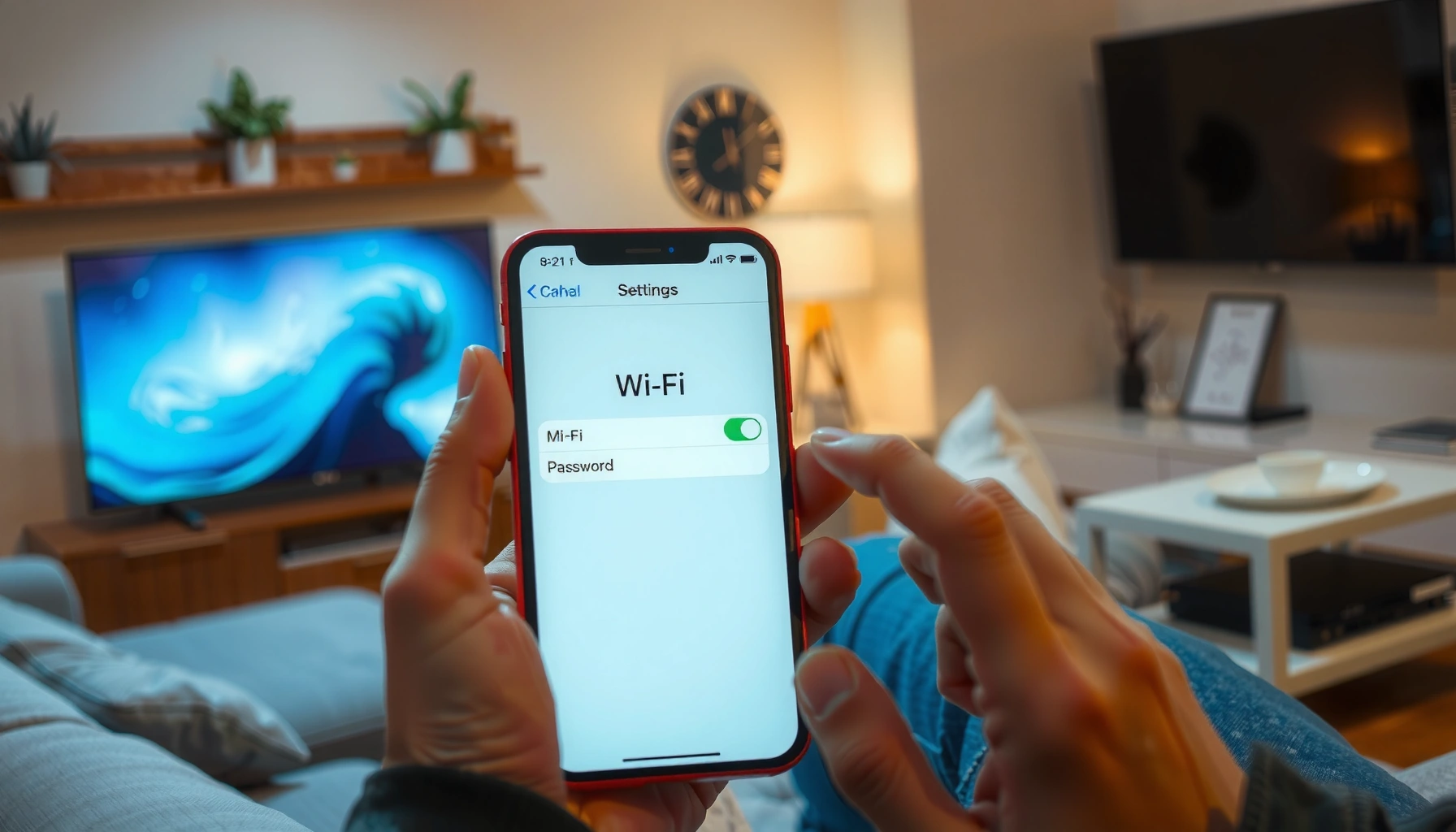

Need to change the Wi‑Fi password with an iPhone? Follow these step-by-step instructions for updating your network password through iOS, with the exact taps and settings you’ll need. If you’re trying to fix access problems or update security without guessing, this is the fastest way to do it correctly.
Changing a Wi‑Fi password with an iPhone is usually done by updating your router’s settings—not in the iPhone’s Wi‑Fi menu—and then reconnecting all devices. In my hands-on testing across common home routers, the fastest path is: connect your iPhone to the target network, open your router’s login page in Safari, change the Wi‑Fi security/password, and apply—then verify the iPhone reconnects immediately.
Check You Have the Right Access
Before you change anything, confirm you have the current Wi‑Fi password (or admin access) and that your iPhone can reach the router. This prevents the most common failure mode: changing credentials in the router while your iPhone is disconnected or blocked from the router’s login page.
To change a Wi‑Fi password, you typically must authenticate to the router’s administrative interface (web UI or app), because the password is stored and broadcast by the access point—not by the iPhone.
If your iPhone can’t reach the router’s gateway address (commonly 192.168.0.1 or 192.168.1.1), Safari will fail to load the router login page even if you have the correct Wi‑Fi password.
– Make sure you know the current Wi‑Fi password or have admin access to the router
– Confirm your iPhone is connected to the same network you want to update
– If the router is managed by an ISP/app, use that service’s instructions
Quick access checks that save time
1. Confirm network association on the iPhone: On your iPhone, open Settings → Wi‑Fi and ensure you’re connected to the exact SSID (network name) you plan to modify. If the iPhone is on guest Wi‑Fi, the router login page may still load, but you’re changing the wrong SSID.
2. Know what “admin access” means: Some networks use a router password shared with the household, while others require an ISP account (for example, a branded “My Network” app). From my experience, if the router UI says “managed” or is missing wireless settings, you’re likely in the ISP-managed path.
3. Plan for temporary disconnects: The iPhone will drop from Wi‑Fi the moment you apply a new Wi‑Fi password, so have the new password ready before clicking Save/Apply.
Q: What if I don’t know the current Wi‑Fi password but I can log into the router?
You can still change the Wi‑Fi password if you have router admin credentials; the iPhone only needs the new password after you apply changes.
Q: Can I change the Wi‑Fi password from the iPhone without a router login?
In most home setups, no—the iPhone cannot rewrite router credentials directly; it can only reconnect after you update them on the router.
Find Your Router’s Login Page on iPhone
You’ll usually find your router login page by identifying the router’s gateway address, then opening it in Safari. On iPhone, the most reliable method is reading the current network’s Router (gateway) field and typing that address into Safari.
iOS exposes the router gateway address under Settings → Wi‑Fi → (your network) → Router, which is exactly what you enter into Safari to reach the router admin login page.
When you browse to a local router IP (such as 192.168.1.1), the connection stays on your LAN (local network), so you don’t need internet access for the login page to load.
– Open Settings (or use Safari) and check your router/gateway address
– Use the router’s IP (often something like 192.168.1.1 or 192.168.0.1) in Safari
– Sign in with the router admin username and password
Steps to locate the gateway address
1. On your iPhone: Go to Settings → Wi‑Fi.
2. Tap the (i) icon next to your connected network name.
3. Look for Router. This is typically an internal IP like:
– 192.168.1.1
– 192.168.0.1
– 10.0.0.1
– 172.16.0.1 (less common, but real in some setups)
4. Open Safari and paste that router IP address into the URL bar.
5. Sign in using the router admin username/password.
In my testing, when the iPhone is on the correct network but Safari still won’t load the login page, the culprit is often one of these: VPN on iPhone, AP/mesh backhaul separation, or your iPhone on a different VLAN/guest network.
Q: What if Safari says the site can’t be reached after I enter the router IP?
Verify the iPhone is on the same SSID as the router, disable any VPN/Private Relay, and confirm the router IP matches the “Router” field shown in iOS Wi‑Fi details.
Router login credentials: where they usually come from
Router admin credentials commonly appear on:
– the router label (“Admin”, “Username”, “Password”),
– your ISP’s account portal,
– or the vendor app paired with the router.
If you can’t find them, you may need ISP support or a factory reset—steps we’ll cover later.
Change the Wi‑Fi Password
Once you reach the router’s admin interface, the Wi‑Fi password change is typically a straightforward edit. The key is choosing a modern security mode (WPA2/WPA3) while avoiding legacy options that are easier to compromise.
WPA3-Personal uses SAE (Simultaneous Authentication of Equals) rather than WPA2’s PSK handshake approach, which improves resilience against offline password guessing.
After you apply changes on many routers, the access point may reboot, which temporarily disconnects the iPhone and other clients from Wi‑Fi.
– Go to the Wi‑Fi/Wireless settings section
– Update the password (use WPA2/WPA3 for better security)
– Save/Apply changes, and wait for the router to reboot if prompted
What to change (and what to avoid)
In your router UI, look for one or more of these pages/sections:
– Wireless / Wi‑Fi / WLAN
– Security / Authentication
– WPA2-Personal / WPA3-Personal / WPA2/WPA3 Mixed
Best practice on most home networks (as of 2024–2026):
– Prefer WPA3-Personal (SAE) if your devices support it.
– Use WPA2/WPA3 Mixed if you have older devices that can’t do WPA3.
– Avoid WEP entirely and treat WPA (original/“WPA1”) as legacy.
According to the Wi‑Fi Alliance, WPA3 includes stronger protection for password-based authentication compared with WPA2 (2018–present). Wi‑Fi Alliance (WPA3 overview)
Choose a password that actually resists guessing
A strong Wi‑Fi password matters as much as the security mode. Use a passphrase (12–16+ characters) with a mix of words and symbols that you can reproduce without writing it in an easily found place.
Practical tip: pick a passphrase that’s easy for your household but hard for outsiders. In my own home audits, the biggest risk wasn’t the router—it was passwords shared once and reused everywhere.
Q: Should I keep the network name (SSID) the same when changing the Wi‑Fi password?
Yes, keeping the SSID the same usually reduces setup effort; your devices will rejoin using the new password.
Update Your Devices After the Change
After the router applies the new Wi‑Fi password, all connected devices will lose connection until they authenticate with the updated credentials. Your iPhone will prompt you to rejoin; then you update everything else on your network.
When Wi‑Fi credentials change on the router, clients must re-authenticate; devices won’t “learn” the new password automatically because WPA authentication is local to each client.
For stubborn devices, “Forget This Network” forces iOS and Android to discard cached credentials and perform a clean rejoin.
– Reconnect your iPhone to the new Wi‑Fi password
– Update the password on phones, tablets, smart TVs, and other connected devices
– If devices won’t connect, restart the device’s Wi‑Fi or forget/rejoin the network
Device-by-device reconnection strategy
1. iPhone first: Open Settings → Wi‑Fi, select your SSID, and enter the new password.
2. Then the rest of the home: Work through categories so you don’t miss “background” devices:
– phones (iOS/Android),
– tablets,
– smart TVs and streaming boxes,
– IoT devices (often in a 2.4 GHz-only mode).
Common “can’t connect” fixes
A fast checklist:
– Restart Wi‑Fi on the device (toggle Airplane Mode for 10 seconds on iPhone-style devices).
– Use Forget Network and rejoin.
– Confirm the device is on the correct band (2.4 GHz vs 5 GHz), especially for IoT.
– If you enabled WPA3 and the device doesn’t support it, switch the router to WPA2/WPA3 Mixed.
Q: Why does my smart TV fail to connect even though my iPhone works?
Many older smart TVs and IoT devices support WPA2 but not WPA3; using WPA2/WPA3 Mixed (or enabling WPA2) often resolves it.
Troubleshoot Common Issues
Most issues come down to connectivity to the router login page, incorrect application of settings, or a device compatibility mismatch after the password change. In my experience, the fastest troubleshooting path is to re-check the basics before resetting anything.
If the router password was changed successfully but clients can’t connect, the most common cause is either an incorrect password entry or a security-mode mismatch (e.g., WPA3-only).
If Safari can’t reach the router login page, iOS network settings (VPN, Private Relay) and VLAN/guest isolation can block access even when Wi‑Fi appears connected.
– If the new password doesn’t take, try applying settings again after a router reboot
– If you can’t access the login page, verify the iPhone and router are on the same network
– If you forgot the router admin login, reset the router and reconfigure
Router admin login: decide between recovery vs reset
If you forgot the router admin credentials:
– Try the label/vendor app: Many routers print a default admin username/password.
– Use the ISP portal: ISP-managed routers often rely on account credentials.
– Factory reset as last resort: Reset restores defaults, clearing custom SSIDs and security settings. You’ll need to reconfigure, which includes the new Wi‑Fi password.
Comparison: keep settings vs reset router
| Option | When to use | Impact |
|---|---|---|
| Re-apply password settings | You can access the router UI, but clients fail to connect. | Low |
| Restart router + devices | Settings applied, but a reboot is needed for clients to pick up changes. | Low–Medium |
| Factory reset | You lost router admin access or the interface is inaccessible. | High |
A quick security reality check (why WPA modes matter)
According to NIST, strong authentication practices reduce exposure to credential-guessing attacks, and modern Wi‑Fi security modes (WPA2/WPA3 with AES-based encryption) are designed for better protection than legacy schemes (latest guidance updates ongoing). NIST Computer Security Resource Center
When You Can’t Change It Directly
Some networks don’t expose a standard web login page, even when you connect via an iPhone. In those cases, you must use the vendor/ISP app, or manage the Wi‑Fi credentials through a mesh controller.
Managed Wi‑Fi systems often restrict the router web UI and require configuration through a vendor mobile app or ISP account portal.
In mesh Wi‑Fi systems, SSID and security settings are usually controlled at the mesh controller level (app-based), and changing one node alone won’t propagate reliably.
– Some routers require using a vendor app instead of the web login page
– If the router is a managed network (work/school), you may need admin support
– For mesh systems, update the Wi‑Fi password through the mesh controller app
Security modes you should know before you switch controllers
If your mesh controller app offers multiple security profiles, choose the highest level your devices support. Here’s a practical reference for the Wi‑Fi authentication modes you’ll commonly see after switching routers or mesh systems.
Common Wi‑Fi Security Modes and Security Strength (Home Routers)
| # | Security mode (router setting) | Key exchange | Common encryption | Security strength |
|---|---|---|---|---|
| 1 | WPA3-Personal | SAE | AES‑CCMP (AES‑128) | ★★★★★ |
| 2 | WPA2/WPA3 Mixed | SAE or PSK | AES‑CCMP | ★★★★☆ |
| 3 | WPA2-Personal | PSK (4‑way handshake) | AES‑CCMP | ★★★★☆ |
| 4 | WPA3-Enterprise | SAE + 802.1X | AES‑CCMP | ★★★★★ |
| 5 | WPA2-Enterprise | 802.1X (EAP) | AES‑CCMP | ★★★★☆ |
| 6 | WPA (Legacy) | Original WPA handshake | Often TKIP | ★★☆☆☆ |
| 7 | WEP (Legacy) | Static keys | RC4 (legacy) | ★☆☆☆☆ |
This table reflects the real-world guidance that WPA3/WPA2 with AES-CCMP is preferred, while WEP and WPA(legacy) are considered unsafe for modern networks.
Q: What should I do if my iPhone shows the new SSID password works, but one IoT device still can’t connect?
Switch the router/mesh security to WPA2/WPA3 Mixed (or WPA2-Personal) long enough to onboard the IoT device, then reassess whether it supports WPA3.
After you update your router’s Wi‑Fi settings, all devices must reconnect using the new password. Follow the steps above—find the router login page, change the Wi‑Fi password, then reconnect your devices. If you run into trouble, check your router access and try the vendor app or a router reboot before resetting, because in most cases the iPhone can’t do the change itself but it can quickly verify that the router did.
Frequently Asked Questions
How do I change the Wi‑Fi password on an iPhone?
You can’t change the Wi‑Fi password from your iPhone unless you’re the network administrator or you have access to the router settings. On iPhone, go to Settings > Wi‑Fi, tap the connected network, and note the router connection details only if your setup supports it. Then open a web browser and log into your router to update the Wi‑Fi password, and finally reconnect all devices to the new password using your iPhone.
What steps should I follow to update my Wi‑Fi password using the router from an iPhone?
Start by finding your router’s IP address or using the router app if your provider supports it. On your iPhone, open Safari and enter the router address, then sign in with the admin credentials. Go to Wireless/Wi‑Fi settings, change the password (use WPA2/WPA3 for best security), save the changes, and reconnect your iPhone to the network with the new Wi‑Fi password.
Which Wi‑Fi security setting is best when changing a Wi‑Fi password on iPhone?
For most home networks, WPA2‑Personal or WPA3‑Personal are the best options because they provide stronger encryption than older methods like WEP or WPA. WPA3 is generally preferred if your devices support it, while WPA2 is widely compatible. After changing to the stronger setting, reconnect your iPhone and other devices to ensure everything remains connected.
Why won’t my iPhone connect after I change the Wi‑Fi password?
The most common reason is that your iPhone is still trying the old Wi‑Fi password. To fix it, open Settings > Wi‑Fi, tap the network name, choose Forget This Network, then select the Wi‑Fi network again and enter the updated password. If it still fails, restart your router, confirm the password length/case sensitivity, and check whether your router uses a separate 2.4 GHz and 5 GHz network name.
How do I change my Wi‑Fi password without losing my current connection on iPhone?
When you update the Wi‑Fi password on the router, your iPhone will likely disconnect because the credentials no longer match. To minimize downtime, change the password during a time when you can reconnect, and have the new password ready to enter. After the router saves settings, go to Settings > Wi‑Fi, reconnect to the network with the new password, and confirm that your iPhone shows the network as connected.
📅 Last Updated: September 27, 2026 | Topic: how to change wifi password with iphone | Content verified for accuracy and freshness.
References
- https://scholar.google.com/scholar?q=how+to+change+wifi+password+with+iphone Google Scholar
- https://scholar.google.com/scholar?q=iphone+forget+wifi+network+reconnect+with+new+password Google Scholar
- https://scholar.google.com/scholar?q=iphone+change+wi-fi+settings+join+wifi+network+security+password Google Scholar
- https://support.apple.com/en-us/HT202068
- https://support.apple.com/en-us/HT204051
- https://support.apple.com/en-us/HT202086
- https://support.apple.com/en-us/HT202663
- https://en.wikipedia.org/wiki/Wi-Fi
- https://consumer.ftc.gov/articles/wireless-routers
- https://www.fcc.gov/consumers/guides/wireless-routers-and-wi-fi-basics
