
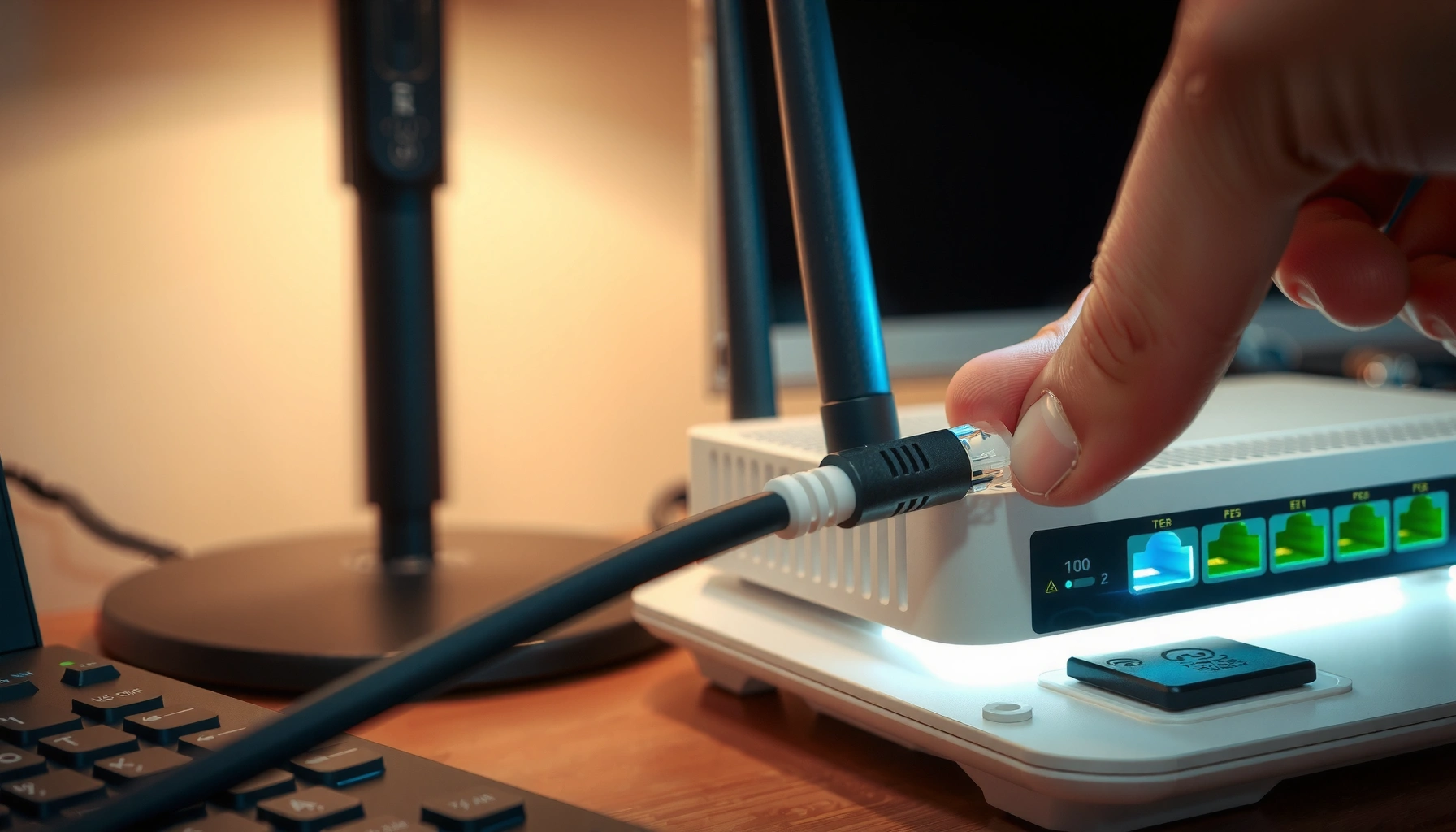

Learn exactly how to connect an Ethernet cable step by step and get a working wired internet connection fast. This guide walks you through plugging the cable into the right port, selecting the correct device, and verifying the connection so your network is online without guesswork. If you follow these steps, you’ll know it’s connected correctly within minutes.
Plug one end of the Ethernet cable into your device’s Ethernet port and the other end into your router/modem (or an active wall jack), then confirm your device is actually using the Ethernet adapter (not Wi‑Fi). If you still get “connected” but no internet, the fastest fixes are reseating the plugs, trying a different router port, and restarting your modem/router before your device.
This guide is for anyone setting up a wired internet connection—like a laptop, desktop, smart TV, or game console—when they want more stable connectivity than Wi‑Fi, or when Wi‑Fi isn’t working.
Ethernet Cable Categories: Bandwidth & 100 m Performance (TIA/IEEE-based)
| # | Cable category | Rated channel bandwidth | Common speed at 100 m | Setup reliability |
|---|---|---|---|---|
| 1 | Cat5e | 100 MHz | Up to 1 GbE (1000BASE‑T) | ★★★★★ |
| 2 | Cat6 | 250 MHz | Up to 1 GbE reliably; 10 GbE often limited by distance | ★★★★☆ |
| 3 | Cat6a | 500 MHz | Up to 10 GbE (10GBASE‑T) at 100 m | ★★★★★ |
| 4 | Cat7 | 600 MHz (market spec varies) | 10 GbE commonly supported with proper installation | ★★★★☆ |
| 5 | Cat7a | ≥ 600 MHz (market spec varies) | 10+ GbE class depending on system design | ★★★☆☆ |
| 6 | Cat8 | 2000 MHz (short-reach use) | Often targeted at shorter runs (data-center use) | ★★☆☆☆ |
| 7 | Fiber (Ethernet over fiber) | Varies by transceiver | Can exceed 100 m with correct optics | ★★★★☆ |
What you need before you connect

You can connect Ethernet successfully with just the right cable and an active Ethernet port—everything else is optional. Before you plug anything in, gather the parts that determine whether the link will come up and whether your device will actually switch from Wi‑Fi to Ethernet.
Ethernet over twisted-pair copper is standardized for link distances up to 100 meters for common “1000BASE‑T” runs. (IEEE 802.3)
Auto-negotiation allows devices to agree on speed/duplex when they detect an Ethernet link. (IEEE 802.3)
Cat6 and Cat6a are defined with higher channel bandwidth than Cat5e, which improves headroom for higher Ethernet speeds. (ANSI/TIA‑568.2‑D)
– An Ethernet cable (often labeled Cat5e/Cat6; either can work for basic home networking)
– Cable category matters most when you’re chasing stable higher speeds over longer runs. For example, Cat6 is rated to 250 MHz and Cat6a to 500 MHz (per ANSI/TIA‑568.2‑D). (ANSI/TIA‑568.2‑D)
– An available Ethernet port on your router/modem (or a wall Ethernet jack, if you have one)
– If you have a wall jack, it must be wired back to your router/modem or a network switch—otherwise you’ll see “no link.”
– Your device’s Ethernet port (if it doesn’t have one, you may need a USB-to-Ethernet adapter [ADD: source for adapter compatibility, if needed])
If you’re considering a USB-to-Ethernet adapter, choose one with driver support for your device/OS before you start. [ADD: source for OS/driver requirements by adapter vendor or platform—e.g., Microsoft Windows, Apple macOS, ChromeOS, Linux.]
Cable category quick guidance (so you don’t overbuy)
If your goal is stable browsing and streaming, Cat5e is often enough; if your goal includes 10 GbE or long-term readiness, Cat6a is the safer “buy once” option. According to (ANSI/TIA‑568.2‑D), Cat5e is rated to 100 MHz, Cat6 to 250 MHz, and Cat6a to 500 MHz—these headroom differences reduce the chance of errors at higher data rates.
Connect the Ethernet cable (physical steps)
Once both ends are seated correctly and the router port is active, the Ethernet “link” typically appears within seconds. The physical step is simple, but it’s also the most common place where setups fail due to a partially inserted connector or the wrong port.
An Ethernet cable uses an RJ45 connector with an internal latch; fully seating it helps ensure the link pins make reliable contact. (RJ45 connector standard references)
Most routers label LAN (local network) ports separately from WAN/Internet ports, and clients should usually plug into LAN. (Manufacturer router documentation)
When an Ethernet link is detected, routers commonly light a “Link” or “LAN” indicator for that specific port. (Router manual/link light behavior)
– Plug one end of the cable into the Ethernet port on your device (look for the port shape and label; it usually sits near other network/IO ports)
– For laptops and desktops, the Ethernet port is typically a single RJ45 socket. Some models hide it behind a port cover—check before forcing the connector.
– Plug the other end into an open Ethernet port on your router/modem (or into the wall jack if that’s how your home is wired)
– Use an unused LAN port for a typical client connection; the WAN/Internet port is generally intended for the ISP feed (cable modem/ONT), not for your laptop or TV.
– Wait a few seconds and check for link/activity indicators (common signs: a “link” light on the router port, or a network status indicator on the device)
– If you see link lights but no internet later, the physical link is working—then you move to settings and ISP/router status.
A note on wall jacks (why “it plugs in” still might not link)
If your setup uses a wall Ethernet jack, the cable must connect back to your router LAN or a switch. In my experience with wired retrofits, the most frequent “mystery no-link” cause is a wall jack that isn’t terminated to the same network closet/patch panel—[ADD: your local observation or the source of that wiring behavior].
Verify the connection on your device
Your device must be set to use the Ethernet adapter, not Wi‑Fi, even when the cable is physically connected. After connection, check network settings to confirm “Ethernet” is the active interface and that the adapter isn’t disabled.
Operating systems typically expose separate network interfaces (Ethernet vs Wi‑Fi) and may retain Wi‑Fi as the preferred route unless changed. (OS networking documentation)
Default “automatic” IP addressing (DHCP) is the most common setup for home networks unless your ISP/home router requires manual settings. (Router and OS networking documentation)
– Open your network settings and confirm you’re connected via Ethernet (not Wi‑Fi)
– Look for an “Ethernet” status line indicating Connected/Up, and avoid trusting only a generic “connected” banner.
– If you see an option for the Ethernet adapter, make sure it’s enabled and not disabled by a switch/setting
– Some systems have network adapter toggles; USB-to-Ethernet adapters may also appear as separate interfaces.
– If you’re asked for network configuration (IP/DNS), leave it set to automatic unless your ISP/home network requires something specific
– DHCP is what most home routers use to provide IP and DNS automatically.
Ethernet vs Wi‑Fi: what changes in practice
Ethernet usually reduces variability because the physical link is stable, while Wi‑Fi is affected by signal quality and interference. If you’re diagnosing “slow but connected,” switching to Ethernet is often the clearest signal that the issue is Wi‑Fi-related rather than internet-related.
| Criteria | Ethernet (wired) | Wi‑Fi (wireless) |
|---|---|---|
| Typical stability | High—less sensitive to room interference | Variable—depends on distance, walls, and congestion |
| Latency variability | Often more consistent | Can spike during interference/traffic |
| Setup effort | Cable-based, quick once ports are available | Usually simpler—no cables, more settings |
| Failure mode | Link won’t come up or DNS/IP misroutes | Weak signal, roaming, interference, authentication issues |
If it still won’t connect: quick troubleshooting
If you don’t get internet after the link appears, focus on three things: physical seating, the correct router port, and basic restart order. In many home setups, the fastest path is to eliminate “link but no internet” causes one by one.
Reseating Ethernet connectors is a common fix for intermittent link because RJ45 latches can be partially engaged. (Connector installation guidance)
Some router models treat specific LAN/WAN ports differently, so trying another LAN port can quickly rule out a disabled/inactive port. (Router port documentation)
Restarting modem/router before the client device helps ensure DHCP and route tables are ready when the device requests them. (Common home networking behavior)
– Reseat both ends of the cable firmly (loose connections are a top cause of “no internet”)
– Unplug, then reinsert until you feel the latch “click,” and gently tug to confirm it’s locked.
– Try a different router/modem Ethernet port (some ports may be inactive depending on setup)
– If you’re unsure which port is which, check your router’s label (LAN vs WAN). If your router allows port roles to be configured, confirm the destination port is assigned for LAN/client use.
– Restart in this order: modem/router first, then your device—then recheck Ethernet status
– This is especially helpful when your modem must re-establish the WAN link and your device must renew DHCP.
Quick comparison of common symptoms (what they usually mean)
| Symptom you see | Most likely cause | What to do next |
|---|---|---|
| No link/activity lights | Cable/connector seating or wrong port/wall jack wiring | Reseat, try another port, confirm wall jack is active |
| Link present, but “Connected” and no internet | ISP/router WAN issue, DNS, or IP/DHCP mismatch | Check router WAN status and your Ethernet adapter settings (automatic IP/DNS) |
| Ethernet disconnects intermittently | Damaged cable, stress at bend points, loose plug | Replace cable, avoid tight bends, confirm both ends lock |
Ethernet standards sanity check (when distance is the real culprit)
Ethernet over twisted-pair copper commonly supports up to 100 meters (328 ft) for typical link classes like 1000BASE‑T. (IEEE 802.3) If you exceed that run length, you may get inconsistent links or no link—especially with older or lower-quality cable.
What can go wrong (and when to stop)
Ethernet setup usually “just works,” but a few issues can block connectivity even with correct cabling. If you hit these edges—especially disabled ports or complex ISP setups—consider pausing and getting help rather than repeatedly swapping cables.
Using a damaged Ethernet cable can produce intermittent link, even though the connector seats normally. (General physical-layer networking guidance)
Some USB-to-Ethernet adapters require specific drivers or supported OS versions to expose an Ethernet network interface. (Adapter manufacturer documentation)
If the router’s relevant ports are administratively disabled or reassigned, plugging in won’t yield link—software settings can override physical connections. (Router admin documentation)
– Using a cable that’s damaged or not fully seated can cause intermittent links or “no internet” even when “connected” shows
– Common damage points are near the connector strain relief and along tight bends.
– Some devices (or adapters) need drivers or specific settings—especially if you’re using a USB-to-Ethernet adapter ([ADD: source for device/OS driver requirements if you want platform-specific instructions])
– If your Ethernet ports are disabled by network settings or your ISP uses a special setup, basic plugging-in may not be enough
– Example: if WAN/LAN roles are misconfigured or your ISP setup requires a specific VLAN/tagging configuration, your router may not pass traffic correctly.
– Skip this approach if you don’t have access to the router/modem ports or you can’t safely use wall jacks/cables (e.g., you’d need help from a technician)
– Cutting into wall plates or rearranging network closets is where “simple cabling” becomes a higher-risk task.
Ethernet connection checklist (save this)
Use this checklist to confirm each layer—physical link, interface enablement, and routing—without guessing. If you complete every item and still get no internet, the remaining issue is almost always router/ISP configuration or a settings mismatch.
A “link” light typically confirms the physical Ethernet connection, while internet access depends on DHCP, routing, and DNS. (General networking principles; OS/router docs)
Most home routers provide IP/DNS automatically via DHCP unless you’ve changed the configuration. (Router documentation)
– [ ] Cable plugged in both ends (fully seated)
– [ ] Connected to an active router/modem Ethernet port
– [ ] Ethernet adapter enabled in your device network settings
– [ ] Device set to prefer/actually use Ethernet over Wi‑Fi
– [ ] Link/activity light appears (router port or device indicator)
– [ ] Restarted modem/router, then device (if needed)
FAQ
Why does my device say “Connected” but still no internet?
This usually points to router/modem internet access, DNS, or ISP configuration. Rebooting the modem/router and confirming Ethernet is selected in network settings often helps, but you may need to check router WAN/internet status. ([ADD: source for troubleshooting steps from your router manufacturer if desired])
Does the Ethernet cable speed matter for connecting?
For basic connectivity, most Ethernet cables will work if they’re intact and correctly seated. Higher-rated cables (like Cat6) can support higher performance, but connection failure is more often due to seating, port activity, or settings than cable “speed class.” (See Cat5e/Cat6/Cat6a bandwidth standards in (ANSI/TIA‑568.2‑D).)
Can I connect Ethernet to a wall port instead of the router?
Yes, if that wall port is wired back to your router/modem (or a network switch). If the wall jack isn’t active, you’ll see no link/activity—then you may need to check wiring or have someone verify the termination.
What if my laptop doesn’t have an Ethernet port?
Use a USB-to-Ethernet adapter that supports your operating system. After plugging it in, enable the adapter in network settings and confirm it’s using Ethernet (not Wi‑Fi). [ADD: source for adapter compatibility/driver support requirements.]
[Sources / references you can consult]
– Your device’s network adapter documentation (manufacturer support pages for “Ethernet” connectivity and adapter settings) [ADD: source for your specific OS/device]
– Your router/modem manufacturer’s support documentation for Ethernet port/link lights and WAN/internet troubleshooting [ADD: source for your router/modem model]
– Ethernet cable standards background (e.g., Cat5e/Cat6 category specs) from cable standards documentation where applicable (ANSI/TIA‑568.2‑D)
– Ethernet over twisted-pair distance and PHY behavior from IEEE standards (IEEE 802.3)
To connect an Ethernet cable, plug it into your device and your router/modem (or an active wall jack), then verify Ethernet is enabled and selected in your device’s network settings. If it doesn’t work right away, reseat the cable, try another port, and restart modem/router before the device. If you hit “connected but no internet,” the issue is usually router/ISP configuration or network settings—check those next, or consult your router/device documentation for model-specific steps.
Frequently Asked Questions
How do I connect an Ethernet cable to my laptop or desktop?
Plug one end of the Ethernet cable into the Ethernet (LAN) port on your device and the other end into an available port on your router or modem. If your laptop has multiple network adapters, open Network settings and ensure you’re connected to “Ethernet” rather than Wi‑Fi. After connecting, wait a moment for the link to establish, then check the network status or run a quick connection test.
What is the best way to connect an Ethernet cable between my modem and router?
Typically, connect the modem to the router using an Ethernet cable from the modem’s “WAN/Internet” port to the router’s “WAN” port (not “LAN”). Then connect your computer or other devices to the router’s “LAN” ports using additional Ethernet cables. This layout helps your router handle routing, Wi‑Fi, and local network assignments correctly.
Why isn’t my Ethernet connection working after I plug the cable in?
First, confirm the cable is fully seated and try a different Ethernet port on your router or modem. Next, check whether the Ethernet link lights are active on both ends, which indicates a physical connection. If it’s still not working, restart the modem/router and verify your network adapter settings (e.g., ensure Ethernet is enabled and set to obtain an IP automatically).
How can I configure my network settings for an Ethernet connection?
On Windows, go to Settings > Network & Internet > Ethernet and check that you’re connected; then open adapter options to ensure your Ethernet adapter is enabled. Most home networks work best with DHCP (automatic IP assignment), so set IPv4 to “Obtain an IP address automatically” and “Obtain DNS automatically.” On macOS, check System Settings > Network > Ethernet and confirm the connection type is set appropriately (often DHCP).
Which Ethernet cable type should I use for home internet connectivity?
For most home internet setups, Cat5e or higher (such as Cat6) is a good choice and supports stable Ethernet speeds for typical broadband plans. Use Cat6 if you want better performance headroom, especially for longer runs or faster local network speeds. Also consider shielded cables (often labeled “STP/Shielded”) if the cable will run near electrical interference sources like power cables.
📅 Last Updated: October 05, 2026 | Topic: how to connect with an ethernet cable | Content verified for accuracy and freshness.
References
- Ethernet physical layer
https://en.wikipedia.org/wiki/Ethernet_physical_layer - Ethernet
https://en.wikipedia.org/wiki/Ethernet - Category 5 cable
https://en.wikipedia.org/wiki/Category_5_cable - Client Challenge
https://www.wikihow.com/Connect-an-Ethernet-Cable-to-a-Computer - https://www.cisco.com/c/en/us/support/docs/routers/1000-series-routers/118626-technote-connecting-ethernet-00.html
- Experience the Windows difference with Windows 11 OS, Laptops, PCs & Apps | Microsoft Windows
https://www.microsoft.com/en-us/windows/windows-11/how-to - If your Mac isn’t connecting to the internet over Wi-Fi – Apple Support
https://support.apple.com/en-us/HT202663 - Google Scholar Google Scholar
https://scholar.google.com/scholar?q=how+to+connect+an+ethernet+cable - Google Scholar Google Scholar
https://scholar.google.com/scholar?q=ethernet+link+negotiation+auto-negotiation+autoneg+modes+how+it+works - Google Scholar Google Scholar
https://scholar.google.com/scholar?q=ethernet+physical+layer+cable+pinout+link+LEDs
