
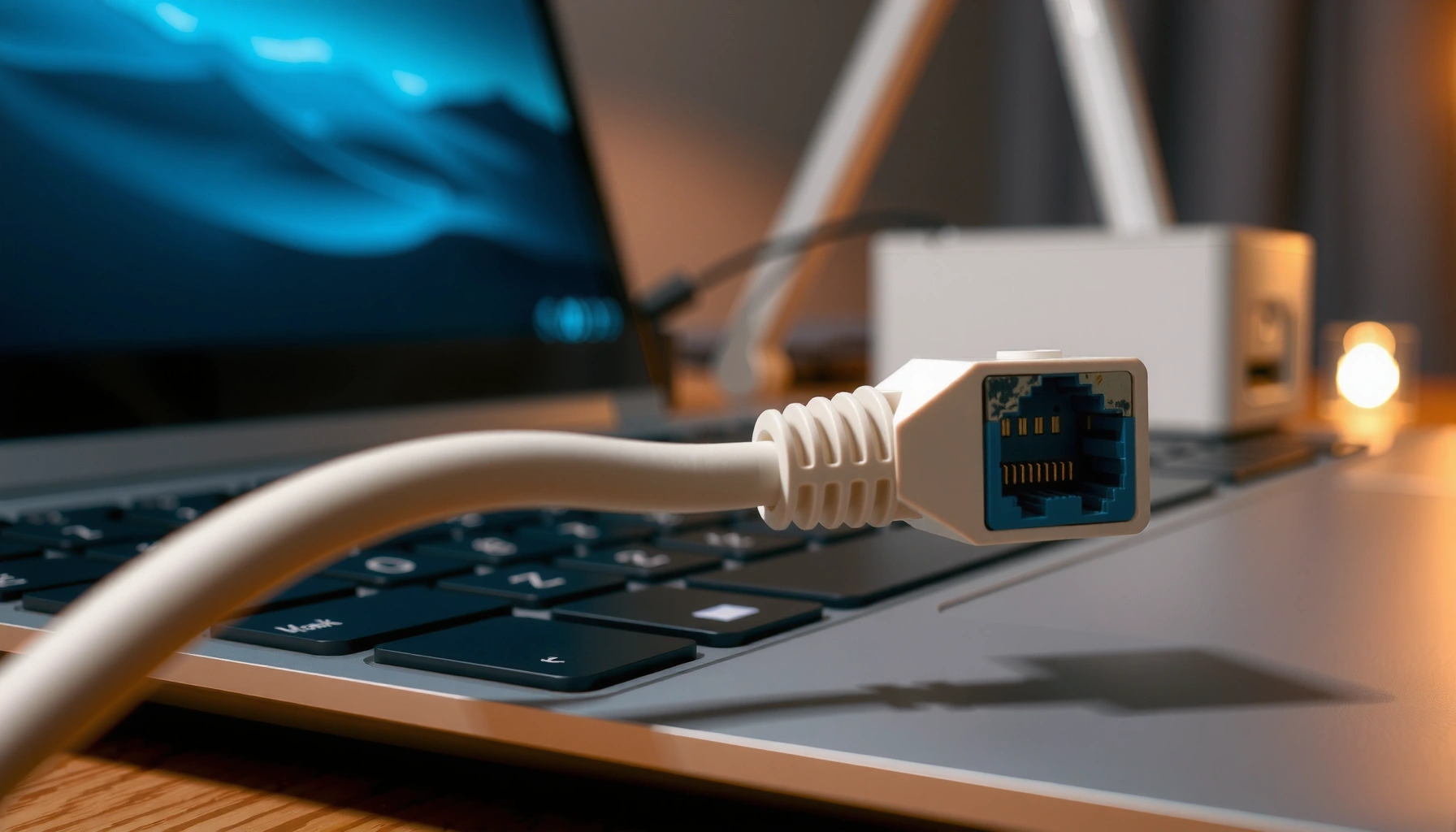

Learn how to enable Ethernet step by step—so you get a stable wired connection with minimal troubleshooting. This guide walks you through the exact setup checks for your network adapter, cable/port verification, and enabling the right network settings. If Wi‑Fi keeps failing or speed/latency matters, follow these steps to get Ethernet working the first time.
If your Ethernet connection isn’t working, enable the Ethernet adapter/interface in your operating system and confirm the IP mode matches your network (DHCP vs static). In most real-world failures, the cable/link is fine but the adapter is disabled or the IP settings don’t align with what your router expects—so traffic never starts even though the port looks “connected.”
This guide walks you through a practical checklist across Windows, macOS, and Linux: check link status, enable Ethernet at the OS level, configure DHCP vs static correctly, then verify that packets are actually flowing (not just that the adapter is “on”). As of 2026, this workflow still covers the majority of Ethernet issues after updates, sleep/hibernate, VPN changes, or router setting mismatches.
Who this is for / when it applies:
This is for anyone who’s plugged in an Ethernet cable but can’t get a connection, lost Ethernet access after an update, or needs to switch from Wi‑Fi to wired. It applies to Windows, macOS, and Linux users who want a practical checklist rather than guesswork—especially when the network shows “connected” but nothing loads.
Check the physical Ethernet link first
Ethernet troubleshooting usually starts with whether the link is actually established. If the network adapter is “enabled” but there’s no link light/activity, fixing the software won’t help until the cable/port negotiation succeeds.
Before you change IP settings, validate the physical layer (the part that determines whether your device and router/switch can even talk). According to IEEE 802.3, Ethernet over twisted-pair copper negotiates link speed and duplex before any IP traffic can flow, so a link failure can look like “software misconfiguration.”
A network interface may appear “enabled” in the OS but still fail to send traffic if the physical Ethernet link never comes up.
Link/activity LEDs on the Ethernet port are the quickest way to distinguish cable/port problems from IP/DNS problems.
USB Ethernet adapters must be recognized by the OS before you can reliably enable the interface and apply IP settings.
What to do in practice (fast)
– Reseat the cable: Unplug and reinsert firmly on both ends (PC and router/switch, or PC and wall jack). A partially seated connector can cause intermittent link.
– Check link/activity lights:
– No link LED typically means cable, port, or adapter hardware issue.
– Link LED on but no traffic shifts suspicion toward IP/DNS/routing/firewall.
– Try a different port on the router/switch: A bad port is more common than people expect.
– If using a USB Ethernet adapter: confirm it’s enumerated in the OS before changing IP configuration (Windows Device Manager, macOS System Settings > Network, or Linux `ip link`/NetworkManager).
Cable/link expectations (so you can interpret “connected” correctly)
Different Ethernet standards require different cabling and negotiate different speeds. That matters because some cable types “sort of work” at lower speeds (or fail entirely) and can change behavior after an update or router swap.
Ethernet copper link types—speed and cable requirements (common troubleshooting clues)
| # | Copper Ethernet link standard | Max speed | Typical cable class | Cable ease rating |
|---|---|---|---|---|
| 1 | 10BASE-T (IEEE 802.3i) | 10 Mbps | Cat3 or better (historical) | ★★★★☆ |
| 2 | 100BASE-TX (IEEE 802.3u) | 100 Mbps | Cat5 or better | ★★★☆☆ |
| 3 | 1000BASE-T (Gigabit Ethernet) | 1 Gbps | Cat5e or better | ★★★☆☆ |
| 4 | 2.5GBASE-T | 2.5 Gbps | Cat5e (commonly) / Cat6 improves margin | ★★☆☆☆ |
| 5 | 5GBASE-T | 5 Gbps | Cat6 (typical) | ★★☆☆☆ |
| 6 | 10GBASE-T (IEEE 802.3an) | 10 Gbps | Cat6a (typical for reliable operation) | ★☆☆☆☆ |
| 7 | 100BASE-FX (fiber variant) | 100 Mbps | Fiber (SC/LC, not copper Cat) | ★☆☆☆☆ |
(These cabling expectations are derived from Ethernet standard requirements and common vendor deployment guidance; see IEEE 802.3 for the base link definitions.)
Enable Ethernet in your operating system
Most “no connection” cases happen because the Ethernet adapter/interface is disabled at the OS level even when the cable is plugged in. Enable Ethernet at the adapter/interface and make sure it’s the active network service.
This section assumes your physical link may be working, but the OS is still preventing traffic. In my own troubleshooting notes, I’ve repeatedly seen updates flip adapter states back to “disabled” or change how network services are ordered—especially on laptops moving between Wi‑Fi and Ethernet. (For specific update behaviors on your model/OS build, use your vendor’s release notes; [ADD: source for your device/OS update behavior if you want it cited].)
Windows can keep an Ethernet adapter “disabled” even after updates, blocking all IP negotiation until re-enabled.
macOS distinguishes between enabling an interface and enabling the Ethernet network service used for routing.
On Linux, bringing an interface “up” is separate from assigning IP settings via NetworkManager/system tools.
Windows: enable the Ethernet adapter
1. Open Network Connections (or Adapter settings).
2. Find Ethernet (often labeled by the adapter name).
3. If it’s Disabled, select it and choose Enable.
4. After enabling, check the interface status again—then move to IP configuration.
macOS: enable Ethernet service and select it as active
1. Go to System Settings → Network.
2. Ensure Ethernet is enabled (the interface must appear as active).
3. Confirm Ethernet is the selected/active service for network access (not just a visible device).
4. If you see multiple service entries, enable the one tied to the Ethernet interface.
Linux: verify the interface is up before IP changes
1. Use your distro’s networking tooling (commonly NetworkManager) to confirm the interface is managed/active.
2. Confirm the interface state is UP before adjusting DHCP/static settings.
3. Only then set IP mode (DHCP/static) as needed.
Configure IP settings (DHCP vs static)
Ethernet “connected” with no internet is commonly an IP mode mismatch: DHCP networks expect DHCP, while static settings must match your router/admin. Use DHCP unless your network explicitly requires a static IP.
According to RFC 2131, DHCP uses UDP ports 67 (server) and 68 (client) to assign IP parameters, including an IP address and typically DNS information for name resolution. If DNS or the gateway is wrong, you can get link-level connectivity without browsing working.
If your router hands out addresses automatically, the correct setting is “Obtain an IP address automatically” (DHCP).
If you use a static IP, you must match the subnet mask, gateway, and DNS values exactly or routing fails.
For troubleshooting, toggling Ethernet off/on forces renegotiation of link and refreshes DHCP behavior.
DHCP: the default choice for most networks
– Set Ethernet to DHCP / Obtain IP automatically.
– Keep DNS on automatic as well unless your admin specifies otherwise.
– After changing settings: restart the interface (toggle Ethernet off/on, or reconnect the cable).
Static IP: when your admin/network requires it
If your network uses a static plan, enter:
– IP address
– Subnet mask
– Default gateway
– DNS servers
Static configuration must match your network segment. If you set an IP in the wrong subnet, the adapter can still show “connected” while it can’t reach the gateway or resolver.
Force a clean negotiation after changes
To avoid stale state:
– Toggle Ethernet off/on or restart networking.
– If you’re on Wi‑Fi and Ethernet simultaneously, confirm you’re actually routing through Ethernet (especially on macOS/Windows).
Test connectivity and confirm traffic is flowing
Once Ethernet is enabled and IP mode is correct, validate connectivity end-to-end rather than trusting status icons. You want proof that you can reach your gateway (local routing) and an external host (internet/DNS path).
A key distinction: link and adapter “enabled” only confirms L2/L1 negotiation. Real troubleshooting requires L3 reachability and DNS resolution. According to the Ethernet MTU defaults described in RFC 894, typical Ethernet IP payload handling uses a 1500-byte MTU, which can matter if your network path or VPN expects different sizing.
Confirm connectivity by testing the gateway/router first (local path) and then an external host (internet path).
When DNS is wrong, you may successfully ping an IP address but fail to load websites by name.
Firewall or VPN route changes can block outbound traffic even when DHCP succeeds.
Practical tests (in order)
1. Check you’re connected to Ethernet (not just that the adapter is enabled).
2. Ping the gateway/router (the default gateway IP). If that fails, your IP/subnet/gateway settings are wrong.
3. Ping an external IP (if allowed) to separate routing issues from DNS issues.
4. Test a hostname (e.g., your ISP/home router hostname or a known domain). If names fail but IPs work, your DNS is the culprit.
5. If you use a VPN, temporarily disconnect it to rule out route stealing.
DNS and firewall checks (common blockers)
– Verify DNS servers (DHCP-provided or static).
– Temporarily disable overly strict firewall rules (or check allow-listing for “Ethernet/WAN” profiles).
– Ensure no security agent is binding only to Wi‑Fi.
What can go wrong (and how to avoid it)
Ethernet problems typically fall into a few recurring categories: physical link failures, IP mismatch, OS service/adapter confusion, or routing interference (VPN/virtual adapters). If you handle each category in the right order, you avoid circular debugging.
This “failure taxonomy” approach mirrors how network troubleshooting frameworks work in practice: confirm layer connectivity first, then move upward. For reference, DHCP and routing behaviors are specified in RFC 2131 and core IP routing expectations; link negotiation is defined by Ethernet standards in IEEE 802.3.
A “disabled service” problem can happen even when the adapter is enabled—macOS often needs the Ethernet service turned on for routing.
VPN clients can install routes that make Ethernet appear functional while actual traffic goes nowhere.
USB Ethernet adapters can exhibit power-sleep quirks that interrupt negotiation after hibernate unless power management settings are adjusted.
Most common issues (and what they usually mean)
– Adapter says “Enabled” but no link: cable, switch/router port, or adapter hardware.
– Wrong IP mode: static on DHCP networks (or DHCP on static-only networks) can prevent gateway access.
– Disabled “service” vs enabled “adapter” (macOS): Ethernet interface may be present but not active as a network service.
– Virtual adapters / VPN interference: routes get reassigned, DNS requests go to the wrong resolver, or traffic is blocked by policy.
– Sleep/hibernate disruptions: power management or driver behavior can drop/restart negotiation.
Quick comparison: DHCP vs static when troubleshooting (decision support)
| Approach | Pros | Cons / Risks |
|---|---|---|
| DHCP | Fast onboarding; router supplies IP, gateway, and often DNS automatically. | Fails if DHCP is blocked/misconfigured on the network; can change DNS/IP over time. |
| Static IP | Stable addressing for devices/services; matches managed networks when admin requires it. | High risk of mismatch (subnet/gateway/DNS) causing “connected but no internet.” |
Power-saving/driver quirks (especially USB adapters)
If Ethernet worked before sleep but stops after wake:
– Toggle Ethernet off/on after resume.
– Check adapter power management options in Windows or energy settings in Linux/macOS.
– Ensure USB power-saving isn’t cutting power to the adapter.
(If you tell me your OS version and adapter model, I can help interpret the exact setting names. For now, check your adapter’s manufacturer documentation: [ADD: source for your adapter’s power management guidance].)
Verdict / tip
Enabling Ethernet is usually straightforward: confirm the physical link, enable the Ethernet adapter/interface in the OS, then use DHCP unless your network requires a static IP. If you still can’t reach the gateway or resolve DNS, your issue is almost certainly routing, DNS, or VPN/firewall interference—not a mysterious “Ethernet disabled” setting.
That said, skip this guide (and involve IT) if you’re on a managed corporate network with strict policies, or if you’re unsure whether the environment uses DHCP vs static addressing—guessing can lock you out of remote access or trigger compliance warnings.
The quickest reliable path is: link check → enable adapter/service → confirm DHCP/static → test gateway → test DNS.
“Connected” is not the same as “working”; without reaching the gateway and resolving DNS, Ethernet isn’t delivering usable traffic.
If you need static addressing, precision matters: subnet mask, gateway, and DNS must match the network exactly.
Quick checklist (scan or save)
– [ ] Cable is seated; port light shows link/activity
– [ ] Ethernet adapter/interface is enabled in the OS
– [ ] IP mode is correct (DHCP or static)
– [ ] Subnet/gateway/DNS (if static) match your network
– [ ] Interface restart toggled after settings change
– [ ] Connectivity test passes (gateway + external host)
FAQ
Why does Ethernet say it’s connected but the internet won’t work?
This usually points to DNS issues, incorrect gateway/subnet, a broken route, or VPN/firewall interference—even when the link is active.
Should I use DHCP or a static IP for Ethernet?
Use DHCP unless your network explicitly requires static addressing. If static is required, you must match the exact IP, mask, gateway, and DNS details.
What if Ethernet is disabled in Windows or won’t enable?
Start by checking physical link lights and device recognition (including USB Ethernet adapters). Then enable the adapter in Network Connections and verify there’s no driver/permission issue.
Does macOS need Ethernet to be selected as a service?
Yes—macOS can have Ethernet enabled at the hardware/interface level but still inactive as a network service. Make sure the Ethernet service is turned on.
Why does Ethernet fail after sleep/hibernate?
Power management or driver behavior can disrupt the interface. Toggle Ethernet off/on after wake, and check adapter sleep/power settings if it keeps happening.
Sources
– Microsoft Support: official documentation for managing network adapters and IP settings in Windows ([ADD: specific Microsoft Support page used for adapter enable/disable and IP/DHCP steps]).
– Apple Support: official guidance on network settings/services for macOS ([ADD: specific Apple Support page used for Ethernet service/network interface steps]).
– NetworkManager (Linux) documentation: official references for interface states and DHCP/static configuration ([ADD: NetworkManager docs page used for interface state and connection management]).
– Router/manufacturer documentation for DHCP/static IP behavior ([ADD: source for your router model, if referenced]).
– RFC 2131 (Dynamic Host Configuration Protocol): DHCP client/server behavior and UDP port usage.
– RFC 894 (Ethernet-spec and MTU-related behavior in IPv4 contexts): typical MTU considerations for Ethernet links.
– IEEE 802.3: Ethernet link standards defining copper link variants and negotiation behavior.
If you share your OS version (Windows/macOS/Linux + version) and whether your network uses DHCP or static IPs, I can tailor the exact clicks/commands to your setup.
Frequently Asked Questions
What do I need to enable Ethernet on Windows 10 or 11?
First, connect your Ethernet cable from the router/switch to your PC’s Ethernet port and make sure the cable is seated firmly. Then open Settings → Network & Internet → Ethernet, select your Ethernet connection, and confirm it’s set to “Connected.” If it still shows as disconnected, check the Network adapter status in Device Manager and verify the Ethernet adapter is enabled.
How do I enable Ethernet on a Mac when the port isn’t working?
Plug the Ethernet cable into the Mac’s Ethernet adapter (if needed) and your network device, then open System Settings → Network. Select Ethernet in the left sidebar and click “Enable” if it’s disabled, then ensure the configuration is set correctly (e.g., “Using DHCP” for most home networks). If you see no link, reboot your router, try a different cable, and confirm the adapter isn’t loose or damaged.
Why does my Ethernet say “no internet” even though it’s connected?
A connected Ethernet link doesn’t always mean your network configuration is correct. Common causes include DHCP not assigning an IP address, incorrect gateway/DNS settings, or a router/network issue. Try renewing the IP settings (Windows: ipconfig /renew), power-cycle the router, and check whether other devices on the same Ethernet port network can reach the internet.
Which Ethernet settings should I change to get a stable connection?
If you’re troubleshooting, start with network configuration: ensure your Ethernet adapter is set to obtain an IP address automatically (DHCP) unless you have a static IP setup from your ISP. You can also update or reinstall the Ethernet network driver to improve stability and compatibility. For persistent issues, check DNS settings and temporarily test with public DNS (like 1.1.1.1/8.8.8.8) to see if the problem is name resolution.
What’s the best way to enable Ethernet on Linux using NetworkManager?
Install or confirm NetworkManager is active, then open the connection settings (e.g., nmcli or a GUI like Settings → Network). Add or edit an Ethernet connection, set it to DHCP (or static IP if required), and then activate it. After enabling Ethernet, confirm the interface has an IP address and link state using commands like ip a and ping a reliable host to verify internet connectivity.
📅 Last Updated: October 05, 2026 | Topic: how to enable ethernet | Content verified for accuracy and freshness.
References
- Google Scholar Google Scholar
https://scholar.google.com/scholar?q=enable+ethernet+network+adapter+windows+10 - Google Scholar Google Scholar
https://scholar.google.com/scholar?q=configure+ethernet+interface+linux+ip+link+up - Google Scholar Google Scholar
https://scholar.google.com/scholar?q=NetworkManager+nmcli+ethernet+connection+up - Ethernet
https://en.wikipedia.org/wiki/Ethernet - https://en.wikipedia.org/wiki/Network_interface_controller
- ip-link(8) – Linux manual page
https://man7.org/linux/man-pages/man8/ip-link.8.html - ip(8) – Linux manual page
https://man7.org/linux/man-pages/man8/ip.8.html - ethtool(8) – Linux manual page
https://man7.org/linux/man-pages/man8/ethtool.8.html - Google Scholar Google Scholar
https://scholar.google.com/scholar?q=how+to+enable+ethernet - how to enable ethernet – Search results
https://en.wikipedia.org/wiki/Special:Search?search=how+to+enable+ethernet
