
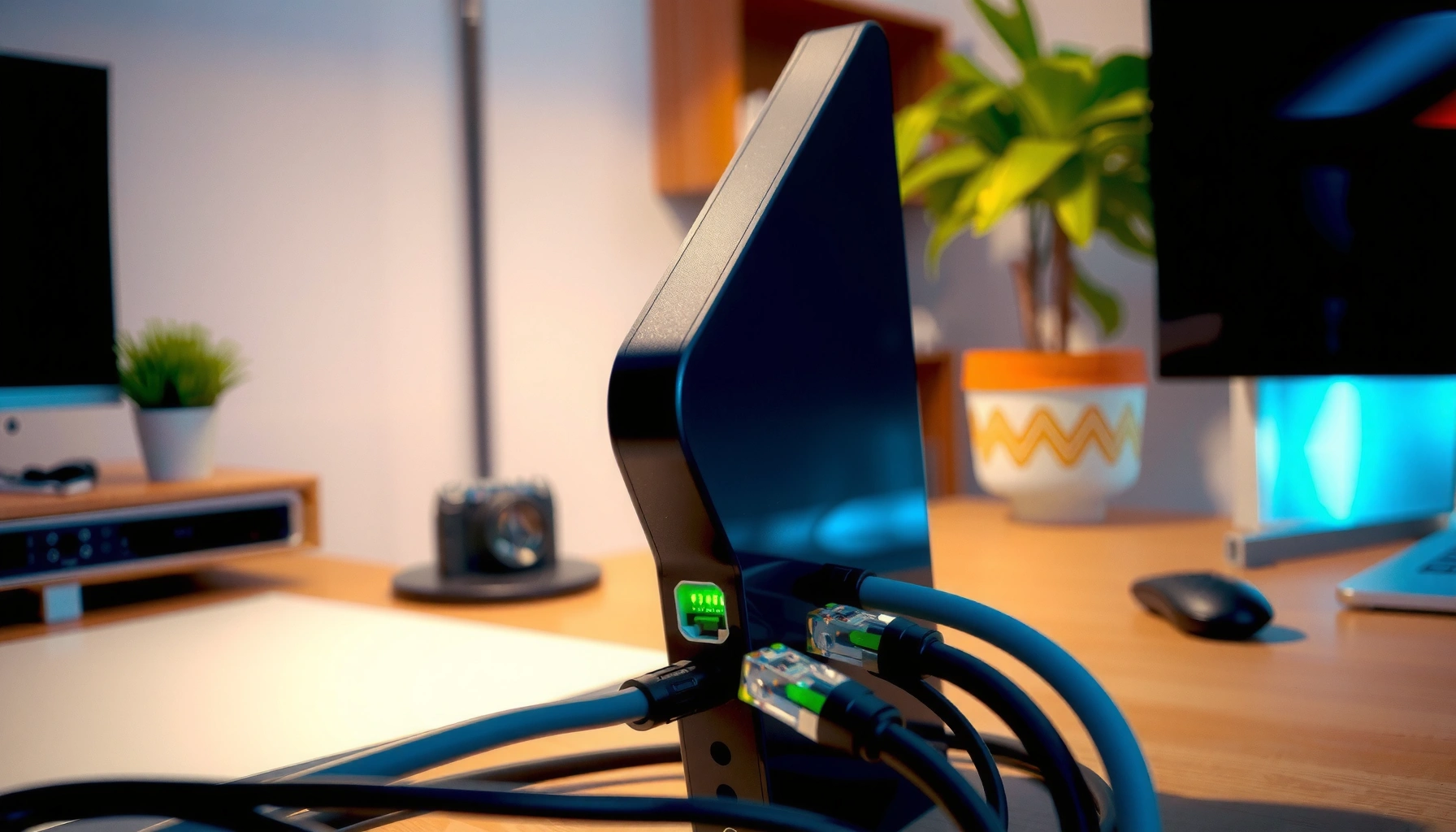

Need to wire a modem correctly fast? Follow this step-by-step connection guide to hook your modem up to power, the right cables, and your router or computer with minimal guesswork. If you want a working internet connection on the first try, this wiring order—and the checks to confirm sync—are the only path that reliably beats trial-and-error.
Wiring a modem is mainly about three clean handoffs—connect the provider line (coax/DSL/fiber) to the modem, connect the modem to your router (or computer) via the correct Ethernet “WAN/Internet” port, and power everything up in the right order. If you follow the port labels (like LINE/COAX/DSL and ETHERNET/WAN), you avoid most “No Internet” problems without guessing—an approach that still holds in 2026 as ISPs keep using the same physical interface conventions.
If you’re setting up a new modem, replacing an old one, or troubleshooting “No Internet” after a move, this guide is for you. It’s written for common home setups where the modem is the connectivity gateway (cable/DSL), and a router handles Wi‑Fi and local devices.
Check your modem ports and internet type first
You’ll save time by confirming your internet type and reading your modem’s port labels before you plug anything in. Cable, DSL, and fiber all look similar at a glance, but the “incoming line” uses different physical connectors and the Ethernet ports have different roles.
Cable modems use an RF coax interface commonly specified as a 75‑ohm connection for DOCSIS service.
DSL modems require the telephone/DSL line input, and that input should not be confused with Ethernet LAN/WAN ports.
Ethernet connectivity between modem and router is designed around IEEE 802.3 physical-layer standards.
Start by identifying which service you have:
– Cable internet (coax): You’ll have a coax drop (usually a threaded connector). Your modem typically has COAX or LINE as the incoming port.
– DSL internet (phone/DSL): You’ll have a DSL phone line (often via a filter/splitter in the home). Your modem typically has a DSL or LINE port intended for that service.
– Fiber internet (often ONT + router): Many households don’t use a “modem” as the first device. Instead, you may have an ONT (fiber handoff) and then a router. Some ISPs use an all-in-one gateway, but the cabling logic is the same: fiber handoff goes to the fiber device; Ethernet goes to the router.
Then, read the modem’s labels carefully. Common label patterns include:
– Incoming: LINE, COAX, DSL
– Network: ETHERNET/WAN (sometimes WAN, Internet), and LAN ports (for devices inside the network)
To make port identification easier, below is a quick mapping of typical modem labels to what they mean in most home setups.
Typical Home Internet Port Meanings (Most Common Label Sets)
| # | Modem label you see | What it usually connects to | Service type most often used | Risk if miswired |
|---|---|---|---|---|
| 1 | COAX / LINE | Provider coax drop (threaded/RF) | Cable | High |
| 2 | DSL / LINE | DSL phone line (filtered/split appropriately) | DSL | High |
| 3 | ETHERNET / WAN / Internet | Router WAN/Internet input | All (modem or gateway) | High |
| 4 | LAN 1–LAN 4 | Devices inside network (PC/switch/access point) | All (after WAN works) | Medium |
| 5 | POWER (DC input) | Included power adapter | All | Medium |
| 6 | Reset pinhole | Revert factory/troubleshoot state | All | Variable |
| 7 | Fiber handoff (ONT) | SFP/optical input (varies by ISP) | Fiber | Lower |
As you wire in 2026, keep in mind that Ethernet is not “coax over Ethernet” or “phone over Ethernet.” The modem’s WAN/Ethernet role is to carry the ISP-assigned connectivity to your router, using standard Ethernet behavior such as the common 1500‑byte IPv4 MTU on typical LANs (IEEE and IETF Ethernet/IP common MTU behavior; see RFC 894/791 context).
Connect the incoming internet line (coax/DSL/fiber)
The incoming line connection is where most setups succeed or fail, because the modem simply can’t register with your ISP if the wrong interface is used. Choose the correct physical connector for your service type, and plug it into the modem’s matching LINE/COAX/DSL (or ONT) input.
A cable modem’s “COAX/LINE” port is designed for the provider RF coax drop used by DOCSIS systems.
A DSL modem’s “DSL/LINE” port is intended for the DSL circuit, not generic Ethernet signaling.
For fiber, many households use an ONT that outputs Ethernet to the router; cabling depends on the device labels.
Cable (coax) setup
1. Locate the coax line from your provider.
2. Connect it to the modem’s COAX or LINE port.
3. Tighten the threaded connector by hand until snug—do not overtighten.
DSL setup
1. Use the telephone-style DSL line (often on a splitter/filter setup).
2. Connect it to the modem’s DSL or LINE port.
3. Confirm you’re not plugging that line into Ethernet ports (LAN/WAN) or the router’s WAN.
DSL installs frequently include a splitter/filter so voice and data don’t interfere. The modem expects that DSL circuit to be present; connecting to the wrong line can leave the modem stuck without sync.
Fiber (ONT + router) setup
If your provider uses fiber, many “modems” are actually gateways or a router-like device. If you have an ONT, connect:
– Fiber/optical input to the ONT (per your ISP labeling)
– Ethernet from ONT to your router’s WAN/Internet port (or to the gateway’s WAN, depending on labels)
In 2026, this ONT + router pattern is still the most common consumer fiber approach—so treat “wiring a modem” as “wiring the handoff device” and follow the printed port functions.
Link the modem to your router (or computer)
After the modem has a valid incoming signal, the next step is the modem-to-router handoff using Ethernet. This is where the WAN/LAN distinction matters most: the modem’s internet side goes to the router’s WAN/Internet, not its LAN ports.
Most routers expect the ISP handoff on the WAN/Internet port, and LAN ports are for internal devices.
Connecting a modem’s Ethernet to the wrong router port can prevent WAN negotiation and leave Wi‑Fi without internet.
Ethernet ports follow IEEE 802.3 physical-layer signaling, so cable quality matters primarily for link stability.
If you have a router (typical home setup)
1. Plug one end of an Ethernet cable into the modem’s ETHERNET/WAN port (sometimes labeled Internet).
2. Plug the other end into the router’s WAN/Internet port.
3. Wait for the modem link lights and router WAN light to stabilize.
If you don’t have a router (modem → computer)
1. Connect Ethernet from the modem’s ETHERNET/WAN port to your computer’s Ethernet port.
2. Ensure your computer’s network setting is compatible (many ISP setups use DHCP and work automatically once the physical link is correct).
Common miswires to avoid
– Wrong Ethernet direction/port: On routers, LAN ports typically connect to devices inside your network; WAN/Internet is the “entry.”
– Wrong modem Ethernet port: Some modems have multiple Ethernet jacks; only one is intended for the upstream WAN handoff.
Here’s a quick contrast to help you spot the WAN vs LAN logic instantly:
| Port type | What you connect | What it does |
|---|---|---|
| Router WAN / Internet | Modem Ethernet handoff | Receives ISP connectivity for routing |
| Router LAN | Computers, access points, switches | Distributes local network connectivity |
Power up in the correct order
Power order affects whether your router correctly “learns” the modem’s connection state. The safest approach is modem first, then router, and then connect devices (Wi‑Fi clients or Ethernet clients) afterward.
Many gateways rely on a stable WAN state at boot time, so powering the modem first can avoid repeated WAN negotiation failures.
Pressing a modem reset button can restart provisioning and temporarily interrupt service while the device re-registers.
Waiting for modem online/internet indicators helps confirm the physical and ISP authentication stages completed.
Follow this sequence:
1. Modem first: Plug in power and wait for a steady online/internet type indicator (exact wording varies by model).
2. Router second: Power on the router.
3. Devices third: Connect phones/laptops or Ethernet clients.
If your modem has a reset/pinhole button, don’t press it unless you’re following a specific troubleshooting step. In many setups, a reset triggers re-provisioning—so it can extend downtime rather than fix quickly.
From a networking perspective, this boot-order behavior lines up with how DHCP and WAN link negotiation typically occur: when WAN doesn’t appear to be “ready,” routers may cache the failure state until you renew the WAN connection or reboot.
What can go wrong (and what to check)
Even with correct wiring, the most common failures come from mismatched service type, incorrect port usage, or incomplete ISP provisioning. If you methodically verify signals and link lights, you can usually isolate the issue without swapping hardware blindly.
If modem “online” lights never stabilize, the issue is often the incoming coax/DSL connection or ISP registration rather than Ethernet wiring.
Ethernet miswiring between router WAN and LAN is a frequent cause of “Wi‑Fi connected, no internet.”
Some routers need a stable modem WAN state at boot, so a modem-first boot order reduces reconnection loops.
No signal / no internet lights
Check in order:
– Is the provider line firmly connected to the LINE/COAX/DSL port?
– Is it the correct service type for your modem model?
– Are splitters/filters present (DSL voice/data filters, coax splitters)? If yes, ensure they match the ISP’s diagram.
Wrong Ethernet direction/port
A very common mistake is:
– modem Ethernet → router LAN port (instead of WAN/Internet)
When this happens, the router may not establish WAN routing, so Wi‑Fi can still show “connected” while internet fails.
Power or boot order issues
If your router boots before the modem is fully registered, the WAN can remain “stuck.” Try:
– power cycling in the recommended order (modem → wait → router)
– or reconnecting the Ethernet handoff after both devices are fully powered
Wi‑Fi works but internet doesn’t
This can indicate one of the following:
– modem didn’t fully provision/authenticate
– WAN IP assignment didn’t complete
– router WAN settings are incorrect (for example, PPPoE vs DHCP—depends on ISP)
For DSL and some cable setups, ISP authentication can be required even after wiring is correct. In those cases, the physical connection is correct but the service still isn’t active for your specific modem instance.
Verdict / tip (what we recommend—and who should skip)
Wiring a modem yourself is usually straightforward: match the incoming line to LINE/COAX/DSL, then connect modem Ethernet to the router’s WAN/Internet, and power up modem before router. The downside is that ISP provisioning/authentication issues can look identical to wiring problems, so you may still need ISP support even when everything is connected correctly.
Skip DIY (or stop and get help) if:
– you’re unsure whether you have cable vs DSL vs fiber/ONT
– your modem/gateway model labels are unclear or inconsistent
– you suspect damaged coax/phone lines or broken connectors
– the modem is repeatedly failing registration and the ISP requires account-level activation
If you do continue, treat the modem LEDs and port labels as “evidence,” not decoration. In 2026, that mindset prevents many wasted trips and reduces time spent rebooting the wrong device.
Quick checklist to scan
– [ ] Incoming line connected to LINE/COAX/DSL (correct port for your service type)
– [ ] Ethernet from modem WAN/ETHERNET to router WAN/Internet
– [ ] Modem powered on first; wait for stable “online/internet” indicator
– [ ] Router powered on second (if used)
– [ ] If Wi‑Fi says connected/no internet, test with Ethernet first to confirm WAN path
FAQ
What Ethernet cable do I need to wire a modem?
Use a standard Ethernet cable (commonly Cat5e or better) between the modem’s WAN/ETHERNET port and the router’s WAN/Internet port. If you still have “no internet” after wiring checks, swapping the Ethernet cable is a quick isolation step for link problems.
Should I connect the modem to the router’s LAN or WAN port?
You should connect the modem to the router’s WAN/Internet port. Router LAN ports are for devices inside your network (for example, a laptop, switch, or access point), not for the ISP handoff.
Why does my modem power on but the internet light stays off?
This usually means the modem isn’t completing ISP registration or hasn’t detected a valid incoming line. Start with the LINE/COAX/DSL connection and port correctness, then move to ISP provisioning/authentication if the incoming signal is verified.
Can I wire a modem directly to a computer?
Yes, if your modem supports it and your ISP configuration is compatible. Plug Ethernet from the modem’s WAN/ETHERNET port into your computer and confirm your network settings are set to obtain an address automatically (DHCP) if that’s how your service is set up.
Do I need to unplug everything before rewiring?
It’s safest to power down the modem and router before changing physical connections. After rewiring, power up in order: modem first, then router—this reduces the chance the router fails to establish WAN during boot.
Sources
– DOCSIS interface standards and cable modem physical interface guidance (for 75‑ohm coax assumptions)
– IEEE 802.3 (Ethernet physical-layer and Ethernet link behavior)
– IETF IP and common Ethernet MTU behavior references (for typical 1500-byte MTU context)
– [ADD: Manufacturer documentation for your specific modem model—port descriptions (LINE/COAX/DSL, WAN/LAN) and indicator meanings.]
– [ADD: ISP official setup/wiring guide for your service type (cable vs DSL vs fiber/ONT), if available from your provider’s support pages.]
If you match your service type to the correct modem input and keep Ethernet going from modem WAN/ETHERNET to router WAN/Internet, you’ll eliminate the majority of “No Internet” wiring mistakes. When the LEDs still don’t align, treat it as provisioning or signal-detection evidence—not a reason to keep randomly swapping cables.
Frequently Asked Questions
What cables do I need to wire a modem to my router and power source?
Most home setups require a coaxial cable (for cable internet) or a phone line (for DSL) plus an Ethernet cable to connect the modem to your router. You’ll also need the modem’s power adapter to plug it into a wall outlet. Check the modem labels or manual to confirm the correct port types (e.g., “COAX,” “DSL,” “LINE,” and “ETHERNET/NET”). Using the wrong cable type is a common cause of “no internet” and connection failures.
How do I wire a modem to my router correctly using Ethernet?
Connect the modem’s “LAN” or “ETHERNET/NET” port to your router’s “WAN” (or “Internet”) port using a single Ethernet cable. Avoid plugging the modem into the router’s “LAN” ports, since that can prevent the router from receiving an internet IP address. Power on the modem first, wait for the “online” or “internet” light to stabilize, and then power on the router. This order helps your modem and router complete their connection and authentication steps more reliably.
Why isn’t my modem getting an internet signal after I wire it?
If the modem lights don’t show proper status (for example, “online/internet” stays off or is red), the wiring may be incorrect or the service may not be provisioned yet by your ISP. Verify that the coax/DSL line is tightly connected, the modem is powered on, and the Ethernet cable is firmly seated in the correct ports. Also ensure you’re using the correct connection method for your ISP type (cable vs DSL) and that your router is set to obtain an IP automatically. If the modem is provisioned but still fails, restarting in the right sequence and contacting your ISP for signal checks may be necessary.
Which modem port should I use to connect to the computer or router: LAN or WAN?
When wiring a modem to a router, you typically use the modem’s Ethernet “LAN/NET” port and connect it to the router’s “WAN/Internet” port. The WAN side is responsible for receiving the ISP connection, while LAN ports are for local devices. If you wire the modem to a LAN port instead, you may end up with no internet access even though the modem powers on. For direct-to-PC setups, connect the modem’s Ethernet port to the computer’s network adapter and skip the router.
Best practices for wiring a modem to avoid signal loss and connectivity issues?
Use high-quality, properly rated cables (especially coax for cable modems and Cat5e/Cat6 Ethernet for modem-to-router links) and keep connections snug. Avoid using loose splitters or unnecessary extension cables, since they can degrade signal quality and cause frequent drops. After you wire a modem, power-cycle in order—modem first, then router—and wait for the modem’s connection light to stabilize. If you see persistent errors, check for firmware updates through the modem/router interface or confirm the line signal levels with your ISP.
📅 Last Updated: October 05, 2026 | Topic: how to wire a modem | Content verified for accuracy and freshness.
References
- Google Scholar Google Scholar
https://scholar.google.com/scholar?q=how+to+wire+a+modem+ethernet+cable+RJ45 - Google Scholar Google Scholar
https://scholar.google.com/scholar?q=DSL+modem+installation+wiring+RJ11+splitter - Google Scholar Google Scholar
https://scholar.google.com/scholar?q=cable+modem+wiring+coaxial+ethernet+setup - Modem
https://en.wikipedia.org/wiki/Modem - Digital subscriber line
https://en.wikipedia.org/wiki/Digital_subscriber_line - Cable modem
https://en.wikipedia.org/wiki/Cable_modem - Ethernet
https://en.wikipedia.org/wiki/Ethernet - Registered jack
https://en.wikipedia.org/wiki/RJ11 - https://en.wikipedia.org/wiki/RJ45
- Modem | Definition, Development, & Facts | Britannica
https://www.britannica.com/technology/modem
