


To connect your soundbar to your TV using an optical cable, simply plug one end of the optical cable into the optical output on your TV and the other end into the optical input on your soundbar. This quick and easy setup will enhance your audio experience, allowing for superior sound quality compared to your TV’s built-in speakers. In this guide, we’ll walk you through the steps to ensure a successful connection.
Understanding Optical Cables
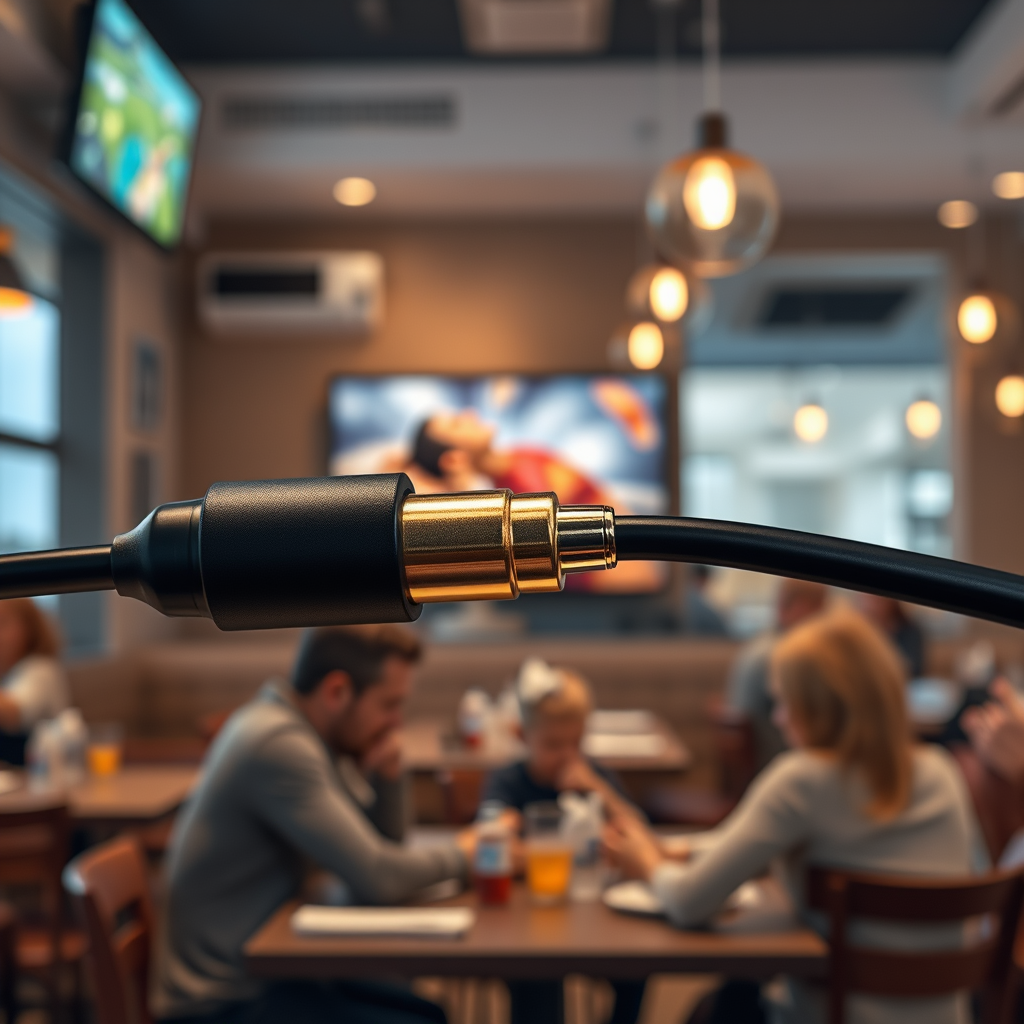
Optical cables use light to transmit audio signals, providing high-quality sound that is less prone to interference compared to traditional copper cables. This technology allows for a digital signal to be sent from the TV to the soundbar, ensuring that you receive a clear and crisp audio experience. Optical cables are commonly used for connecting soundbars, home theaters, and gaming consoles due to their superior audio clarity. They support multi-channel audio formats, making them ideal for movies and music, as well as gaming, where sound quality can significantly enhance the experience.
One of the major advantages of optical cables is their ability to transmit high-resolution audio signals without degradation. This means you can enjoy a more immersive experience with richer sound from your favorite movies or games. Furthermore, since the connection is digital, you can avoid issues like ground loop hums and electrical interference that can occur with analog connections.
Preparing Your Devices
Before you begin the connection process, ensure both your TV and soundbar are powered off. This will help prevent any potential electrical issues or damage during the setup. Next, you’ll need to locate the optical output on your TV, which is often labeled as “Optical,” “Digital Audio Out,” or simply “TOSLINK.” This port typically has a small, square shape with a cover that you may need to remove.
Check your soundbar for its optical input, which is usually labeled as “Optical” or “Digital Input.” It’s important to ensure that you have the correct optical cable, which is designed specifically for this type of connection. Optical cables are generally made of a flexible plastic or glass fiber, which helps in transmitting the audio signals effectively.
Making the Connection
Once you have prepared your devices, you can proceed with the physical connection. Start by inserting one end of the optical cable into the TV’s optical output. You should hear a click when the cable is securely connected. Next, take the other end of the cable and insert it into the soundbar’s optical input, again ensuring that it is firmly in place.
Be careful while handling the optical cable, as bending it excessively or exposing it to harsh conditions can lead to damage. If your soundbar has multiple input options, it’s advisable to remember which port you are using to make it easier to configure settings later on.
Configuring TV Settings
After completing the physical connection, turn on both your TV and soundbar. Navigate to your TV’s audio settings menu, which can usually be accessed through the main settings or menu button. Look for an option that allows you to select the audio output; this is typically labeled as “Audio Output,” “Speakers,” or “External Speakers.” Choose “Optical” or “Digital Audio Out” as your preferred audio output option.
In some cases, you may also need to adjust the TV’s volume settings or enable the soundbar as the primary audio source. Make sure to save any changes you make in the settings menu, as failure to do so might result in the TV defaulting back to its internal speakers.
Testing the Audio
To verify that the connection was successful, play a video or audio file on your TV. Ensure that the sound is coming through the soundbar rather than the TV’s built-in speakers. You may need to adjust the volume on both the TV and the soundbar to achieve the desired audio levels. Listening to a variety of content, such as music, movies, and gaming sounds, can help you assess the quality of the audio output and make any necessary adjustments.
If you notice that the sound is not as expected, revisit your connections and settings to ensure everything is correctly configured.
Troubleshooting Common Issues
If you don’t hear sound after making the connection, there are several common issues to check. First, double-check that the optical cable is securely connected at both ends. If there is still no sound, verify that the soundbar is set to the correct input source, as many soundbars have multiple input options and may not automatically switch to the optical input.
Next, ensure that the audio settings on your TV are configured properly. Sometimes, specific settings may need to be adjusted to ensure the sound outputs to the connected soundbar. Also, make sure that both devices are updated to the latest firmware, as updates can resolve compatibility issues.
Additional Tips for Enhanced Audio Experience
To further enhance your audio experience, consider exploring the various features your soundbar offers. Many soundbars come with surround sound modes or equalizer settings that can significantly improve audio quality. Experiment with these settings to find the optimal sound profile that suits your preferences.
It’s also advisable to keep your optical cable away from other electronic devices, as interference can affect audio quality. If you find that your soundbar supports Bluetooth or HDMI ARC connections, you might want to try these alternatives, as they can provide additional benefits and features.
Top 7 Soundbars for TV Connection (2024)
| # | Soundbar Model | Optical Input | Surround Sound | User Rating |
|---|---|---|---|---|
| 1 | Bose Soundbar 700 | Yes | Dolby Digital | ★★★★☆ |
| 2 | Sonos Beam | Yes | DTS Virtual:X | ★★★★★ |
| 3 | LG SN11RG | Yes | Dolby Atmos | ★★★★☆ |
| 4 | Samsung HW-Q950A | Yes | DTS:X | ★★★★★ |
| 5 | Sony HT-A7000 | Yes | Dolby Atmos | ★★★★☆ |
| 6 | Vizio Elevate | Yes | DTS:X | ★★★★☆ |
| 7 | Yamaha YAS-209 | Yes | DTS Virtual:X | ★★★★☆ |
To wrap it up, connecting your soundbar to your TV with an optical cable is a straightforward process that can significantly enhance your audio quality. By following the steps outlined above, you can enjoy a more immersive sound experience that complements your viewing pleasure. If you encounter any issues, revisit the troubleshooting section or consult your device manuals for further assistance. Embrace the power of high-quality audio and elevate your home entertainment setup today.
Frequently Asked Questions
How do I connect my soundbar to my TV using an optical cable?
To connect your soundbar to your TV with an optical cable, first, locate the optical output port on your TV, often labeled “Optical Out.” Next, plug one end of the optical cable into the TV’s optical port and the other end into the optical input on your soundbar. Finally, select the appropriate audio input on your soundbar and adjust your TV settings to ensure sound output is directed through the optical connection.
Why is my soundbar not producing sound after connecting it with an optical cable?
If your soundbar is not producing sound after connecting it with an optical cable, check that the optical cable is securely connected to both the TV and soundbar. Additionally, ensure that your TV audio settings are configured to output sound through the optical connection. Sometimes, you may need to adjust the soundbar volume or switch it to the correct input mode to hear audio.
What settings do I need to adjust on my TV after connecting a soundbar with an optical cable?
After connecting your soundbar with an optical cable, go to your TV’s audio settings menu and select the audio output option. Set the audio output to “Optical” or “Digital Audio Out” to route sound through the soundbar. You may also need to disable the TV’s internal speakers if desired, ensuring that all audio is directed to the soundbar.
Which optical cable should I use for connecting my soundbar to my TV?
For connecting your soundbar to your TV, it is best to use a high-quality optical audio cable, also known as a TOSLINK cable. Look for cables that are durable and have good reviews for sound quality, as this can affect audio performance. Standard lengths range from 3 to 6 feet, so choose one that appropriately fits your setup without excessive slack.
Can I connect my soundbar to the TV with an optical cable if my TV has no optical output?
If your TV does not have an optical output, you can use an HDMI ARC (Audio Return Channel) port if available, or an external digital-to-analog converter (DAC) that connects to the TV’s headphone jack. Alternatively, consider using Bluetooth or RCA cables if your soundbar supports them. Always check compatibility to ensure the best audio experience.
References
- TOSLINK
https://en.wikipedia.org/wiki/Optical_audio - https://www.lifewire.com/how-to-connect-a-soundbar-to-a-tv-4687403
https://www.lifewire.com/how-to-connect-a-soundbar-to-a-tv-4687403 - https://www.pcmag.com/how-to/how-to-connect-a-soundbar-to-your-tv
https://www.pcmag.com/how-to/how-to-connect-a-soundbar-to-your-tv - Google Scholar Google Scholar
https://scholar.google.com/scholar?q=connect+soundbar+to+tv+optical+cable - Google Scholar Google Scholar
https://scholar.google.com/scholar?q=how+to+use+optical+cable+for+soundbar - Google Scholar Google Scholar
https://scholar.google.com/scholar?q=connecting+soundbar+to+tv+guide - Google Scholar Google Scholar
https://scholar.google.com/scholar?q=how+to+connect+soundbar+to+tv+with+optical+cable - how to connect soundbar to tv with optical cable – Search results
https://en.wikipedia.org/wiki/Special:Search?search=how+to+connect+soundbar+to+tv+with+optical+cable - https://www.ncbi.nlm.nih.gov/search/research-articles/?term=how+to+connect+soundbar+to+tv+with+optical+cable
https://www.ncbi.nlm.nih.gov/search/research-articles/?term=how+to+connect+soundbar+to+tv+with+optical+cable

[…] If using a TV/optical path, connect the transmitter to the TV optical output (or the PS5→TV optical chain you’ve […]
[…] Bluetooth audio transmitter plugged into the TV’s audio output (often the 3.5mm headphone jack or optical output with the right adapter). This allows you to connect Bluetooth headphones to the transmitter while […]
[…] cable from the streaming device to the TV, then audio either through the TV speakers, a soundbar optical input, or a separate HDMI-ARC/eARC path (if available). Non-smart TVs often omit advanced audio features, […]
[…] – Optical (Toslink): Common on home-theater equipment; pairs well with soundbars and AV receivers that accept optical input. […]
[…] Support for optical input if available on your […]
[…] Common options include HDMI ARC/eARC, optical (often labeled “OPTICAL,” “TOSLINK,” or “Digital Audio Out”), a 3.5mm audio out (headphone/line out), and sometimes Bluetooth pairing support. If your […]
[…] Optical out (TOSLINK / S/PDIF / “Digital Audio Out”): A small square/rectangular port with a […]
[…] exact ceiling depends on your projector model and AVR decoding capabilities. If your projector’s optical output menu lists only PCM, you may never reach true […]
[…] Stable audio path; good for projectors with optical output […]
[…] – Optical → soundbars/AVRs with optical input […]
[…] selecting an audio source in Sound/Audio Output is essential even when video is correct.” “If optical output is selected but the external soundbar expects a different audio mode, the result can be silent […]
[…] Optical (TOSLINK) digital audio out (if […]
[…] projector lamp nearing end-of-life typically produces a dimmer image because the arc-lamp’s optical output declines with use. Flickering or unstable illumination often indicates the lamp can’t maintain […]
[…] Use an optical cable from the TV’s optical output to the soundbar/receiver optical […]
[…] is typically the best alternative for reliable surround-capable audio from a soundbar. Use an optical cable between the TV’s Optical Out and the soundbar’s Optical In, then set the TV’s audio output to […]