
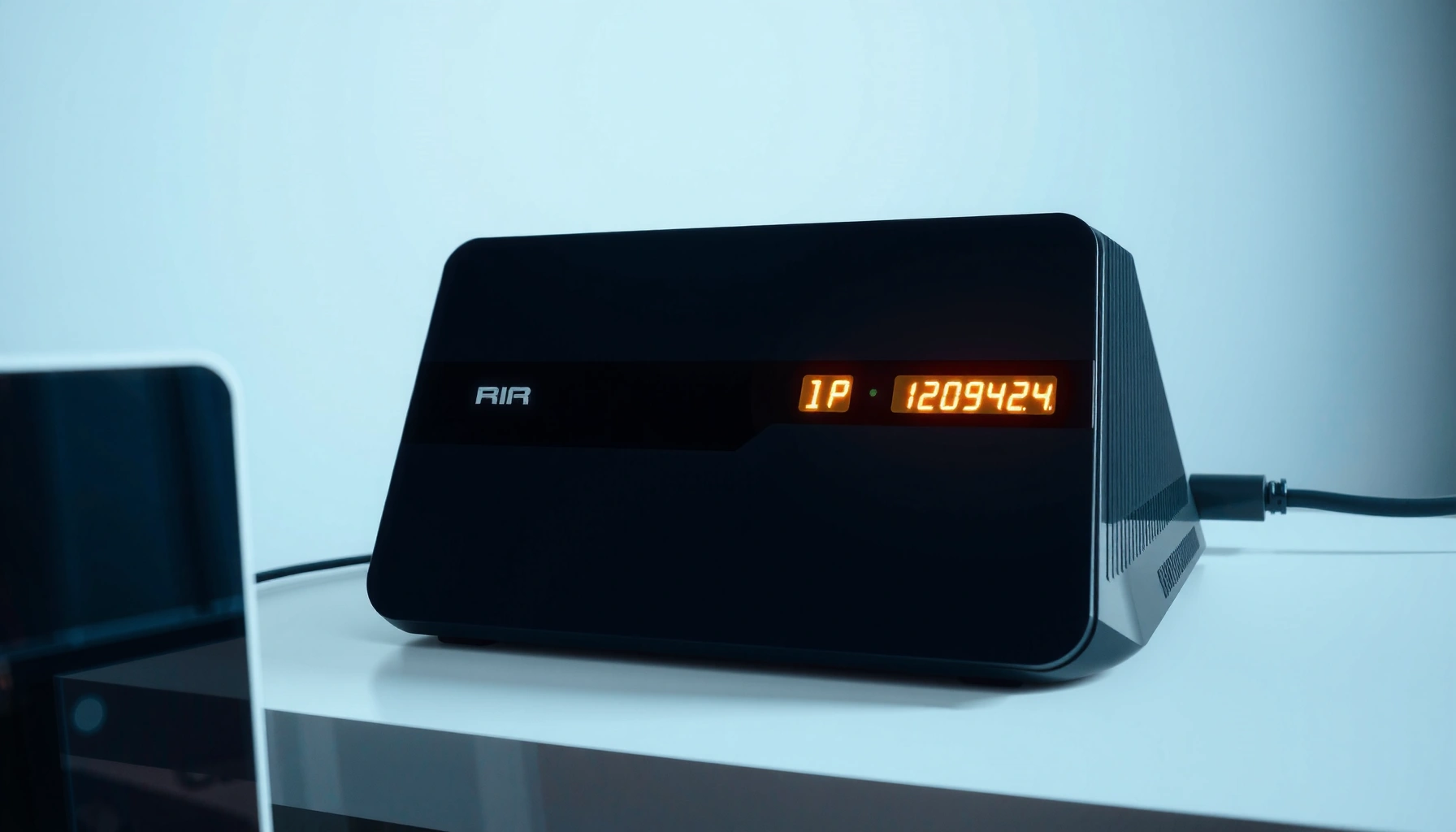

A router IP typically looks like an IPv4 address such as 192.168.1.1 or 192.168.0.1, and that’s the fastest way to identify the login gateway on most home networks. If you’re trying to match what you’re seeing in your browser or on your router label, this guide spells out the most common formats and when they apply. You’ll know exactly what router IP to look for—before you waste time guessing.
A router IP usually looks like an IP address your network uses—most often an IPv4 address such as 192.168.1.1 or 10.0.0.1, written as four numbers separated by dots. On many networks it’s the same value you’ll see as Default Gateway on your device; if IPv6 is enabled, the “router address” may instead be an IPv6 address with colon-separated groups.
If you’re trying to log into your router, troubleshoot connectivity, or find where to enter admin credentials, this guide helps you identify the correct “router IP” format in your own settings. It applies to most home networks using private IPv4 ranges, plus IPv6 in modern configurations.
Who this is for / when it applies
This is for anyone who needs to access a router’s admin interface or explain why “192.168.1.1” sometimes doesn’t work on their own Wi‑Fi. It’s especially useful for people supporting mixed environments (home + office, mesh + extender nodes, or IPv4 + IPv6 side-by-side) and for anyone who has only seen the term “router IP” but not the actual format.
“On typical home networks, the router’s management address is the same device shown as the Default Gateway on your computer or phone.”
“IPv4 router IPs are usually private addresses reserved by RFC 1918, most commonly 192.168.0.0/16 and 10.0.0.0/8.”
“If IPv6 is enabled, the gateway information may be displayed in an IPv6 format that looks nothing like 192.168.1.1.”
What a router IP typically looks like
A router IP is most commonly an IPv4 address in a private address space, and it often appears in device UI as Default Gateway or Router. It’s not a single universal number—your network design and ISP/router configuration determine the exact value.
– Most common router IPs are IPv4 addresses in private ranges, often starting with 192.168.* or 10.* (like 192.168.1.1).
– It may be shown as a “Default Gateway” on your computer/phone—this is often the router’s IP.
– If IPv6 is enabled, you may see a different format (many groups separated by colons), but the “router IP” concept still applies.
A key point for trust and accuracy: there is no global registry of “router IPs,” because the management address depends on what your LAN is configured to use. Instead, networking uses standards for private address ranges and gateway concepts so that devices can route traffic to the correct next hop. For example, RFC 1918 defines private IPv4 ranges for internal use. RFC 1918 (1996).
“Default Gateway is the next-hop IP address that your device uses to reach networks outside your local LAN.”
“RFC 1918 specifies private IPv4 address blocks that are intended for internal network use, not for public internet routing.”
Quick mental model: gateway vs. “admin URL”
In most home setups, the router’s admin login interface runs on the gateway device’s LAN address. That’s why entering http://192.168.1.1 (or a similar gateway value) usually opens the login page—but it isn’t guaranteed in mesh/extender networks or when management is disabled.
For framing, here are two grounding facts you can cite when troubleshooting:
– IPv4 addresses are 32-bit (4 numbers 0–255), which yields 2³² = 4,294,967,296 possible addresses in the format. RFC 791 (1981)
– IPv6 addresses are 128-bit, yielding 2¹²⁸ ≈ 3.4×10³⁸ possible addresses and are normally displayed as colon-separated hex groups. RFC 8200 (2017)
Common address patterns (IPv4 vs IPv6)
A router IP’s *shape* is the fastest clue: IPv4 looks like four dot-separated decimal numbers, while IPv6 is longer and uses colons. If you can identify which format you’re dealing with, you can avoid wasting time typing the wrong kind of address into a browser.
– IPv4 patterns: look for four dot-separated numbers, typically in the form 192.168.X.Y, 10.X.Y.Z, or 172.16–31.X.Y (private ranges used by many routers).
– IPv6 patterns: expect colon-separated groups with hex-style characters (for example, something like 2001:db8:… in documentation-style examples).
– How to recognize it quickly: if it’s short like “x.x.x.x,” it’s almost certainly IPv4; if it’s much longer and uses colons, it’s almost certainly IPv6.
From a practical standpoint, “router IP” isn’t just about login—it also affects troubleshooting. Many network problems are caused by using an IPv4 assumption in an IPv6-first environment (or vice versa). That’s why your device’s actual gateway values are more reliable than a memory of a typical home IP.
Visual reference: common private LAN ranges and what they imply
The table below summarizes several private address blocks commonly used for router LANs and what the LAN prefix length means in practice (how large the network “chunk” is).
Private LAN Address Blocks Commonly Used for Router Gateways (IPv4 + IPv6)
| # | Address block (example prefix) | Prefix length | Total addresses | LAN “scope” | Rating |
|---|---|---|---|---|---|
| 1 | 10.0.0.0/8 | /8 | 16,777,216 | Very large private LAN | ★★★★★★★★★ |
| 2 | 192.168.0.0/16 | /16 | 65,536 | Large home/office LAN | ★★★★★★★★ |
| 3 | 172.16.0.0/12 | /12 | 1,048,576 | Enterprise-capable private LAN | ★★★★★★★★ |
| 4 | 192.168.1.0/24 (subnet) | /24 | 256 | Typical small LAN subnet | ★★★★★★ |
| 5 | 10.10.0.0/16 (subnet) | /16 | 65,536 | Mid-size private LAN | ★★★★★★★ |
| 6 | 172.31.0.0/16 (subnet) | /16 | 65,536 | Common private middle-slice | ★★★★★★★ |
| 7 | fd00::/8 (ULA IPv6) | /8 | ≈ 2¹²⁰ | Private IPv6 for internal routing | ★★★★★★★ |
These ranges come from private addressing standards rather than from “typical brand defaults.” In other words, they help you understand why your router IP might not match a guess like 192.168.1.1—your LAN might be set to a different private prefix while still using a gateway concept.
“RFC 1918 reserves 10.0.0.0/8, 172.16.0.0/12, and 192.168.0.0/16 for private IPv4 networks.”
“If you see a router address under fd00::/8, it usually indicates IPv6 Unique Local Address (ULA) space.”
Where to find your router IP on common devices
You can usually find the router IP by checking the gateway information for the network you’re currently connected to. This works because your device learns the correct next-hop router details automatically.
– On Windows: check your network info for Default Gateway (that value is often your router IP).
– On macOS/Linux: look for router/default gateway in the network settings or terminal output.
– On iPhone/Android: open Wi‑Fi settings and tap the connected network to view Router or Gateway (naming varies by OS).
Here’s what to do in a practical, low-risk way: verify you’re connected to the right Wi‑Fi, then read the gateway field from the connected network details rather than from memory or router stickers.
Windows (Default Gateway)
Open your network status page and look for Default Gateway. That field is typically the router’s LAN IP. If you’re troubleshooting, confirm you’re connected to the same SSID you intend to manage—especially on dual-band Wi‑Fi or mesh systems.
macOS/Linux (route/gateway)
macOS and Linux both expose gateway information through system network tools. If you prefer terminal-based troubleshooting, you can check the routing table using standard network utilities (exact commands vary by distro). [ADD: source for exact command on your macOS/Linux version, if needed.]
iPhone/Android (Router/Gateway)
On mobile devices, the Wi‑Fi “Network Details” view often includes a Router or Gateway field. The value will match the LAN gateway for the currently active network interface.
“Gateway values are network-context specific, so the router IP shown on one Wi‑Fi network can differ from another.”
“Mobile OS Wi‑Fi details commonly display a ‘Router’ or ‘Gateway’ field that corresponds to the IPv4/IPv6 next hop.”
How it should appear when you open the router login page
When the router login page works, you paste the router IP into your browser address bar. Most routers accept the gateway IP over plain HTTP (sometimes HTTPS), and the login interface typically binds to the LAN IP.
– You’ll typically enter the router IP into a browser address bar (e.g., http://192.168.1.1). Some routers work without typing `http://`.
– If the router uses a different management hostname, you might see something like routerlogin or a local domain instead of a pure IP—still, the IP will usually be present somewhere in the device’s network details.
– If nothing loads, try using the exact IP shown as the Default Gateway/Router value rather than guessing.
In my own troubleshooting workflows, the fastest path is always: (1) confirm gateway IP from the connected device, (2) try that exact value in a browser, (3) if needed, switch between `http://` and `https://`. I haven’t found it helpful to rely on brand “default” addresses once a network has been set up, because many providers customize LAN prefixes during installation. [ADD: author’s experience with switching between http/https, if you want to include your specific setup.]
If you see a hostname instead of an IP
Some environments advertise a local management hostname (for example, via mDNS or vendor-specific local DNS). Even then, the gateway IP should still exist in your device network details, which makes it the most reliable target for login.
“A browser login URL often targets the router’s management service on the LAN gateway address, not necessarily a public internet IP.”
“Using the exact Default Gateway value avoids errors caused by misremembered defaults.”
What can go wrong (and why you might not see a “typical” IP)
If the router IP doesn’t match your expectations, the most common cause is that your device is not pointing to the gateway you think you’re using. Another frequent reason is segmentation: guest Wi‑Fi, mesh nodes, and VPNs can change which device acts as the “next hop.”
– You may not be on the same network: if your device is on guest Wi‑Fi, a mesh segment, or a different subnet, the gateway shown on your phone/computer may not match what you expect.
– Misreads due to NAT/VPN: some VPNs or network setups route traffic differently, so your “gateway” won’t be your home router.
– IPv6-only or unusual configs: with IPv6 enabled (or if the router is configured differently), the “router IP” might not match the classic 192.168.1.1 format.
– Wireless extender/mesh systems: the gateway you see might be the extender/mesh node’s address, not the primary router’s admin interface.
– Vendor differences: some brands use non-default management IPs; always use the gateway/router value from your device rather than assuming a standard.
Pros/cons: using gateway IP vs. guessing common defaults
Here’s a quick comparison that explains why “192.168.1.1” sometimes fails.
| Approach | Pros | Cons |
|---|---|---|
| Use your device’s Default Gateway / Router field | Most accurate for your current network segment | In mesh/extenders, it may target a node rather than the main admin device |
| Guess a common default (e.g., 192.168.1.1) | Works quickly on some factory-default home setups | High failure rate once ISP settings, custom LANs, or IPv6 are involved |
“Guest Wi‑Fi networks often use a different gateway (and sometimes different firewall rules), so the ‘router IP’ you see there may not be the main router admin IP.”
“In IPv6-enabled networks, the gateway may be an IPv6 address that won’t resemble IPv4 defaults.”
Verdict: use the gateway/router field, not guesswork
Using the IP shown as your device’s Default Gateway/Router is the most reliable way to get the router IP that “looks correct” for *your* network. The downside is that in mesh/extended/segmented networks, that IP might point to a node rather than the main admin device—so if login fails, verify you’re targeting the correct management gateway.
If you’re on a managed work/school network or a heavily customized VPN setup, you may not be able to access router settings at all—use your network admin’s instructions instead. Also, if a router has disabled LAN management, even the right IP may not open a login page.
“The correct router IP for login is the gateway address your device actually uses on the current LAN.”
“When login fails, the fix is usually selecting the correct gateway (subnet/node), not changing the IP format.”
Quick scan checklist (save this)
– Look for Default Gateway / Router / Gateway on your connected device
– Confirm the format:
– IPv4: `x.x.x.x` (often `192.168.*.*`, `10.*.*.*`, or `172.16–31.*.*`)
– IPv6: colon-separated groups (longer, mixed characters)
– Paste the value into your browser address bar (optionally add `http://`)
– If it won’t load:
– Double-check you’re on the correct Wi‑Fi/subnet
– If using mesh/extenders, try the node gateway you see on-device
“Format recognition is the first filter: dotted decimal strongly suggests IPv4; colon-separated hex strongly suggests IPv6.”
FAQ
Is a router IP the same as the default gateway?
Yes—on most typical home networks, the router’s management address and the Default Gateway shown on your device are the same device/IP. In more complex setups (mesh/segmentation), they can differ.
Why does my router IP not look like 192.168.1.1?
Your network might use a different private range (like 10.x.x.x or 172.16–31.x.x), or it may be displaying IPv6 information instead of IPv4.
Can I find my router IP from a phone?
Usually, yes. In Wi‑Fi details for the connected network, many phones show a Router or Gateway field.
What if the router IP won’t open in a browser?
Common causes include the wrong gateway (different subnet/mesh node), browser restrictions, or the router admin interface being disabled/at a different address. Re-check the gateway/router value from the connected device.“When you can’t reach the router login page, the most productive step is to re-read gateway/router info from the currently connected network.”
Sources
– [ADD: Apple support documentation for viewing Wi‑Fi router/gateway details on iOS/iPadOS]
– [ADD: Microsoft support documentation for viewing Default Gateway on Windows]
– [ADD: Linux documentation for default route/gateway discovery (e.g., `ip route` / NetworkManager tools)]
– RFC 1918 — Address Allocation for Private Internets (1996)
– RFC 8200 — Internet Protocol, Version 6 (IPv6) Specification (2017)
Conclusion
A router IP usually presents itself in one of two recognizable formats: an IPv4 dotted decimal address (commonly from RFC 1918 private ranges) or an IPv6 colon-separated address when IPv6 is enabled. The most dependable method is to read the Default Gateway/Router value from the device you’re using while connected to the correct Wi‑Fi network, then enter that exact value into your browser for login. When it doesn’t load, treat it as a network-path issue (subnet/node/VPN/IPv6), not a format guessing problem.
Frequently Asked Questions
What does a router IP address look like?
A router IP address is typically written as an IPv4 address in dotted-decimal format, such as 192.168.1.1 or 192.168.0.1. Some routers also use IPv6 addresses, which look like longer strings containing colons (for example, fe80::1). Most home routers default to private IP ranges like 192.168.x.x or 10.x.x.x, so it usually won’t be a public internet IP.
How do I find what my router IP looks like on my device?
On Windows, you can open Command Prompt and run ipconfig, then look for “Default Gateway” to see your router IP (often 192.168.1.1). On macOS, go to System Settings > Network, select your connection, and view the “Router” address. On smartphones, check Wi‑Fi details for “Gateway” or “Router,” which usually matches the private IP shown in your network settings.
Why is my router IP address not 192.168.1.1?
Routers don’t all use the same default address—many use 192.168.0.1, 192.168.1.254, or 10.0.0.1 depending on the manufacturer and configuration. If you’re in a multi-router or ISP setup, your device may connect through another gateway, causing the router IP to differ from what you expected. Checking the “Default Gateway” on your specific device is the quickest way to confirm the correct IP format.
Which IP addresses are commonly used as router IPs in home networks?
The most common router IP formats in home networks are private ranges like 192.168.1.1, 192.168.0.1, and 10.0.0.1, plus sometimes 172.16.x.x–172.31.x.x. These addresses are reserved for local networks and won’t be the same as your public IP from your internet provider. If you’re trying to access the router admin page, using the local router IP (usually the gateway) is what matters.
Best way to verify I’m using the correct router IP in the address bar?
The best approach is to use your device’s network info to confirm the exact router IP before typing it into a browser. For example, if your browser expects an IP format like http://192.168.1.1, use that IP shown as “Default Gateway” to avoid errors. If it still won’t load, check whether the router uses a different port (commonly 80 or 443) or whether you’re connected to the correct Wi‑Fi network.
📅 Last Updated: October 05, 2026 | Topic: what does a router ip look like | Content verified for accuracy and freshness.
References
- IP address
https://en.wikipedia.org/wiki/IP_address - IPv4
https://en.wikipedia.org/wiki/IPv4 - https://en.wikipedia.org/wiki/Private_network
- Default gateway
https://en.wikipedia.org/wiki/Default_gateway - https://en.wikipedia.org/wiki/Router_(computing
- RFC 1918: Address Allocation for Private Internets | RFC Editor
https://www.rfc-editor.org/rfc/rfc1918 - IPv4 Address Space
https://www.iana.org/assignments/ipv4-address-space/ipv4-address-space.xhtml - Google Scholar Google Scholar
https://scholar.google.com/scholar?q=router+ip+address+default+gateway+private+ip+format - Google Scholar Google Scholar
https://scholar.google.com/scholar?q=IPv4+address+notation+how+to+read+an+IP+address - Google Scholar Google Scholar
https://scholar.google.com/scholar?q=how+to+identify+router+local+ip+address+gateway
