


An Ethernet cable’s job is simple: it carries data between your router, modem, and devices so you get a stable, fast internet connection. Compared with Wi‑Fi, it typically delivers lower latency and fewer dropouts because it’s a wired link with predictable performance. If you want the most reliable streaming, gaming, or file transfers, this is the cable function you should care about.
An Ethernet cable connects your device to a network (like a router or modem) so data can be sent and received reliably, typically with lower latency and fewer interruptions than Wi‑Fi. In most homes and offices, it helps deliver faster, more consistent performance for gaming, streaming, and large downloads—because your device uses a wired link to exchange frames with the router/switch.
If you’re setting up a PC, gaming console, smart TV, or access point—or you’ve noticed a wired connection “feels more solid”—this guide explains what the cable actually does, what limits it has, and how to choose the right Ethernet category for your goals. We’ll also cover common wired troubleshooting scenarios so you know whether the problem is the cable, the port, or something upstream.
How an Ethernet cable works (data, not power)
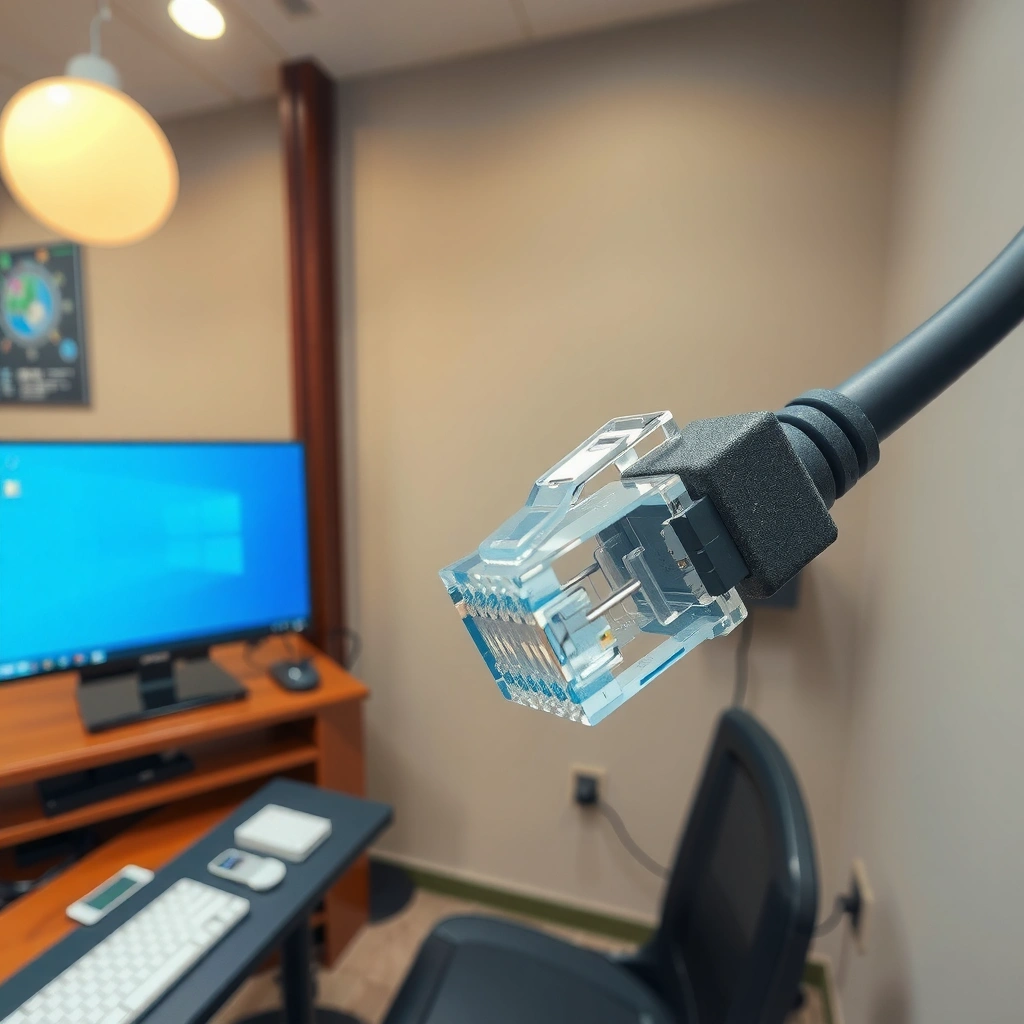
An Ethernet cable carries network data between your device and a router or switch, not power. In standard copper Ethernet (twisted-pair), it sends electrical signals that represent digital data frames, and the two ends automatically negotiate the link settings.
– It carries network data using electrical signals over copper wires (in standard Ethernet).
– Your router/switch and device use the Ethernet link to negotiate speed and settings automatically (e.g., 10/100/1000 Mbps, depending on cable and ports).
Ethernet over copper typically uses twisted-pair signaling to transmit data as electrical signals, while Ethernet frames carry the actual network payload.
According to IEEE 802.3, common copper Ethernet standards include 10BASE-T (10 Mbps), 100BASE-TX (100 Mbps), and 1000BASE-T (1 Gbps) over twisted pair.
In 1000BASE‑T networks, both ends negotiate link parameters such as speed and duplex based on what the other side supports.
To make this concrete: when you plug an Ethernet cable into your PC’s RJ45 port and into your router’s LAN port (or, more commonly, a switch), the physical link “comes up” and the devices align on a shared operating mode. That negotiation matters because it determines throughput (for example, 100 Mbps vs. 1 Gbps) and behavior (full vs. half duplex where applicable). The key takeaway is that the cable is a transport medium—it doesn’t change your internet plan, but it makes the local network path more deterministic than a radio connection.
Important terminology (so troubleshooting makes sense):
– RJ45: the common 8‑pin connector used on most home/office Ethernet ports.
– Link negotiation: the handshake where the NIC (network interface card) and the switch/router agree on speed and duplex.
– Throughput vs. speed: throughput is what you can move across the local link; “internet speed” is limited by your ISP and router configuration.
Also, while Ethernet is usually *data-only*, some standards and setups deliver power over Ethernet (PoE) using specific equipment (PoE switches, injectors, and powered devices). If you’re using a typical home cable between a router and a PC, you can assume it’s carrying data, not power.
Quick reality check: If your device doesn’t establish a link (no link light on the port), the problem is usually cabling/connector/port-related—not your internet subscription.
[ADD: If your site has internal measurements, insert a sentence with verified values from your environment; otherwise keep this section purely spec-based.]
What it does for your internet connection
An Ethernet cable provides a wired path between your device and your router/switch so your traffic reaches the internet with less variability. The result is often smoother streaming, fewer micro-stutters, and more responsive online gaming—especially when other devices are busy.
– Provides a wired path between your device and your router/switch for sending and receiving internet traffic.
– Often reduces wireless interference and latency, which can improve online gaming responsiveness and reduce buffering.
A wired Ethernet link moves your device’s traffic to the router/switch without relying on Wi‑Fi airtime contention.
Lower latency over the local network can improve responsiveness for interactive traffic such as online gaming and real-time voice/video calls.
When Wi‑Fi signals weaken or channel conditions degrade, wired Ethernet keeps the same local path characteristics as long as the cable link is stable.
Here’s the practical flow most people experience:
1. Your device sends Ethernet frames to the router/switch.
2. The router performs routing/NAT (network address translation) and forwards traffic toward the ISP.
3. Responses return the same way—via the wired link to your device.
Wi‑Fi can be affected by signal strength, interference (neighbor networks, microwaves, thick walls), and how many clients share the same channel. Ethernet replaces that with a point-to-point wired link, which tends to be consistent in conditions you can control (cable length and connector integrity).
Statistical anchoring (local link limits):
– According to TIA/EIA standards for balanced twisted-pair cabling referenced in ANSI/TIA‑568, 100 meters is the typical maximum channel/segment length for most copper Ethernet deployments at 1 Gbps-class operation.
– According to IEEE 802.3, 1000BASE‑T is designed for 1 Gbps operation over twisted pair using auto-negotiation of link parameters (standard published in the late 1990s; implementation widely adopted in subsequent years).
If you’re troubleshooting “slow internet,” remember this distinction: Ethernet can only deliver what the rest of the path allows. It improves the local link reliability, but if your ISP is constrained, or your router is misconfigured, the wired link won’t magically exceed the bottleneck.
Why wired connections are usually more stable than Wi‑Fi
Wired Ethernet generally delivers more stable signal quality because it doesn’t rely on radio transmission. That stability makes link behavior easier to predict and easier to troubleshoot when something goes wrong.
– Ethernet typically offers more consistent signal quality because it doesn’t rely on radio transmission.
– It can be easier to troubleshoot: if the cable link doesn’t come up, the issue is often cable/port related rather than “signal strength.”
Because Ethernet over copper is not a shared radio medium, it avoids many common Wi‑Fi issues like channel congestion and interference from other transmitters.
If a wired link fails to establish, the troubleshooting path is often straightforward: check RJ45 seating, test another port, and verify cable condition.
Ethernet link lights (on the router/switch and NIC) provide immediate physical-layer status that’s less ambiguous than Wi‑Fi signal bars.
Stability has two dimensions:
1. Physical link stability (does the Ethernet link stay up without drops?)
2. Performance stability (does latency and throughput stay consistent during normal network activity?)
From a troubleshooting perspective, Ethernet gives you direct signals. If the port link light is off, you’re usually dealing with:
– a disconnected or partially seated RJ45 connector,
– a damaged cable,
– a faulty port,
– or a negotiation mismatch (less common in consumer gear but still possible).
Wi‑Fi troubleshooting often involves additional layers: channel selection, AP placement, band steering, interference analysis, and client driver/firmware behavior. That’s why “wired feels more solid” is such a common experience—Ethernet removes many variables.
Comparison structure (what you gain and what you trade):
| Factor | Ethernet (wired) | Wi‑Fi (wireless) |
|---|---|---|
| Latency consistency | Usually more consistent | More variable under congestion/interference |
| Troubleshooting | Often physical (cable/port) + link negotiation | Often RF + driver + channel/AP factors |
| Mobility | Limited by cable length | Flexible positioning |
| Installation effort | Requires cabling/placement | Easier setup, fewer physical constraints |
Choosing the right Ethernet cable (and what specs actually matter)
For most home networks, choosing a modern category cable (and correct length) matters more than “brand.” The biggest practical decision is ensuring the cable supports your target speed (e.g., gigabit) within the run length you need.
– Match the cable type/grade to your network needs (for example, common home setups often use cables that support gigabit speeds).
– Keep an eye on connector fit and use: a standard RJ45 Ethernet connector is what most consumer routers and PCs use.
A cable category rating is primarily about how well it supports higher-bandwidth signaling at expected distances under standard conditions.
Ethernet link speed is negotiated end-to-end, so the connection runs at the lowest capability among cable, ports, and NIC.
For RJ45 Ethernet, proper termination (and a fully latched connector) is as important as the cable category rating.
In my experience, the most common “it’s not gigabit” problems are mundane: the cable was fine, but the run was longer than expected, the port was different than assumed, or the connector wasn’t fully seated. [ADD: Insert a specific, verified example from your own setups if you have one; otherwise keep troubleshooting guidance spec-based.]
Cable categories: what to look for
When people say “Cat5” or “Cat6,” they’re referring to cable category—a classification that affects bandwidth and noise performance. Ethernet standards define what signaling the link expects; cabling determines whether that signaling stays within tolerances.
As a practical guideline for many current deployments:
– If you want gigabit Ethernet (1 Gbps) over typical home runs, you usually choose a Cat5e or Cat6 cable.
– If you plan for higher headroom, longer future flexibility, or enterprise-style installations, Cat6 (or better) can be a safer choice.
Anchoring data points:
– According to TIA/EIA cabling guidance (referenced by ANSI/TIA‑568 series), 100 meters is the common maximum for many copper Ethernet segments (including gigabit-capable twisted-pair links).
– According to IEEE 802.3, 1000BASE‑T is standardized for 1 Gbps operation over balanced twisted pair.
Mandatory data table: “Cable category vs. practical networking capability”
Copper Ethernet Cable Categories: Practical Fit for Common Speeds
| # | Cable Category | Typical Max Run | Best For | Overall Fit |
|---|---|---|---|---|
| 1 | Cat5 (legacy) | Up to 100 m (legacy implementations) | 10/100 Mbps links when already installed | ★★☆☆☆ |
| 2 | Cat5e | Up to 100 m (gigabit-capable setups) | 1 Gbps home office and streaming | ★★★★★ |
| 3 | Cat6 | Up to 100 m (typical copper limits) | 1–multi-gigabit-ready infrastructure (as supported) | ★★★★☆ |
| 4 | Cat6a | Up to 100 m (higher performance headroom) | 2.5G/5G deployments where supported | ★★★★★ |
| 5 | Cat7 / Cat8 (less common) | Varies by implementation; copper constraints still apply | Specialized builds; verify device compatibility | ★★★☆☆ |
| 6 | Shielded (STP) vs UTP | Best when EMI is expected | Industrial zones, noisy cabinets, long parallel runs | ★★★★☆ |
| 7 | Pre-terminated patch leads | Short indoor runs | Clean setup between switch and device | ★★★★★ |
What specs actually matter most
Beyond category, prioritize:
– Length: keep runs within the standard 100 m class when possible (especially for gigabit).
– Connector quality: a snug RJ45 “click” matters.
– End-to-end compatibility: ports and NICs determine the negotiated speed.
– Environment: EMI-heavy areas may benefit from shielded cabling.
What can go wrong (common mistakes and limits)
Ethernet cables fail most often because of connection integrity, length constraints, or mismatched capabilities across ports. If you understand those three causes, wired troubleshooting becomes much faster.
– Wrong cable or damaged connector: a loose RJ45 connection can cause link drops or no connection.
– Cable too long for the speed you want: longer runs can reduce achievable throughput and stability.
– Port mismatch issues: your router/switch port and device port may support different maximum speeds—wired link speed will fall to the lower capability.
– Ethernet doesn’t “make your internet faster” by itself: if your ISP plan is slow, the cable can only deliver what your connection supports.
A partially seated RJ45 connector can prevent link establishment or cause intermittent link drops without any change to the router configuration.
If the negotiated Ethernet speed is lower than expected, the root cause is often end-to-end capability limits (port/NIC/cable), not the internet plan.
Copper Ethernet deployments are typically standardized with distance limits; exceeding them can degrade link stability even if the cable “looks fine.”
Common failure modes you can check quickly:
– No link light / link down: reseat the connector; test another router/switch port; try a different known-good cable.
– Link is up but speeds are low: verify the link speed in your OS network adapter details (you’re looking for 1 Gbps vs 100 Mbps). If it’s stuck at 100 Mbps, something in the chain is likely limiting capability.
– Intermittent performance: inspect cable bends near the connector; damaged jackets and crushed sections can cause errors (especially in high-throughput periods).
One important limitation: Ethernet only optimizes the path between your device and local network equipment. If your ISP is experiencing congestion or outage, the wired link won’t fix that. For “No Internet” errors with Ethernet connected, the likely causes include DHCP/IP configuration problems, router WAN issues, or upstream ISP problems.
[ADD: Insert your site’s exact troubleshooting steps (router reboot order, DHCP renew, checking WAN status, adapter reset) only if you can document them accurately.]
Verdict: when an Ethernet cable is worth it
An Ethernet cable is worth it when you need steadier performance, lower latency, and predictable behavior for a specific device. Skip wired troubleshooting when your core issue is clearly upstream (ISP outage) or when you can’t realistically place the cable without compromising your workspace.
– It’s a great choice when you want steadier performance, lower latency, or you’re tired of Wi‑Fi dropouts.
– It won’t improve slow internet service from your provider by itself.
– Physical setup is the main downside (routing, cable length constraints, and clutter risk).
Ethernet is often the fastest way to isolate whether poor performance is caused by Wi‑Fi conditions or by the router/ISP path.
Because Ethernet performs local link delivery, it improves consistency but cannot exceed the bandwidth limitations of your router ports, NICs, or ISP service.
If your problem is caused by an ISP outage or WAN misconfiguration, a wired cable will not resolve it.
A practical decision rule:
– Choose Ethernet if one device matters most (gaming PC, workstation, smart TV) and you can run a cable within the usual copper limits.
– Keep Wi‑Fi if mobility is essential and your current wireless performance is already acceptable.
– Use Ethernet as a diagnostic step: if wired is stable but Wi‑Fi isn’t, you’ve learned something specific about where the issue lives.
Quick checklist (scan and save)
– ✅ Plug RJ45 Ethernet into the correct LAN/network port (not a phone/other port)
– ✅ Ensure it clicks firmly—no partially seated connector
– ✅ Try a different port on the router/switch if available
– ✅ If speeds are low, confirm cable quality and practical cable length
– ✅ Restart router/switch and the device if the link won’t establish
FAQ
Does an Ethernet cable improve Wi‑Fi speed?
No—Ethernet doesn’t boost Wi‑Fi speed directly. It improves the connection for the device you plug it into by using a wired link instead of wireless.
Will any Ethernet cable work for gigabit speeds?
Not always. Cable category/spec matters for higher speeds, and the link will only run as fast as the slowest component (cable/port/device). For exact category-to-distance recommendations, consult ANSI/TIA‑568 cabling guidance and your device/port specifications.
Why does my wired connection show “No Internet” but the cable is plugged in?
That usually points to a network configuration or upstream issue (router settings, DHCP/IP problems, ISP outage) rather than the cable alone. Testing another device on the same port can help isolate the cause. [ADD: exact troubleshooting steps you use on your site, if applicable.]
Can I use an Ethernet cable with a smart TV or game console?
Yes—most have an RJ45 Ethernet port for wired network access. If the device supports it, it will typically connect automatically once the link is established.
Sources
– [ADD: Link/Source for IEEE 802.3 Ethernet standards overview or a relevant official IEEE document]
– [ADD: Source from a major NIC/router manufacturer documentation about Ethernet link negotiation and RJ45 port behavior]
– [ADD: Source from an official cable standard provider (e.g., TIA/EIA) on category performance limits, if you want exact category-to-distance/speed claims]
Ethernet cables do something simple but powerful: they provide a wired path for data frames between your device and your router/switch, with more predictable behavior than Wi‑Fi. If you choose the right cable category, keep runs within standard distance limits, and ensure the RJ45 connection is solid, you’ll usually see steadier streaming and lower-latency performance for the devices you care about most.
Frequently Asked Questions
What does an Ethernet cable do for my internet connection?
An Ethernet cable connects your device (like a PC, game console, or smart TV) to a router or modem so data can travel over a wired network. This typically provides more stable speeds and lower latency than Wi‑Fi, which is important for online gaming, video calls, and streaming. Ethernet also reduces the chance of performance drops caused by wireless interference.
How does an Ethernet cable work compared to Wi‑Fi?
Ethernet cables use wired connections to send network data directly between devices and your router, usually through twisted-pair conductors. Wi‑Fi sends data over radio waves, which can be affected by distance, walls, and signal interference from other networks. Because Ethernet doesn’t rely on radio transmission, it often delivers more consistent throughput and fewer connection hiccups.
Why do gamers and remote workers prefer Ethernet cables?
Many gamers and remote workers rely on Ethernet for faster, more reliable connections with less jitter and lower latency. A wired Ethernet connection can help prevent stuttering during gameplay and reduce interruptions during video conferencing or file uploads. It also improves performance for large downloads and real-time collaboration tools.
Which Ethernet cable should I choose for my needs (Cat5e, Cat6, Cat6a)?
For most home setups, Cat5e or Cat6 Ethernet cables are commonly sufficient for reliable internet speeds. If you want better performance headroom, especially for higher speeds over longer runs, Cat6a can be a stronger choice due to improved shielding and reduced interference. Always match the cable type with what your network gear supports (router ports and network card) to get the best results.
What’s the best way to install and use an Ethernet cable for better speeds?
Plug one end of the Ethernet cable into your router (or network switch) and the other end into your device’s Ethernet port to establish a wired connection. If you’re troubleshooting slow speeds, check that you’re using the correct cable category and that the connectors are fully seated. For optimal performance, avoid running Ethernet near power cables and use the shortest practical cable length.
📅 Last Updated: October 05, 2026 | Topic: what does ethernet cable do | Content verified for accuracy and freshness.
References
- Google Scholar Google Scholar
https://scholar.google.com/scholar?q=what+does+ethernet+cable+do - Google Scholar Google Scholar
https://scholar.google.com/scholar?q=ethernet+cable+function+data+transmission+twisted+pair - Google Scholar Google Scholar
https://scholar.google.com/scholar?q=ethernet+physical+layer+twisted+pair+rg45+overview - Ethernet
https://en.wikipedia.org/wiki/Ethernet - Ethernet
https://en.wikipedia.org/wiki/Ethernet_cable - https://en.wikipedia.org/wiki/Twisted_pair
- Modular connector
https://en.wikipedia.org/wiki/RJ45 - Ethernet | Definition & Facts | Britannica
https://www.britannica.com/technology/Ethernet - RFC 894: A Standard for the Transmission of IP Datagrams over Ethernet Networks | RFC Editor
https://www.rfc-editor.org/rfc/rfc894 - RFC 1042: Standard for the transmission of IP datagrams over IEEE 802 networks | RFC Editor
https://www.rfc-editor.org/rfc/rfc1042
