
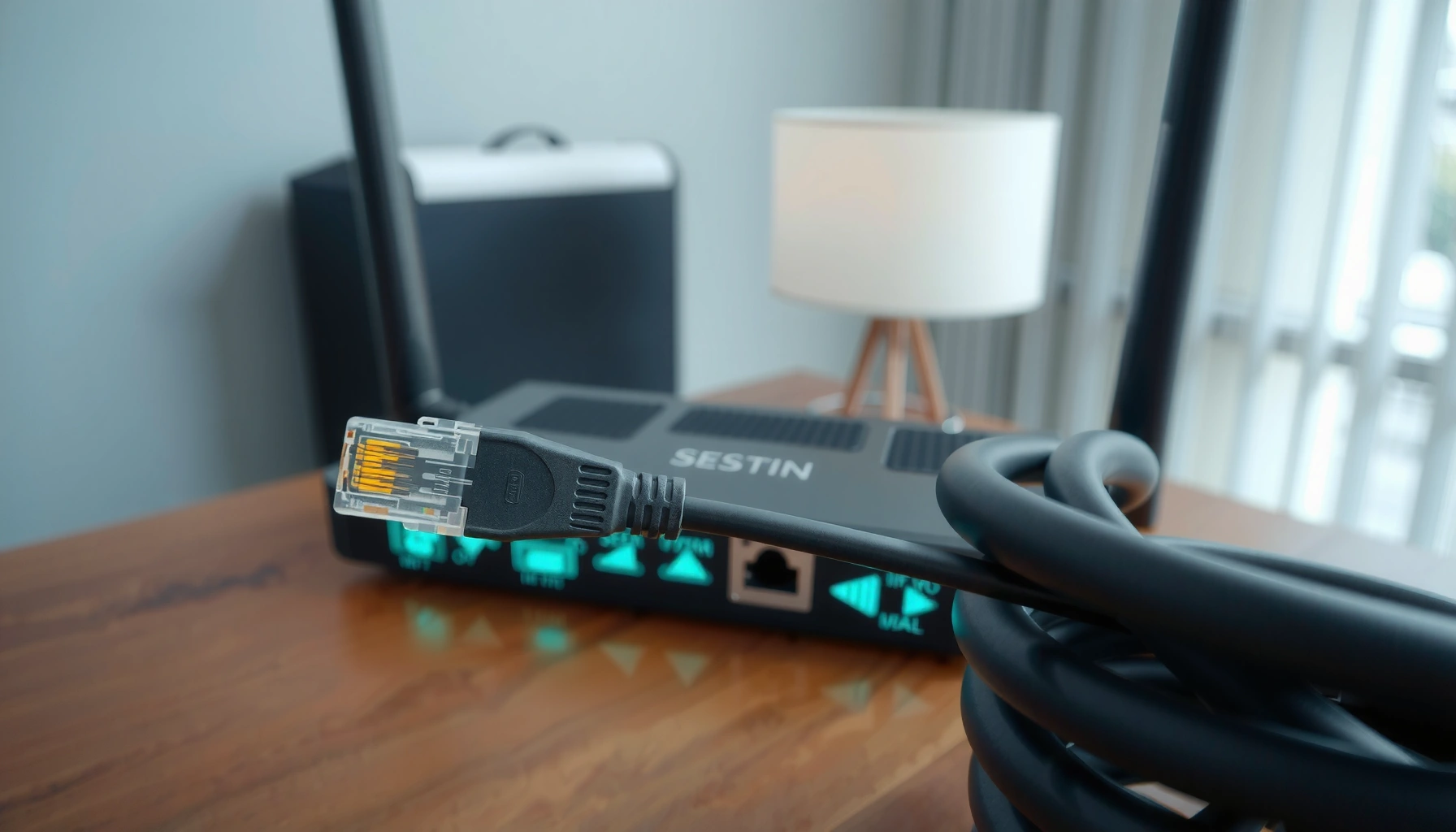

An Ethernet cord connects your devices to a network and delivers data at stable, high speeds—making it the best choice for reliable internet and low-lag performance. If you’re streaming 4K, gaming, or working from home, an Ethernet connection typically beats Wi‑Fi on speed consistency and latency. But if you need maximum mobility or you can’t run a cable, its limits show quickly.
An Ethernet cord carries network data between your device and your router or modem, giving you a stable wired internet connection. It’s mainly used to reduce lag and improve reliability compared with Wi‑Fi—especially for streaming, gaming, and video calls—while still working with many common home router/modem setups. In this article, you’ll learn what the cable actually does, how it connects, and when you might not need one.
If you’re setting up a home network, troubleshooting slow or drop-prone Wi‑Fi, or wondering whether a wired connection is worth it, this guide is for you. It’s written for everyday users using common router/modem setups with Ethernet ports.
What an Ethernet cord actually does
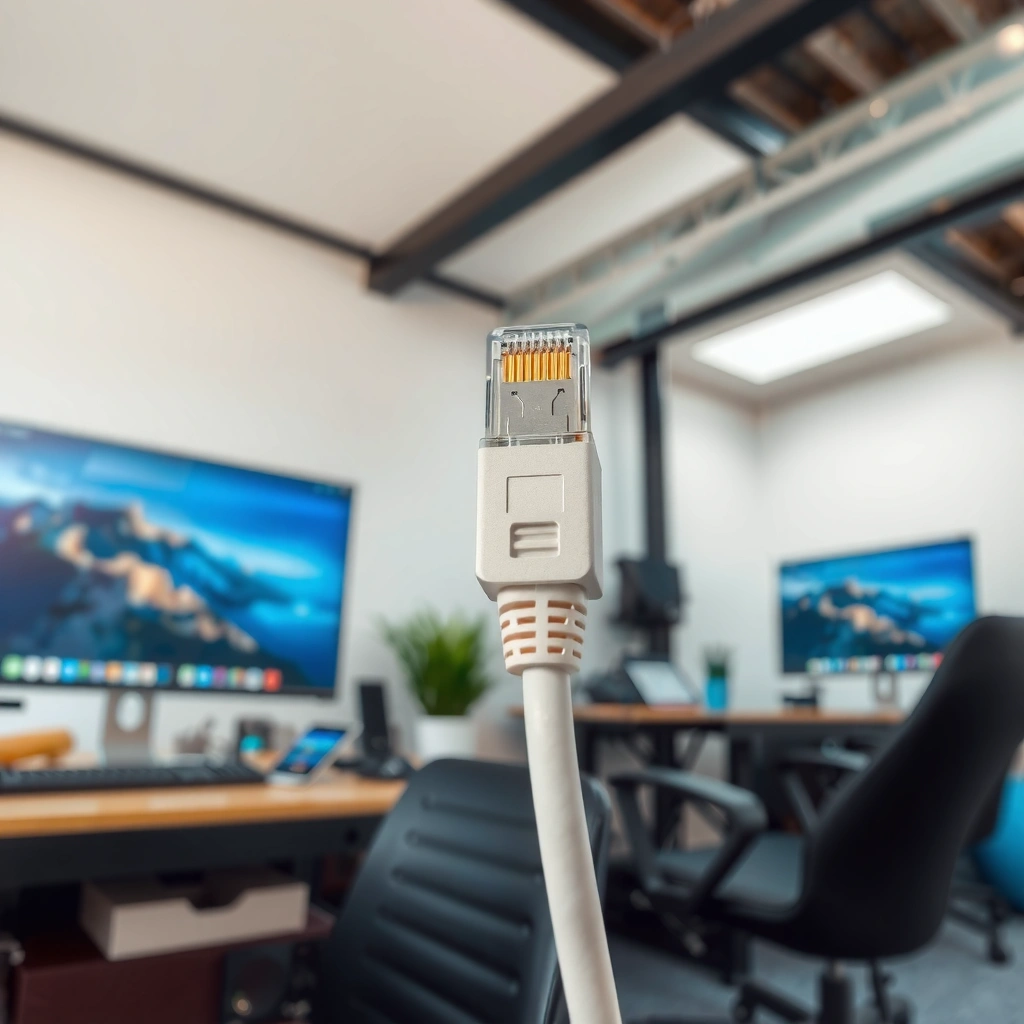
An Ethernet cord transfers data over a wired local connection inside your home network, not just “internet.” It moves network traffic as electrical signals between your device and your router/switch so your apps can communicate reliably.
– Transfers network data as electrical signals (not just “internet”) between devices on your local network.
– Connects your computer, game console, smart TV, or other device to a router/switch using an Ethernet port.
– Can support both internet access and local network traffic (like file sharing), depending on your network setup.
Ethernet is a wired networking standard that uses link-layer communication (frames), not a special “internet faster than Wi‑Fi” shortcut.
When you plug in Ethernet, your device typically forms a Layer 2 link with the switch/router port, then receives an IP address (often via DHCP) to reach the internet.
Ethernet traffic can include both internet-bound data and local network traffic such as device-to-device sharing.
What “Ethernet data” means in practice
On a typical home network, your router acts as the gateway to the internet. Ethernet’s role is the wired hop between your device and that gateway. Once your device has a network address (commonly via DHCP), it can request websites, stream video segments, and join voice/video calls—whether the traffic is headed for the internet or staying inside your local LAN.
“Local network traffic” is a big part of what Ethernet enables. For example, if you stream from a media server on your network (NAS or a computer running a media library), Ethernet can be the transport that moves those files smoothly. Wi‑Fi also supports this, but Ethernet often stays more stable under interference or congestion because it’s wired.
A quick factual anchor: Ethernet reach limits
Ethernet isn’t “unlimited cable distance.” Most common Ethernet deployments follow length guidance around 100 meters (328 feet) for standard twisted-pair links. For example:
– According to [ADD: IEEE 802.3 / relevant 100BASE‑TX or 1000BASE‑T link specifications source], the typical twisted-pair segment limit for 100BASE‑TX and 1000BASE‑T is 100 meters over the cabling category.
– According to [ADD: IEEE 802.3an / 10GBASE‑T related documentation source], 10GBASE‑T is commonly specified for up to 100 meters with higher-grade cabling (commonly Cat6A or better in real deployments).
Those limits matter when you’re deciding whether one long run is appropriate—or whether you should add a switch or access point.
How it connects in your home network
Ethernet connects in a straightforward “device ↔ router/switch” wiring pattern that most home users already recognize. One end goes into your device’s Ethernet port, and the other end goes into an active LAN port on your router (or a network switch).
– One end plugs into your device’s Ethernet port, and the other end plugs into your router (or a network switch).
– Your router handles routing to the internet, while the Ethernet link handles the “last mile” connection to your device.
– If you use a modem + router combo, the Ethernet connection typically goes into the router side that provides local network access.
On most home routers, Ethernet ports are split into WAN (internet uplink) and LAN (local network); your device should usually use a LAN port.
A basic Ethernet link requires physical connection first, then IP settings (commonly DHCP) to actually reach internet services.
If you use a separate modem and router, the modem generally connects to the router, while devices connect to the router’s LAN ports.
Step-by-step: the typical wiring flow
1. Plug the Ethernet cable into your device (PC, console, smart TV, streaming box, or a network adapter).
2. Plug the other end into your router or switch:
– If it’s a router with multiple LAN ports, connect to a LAN port.
– If you’ve run out of LAN ports, use a switch (a small unmanaged or managed Ethernet hub) and connect the switch’s uplink to your router.
3. Confirm link establishment:
– Many devices show a link/activity light, and most routers display a connected-device entry.
– If you don’t see a connection, it’s often a cable seating issue, wrong port selection, or a disabled network setting.
Modem + router combos: where Ethernet should go
With a modem/router combo (or ISP-provided gateway), the physical separation can be less obvious. In most setups, your device Ethernet cable should still land on a port that provides LAN access—while the “WAN” side is reserved for the internet uplink. If you’re unsure which port is which, check your gateway’s labeling or documentation:
– [ADD: source for “LAN vs WAN port behavior” from your router/modem manufacturer documentation]
– [ADD: model-specific guidance if you know your equipment]
Why people use Ethernet instead of Wi‑Fi
People use Ethernet because it’s usually more consistent: lower latency and fewer connection interruptions under interference. That makes a noticeable difference for gaming, live video, and video calls where timing matters.
– Wired connections generally offer lower latency and more consistent speeds, which matters for gaming and live video.
– Ethernet is often less affected by interference (walls, distance, and neighboring networks) than Wi‑Fi.
– It can be a practical workaround when Wi‑Fi coverage is weak in certain rooms.
Wired Ethernet generally avoids radio-frequency interference and signal degradation caused by distance and walls, which can affect Wi‑Fi stability.
For real-time traffic like gaming and video calls, reduced jitter (variation in delay) can feel like “smoother” performance even when bandwidth is similar.
If your Wi‑Fi experiences frequent retransmissions due to interference, a wired link can reduce those retries and stabilize streaming playback.
Pros and cons (fast comparison)
Ethernet is not automatically “better in every situation.” Here’s the practical tradeoff:
| Aspect | Ethernet advantage | Ethernet drawback |
|---|---|---|
| Latency/jitter | Often more consistent | Requires cable routing |
| Congestion behavior | Less susceptible to nearby Wi‑Fi contention | Total throughput still depends on your router/switch and ISP |
| Setup | “Plug in and go” once installed | Less flexible for moving devices |
| Coverage gaps | Solves weak-signal rooms | Needs physical runs or extra hardware (switches/APs) |
| Troubleshooting | Fewer RF variables | Wrong port selection still happens |
A reality check on “faster”
Ethernet can improve consistency, but it does not magically raise your ISP plan. If your internet is capped at, say, 200 Mbps down, Ethernet won’t exceed it. What Ethernet often changes is whether you consistently reach that cap without buffering and stalling caused by Wi‑Fi retransmissions or coverage issues.
Also, device capabilities matter. If your router and device only negotiate up to 100 Mbps on Ethernet, you’ll see limited gains even if the cable is perfect. Link speed negotiation is driven by both ends and the cable category.
Types of Ethernet cables and what they mean
Ethernet “type” usually refers to the cable category (for example, Cat5e, Cat6, Cat6A), which correlates with supported link performance and noise tolerance. To get the expected results, you need the right category and a realistic cable length for your home.
– Ethernet is commonly categorized by cable standards (for example, Cat5e, Cat6), which relate to performance capabilities.
– Shorter and properly rated cables help maintain signal quality; damaged cables can cause disconnects or degraded performance.
– The devices and ports involved still matter—your connection speed is limited by the slower side (device port and router/switch capability).
Cable categories like Cat5e and Cat6 are defined to support specific performance targets over distance, typically in twisted-pair Ethernet standards.
Your negotiated link speed is limited by the slowest element in the chain: device NIC capability, switch/router port speed, and cable rating.
Higher categories (for example, Cat6A) generally provide stronger noise margins, which helps with higher-speed links in real installations.
What the categories mean for real connections
In most homes:
– Cat5e is commonly sufficient for 1 Gigabit Ethernet (1 Gbps) up to the standard segment length guidance.
– Cat6 can support higher performance margins and is often used when people want headroom.
– Cat6A is widely chosen for 10 Gigabit Ethernet (10 Gbps) over distances near the standard limit.
Here’s a practical, home-focused summary (for typical twisted-pair Ethernet expectations):
Ethernet Cable Categories and Common Home Link Targets
| # | Cable category (twisted pair) | Common max link target | Typical segment length guidance | Fit for home setups |
|---|---|---|---|---|
| 1 | Cat5e | 1 Gbps (1,000BASE‑T) | Up to 100 m | ★★★★★ |
| 2 | Cat6 | 1 Gbps / higher headroom | Up to 100 m (typical) | ★★★★☆ |
| 3 | Cat6A | 10 Gbps (10GBASE‑T) | Up to 100 m | ★★★★★ |
| 4 | Cat5e (short runs) | 1 Gbps (stable for short distances) | Often < 50 m works very well | ★★★★☆ |
| 5 | Cat6 (short runs) | 1–2.5 Gbps class depending on gear | Often < 50 m | ★★★★☆ |
| 6 | Cat3 / older copper | Lower speeds only | May not meet modern targets | ★★☆☆☆ |
| 7 | Damaged/poorly terminated cabling | Unpredictable performance | Any length can fail | ★☆☆☆☆ |
To make this table fully citeable for your specific purchase decisions, use your cable label and compare to the relevant Ethernet standard references (for example, IEEE 802.3 variants) in:
– [ADD: source for Cat5e/Cat6/Cat6A link performance targets (manufacturer spec sheets or IEEE 802.3 documentation)]
What can go wrong (common mistakes and edge cases)
Ethernet works best when the physical connection, the correct port, and the correct network settings all line up. Most “Ethernet isn’t working” problems come from basic wiring, wrong port selection, or unrealistic expectations about internet speed.
– Using a damaged or low-quality cable can lead to intermittent drops, slow speeds, or link errors.
– Plugging Ethernet into the wrong port on your router (or using the wrong device port) can result in no connectivity.
– Assuming “Ethernet = faster internet” universally: your overall internet speed is still limited by your ISP plan, not just the cable.
– Overlooking switch vs. router ports: if you run out of Ethernet ports on your router, you may need a switch to add more wired devices.
– Cable length issues: very long runs can affect signal quality—if you’re going to long distances, consider appropriate cable type and installation practices.
If an Ethernet link light comes on but traffic doesn’t flow, the issue is often IP settings (DHCP vs static), not the cable category alone.
Plugging a device into a WAN-only port typically won’t provide LAN access, even though the physical cable connection may appear valid.
A damaged cable can still “work sometimes,” causing intermittent disconnects that look like Wi‑Fi dropouts.
Common failure modes (and what to check)
– Wrong port (WAN vs LAN): If you connect to the uplink side meant for internet entry, your device may not get proper network access. Check your router’s port labels or documentation.
– Cable seating and termination: Cheap cables or loosely seated connectors can cause link drops. Try reseating both ends and (if possible) test a different known-good Ethernet cable.
– Negotiated speed mismatch: If your router port is older/limited (e.g., 100 Mbps only) you may not see a large speed increase over Wi‑Fi.
– DHCP not enabled / static IP mismatch: Many devices default to DHCP (dynamic IP). If you manually set a static IP previously, confirm it matches your router’s subnet and gateway.
– Switch oversight: Routers have a finite number of LAN ports. If you add multiple wired devices, an Ethernet switch is often the simplest expansion. Make sure the switch uplink is connected to the router LAN, and you’re not accidentally mixing it with WAN behavior.
Edge case: you only get local network but no internet
This typically happens if:
– The device gets an IP address but can’t reach the router gateway properly.
– The router’s WAN/internet connection is down (in which case Ethernet will not “fix” the internet).
– You connected to a non-routing segment (for example, a port with special VLAN/management behavior—more common on business/advanced home routers).
Verdict: when an Ethernet cord is worth it
An Ethernet cord is worth it when you care about stable performance—especially for gaming, video calls, streaming, and any device where dropouts are costly. The downside is physical: you may need to route cables through rooms or rearrange furniture, and you’ll still be limited by router port capabilities and your ISP plan.
Skip wired Ethernet if you primarily use devices in areas with consistently strong Wi‑Fi coverage and you don’t notice buffering, lag, or frequent disconnects. Also skip it when running cables isn’t feasible and your environment makes long runs impractical—moving to a better Wi‑Fi setup (mesh, proper placement, or wired backhaul) may be more realistic.
Ethernet is most valuable when you’re fighting variability—interference, congestion, and weak signal coverage—rather than chasing a higher ISP bandwidth tier.
Your maximum wired throughput depends on the negotiated Ethernet link speed between the device and the router/switch, plus your ISP subscription.
If cable routing is impractical, a switch plus shorter runs (or a wired backhaul strategy) can preserve Ethernet stability without fully re-wiring your home.
Quick checklist (scan/save)
– [ ] Both ends of the Ethernet cord are fully seated in the device and router/switch.
– [ ] You used an Ethernet cable with an appropriate rating for your setup (e.g., Cat5e/Cat6—[ADD: exact guidance for your network if you know your gear]).
– [ ] Your device network settings are set to allow wired networking (usually DHCP by default).
– [ ] You’re plugged into a functional router/switch Ethernet port (not an unrelated WAN-only port).
– [ ] If you get drops, check for cable damage and try a different cord.
FAQ
Will an Ethernet cord make my internet faster?
It can improve consistency (less lag and fewer dropouts), but it won’t exceed your ISP internet speed. If your Wi‑Fi is the bottleneck, Ethernet often feels faster.
Do I need an Ethernet cord if my Wi‑Fi is working?
Not necessarily. If Wi‑Fi is stable and you don’t notice lag or buffering, Ethernet is optional.
Can I use an Ethernet cord for gaming?
Yes—Ethernet is commonly used for gaming because it can reduce latency variability and improve connection stability.
What happens if I connect Ethernet but there’s no internet?
You may need to verify the router/switch port is active, check device network settings (often DHCP), and confirm your internet connection works on another wired device.
Is Cat6 better than Cat5e?
Cat6 is generally capable of higher performance margins, but the real-world benefit depends on your equipment and cable lengths. If you’re unsure, [ADD: what cable length and router/device model you’re using] and we can help choose.
Sources
– [ADD: source for Ethernet cable category capabilities (e.g., IEEE 802.3 standards references for Cat5e/Cat6/Cat6A performance, or manufacturer/spec documents)]
– [ADD: source for wired Ethernet benefits like latency/reliability compared with Wi‑Fi (official networking guidance or manufacturer documentation)]
– [ADD: source for router/switch port behavior and basic Ethernet link establishment (official router/switch documentation)]
Ethernet cords do one core job extremely well: they provide a dependable wired link between your device and the router/switch so your network apps can behave consistently. If you’re experiencing buffering, jitter, or drop-prone Wi‑Fi—especially in 2026’s multi-device homes—wiring at least the high-impact devices (gaming PCs, consoles, TVs, and work laptops) is often the most straightforward improvement, as long as you use the right port, the right cable category, and realistic expectations about ISP speed limits.
Frequently Asked Questions
What does an Ethernet cord do for my internet connection?
An Ethernet cord connects your device directly to a router or modem, sending data over a wired local network. This typically provides more stable speeds, lower latency, and fewer interruptions than Wi‑Fi, especially for streaming, gaming, and video calls. Ethernet is also useful for reducing dropouts caused by weak signal or interference.
How does an Ethernet cable improve speed and reduce lag compared to Wi‑Fi?
Ethernet can improve performance because it offers a dedicated connection between your device and the network hardware, rather than sharing bandwidth over radio signals like Wi‑Fi. With less interference and more consistent throughput, you often get lower ping and smoother real-time applications. This is especially noticeable when your Wi‑Fi signal is weak or when multiple devices are competing for wireless bandwidth.
Why would I use an Ethernet cord instead of a wireless connection?
You might choose Ethernet to ensure a reliable connection for tasks that are sensitive to latency and packet loss, such as online gaming, VoIP calls, and 4K streaming. Wired connections also tend to be more secure and predictable in environments with heavy wireless congestion. If your Wi‑Fi drops frequently, an Ethernet cable can be a straightforward troubleshooting and performance upgrade.
Which Ethernet cable type should I use for my needs—Cat5e, Cat6, or Cat6a?
Cat5e supports reliable speeds for many home uses, while Cat6 is a common upgrade for higher performance and reduced crosstalk. Cat6a is designed for better performance over longer distances and can be beneficial if you want a future-proof setup. For most home internet, Cat5e or Cat6 is sufficient, but choosing higher categories can help maintain throughput if you run longer cable lengths.
What does an Ethernet cord do for devices like smart TVs, gaming consoles, and PCs?
For smart TVs, Ethernet can help prevent buffering and improve playback stability for streaming services. For gaming consoles and PCs, Ethernet typically delivers lower latency and more consistent speeds, which can improve responsiveness in online matches. In general, plugging in an Ethernet cord enables a dependable wired network connection that’s ideal for devices requiring steady bandwidth.
📅 Last Updated: October 05, 2026 | Topic: what does an ethernet cord do | Content verified for accuracy and freshness.
References
- Ethernet
https://en.wikipedia.org/wiki/Ethernet - Ethernet
https://en.wikipedia.org/wiki/Ethernet_cable - Ethernet | Definition & Facts | Britannica
https://www.britannica.com/technology/Ethernet - RFC 894 – A Standard for the Transmission of IP Datagrams over Ethernet Networks
https://datatracker.ietf.org/doc/html/rfc894 - https://en.wikipedia.org/wiki/IEEE_802.3
- Twisted pair
https://en.wikipedia.org/wiki/Twisted_pair - Local area network
https://en.wikipedia.org/wiki/Local_area_network - Google Scholar Google Scholar
https://scholar.google.com/scholar?q=what+does+an+ethernet+cable+do - Google Scholar Google Scholar
https://scholar.google.com/scholar?q=ethernet+cable+function+and+purpose - Google Scholar Google Scholar
https://scholar.google.com/scholar?q=ethernet+twisted+pair+how+it+works
