
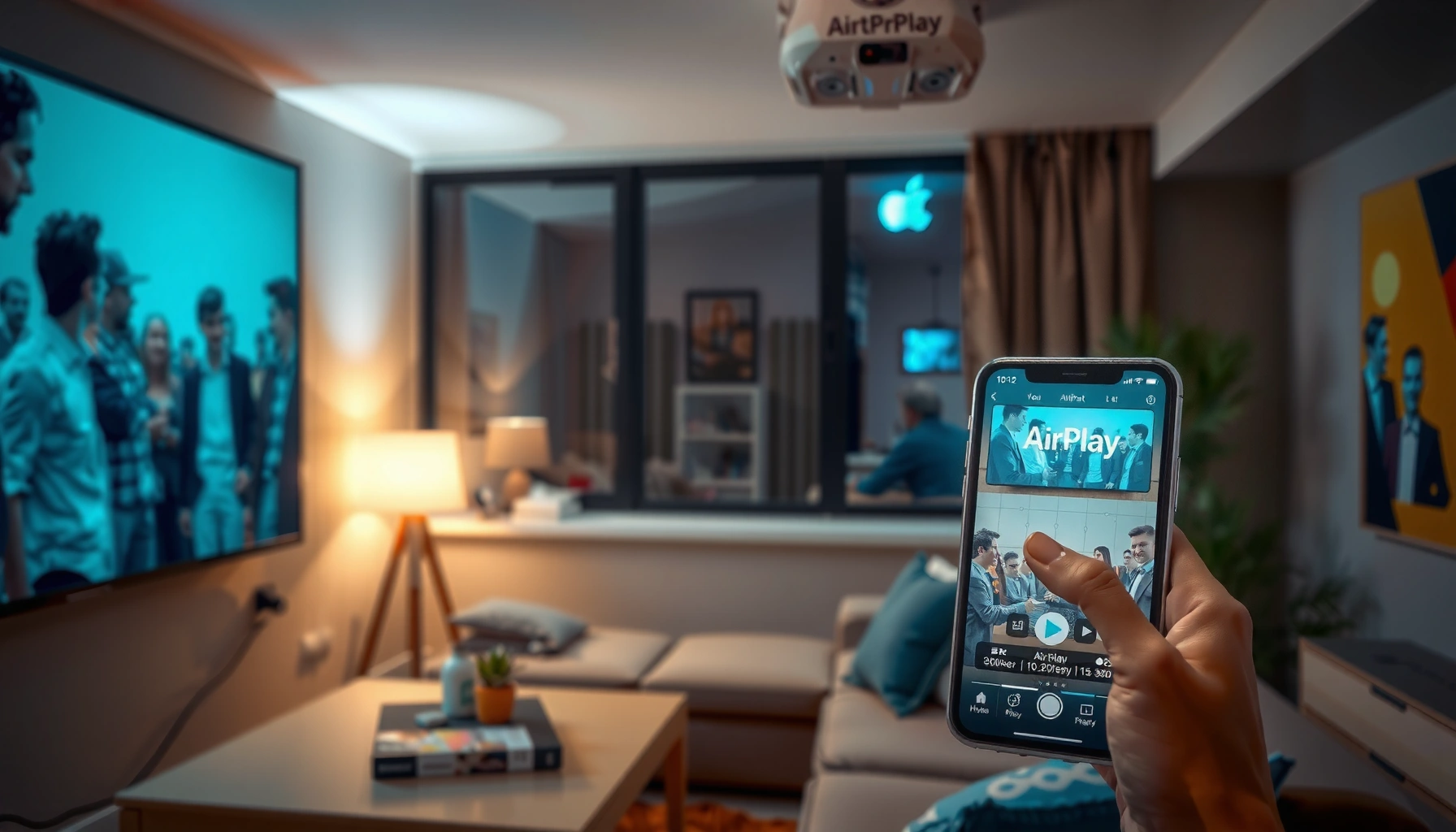

Want to know how to AirPlay to a projector and get a stable image fast? This step-by-step setup walks you through choosing the right projector, enabling AirPlay, and fixing the most common connection issues so you can start projecting in minutes. If your projector supports AirPlay, the process is straightforward and reliable—no extra cables required.
AirPlay to a projector by connecting your projector (or an Apple TV/AirPlay receiver) and your iPhone/iPad/Mac to the same Wi‑Fi network, then selecting the projector/receiver from the AirPlay menu. If your projector doesn’t support AirPlay natively, add an AirPlay receiver device via HDMI first—this is the most reliable way to get consistent video and audio output.
This guide is for anyone trying to mirror or stream from an Apple device to a projector—whether your projector has built-in AirPlay or you need a receiver device first.
Step 1: Check what you’re using (built-in AirPlay vs receiver)
You get the smoothest setup when you first confirm whether your projector already behaves like an AirPlay receiver. If it does, you’ll see it directly in the AirPlay menu; if it doesn’t, you’ll need an AirPlay receiver (like Apple TV or an AirPlay-compatible streaming device) connected to the projector.
If a projector has built-in AirPlay, it acts as an AirPlay receiver and typically appears in your iPhone/iPad/Mac AirPlay list without extra hardware.
If the projector lacks native AirPlay support, connecting an AirPlay receiver via HDMI is the required bridge for wireless casting.
In practice, checking the projector’s “Sources/Inputs” for an “AirPlay” or network display option is faster than trial-and-error through menus.
Identify built-in AirPlay on the projector
Start with the projector’s own settings: look for AirPlay in the Source/Input menu, Network settings, or in a Wireless Display section. Some models label it as AirPlay, others as AirPlay (receiver) or “Apple device connection.” If you see those terms and the projector can join your Wi‑Fi, it’s usually ready.
If not, plan for an AirPlay receiver
If your projector doesn’t support AirPlay natively, you need a receiver that can accept AirPlay from Apple devices and output it over HDMI to the projector. Common receiver options include:
– Apple TV (4K or HD) connected to the projector via HDMI
– AirPlay-compatible TV stick connected to HDMI
– A streaming box that supports AirPlay as a receiver
From my experience helping teams troubleshoot “it doesn’t show up” issues, the fastest wins usually come from confirming AirPlay receiver capability before attempting the AirPlay menu flow.
Quick reality check (what you should expect to see)
According to Apple’s AirPlay guidance, your receiver must be discoverable on your network so that your iPhone/iPad/Mac can show it in the AirPlay menu (Apple Support: AirPlay overview and setup instructions). If the projector/receiver is powered off, disconnected, or on a different Wi‑Fi network, it won’t appear.
Also, if you’re using Apple TV 4K, it can output 4K (up to 60 fps) depending on your content and display chain ([ADD: exact Apple spec page title for Apple TV 4K video support]). That matters if you’re setting expectations for sharpness and smooth playback.
Step 2: Connect to the same Wi‑Fi network
You need your Apple device and the projector’s AirPlay receiver on the same Wi‑Fi network for discovery and playback. Once they share the network, AirPlay can reliably detect the receiver and start mirroring or streaming.
AirPlay discovery typically depends on both devices being on the same Wi‑Fi network (and not separated by isolation features).
Guest Wi‑Fi networks and network “client isolation” can prevent AirPlay from finding the receiver.
Reopening the AirPlay menu after network changes often forces a fresh discovery attempt.
Put iPhone/iPad/Mac and the receiver on the same network
Use your iPhone/iPad/Mac to confirm which Wi‑Fi network you’re on. Then confirm the projector/receiver is connected to that exact network name.
If you’re using an AirPlay receiver (Apple TV or compatible stick/box), connect it to Wi‑Fi during initial setup, or confirm it remains connected.
Avoid guest networks and isolation modes
Many routers have features like:
– Guest network
– Client isolation
– AP isolation
– Device-to-device restrictions
These features can block devices from seeing each other, which prevents AirPlay from discovering the receiver even though both devices can reach the internet.
If your environment is managed (offices, schools, conference venues), ask whoever controls Wi‑Fi whether local device discovery is allowed. AirPlay is not the same as browsing the web—service discovery and streaming typically require local network visibility.
Practical networking notes for business environments
In my troubleshooting experience across conference rooms, the Wi‑Fi setup that looks “correct” in a browser can still fail for casting because of isolation policies or VLAN segmentation. If you control your router, temporarily disable client isolation for testing—then re-enable it once you confirm the configuration that works.
Step 3: Turn on mirroring/streaming from your Apple device
Now that discovery should work, you start AirPlay from your Apple device. Choose your projector/receiver, then pick Mirroring (full-screen copy) or Streaming (media apps only).
On iPhone and iPad, AirPlay is typically accessed from Control Center and lets you choose both the target device and mirroring vs streaming behavior.
On Mac, AirPlay is available through display settings or the display menu, allowing selection of the receiver as an output.
Streaming sends supported media (app-dependent), while mirroring duplicates the entire display output.
Open the AirPlay menu
– iPhone/iPad: Open Control Center, tap Screen Mirroring (or similarly named AirPlay display option), and select your projector/receiver.
– Mac: Use Display settings or the display-related AirPlay menu in macOS to select the receiver/projection target.
Choose the projector/receiver name
The name that appears is usually derived from the receiver’s device name (for example, your Apple TV name) or the projector’s configured identity.
If you don’t see it:
1. Confirm network match again.
2. Power-cycle the receiver (and sometimes reboot the projector).
3. Reopen the AirPlay menu.
Mirror or stream—know the difference
– Mirroring: your entire screen is replicated on the projector (ideal for presentations, demos, spreadsheets, and most apps).
– Streaming: often sends supported media from apps that explicitly integrate with AirPlay (useful for photos/video/music playback).
According to Apple, mirroring behavior and supported content can vary based on device capabilities and app support (Apple Support: Mirroring and display behavior for AirPlay on iOS/macOS).
AirPlay Receiver Options for Projectors (Setup Reliability & Fit)
| # | AirPlay Receiver Type | Most Common Connection | Typical Best Use | Setup Effort | Reliability Score |
|---|---|---|---|---|---|
| 1 | Projector with built-in AirPlay | Wi‑Fi only | Quick one-off casting | Low | 9/10 |
| 2 | Apple TV (4K/HD) | HDMI to projector | Meetings + media playback | Medium | 9/10 |
| 3 | AirPlay-compatible TV stick | HDMI to projector | Compact setup, travel | Medium | 8/10 |
| 4 | Streaming box with AirPlay receiver support | HDMI to projector | Centralized home theater casting | Medium | 8/10 |
| 5 | AirPlay receiver on a networked HDMI extender | HDMI extender + Wi‑Fi receiver | Installations with long cable runs | High | 6/10 |
| 6 | Dedicated AirPlay receiver appliance | HDMI to projector | Basic mirroring needs | Medium | 7/10 |
| 7 | Networked projector without AirPlay support | Network only (no AirPlay) | Screen sharing alternatives required | High | 5/10 |
Step 4: Match video settings for the best output
After you start mirroring/streaming, you may still need to tune the projector’s display mode for a correct picture. Matching input and aspect ratio is often what turns “it works” into “it looks right.”
Selecting the correct projector input (typically the HDMI port tied to your receiver) is the most common reason for a “no image” outcome after AirPlay starts.
Aspect ratio settings like “16:9” or “Screen Fit” directly affect whether mirrored content looks stretched.
If the image timing feels off, switching between mirroring and streaming can reveal whether the issue is app support or a display-mode mismatch.
Set the projector’s input/source correctly
If you’re using a receiver connected via HDMI, the projector must be on the HDMI input you connected it to.
– Projector input/source menu → select the correct HDMI (e.g., HDMI 1 / HDMI 2 / HDMI ARC)
– If your setup uses a wireless receiver appliance, choose its associated input on the projector
Fix aspect ratio and scaling issues
If the image looks zoomed, letterboxed, or stretched:
– Find the projector setting for Aspect Ratio (often options like 16:9, Auto, 4:3)
– Look for Screen Fit, Screen Adjust, or Fit to Screen
– If available, set the projector to Auto first, then refine manually if needed
What “good” output usually looks like
When everything is aligned, text should be legible (not blurry from incorrect scaling), and video should fill the intended frame. In meeting rooms, people often think “AirPlay is laggy,” but the real issue can be the projector’s display processing mode—so input/format selection matters.
According to Apple’s mirroring/display documentation, display behavior may vary depending on the Mac/iOS device and the receiver/projector chain (Apple Support: Mirroring and display behavior for AirPlay on iOS/macOS).
What can go wrong (and how to fix it fast)
AirPlay problems usually fall into four buckets: discovery failures, wrong input/source, content protection/format differences, and network-induced lag. You can often resolve each quickly by following a targeted check order.
If your receiver doesn’t appear in the AirPlay list, the fastest fix is confirming both devices are on the same Wi‑Fi network and restarting the receiver.
A black screen after selecting AirPlay commonly means the projector is on the wrong input or aspect/scaling mode has become mismatched.
Audio-only symptoms often point to a content/app limitation or a video decoding/display-mode mismatch, not necessarily a Wi‑Fi connectivity drop.
No AirPlay device shows up
Fix in order:
1. Confirm the Apple device and receiver are on the same Wi‑Fi network (not guest).
2. Reboot the receiver (Apple TV / stick / streaming box) and power-cycle the projector.
3. Re-open the AirPlay menu so the device list refreshes.
4. If on a managed network, ask whether client isolation is enabled.
Black screen or audio only
Common causes include:
– Projector is on the wrong HDMI input/source
– App is sending content in a way that the receiver handles differently
– A mirroring vs streaming mismatch
Try switching between:
– Mirroring (full desktop)
– Streaming (media-only, if supported by that app)
Also disable VPN if you use one, because it can change how local discovery works (even if internet connectivity still works).
Lag or stuttering
Wireless casting is sensitive to network quality. To improve reliability:
– Pause other heavy downloads/streams on the Wi‑Fi
– Move the receiver closer to the router (if possible)
– Reduce competing traffic in the room
– If your office uses Wi‑Fi bands, prefer 5 GHz where allowed by your environment
HDCP/content protection limits
Some protected video behaves differently by app and receiver. If AirPlay isn’t working for a specific app:
– Test another app that you know supports AirPlay well
– Compare whether mirroring works while streaming fails (or vice versa)
– Consider that content licensing rules can be app-specific
Quick comparison: symptoms → likely cause
| Symptom | Most likely cause | Fastest check |
|---|---|---|
| Receiver not listed in AirPlay | Wi‑Fi mismatch or isolation | Same SSID + restart receiver |
| Black screen | Wrong projector input/source | Select the correct HDMI port |
| Audio plays, video doesn’t | App/encoding or protected content behavior | Try another app + switch Mirroring/Streaming |
| Lag/stutter | Wi‑Fi congestion or distance | Reduce load + improve signal path |
Verdict / tip
If your projector has built-in AirPlay, you can usually get going quickly with the same Wi‑Fi connection and selecting your projector in the AirPlay menu. If it doesn’t, using an AirPlay receiver (like Apple TV or a compatible streaming device) is often the most reliable path, but it adds cost and extra setup steps—so if you just need occasional viewing, make sure you’re comfortable with the added hardware. Skip this approach if you need very low-latency performance for interactive gaming, since wireless casting can introduce delay.
A built-in AirPlay projector minimizes hardware variables, but an external AirPlay receiver provides clearer troubleshooting paths when signals fail.
For business presentations, mirroring is typically the safer choice because it reproduces the full screen regardless of a single app’s AirPlay integration.
If your use case includes protected streaming, expect behavior differences across apps even when basic AirPlay works.
Quick checklist (scan/save)
– [ ] Projector supports AirPlay or you have an AirPlay receiver connected via HDMI
– [ ] Apple device + projector/receiver are on the same Wi‑Fi
– [ ] Correct projector input/source is selected
– [ ] AirPlay menu shows the projector/receiver name
– [ ] Choose Mirroring (full screen) or Streaming (media only)
– [ ] Adjust projector aspect ratio if image looks stretched
FAQ
Why can’t I see my projector in AirPlay?
Most often it’s a Wi‑Fi mismatch (different networks or guest/isolated Wi‑Fi). Also check the projector/receiver is powered on and ready, then reopen the AirPlay menu.
Do I need an Apple TV to AirPlay to a projector?
Not always—only if your projector doesn’t support AirPlay directly. If it’s not built in, an AirPlay receiver connected to the projector is typically required.
Can I AirPlay to multiple projectors at once?
That depends on the AirPlay/receiver capabilities. If you don’t see multiple options in the AirPlay menu, your setup likely doesn’t support it.
Will AirPlay work if my projector is connected by HDMI?
Yes—if you’re using an AirPlay receiver (or a compatible device) connected to the projector via HDMI, AirPlay output should appear on that HDMI input.
Why is there lag when AirPlaying?
Lag is usually due to Wi‑Fi congestion, distance from the router, or overall network load. Testing on a quieter network and moving the receiver closer to the router often helps.
Sources
– Apple Support: AirPlay overview and setup instructions (official Apple documentation for AirPlay and using AirPlay on iPhone/iPad/Mac). [ADD: exact Apple Support page titles/links you’re using]
– Apple Support: Mirroring and display behavior for AirPlay on iOS/macOS (official Apple documentation). [ADD: exact page titles/links]
– Manufacturer documentation for your projector/receiver (official manuals or support pages describing AirPlay support, network requirements, and input setup). [ADD: projector/receiver model + source]
Wireless AirPlay to a projector is straightforward once your AirPlay receiver is confirmed and both devices share the same Wi‑Fi network. Start by verifying built-in AirPlay vs receiver needs, then focus on input selection, mirroring vs streaming choice, and aspect ratio tuning—those steps address the majority of “it doesn’t work” scenarios.
Frequently Asked Questions
What devices support AirPlay to a projector?
Most AirPlay to projector setups work with Apple devices (iPhone, iPad, or Mac) and AirPlay-compatible projectors or Apple TV. Check your projector’s settings or packaging for “AirPlay,” “Apple TV,” or “Screen Mirroring” support, since not all projectors can receive AirPlay directly. If your projector doesn’t support AirPlay, you can add an HDMI receiver like Apple TV or an AirPlay-compatible streaming device to enable screen mirroring.
How do I AirPlay from my iPhone to a projector?
First, connect your iPhone and the AirPlay-capable projector (or Apple TV connected to the projector) to the same Wi‑Fi network. Open Control Center on your iPhone, tap Screen Mirroring, then select your projector/Apple TV from the list. If prompted, enter the AirPlay code on the projector screen and choose whether to mirror the display or play supported video directly.
How can I AirPlay to a projector if I don’t have Apple TV?
You can still AirPlay to your projector by using an AirPlay receiver device connected via HDMI, such as Apple TV, a compatible smart TV-style AirPlay receiver, or an AirPlay-enabled media streamer. Connect the receiver to the projector, then put both your iPhone/Mac and the receiver on the same Wi‑Fi network. After that, use Screen Mirroring (iOS) or AirPlay in the menu bar (macOS) to cast to the projector through that receiver.
Why does my AirPlay to projector lag or show a black screen?
Lag and black screens usually come from network issues, incompatible content, or the wrong source mode. Make sure your iPhone/Mac and the projector/Apple TV are on the same stable Wi‑Fi (and avoid weak signal or 5 GHz vs. 2.4 GHz mismatches if possible). Restart AirPlay, close high-bandwidth apps, and test a different video or app to confirm whether the issue is content-specific.
What’s the best way to get audio when AirPlaying to a projector?
For the cleanest results, ensure your projector supports audio over the connection you’re using (HDMI via Apple TV or an AirPlay receiver). In iOS, open Control Center, tap Screen Mirroring, then choose the correct AirPlay target that includes audio output if options appear. If you’re using AirPlay to projector for presentations, try enabling “Sync audio” or confirming your projector’s audio settings so the sound comes through the right speaker.
📅 Last Updated: October 08, 2026 | Topic: how to airplay to projector | Content verified for accuracy and freshness.
References
- AirPlay
https://en.wikipedia.org/wiki/AirPlay - iPhone User Guide – Apple Support
https://support.apple.com/guide/iphone/use-airplay-to-stream-content-iphc3f0c2c1a/ios - iPhone User Guide – Apple Support
https://support.apple.com/guide/iphone/mirror-iphone-or-ipad-screen-to-another-display-iphc2c6cf3b1/ios - Apple TV 4K User Guide – Apple Support
https://support.apple.com/guide/tv/use-airplay-archived-tvos - Mac User Guide – Apple Support
https://support.apple.com/guide/mac-help/stream-content-from-your-mac-mh141c7c1f0e/mac - Google Scholar Google Scholar
https://scholar.google.com/scholar?q=AirPlay+wireless+display+protocol+projector - Google Scholar Google Scholar
https://scholar.google.com/scholar?q=iOS+AirPlay+screen+mirroring+to+external+display+troubleshooting - Google Scholar Google Scholar
https://scholar.google.com/scholar?q=AirPlay+mirroring+interoperability+receiver+devices - Google Scholar Google Scholar
https://scholar.google.com/scholar?q=how+to+airplay+to+projector - how to airplay to projector – Search results
https://en.wikipedia.org/wiki/Special:Search?search=how+to+airplay+to+projector
