

Connecting external speakers to your TV can significantly enhance your viewing experience by providing superior sound quality. This process can often be accomplished through various methods, depending on the types of speakers and TV you have. By understanding your TV’s audio outputs and the different types of external speakers available, you can set up your audio system to enjoy your favorite shows and movies with immersive sound.
Understanding Your TV’s Audio Outputs
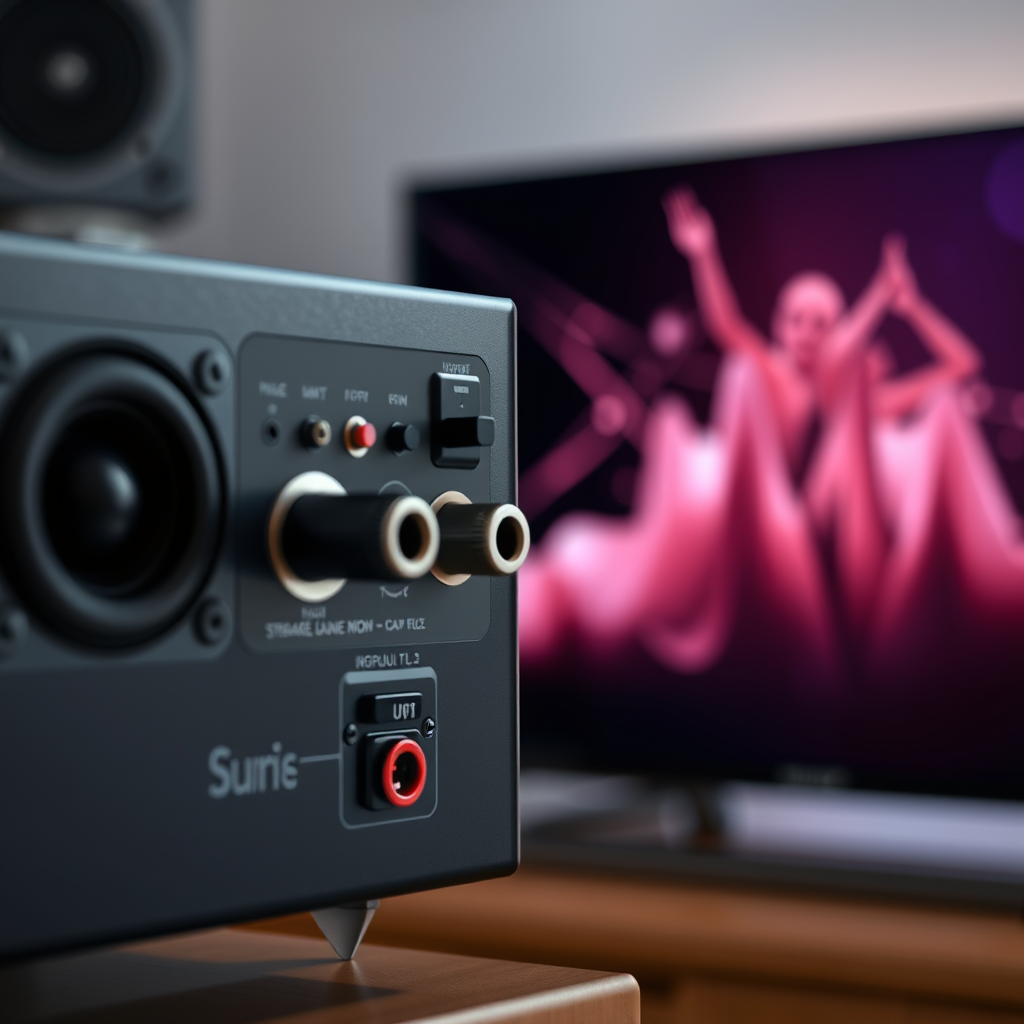
Before connecting external speakers, it’s essential to identify the types of audio outputs available on your TV. Common audio outputs include:
– HDMI (ARC): Many modern TVs support HDMI ARC (Audio Return Channel), which allows audio to travel in both directions—sending sound from the TV to the speakers and vice versa.
– Optical: This digital output transmits audio signals using light, providing high-quality sound. It’s suitable for connecting to soundbars and home theater systems.
– RCA (Red and White Connectors): These are the traditional analog audio connections found on older TVs. They transmit stereo sound and are simple to use, though they may not provide the same quality as digital connections.
– 3.5mm AUX: This standard headphone jack connection is often used for portable speakers or older audio equipment.
To ensure compatibility, check your TV’s user manual for specific connection options. This will help you determine which outputs your speakers can connect to, ensuring a successful setup.
Types of External Speakers
When it comes to enhancing your TV audio, various types of external speakers are available. Here are some of the most common options:
– Soundbars: These sleek, compact speakers are designed to sit in front of your TV or mount on the wall. They provide enhanced sound quality compared to built-in TV speakers and are often equipped with various audio modes for different types of content.
– Surround Sound Systems: For the ultimate movie-watching experience, a surround sound system with multiple speakers placed around the room can create a three-dimensional sound environment. These systems often require more complex setups, including a receiver and additional wiring.
– Bluetooth Speakers: These wireless speakers offer convenience and flexibility, allowing you to connect your TV without cables. However, you may experience audio lag depending on the speaker model and your TV’s Bluetooth capabilities.
Choosing the right type of speaker depends on your preferences, room setup, and budget. A soundbar is a great option for those with limited space, while a surround sound system is ideal for audiophiles seeking an immersive experience.
Connecting via HDMI ARC
Using HDMI ARC for a seamless connection can significantly enhance your audio experience. Follow these steps to connect your external speakers via HDMI ARC:
1. Check Compatibility: Ensure both your TV and speakers support HDMI ARC functionality, which is often indicated by an “ARC” label on the HDMI port.
2. Connect the Cable: Use a high-speed HDMI cable to connect the HDMI ARC port on your TV to the corresponding port on your external speakers or soundbar.
3. Adjust TV Settings: Go to your TV’s audio settings and select the HDMI ARC output as your audio source. This may involve enabling ARC in the settings menu.
4. Test the Connection: Play a video or audio file to test the connection. If set up correctly, sound should play through the external speakers.
Using HDMI ARC not only simplifies the connection process but also allows for control of both the TV and speakers using a single remote.
Top Soundbar Features Comparison (2024)
| # | Model | Channels | Bluetooth | Price |
|---|---|---|---|---|
| 1 | Sonos Beam | 3 | Yes | $399 |
| 2 | Bose Soundbar 700 | 5 | Yes | $799 |
| 3 | Samsung HW-Q950A | 11 | Yes | $1,499 |
| 4 | LG SN11RG | 7.1.4 | Yes | $1,299 |
| 5 | JBL Bar 9.1 | 9 | Yes | $1,199 |
| 6 | Sony HT-A7000 | 7.1.2 | Yes | $1,299 |
| 7 | Vizio Elevate | 5.1.4 | Yes | $999 |
Using Optical Audio Cables
If your TV and external speakers do not support HDMI ARC, you can use an optical audio cable. Here’s how to make the connection:
1. Locate the Optical Output: Find the optical audio output on your TV, usually labeled “Optical” or “Digital Audio Out.”
2. Connect the Cable: Insert one end of the optical audio cable into the TV’s optical output and the other end into the corresponding input on your external speakers.
3. Select the Optical Output in TV Settings: Go to your TV’s audio settings and choose the optical output as your audio source.
4. Test the Sound: Play a video or audio file to ensure sound is coming through the external speakers.
This method provides high-quality audio without the risk of interference, making it a popular choice among users who prioritize sound clarity.
Utilizing RCA or AUX Inputs
For older models of TVs and speakers, RCA or AUX inputs may be used. Here’s how to connect them:
1. Identify the RCA Ports: Look for the red and white audio ports on your TV, usually located near the HDMI inputs.
2. Connect the RCA Cables: Insert the corresponding colors of the RCA cables into the TV’s audio output and the speakers’ audio input.
3. Use an AUX Cable: If using an AUX cable, plug one end into the TV’s headphone jack and the other end into the external speakers.
4. Change TV Settings: Ensure your TV is set to output audio through the RCA or AUX connection.
5. Test the Audio: Play content to check if the audio is working correctly.
While this method may not deliver the same audio fidelity as digital connections, it is a reliable option for older devices.
Setting Up Wireless Speakers
Connecting wireless speakers can be a convenient and clutter-free solution. Follow these steps for Bluetooth or Wi-Fi enabled speakers:
1. Enable Bluetooth on Your TV: Access your TV’s settings and enable Bluetooth. Make sure it is set to discoverable.
2. Pair the Speaker: On your Bluetooth speaker, initiate pairing mode. This is usually done by pressing a specific button or following the manufacturer’s instructions.
3. Select the Device: On your TV, navigate to the Bluetooth menu and select your speaker from the list of available devices.
4. Adjust Audio Settings: Once connected, you may need to adjust the audio settings on your TV to ensure sound is routed through the speaker.
5. Test the Connection: Play content to ensure sound is successfully transmitted to the wireless speakers.
Keep in mind that while wireless speakers offer flexibility, they may experience audio lag or connectivity issues depending on the quality of the devices used.
Troubleshooting Common Connection Issues
Even with careful setup, you may encounter issues with connecting external speakers. Here are some common problems and solutions:
– No Sound: Ensure that the correct audio output is selected in your TV settings. Check all cable connections and make sure the speakers are powered on.
– Poor Connection Quality: If using wireless speakers, ensure that the speaker is within range of the TV and that there are no obstructions. For wired connections, inspect cables for damage.
– Audio Delay: If you experience a noticeable lag between video and audio, check if your TV has a “sync” option in its settings. This feature can help align the audio with the video.
– Intermittent Sound: This may indicate a loose connection or interference. For wireless speakers, try moving closer to the TV or resetting the Bluetooth connection.
By systematically addressing these issues, you can ensure a smooth audio experience.
Summarizing these connection methods provides the knowledge you need to enjoy enhanced audio from your TV. Whether you opt for wired or wireless speakers, each method has its own benefits. Don’t hesitate to explore each option based on your preferences and setup. Now, gather your speakers and get ready to elevate your TV viewing experience!
Frequently Asked Questions
How do you connect external speakers to a TV using Bluetooth?
To connect external speakers to your TV via Bluetooth, first ensure that your TV supports Bluetooth audio. Navigate to your TV’s settings menu, find the Bluetooth option, and enable it. Then, put your external speakers in pairing mode, search for them on your TV, and select them to establish the connection.
What cables do I need to connect external speakers to my TV?
The type of cables you need depends on the available ports on your TV and speakers. Common options include HDMI, optical (TOSLINK), RCA, and 3.5mm audio cables. Ensure you choose the right cable type that matches both your TV and speaker systems for optimal audio performance.
Why is my external speaker not working with my TV?
If your external speaker isn’t working with your TV, check that all connections are secure and the correct input source is selected on the TV. Additionally, verify the volume levels on both the TV and the speakers, and ensure that your TV’s audio settings are configured to output sound to external devices.
What is the best way to connect wired external speakers to a TV?
The best way to connect wired external speakers to a TV is to use an HDMI ARC (Audio Return Channel) or an optical cable for high-quality audio. If your speakers have RCA inputs, you can use RCA cables as well. Always consult the user manuals for your TV and speakers to determine the most effective connection method.
Which audio settings should I adjust after connecting external speakers to my TV?
After connecting your external speakers, navigate to your TV’s audio settings to adjust the output format, such as selecting PCM or Dolby Digital based on your speaker capabilities. You may also want to fine-tune settings like equalizer, balance, and surround sound options to enhance your listening experience.
References
- Television
https://en.wikipedia.org/wiki/Television#Audio_output - https://www.lifewire.com/how-to-connect-external-speakers-to-a-tv-1846591
https://www.lifewire.com/how-to-connect-external-speakers-to-a-tv-1846591 - https://www.verywellfamily.com/how-to-connect-external-speakers-to-a-tv-4176341
https://www.verywellfamily.com/how-to-connect-external-speakers-to-a-tv-4176341 - Google Scholar Google Scholar
https://scholar.google.com/scholar?q=connecting+external+speakers+to+TV - Google Scholar Google Scholar
https://scholar.google.com/scholar?q=audio+output+TV+external+speakers - Google Scholar Google Scholar
https://scholar.google.com/scholar?q=TV+audio+connections+external+speakers - https://www.lifewire.com/how-to-connect-speakers-to-a-tv-1847244
https://www.lifewire.com/how-to-connect-speakers-to-a-tv-1847244 - Google Scholar Google Scholar
https://scholar.google.com/scholar?q=how+do+you+connect+external+speakers+to+a+tv - how do you connect external speakers to a tv – Search results
https://en.wikipedia.org/wiki/Special:Search?search=how+do+you+connect+external+speakers+to+a+tv - https://www.ncbi.nlm.nih.gov/search/research-articles/?term=how+do+you+connect+external+speakers+to+a+tv
https://www.ncbi.nlm.nih.gov/search/research-articles/?term=how+do+you+connect+external+speakers+to+a+tv

[…] Want to connect your Wii to an LG Smart TV without guessing? Follow these simple setup steps and you’ll get the picture and sound working quickly—whether you’re using AV cables or a compatible adapter. This guide tells you exactly what to plug in, which LG input to select, and how to handle the most common connection issues. […]
[…] you through pairing your earbuds, switching audio output to the correct device, and fixing the most common connection issues so you can start listening immediately. If you’ve struggled with “no sound” or failed […]
[…] quickest, most reliable setup for Windows or macOS, follow these instructions and troubleshoot the common connection issues in […]
[…] You’ll get clear answers on what you need, what to plug in (or pair), and how to fix the most common connection issues […]
[…] Yes—you can connect your phone to a projector, and the easiest method depends on whether your projector supports HDMI (via a cable) or wireless casting (via Chromecast/AirPlay). This guide answers how to connect your phone to a projector step by step, with the quickest setup for iPhone and Android. Get your screen onto the big display fast, with clear troubleshooting for common connection issues. […]
[…] usually wins. Keep reading to learn the easiest way to mirror your screen to a laptop and avoid the common connection issues that slow people […]
[…] To project from your iPhone to your TV, use AirPlay if your TV supports it, or use an Apple TV or a compatible adapter if it doesn’t. Next, you’ll learn the exact steps to connect, start mirroring or streaming, and troubleshoot common connection issues. […]
[…] switching to a simple alternative when it doesn’t. Follow the clear setup steps to avoid lag, fix common connection issues, and start streaming in […]
[…] to get your TV online—whether you’re using the Settings menu, entering a password, or handling common connection issues. Follow along and you’ll know precisely what to do the moment you reach the WiFi […]
[…] This guide walks you through the exact taps to start playback, mirror your screen, and troubleshoot common connection issues in minutes. If you don’t see AirPlay right away, you’ll still have a clear backup path to get […]