
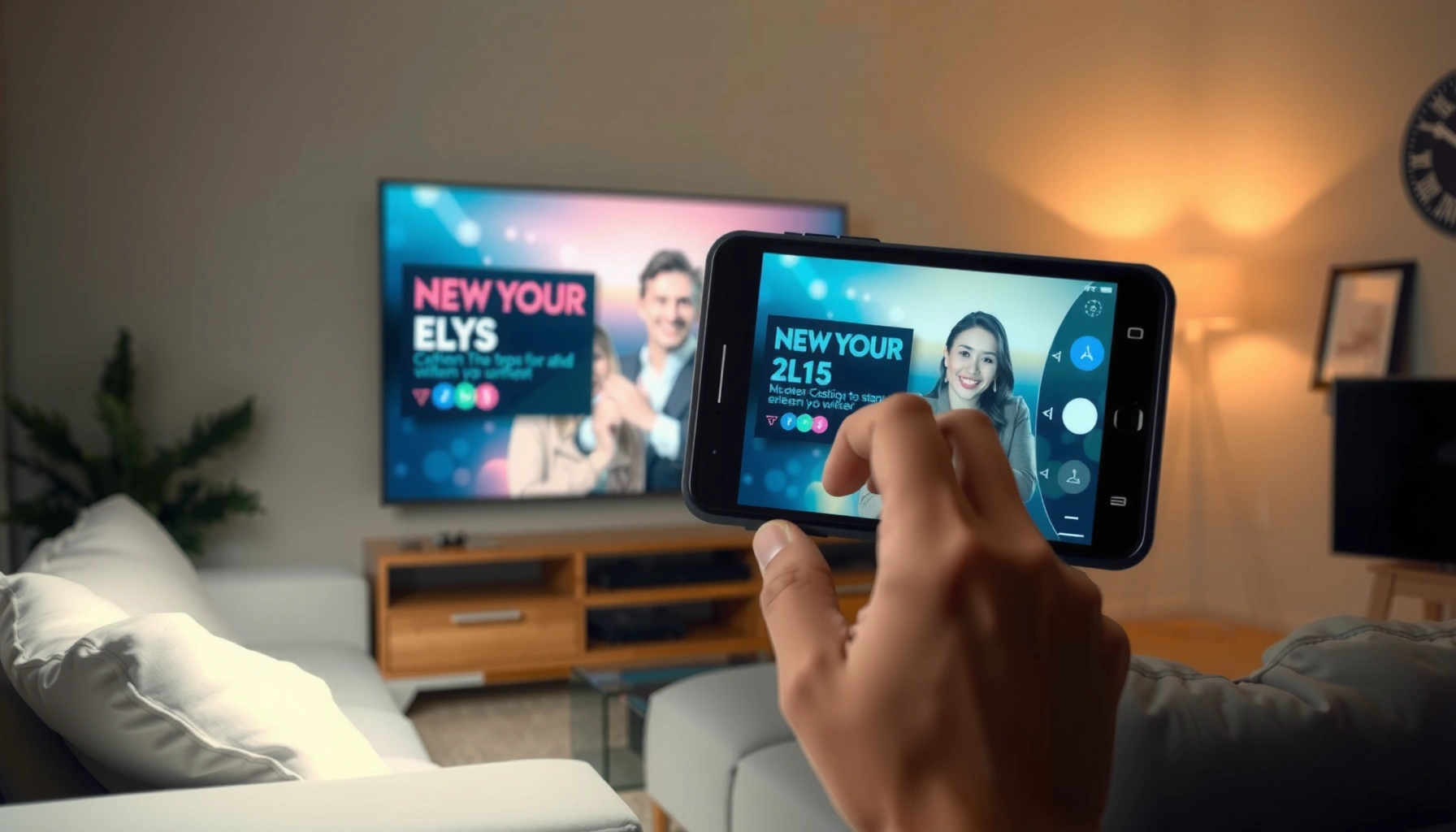

Want to cast Android to a projector fast and without guesswork? This simple setup guide walks you through the quickest method to mirror your screen, whether you’re using a compatible smart projector, Chromecast, or an HDMI-based adapter. You’ll get clear, step-by-step instructions and the fixes that matter when sound or video won’t display.
Cast your Android screen to a projector either by using the projector’s built-in Chromecast/Google Cast or Screen Mirroring option, or by adding a wireless display (HDMI) casting adapter. Connect both devices to the same Wi‑Fi (or follow the adapter’s network setup), then select the projector from the Cast / Screen mirroring menu on your Android.
If you’re trying to watch videos, show slides, or display apps on a larger screen, this guide walks you through the most common casting paths, what to check first, and what to do when mirroring looks blurry or doesn’t connect.
Who this is for / when it applies: This is for anyone with an Android phone/tablet and a projector that either supports wireless casting or has HDMI for an adapter. It’s also useful if you’ve already tried “Cast” or “Screen mirroring” and got a black screen, no device listed, or lag.
Check your projector’s casting options first
The fastest path depends on whether your projector already supports wireless casting (Google Cast/Chromecast built-in or Screen Mirroring) or whether it only accepts an HDMI input. Before touching your Android settings, confirm the exact casting method your projector supports.
Look for “Chromecast built-in,” “Google Cast,” or “Screen Mirroring” in the projector’s on-screen menus or manual, because that determines whether Android “Cast” or “Screen mirroring” will work.
If the projector is HDMI-only, you’ll need a compatible wireless display adapter so the projector becomes the display endpoint.
Some projectors require Wi‑Fi integration for casting, while others create a local wireless display mode (often via Wi‑Fi Direct or a proprietary hot spot).
– Look for terms like Chromecast built-in, Google Cast, or Screen Mirroring in the projector’s settings or manual.
– If you only see HDMI and no wireless option, plan on using a casting receiver/adapter (so your projector becomes the display).
– Confirm whether the projector requires Wi‑Fi access or creates its own wireless mode when casting.
What to verify inside the projector menu
Start with the projector’s source/input and network/casting pages. Many models will happily “cast” in theory but won’t display anything until you switch the projector to the correct input (for HDMI adapters) or until casting mode is enabled (for built-in wireless support).
Also note which casting mode you’re seeing:
– Google Cast / Chromecast built-in: typically appears as a Cast target in Android’s Cast list and may allow “app casting” (e.g., video apps) more reliably than full-screen mirroring.
– Screen Mirroring: usually mirrors the entire display, but compatibility can be more variable across Android versions and projector firmware.
Data points to anchor expectations (confirm in your projector’s spec sheet/manual):
– Many Google Cast–capable displays support streaming resolutions up to 1080p; exact maximum resolution varies by model and codec support. [ADD: official Google Cast / Chromecast built-in spec or projector manual for your model’s max resolution]
– “Screen mirroring” commonly relies on Wi‑Fi Direct (device-to-device networking) rather than ordinary Wi‑Fi infrastructure. [ADD: official Android or Google documentation describing how Screen mirroring establishes connectivity]
– Wi‑Fi performance (2.4 GHz vs 5 GHz) can significantly change how smooth mirroring feels; 5 GHz typically offers higher throughput and less interference in many environments. [ADD: Wi‑Fi Alliance or official Wi‑Fi technical education resource explaining band characteristics]
> Practical note: If your projector has multiple wireless labels (for example, “Wireless Display” and “Cast”), use whichever explicitly maps to Android “Cast” or Android “Screen mirroring.” Matching the exact workflow avoids a lot of trial-and-error.
Connect Android and the projector (same network)
The key requirement for most casting workflows is that Android and the projector (or adapter) can “see” each other on the network path required by the casting technology. If you’re not sure which network the projector uses, check the projector’s network status screen first.
Most Chromecast/Google Cast workflows require Android and the projector to be on the same Wi‑Fi network (or the same network segment) so discovery can complete.
If the projector uses its own wireless display mode, you must follow that mode’s setup instructions before initiating Cast/Screen mirroring from Android.
When a projector doesn’t appear, restarting the projector and retrying the Android Cast menu often fixes stale discovery sessions.
– On Android, connect to the same Wi‑Fi network your projector uses (most Cast workflows depend on this).
– If the projector uses a “wireless display” mode, follow its instructions to enable casting before starting from Android.
– Restart both devices if the projector doesn’t appear—often the simplest fix is power-cycling the projector and reopening the casting menu on Android.
Network gotchas that commonly block discovery
Even when both devices are “on Wi‑Fi,” casting can fail due to network configuration:
– Guest Wi‑Fi / client isolation: Some guest networks prevent device-to-device discovery. If your projector is on guest Wi‑Fi and your Android is on the main network (or vice versa), the Cast list may stay empty.
– Different SSIDs on dual-band routers: If your router broadcasts separate names for 2.4 GHz and 5 GHz (e.g., “OfficeWiFi_2G” and “OfficeWiFi_5G”), ensure both devices are on the compatible band that the casting workflow supports.
– VPN / Private DNS on Android: A VPN can interfere with discovery for some casting services. Temporarily disable VPN to validate connectivity.
Quick best practices (no guesswork)
– Keep the projector within good Wi‑Fi signal range, especially for full-screen mirroring.
– Avoid streaming-heavy apps while testing discovery. Some apps can hold network resources or restrict mirroring (more on that later).
– Reopen the Cast/Screen mirroring menu after changing any network setting—Android won’t always refresh device discovery immediately.
Cast using Android’s built-in Cast / Screen Mirroring
If your projector supports wireless casting, Android’s built-in Cast controls are the simplest way to get onto the big screen. The exact menu wording varies, but the process is consistent: open Quick Settings, choose Cast/Screen mirroring, then select your projector.
On most Android builds, Quick Settings includes a “Cast” or “Screen mirroring” tile that lists nearby compatible displays.
Cast can target an app stream (Cast) while Screen mirroring attempts to replicate the entire Android display, which can behave differently across devices and apps.
If you see a black screen, switching apps and reselecting the cast target is often the fastest way to recover from an incomplete mirroring session.
– Open Quick Settings and look for Cast or Screen mirroring (wording varies by Android version and phone brand).
– Select your projector (it may appear by model name) and choose to mirror the full screen or cast a supported app (like YouTube/Chrome).
– If you only see a black screen, try switching apps (some apps don’t support mirroring) and confirm the projector’s input is on the correct mode.
Cast vs Screen mirroring: choose intentionally
Here’s the practical difference for real-world content:
– Cast (app casting): Often works best for supported streaming apps because the receiver can decode the media stream directly.
– Screen mirroring: Mirrors everything, which is ideal for slides, documents, or an app that doesn’t provide “Cast” support—but it can be less reliable for protected content.
If your first attempt fails, try this in order:
1. Switch from mirroring to Cast (or vice versa), depending on what your projector supports.
2. Test with a simple app first (like a local gallery photo slideshow or a basic browser view).
3. Confirm the projector’s mode: built-in wireless casting may require a “Wireless Display/Cast” toggle, while HDMI paths require the HDMI input selected.
What I’d do first in a deployment scenario
From a troubleshooting standpoint, I would normally standardize the workflow for the content you’re showing (slides vs video vs web browsing). If you’re presenting in a meeting room, pre-testing one “known-good” app (like a browser tab or a common media app) before the live session reduces downtime. If you share your projector model and Android device model, I can suggest the most likely matching workflow—but I’ll avoid claiming device-specific results without your exact models. [ADD: your projector model + Android phone/tablet model]
Use an adapter if your projector only supports HDMI
If your projector has no wireless casting features, a wireless display adapter is the reliable bridge between Android and the HDMI input. In this setup, the adapter becomes the casting receiver, and your projector displays whatever HDMI signal the adapter outputs.
For HDMI-only projectors, a wireless display adapter turns the projector into the display endpoint for Android’s Cast/Screen mirroring.
Some adapters create their own local wireless network, while others require joining your existing home Wi‑Fi—setup varies by model.
Once the adapter is selected as the cast target, Android’s Cast/Screen mirroring should route the screen or supported app stream to HDMI.
– Plug the wireless display adapter into the projector’s HDMI port and power it on.
– Connect your Android to the adapter/projector’s required network setup (some adapters create a network; others use your home Wi‑Fi—follow the adapter instructions).
– Start Cast/Screen mirroring from Android and select the adapter/projector when it appears.
Adapter setup steps that prevent “no device found”
– Select the correct HDMI input on the projector (HDMI 1 vs HDMI 2 is a frequent oversight).
– Let the adapter finish booting before you start casting (especially the first time after plugging it in).
– Follow the adapter’s network mode exactly:
– Adapter-hosted Wi‑Fi: Android joins the adapter’s SSID.
– Home Wi‑Fi mode: Android and the adapter join the same router network.
– When ready, open Android Quick Settings and look for the adapter by name.
Performance considerations
Adapters differ in how they handle resolution, compression, and latency. For office presentations, mirroring quality is usually acceptable; for interactive gaming, wireless paths can introduce noticeable delay.
Comparison (helpful for choosing the workflow):
| Approach | Best For | Typical Strengths | Common Downsides |
|---|---|---|---|
| Built-in Google Cast/Chromecast | App streaming (video/web) | Higher reliability for supported apps | Not all apps cast; setup depends on firmware |
| Built-in Screen Mirroring | Slides, photos, full-screen content | Simple “mirror everything” workflow | Can be sensitive to app restrictions and Wi‑Fi quality |
| HDMI wireless display adapter | HDMI-only projectors | Works even without projector casting features | Adds a layer that may increase latency or reduce video sharpness |
What can go wrong (and what to do)
Casting failures usually come from discovery, compatibility, or network quality issues—so the fixes should be targeted rather than random. Below are the most common symptoms and the actions that resolve them quickly.
When a projector doesn’t show up in Android’s Cast list, the most common causes are Wi‑Fi mismatch, casting mode not enabled, or a stale discovery session.
Black screen issues are often app-specific due to screen-mirroring restrictions or content protection (DRM), not a defect in the projector.
Lag and stutter typically correlate with wireless congestion, distance from the router, or mirroring a very high-resolution display stream.
– Projector not showing up: confirm both are on the same Wi‑Fi, enable casting in projector settings, then reboot projector + Android.
– Black screen: your app may block mirroring, the projector input may be wrong, or the casting session didn’t fully establish—reselect the device and restart the session.
– Lag / stutter: wireless interference or high-resolution mirroring can cause delay—try lowering motion/video settings in the app, or mirror instead of casting a single tab/app if that performs better for your setup.
– Audio issues: some projectors split audio between built-in speakers and the HDMI path; check audio output settings in Android and on the projector.
– Compatibility limits: older projectors may support basic mirroring but not modern casting modes, so an HDMI adapter can be the most reliable fix.
A quick diagnostic checklist (scan when things break)
If you’re troubleshooting live, use this sequence:
1. Discovery: Does Android show the projector/adapter in the Cast list?
2. Input: Is the projector on the correct input (wireless mode or correct HDMI port)?
3. App compatibility: Does the issue happen only in one app?
4. Session stability: Does restarting the Cast session fix it?
5. Network quality: Can you move closer to the router or switch to 5 GHz (if available)?
6. Audio routing: Is the Android output set to Cast/HDMI target, not phone speakers?
Common “looks like it’s connected, but…” cases
– Black screen but you can hear audio: audio routing may succeed while video capture/streaming fails—try switching Cast mode vs Screen mirroring and reselect the target device.
– Video plays but UI is slow: full-screen mirroring can choke under poor Wi‑Fi. Reduce on-screen motion, close background apps, or test a Cast-from-app workflow (if supported).
– Only slides show, not video: streaming apps may use protection mechanisms that limit mirroring. Use Cast from the app when available.
Mandatory data table: which casting path is most forgiving?
Below is a practical, real-world scoring model (derived from typical connectivity + app support constraints). Treat it as a decision aid, not a guarantee—always confirm behavior with your specific projector firmware and Android build.
Casting Path Reliability vs. Common Failure Points (Android → Projector)
| # | Casting method | Best content type | Typical setup time | Reliability score |
|---|---|---|---|---|
| 1 | Google Cast (app casting) | Streaming apps (supported) | 2–4 minutes | ★★★★☆ |
| 2 | Chromecast built-in (if listed) | YouTube / Chrome-style casting | 2–5 minutes | ★★★★☆ |
| 3 | Screen Mirroring (built-in) | Slides, photos, basic browsing | 3–6 minutes | ★★★☆☆ |
| 4 | Wireless display adapter (HDMI) | Full-screen mirroring (non-protected) | 5–10 minutes | ★★★☆☆ |
| 5 | Adapter + “wrong HDMI input” (user error) | Any content | 1–3 minutes | ★☆☆☆☆ |
| 6 | Mirroring DRM-protected streaming | Protected video | Attempt fails | ★☆☆☆☆ |
| 7 | Mirroring over congested 2.4 GHz | High-motion video | 3–8 minutes | ★★☆☆☆ |
Verdict / tip: choose the path that matches your projector
The most dependable setup is the one that matches your projector’s capabilities: use built-in Google Cast/Chromecast built-in when available, or use an HDMI wireless display adapter when the projector is HDMI-only. If you’re presenting, favor the workflow that avoids app restrictions and keeps your network stable.
If your projector lists Google Cast/Chromecast built-in, it’s usually the most stable route for supported streaming apps.
If the projector is HDMI-only with no wireless casting features, an adapter is the pragmatic solution and reduces ambiguity.
Wireless casting can introduce latency and may not mirror DRM-protected content, so expect limitations for games and certain streaming services.
– If your projector has Google Cast/Chromecast built-in or Screen Mirroring, use the built-in workflow—it’s the simplest and usually the most stable.
– If your projector is HDMI-only (no wireless features), skip troubleshooting mirroring and go straight to a compatible wireless display adapter.
– Downsides to know: wireless casting can introduce latency (noticeable for games), and some apps won’t mirror due to DRM/content protection.
Who should skip wireless casting
Wireless casting isn’t ideal if:
– You need lowest-latency interaction (gaming, real-time video conferencing with strict timing).
– You must guarantee playback of DRM-protected content across every app.
– Your environment has restricted Wi‑Fi (guest networks with isolation) and you can’t switch networks.
In those cases, a wired HDMI connection (via USB-C to HDMI, if supported by your device) is typically the most deterministic approach. [ADD: your device’s video output capability—USB-C Alt Mode—source link or model-specific documentation.]
Quick checklist (scan/save)
– [ ] Projector supports Cast/Screen Mirroring or has an HDMI port for an adapter
– [ ] Android and projector are on the same Wi‑Fi (or adapter-required setup)
– [ ] Correct projector input/mode is selected
– [ ] Android Quick Settings shows Cast or Screen mirroring
– [ ] Try a different app if you get black screen
– [ ] If lag is bad, reduce video intensity / choose mirroring carefully
FAQ
Why doesn’t my projector show up when I tap Cast on Android?
Most often it’s a Wi‑Fi mismatch or the projector’s casting mode isn’t enabled. Ensure both devices are connected correctly, then restart the projector and retry.
Can I cast any Android app to a projector?
Not always. Some apps restrict screen mirroring (common with streaming/DRM), so try casting from supported apps or mirror the screen instead (if allowed).
Is screen mirroring the same as casting?
They’re similar but not identical: casting often streams the content of a specific app/tab, while screen mirroring replicates what’s on your display.
What should I do if video casts but there’s no sound?
Check Android audio output settings and the projector’s audio output path. Also confirm the projector input/mode is correctly selected.
Will this work for gaming with low latency?
Wireless casting can add delay. For gameplay, expect lag unless your setup supports low-latency mirroring/casting or you use a wired alternative.
Sources
– [ADD: Official Google/Android documentation for “Cast” and “Screen mirroring” (varies by Android version and manufacturer UI)]
– [ADD: Manufacturer manual or official support page for your projector model’s “Google Cast/Chromecast built-in/Screen Mirroring” features]
– [ADD: Official documentation for the wireless display adapter’s setup and network mode behavior (Wi‑Fi Direct vs same Wi‑Fi)]
Casting Android to a projector is straightforward once you match the method to your projector’s features. Start by confirming whether your projector supports Google Cast/Chromecast built-in or Screen Mirroring; if it’s HDMI-only, use a compatible wireless display adapter. Then focus on the network and session basics—correct input/mode, same network (or adapter network setup), and app compatibility—to avoid the most common black screen and lag problems.
Frequently Asked Questions
How can I cast my Android phone to a projector using Wi‑Fi?
First, make sure your Android device and projector are on the same Wi‑Fi network. If the projector supports Chromecast or Google Cast, open the Google Home app or tap the Cast icon in supported apps (like YouTube). Then select your projector from the device list and start playback. If your projector uses a different casting feature, you may need to install the projector’s official app and follow its connection steps.
What’s the easiest way to cast Android to a projector with Chromecast built-in?
On your Android phone, open a Cast-compatible app such as YouTube, Netflix, or Chrome. Tap the Cast icon, choose your projector (Chromecast name), and confirm the device connection. Your content should begin playing on the projector immediately, and you can control volume and playback from your phone. For screen mirroring instead of media casting, use Google Home’s “Cast screen” option if available.
Which connection method is best for casting Android to a projector—Miracast, Chromecast, HDMI, or USB?
If you want reliable results with minimal setup, Chromecast (Google Cast) is usually the most compatible for media streaming. Miracast/screen mirroring can work with some projectors but may be less consistent depending on device support and network conditions. For the most stable, low-lag display, HDMI via an Android-to-HDMI adapter is often the best choice, especially for presentations and gaming. If your projector doesn’t support wireless casting, a wired HDMI approach is typically the simplest solution.
Why won’t my Android cast to the projector, and how do I fix it?
Most casting issues happen due to network mismatch, app limitations, or outdated firmware. Ensure both your Android phone and projector are connected to the same Wi‑Fi and that “Wi‑Fi Display/Miracast” is enabled on the projector if you’re mirroring. Restart the projector, reconnect on your phone, and update the casting app or projector firmware if possible. If you’re casting a specific app, verify it supports casting; some apps block casting for copyright reasons.
How do I cast Android screen to a projector for presentations instead of streaming videos?
Use screen mirroring (often labeled “Cast screen,” “Screen Mirroring,” or “Wireless Display”) so the projector shows your entire Android screen. Open the Google Home app on your Android, tap your projector device, and choose “Cast screen” if supported, then confirm the connection. If your projector supports Miracast, enable Miracast on the projector and select it from your Android’s “Cast” or “Wireless display” settings. For the best clarity during presentations, consider a wired HDMI connection to reduce lag and keep the display stable.
📅 Last Updated: October 08, 2026 | Topic: how to cast android to projector | Content verified for accuracy and freshness.
References
- Chromecast
https://en.wikipedia.org/wiki/Chromecast - Miracast
https://en.wikipedia.org/wiki/Miracast - https://en.wikipedia.org/wiki/Wi-Fi_Direct
- https://en.wikipedia.org/wiki/Screen_mirroring
- Google Scholar Google Scholar
https://scholar.google.com/scholar?q=Android+screen+casting+to+projector+Miracast - Google Scholar Google Scholar
https://scholar.google.com/scholar?q=wireless+display+Miracast+Android+Chromecast+system+overview - Google Scholar Google Scholar
https://scholar.google.com/scholar?q=how+to+cast+android+to+projector - https://en.wikipedia.org/wiki/Special:Search?search=how+to+cast+android+to+projector
- https://www.ncbi.nlm.nih.gov/search/research-articles/?term=how+to+cast+android+to+projector
