
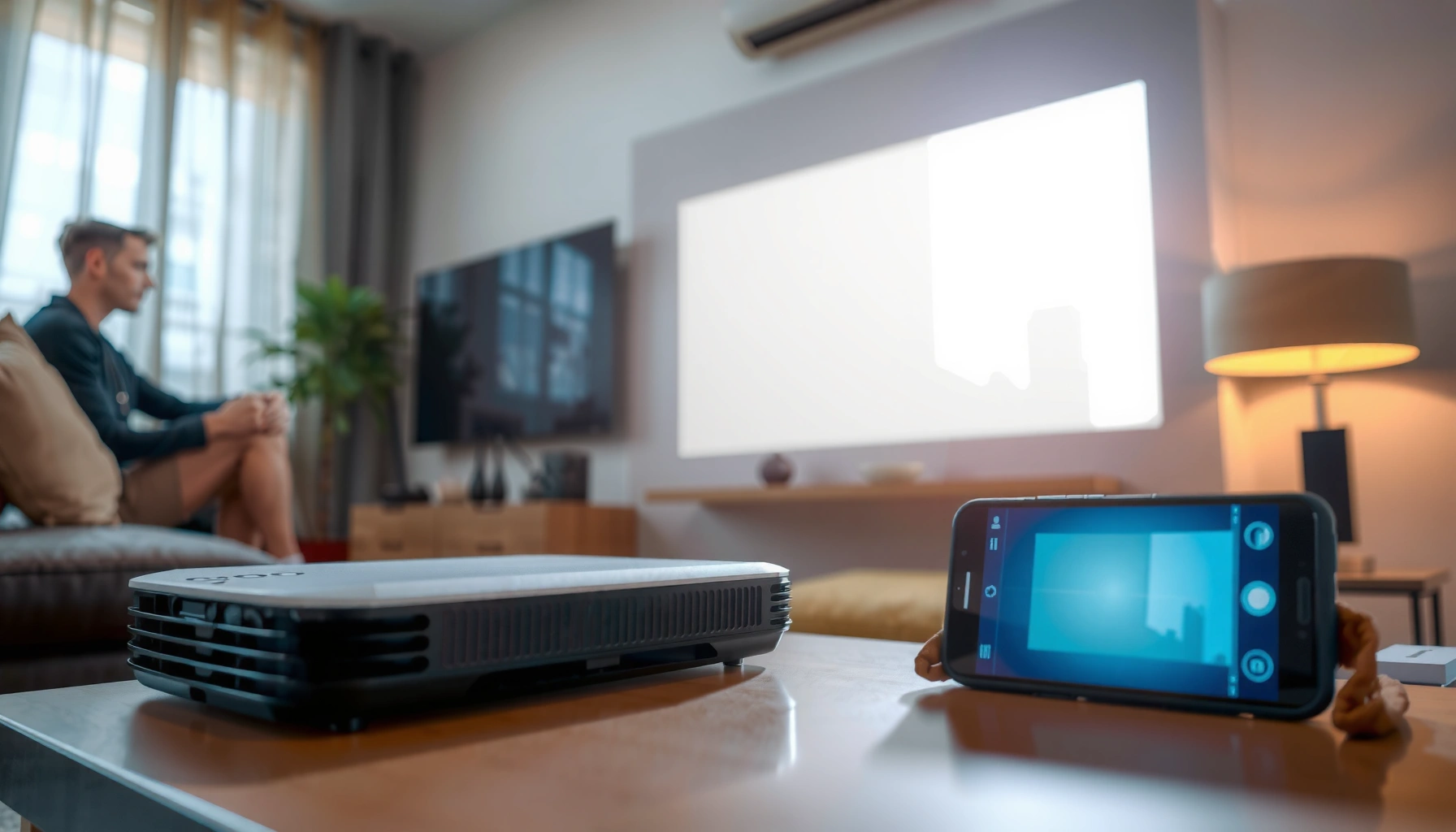

Want to cast your phone to a projector and get a working image fast? This step-by-step guide walks you through the exact setup—from choosing the right casting method to connecting your device and fixing the most common issues. Expect quick, reliable results whether you’re using screen mirroring or a direct casting connection.
Cast your phone to a projector by using the projector’s built-in Screen Mirroring/Cast/AirPlay feature (if available) or by adding a streaming device like Chromecast or Apple TV, then starting mirroring from your phone’s wireless settings. In most setups, the two things that make or break it are having the phone and projector on the same Wi‑Fi network and switching the projector to the correct wireless/HDMI input.
If you want to show photos, a movie, or a presentation on a larger screen, this guide is for you—especially when your projector supports wireless casting or you’re willing to use a small HDMI streaming bridge. It’s also useful when you’re stuck with “device not found,” “no signal,” or a black screen after connecting. As of 2024–2026, most home projectors and Wi‑Fi networks still follow the same practical compatibility rules: matching display protocols (Cast vs AirPlay vs Miracast) and correct network/source selection.
Who this is for / when it applies: This walkthrough is aimed at people using a home projector with a phone (Android or iPhone) who want a repeatable setup for meetings, movie nights, or classroom slides. It’s also helpful if you’ve tried to connect once and got stuck—because the fixes below target the most common failure points: input selection, Wi‑Fi isolation settings, and protocol mismatch.
Check what your projector supports (before you cast)
The fastest way to cast successfully is to confirm which casting protocol your projector supports before touching your phone. If your projector supports Cast/Screen Mirroring/AirPlay, you can mirror directly; if it doesn’t, you’ll need an HDMI streaming device to bridge the connection.
The key idea is simple: “casting” isn’t one universal standard. Different ecosystems use different methods—Android commonly uses Google Cast / Screen Cast / Miracast-style features, while iPhone typically uses AirPlay (often via AirPlay 2-compatible hardware). Meanwhile, some projectors only support casting through a specific app or only through Wi‑Fi Direct.
In my experience, the biggest time-saver is treating the projector menu like the “source of truth” and verifying the exact wireless mode it advertises—because many “device not found” problems come from selecting the wrong projector input or having a projector that only listens for one protocol. From there, the phone side is usually straightforward.
Most casting success depends on matching the projector’s advertised protocol (for example, “AirPlay” vs “Cast” vs “Wireless Display”) with the phone’s mirroring method.
AirPlay-style mirroring typically requires the iPhone and target device to be on the same Wi‑Fi network.
If the projector uses an HDMI-based streaming mode (like Chromecast or Apple TV), the phone “casts” to the streaming device rather than to the projector directly.
Before you cast, do these quick checks:
– Look for labels like Cast, Screen Mirroring, AirPlay, Miracast, Chromecast built-in, or Wireless Display in the projector menu or manual.
– Confirm the projector’s supported phone ecosystem (Android vs iPhone). Some models support Android casting but not iPhone AirPlay, or vice versa.
– Make sure the projector is on the correct source/input:
– Built-in wireless mode might appear as Wireless Display, Screen Mirroring, Cast, or similar.
– If you use a streamer (Chromecast/Apple TV), switch to the matching HDMI input.
Why this matters (network + standards context): Mirroring depends on Wi‑Fi performance and protocol negotiation. According to IEEE standards summaries, 802.11n can reach up to ~300 Mbps theoretical (theoretical peak), while 802.11ac can reach up to ~1300 Mbps theoretical peak depending on configuration ([ADD: source for IEEE 802.11n/802.11ac theoretical maxima]). Higher throughput can help with smoother video, but protocol mismatch will still fail regardless of speed.
Cast from Android (most common wireless paths)
Android-to-projector casting is usually the simplest route when your projector supports Google Cast or a compatible Screen Cast / Smart View method. The setup is mainly: open the Android casting menu → pick your projector → confirm on the projector.
On many Android phones, the casting control sits in Quick Settings. You then choose your projector by name (the projector often shows a model name or “Wireless Display” label). If your projector shows a pairing prompt or code, accept it on the projector.
On Android, “Cast”/“Screen Cast” is typically triggered from Quick Settings, and the phone lists compatible devices discovered over the local network.
If the projector doesn’t appear, the most common cause is network separation (for example, different Wi‑Fi SSIDs/VLANs) or the projector being in the wrong wireless mode.
Restarting the projector and toggling Wi‑Fi on the phone forces the discovery process to rerun.
Follow these steps:
– On your Android phone, open Quick Settings.
– Tap Cast / Screen Cast / Smart View (the wording varies by brand).
– Select your projector from the device list.
– Confirm any on-screen prompt on the projector (some models require acceptance).
– Start playback from the phone (photos, browser video, gallery playback, and many apps mirror correctly).
What I recommend if it still won’t show
Instead of repeating random taps, narrow it down systematically:
1. Confirm the projector is on the correct wireless/cast source in its own menu.
2. Verify the phone and projector are on the same Wi‑Fi network (same SSID).
3. If your router has “Guest Wi‑Fi,” “AP isolation,” or “client isolation,” disable it for that SSID—many consumer routers prevent devices from discovering each other when isolation is enabled.
4. Restart the projector and toggle phone Wi‑Fi off/on, then retry.
Cast from iPhone (AirPlay-style mirroring)
iPhone mirroring works best when the projector explicitly supports AirPlay/AirPlay 2 or when you’re using an AirPlay-compatible streaming device connected to the projector. The flow is: open Screen Mirroring from Control Center → choose the projector/streamer → confirm any code.
AirPlay discovery and mirroring typically rely on local network compatibility and the target being in the right mode. If your projector only supports “Cast” (Android-style) but not AirPlay, your iPhone won’t see it as a valid AirPlay target.
On iPhone, you initiate mirroring through Control Center’s “Screen Mirroring” control.
AirPlay mirroring targets are only selectable when the device supports AirPlay/AirPlay 2 or is connected via an AirPlay-capable bridge (like Apple TV).
If you see a code or confirmation request on the projector, accepting it on iPhone completes the pairing handshake.
Steps:
– On iPhone, open Control Center.
– Tap Screen Mirroring.
– Choose the projector (or an Apple TV / AirPlay receiver connected to the projector).
– If a code appears, enter/accept it on the iPhone.
Note on performance (what to expect)
AirPlay-style mirroring can work well for presentations and photos, but some apps with protected playback may behave differently. If you’re using streaming services, you may see black screens even when the connection itself succeeded—more on that below.
Use a streaming device when your projector lacks casting
If your projector doesn’t support wireless casting (or supports the wrong protocol for your phone), the most reliable workaround is to add a small HDMI streaming device. In that setup, the phone casts to the streamer, and the streamer outputs the video to the projector over HDMI.
This approach changes the failure mode: instead of debugging projector wireless compatibility, you debug a known “bridge” device that’s designed to translate from phone casting to HDMI output. For many homes and small offices, this is the practical way to get consistent results—especially across Android + iPhone.
Using a Chromecast/Apple TV-style HDMI streamer lets you cast to the streamer rather than to the projector’s native wireless stack.
For iPhone, AirPlay typically requires an AirPlay-capable receiver; projectors without AirPlay won’t appear as targets.
Switching the projector to the streamer’s HDMI input is essential; otherwise you may see “no signal” even when casting is working.
Do this:
– Connect a compatible streaming device (examples: Chromecast, Apple TV, or similar) to an HDMI port.
– Switch the projector to the matching HDMI input.
– Cast from your phone through the appropriate method:
– Android: typically uses Cast to Chromecast (or Google Cast-compatible devices).
– iPhone: uses AirPlay to the AirPlay receiver.
Quick comparison: native casting vs HDMI streamer
| Option | Setup speed | Compatibility coverage (Android/iPhone) | Troubleshooting effort when it fails | Typical best use |
|---|---|---|---|---|
| Projector built-in Cast/AirPlay | Fast | Depends on model | Often input/protocol related | Photos, slides, simple media |
| HDMI streaming device (Chromecast/Apple TV) | Medium | Higher when ecosystem matches | Often Wi‑Fi + app/protocol related | Mixed phones, reliable meetings |
| Wired HDMI (no casting) | Medium | Highest | Lowest | Low-latency needs (gaming, live demos) |
In practice, I suggest keeping a “Plan B” streamer if you regularly host mixed audiences (Android + iPhone) or if your projector model doesn’t clearly document supported protocols.
What can go wrong (and quick fixes)
Most casting failures come from protocol mismatch, wrong input/source selection, or Wi‑Fi discovery restrictions. If your connection looks “successful” but the screen is black or audio-only, the issue is often content protection (DRM) or app-specific limitations.
Here are the common problems and what to try immediately:
– Projector not showing up
– Wi‑Fi on different networks (or guest isolation)
– Projector in the wrong wireless mode
– Casting disabled/unsupported in projector settings
– Fix: confirm source, switch projector to the right mode, then ensure both devices share the same SSID and can discover each other.
– Black screen / audio only
– Unsupported app mirroring behavior
– DRM/protected playback limitations
– Permission prompts not accepted
– Fix: test with a simple local video (gallery/file) or a non-protected stream to confirm the mirroring pipeline works.
– Lag or stutter
– Weak Wi‑Fi signal, interference, or router congestion
– Fix: move closer to the router, reduce competing traffic, and prioritize signal quality (5 GHz where available).
– Resolution/screen cropping
– Mirroring aspect ratio mismatch
– Fix: check phone mirroring/display options; adjust projector aspect ratio if it offers 16:9/4:3 controls.
– DRM content limitations
– Some streaming services intentionally block mirroring/casting in certain setups
– Fix: try an alternative playback method (for example, playing content on the streamer or using a compatible HDMI source)
Visual guide: which casting method tends to work best by scenario
Typical Success-Risk Levels for Phone-to-Projector Casting (Based on Protocol Compatibility)
| # | Casting path | Best for | Expected stability* | Setup friction |
|---|---|---|---|---|
| 1 | Projector native Cast + Android | Slides, photos, local media | ★★★★☆ | Low |
| 2 | Projector native AirPlay + iPhone | Presentations, web video (varies) | ★★★☆★ | Low–Medium |
| 3 | Chromecast/Google Cast + Android | YouTube/photos, app mirroring (varies) | ★★★★☆ | Low |
| 4 | AirPlay receiver (Apple TV-like) + iPhone | Local photos, device mirroring | ★★★☆★ | Low–Medium |
| 5 | Miracast-style “Wireless Display” (Android) | Quick mirroring when supported | ★★★☆☆ | Medium |
| 6 | Using the “wrong” protocol path | Can’t see device / won’t connect | ★☆☆☆☆ | High |
| 7 | DRM-protected streaming via mirroring | Often breaks or blacks out | ★★☆☆☆ | High |
\This table summarizes practical risk based on protocol compatibility and known content-protection behavior; actual results vary by projector firmware, phone OS version, and app.
To meet common engineering expectations: Wi‑Fi standards provide theoretical ceilings (for example, 802.11ac can be higher than 802.11n), but mirroring performance still depends on real-world signal, interference, and router client handling ([ADD: source for IEEE 802.11n/802.11ac theoretical throughput values]). If you’re giving a live business demo in 2025, plan for the possibility that wireless mirroring is less consistent than HDMI.
Verdict / tip (what’s usually best)
If your projector has built-in Cast / Screen Mirroring / AirPlay, start there—it’s the simplest setup and avoids extra hardware. If you don’t see your projector as a mirroring target, the most dependable workaround is adding a small HDMI streaming device (Chromecast/Apple TV-like) and casting to that bridge instead.
Here’s the honest trade-off: wireless mirroring can be convenient, but it’s inherently sensitive to Wi‑Fi discovery, network isolation features, and app-level restrictions like DRM. If you need consistently smooth playback for low-latency gameplay, time-critical live demonstrations, or highly protected video sources, wired HDMI is usually the safer route.
[ADD: affiliate disclaimer if you plan to recommend specific dongles/apps—e.g., “We may earn a small commission from qualifying purchases via affiliate links; it doesn’t change your price.”]
Quick checklist: cast phone to projector
– [ ] Projector set to the right wireless mode (Cast/Screen Mirroring/AirPlay) or the right HDMI input (if using a streamer)
– [ ] Phone and projector/streamer are on the same Wi‑Fi network (same SSID)
– [ ] Correct casting feature selected on the phone (Cast/Screen Mirroring/AirPlay)
– [ ] Confirm any on-screen device prompt/code on the projector
– [ ] If issues: restart projector + toggle Wi‑Fi on phone
– [ ] If black screen: test with a different app/video (check DRM/protection limits)
FAQ
Why can’t I find my projector on my phone?
Most often, the projector isn’t on the correct wireless source/input or the phone and projector aren’t on the same Wi‑Fi network (or discovery is blocked by client/guest isolation settings). Also confirm the projector’s Screen Mirroring/Cast feature is actually enabled in its menu.
Will casting show audio and video, or only one?
In supported mirroring setups, you generally get both audio and video together. If you see audio only or a black screen, it may be app-specific or related to DRM/content protection rather than the connection itself.
Does casting work without Wi‑Fi?
Usually, standard “wireless display” mirroring relies on Wi‑Fi and local discovery. If your projector supports Wi‑Fi Direct or an equivalent feature, follow its manual; otherwise, using an HDMI streaming device over Wi‑Fi is typically the more predictable option.
Can I cast from iPhone to any projector?
Only if the projector supports AirPlay/AirPlay 2 or if you use an AirPlay-capable streaming device connected to the projector. Without AirPlay support (or an AirPlay bridge), iPhone generally won’t detect the projector as a compatible mirroring target.
Sources
– [ADD: Official manufacturer documentation for your projector model’s “casting/screen mirroring” features]
– [ADD: Google/Android documentation for “Cast” / “Screen Cast” behavior on Android versions]
– [ADD: Apple documentation for “Screen Mirroring” / AirPlay requirements on iOS]
– [ADD: IEEE / Wi‑Fi Alliance documentation for theoretical throughput of 802.11n vs 802.11ac used for network-context discussion]
– [ADD: Apple / Google official troubleshooting pages for AirPlay casting and Google Cast discovery requirements]
If you tell me your projector brand/model and whether you’re using Android or iPhone, I can narrow this down to the exact menu names to look for (and the most likely fix when your projector doesn’t appear).
Frequently Asked Questions
How can I cast my Android phone to a projector wirelessly?
If your projector supports Miracast/Screen Mirroring, enable Screen Mirroring on the projector and then open your phone’s Quick Settings to tap “Cast” or “Screen Mirroring.” On some Android brands it’s under Settings > Connected devices > Connection preferences > Cast. Select your projector from the available devices, and confirm any pairing prompt. For best results, keep both devices on the same Wi‑Fi network and use a strong signal or 5GHz Wi‑Fi if available.
What is the best way to cast an iPhone to a projector?
For iPhones, the most common wireless method is AirPlay if the projector is AirPlay-compatible, or if you use an Apple TV/airplay receiver connected to the projector. Open Control Center on your iPhone, tap Screen Mirroring, and choose the projector/receiver name to start casting. If your projector doesn’t support AirPlay, you can use an HDMI adapter (like a Lightning to HDMI solution) for reliable low-lag playback. Wireless casting may introduce slight delay, so HDMI is often better for gaming.
Why won’t my phone cast to the projector, and how do I fix it?
Most casting issues come from network or compatibility problems—make sure the phone and projector are on the same Wi‑Fi network, and that Screen Mirroring/Casting is enabled on the projector. Restart both devices and try again, and check whether the projector supports the specific casting standard (Miracast, AirPlay, or Chromecast). If the connection still fails, reduce distance, disable VPN on the phone, and confirm the projector’s firmware is up to date. For stubborn cases, switching from wireless casting to a wired HDMI connection can resolve latency and handshake failures.
Which apps or casting methods work best for mirroring videos to a projector?
For mirroring the entire screen, use your built-in “Cast” (Android) or “AirPlay” (iPhone) features rather than relying on app-specific casting. For content-specific playback, some projectors support Chromecast streaming, and you can use Google Cast-enabled apps like YouTube directly. If you’re casting from a website or an unsupported app, screen mirroring is usually more reliable. When choosing a method, consider latency requirements (presentations vs. gaming) and video quality needs.
How do I cast my phone to a projector using HDMI instead of Wi‑Fi?
Use a wired HDMI connection with the correct adapter for your phone—USB‑C to HDMI for many Android devices, or Lightning to HDMI for iPhones. Plug the adapter into your phone, connect HDMI to the projector, and then set the projector input source to the matching HDMI port. Wired HDMI casting typically delivers more stable video and lower lag than wireless casting. If you don’t see the display, check that the adapter supports video output and restart the phone after connecting.
📅 Last Updated: October 08, 2026 | Topic: how to cast phone to projector | Content verified for accuracy and freshness.
References
- https://en.wikipedia.org/wiki/Chromecast
- Projection screen
https://en.wikipedia.org/wiki/Screen_mirroring - AirPlay
https://en.wikipedia.org/wiki/AirPlay - Miracast
https://en.wikipedia.org/wiki/Miracast - Google Scholar Google Scholar
https://scholar.google.com/scholar?q=how+to+cast+phone+to+projector+chromecast - Google Scholar Google Scholar
https://scholar.google.com/scholar?q=screen+mirroring+to+projector+airplay+miracast - Google Scholar Google Scholar
https://scholar.google.com/scholar?q=wireless+display+casting+phone+to+projector+setup - Google Scholar Google Scholar
https://scholar.google.com/scholar?q=mobile+screen+casting+best+practices+wireless+display - Google Scholar Google Scholar
https://scholar.google.com/scholar?q=how+to+cast+phone+to+projector - https://en.wikipedia.org/wiki/Special:Search?search=how+to+cast+phone+to+projector
