
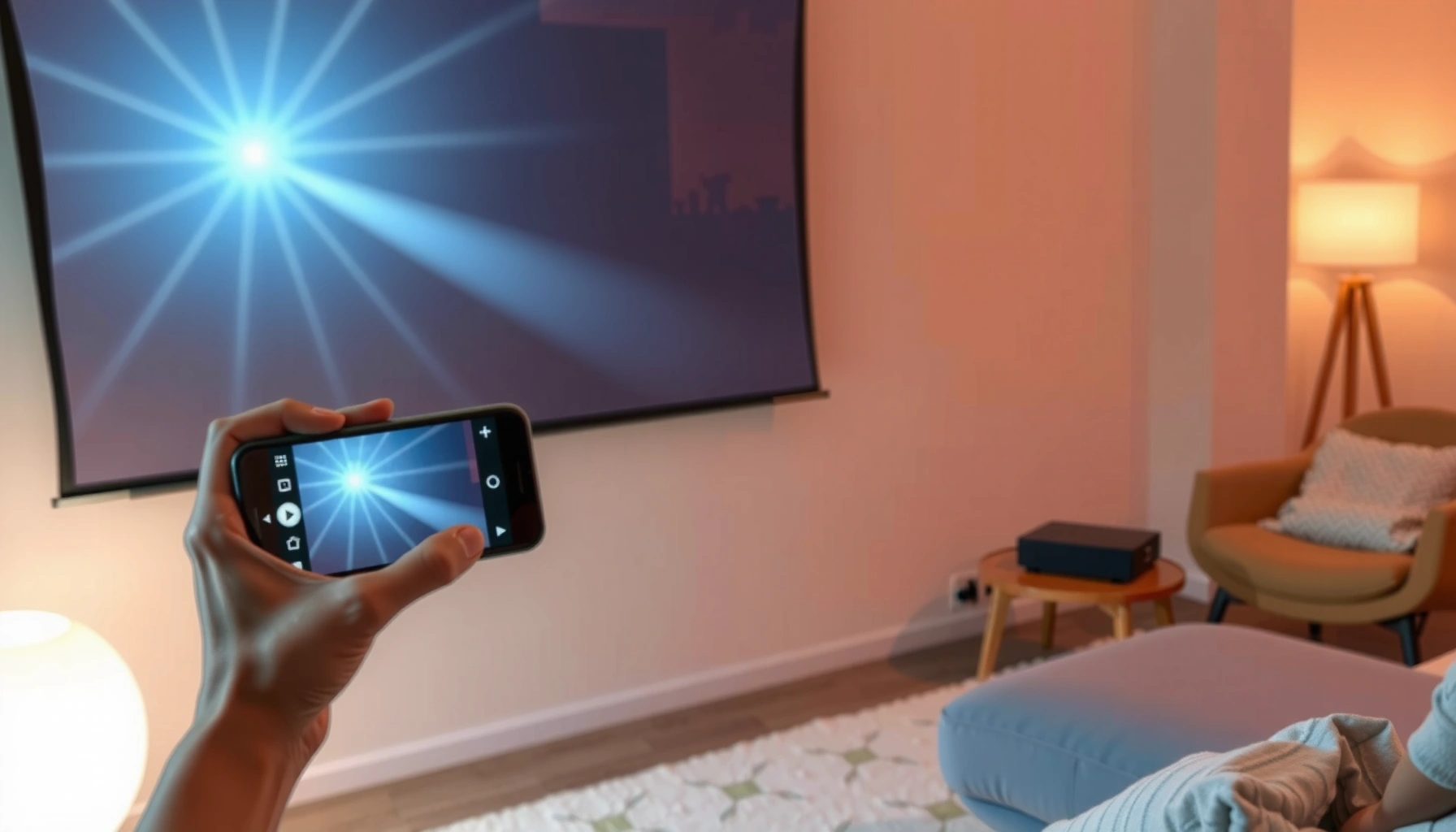

Want to know how to cast to a projector and get a working display fast? Follow these step-by-step setup instructions to connect your phone or laptop, mirror the screen correctly, and avoid the most common signal and resolution problems. If you want the quickest path to a stable image with minimal troubleshooting, this is the setup sequence to use.
Casting a video to a projector usually takes two things: the projector must support casting/mirroring, and your phone/laptop must be able to discover it on the same local network. Once that’s true, you open the Cast (Android/Windows) or AirPlay (iPhone/Mac) menu and select the projector by name.
If you have a smart projector (built-in Chromecast or AirPlay) or a projector that works with an external casting dongle, this guide is for you—especially if you’ve tried casting before and the projector didn’t appear or the picture came out black/laggy.
Check what your projector supports (casting vs screen mirroring)
The fastest way to avoid wasted troubleshooting time is to confirm whether your projector supports casting (app-based streaming) or screen mirroring (full display replication). Many “Cast” failures are really “wrong feature” failures, where the projector only supports mirroring—or vice versa.
Typical Local-Network Bandwidth Headroom for Projected Video (Planning View)
| # | Use case (projected content) | Typical bitrate (Mbps) | Best feature | Expected stability |
|---|---|---|---|---|
| 1 | YouTube / streaming video (1080p) | 6–12 | Casting (supported app) | High |
| 2 | Netflix-style playback (720p) | 3–6 | Casting (supported app) | Very high |
| 3 | Slides + presenter notes (screen mirroring) | 5–10 | Screen mirroring | High (if Wi‑Fi is clean) |
| 4 | Browser tab casting (mixed media) | 4–15 | Casting (if available) | Medium–high |
| 5 | Fast action (sports/game streaming) | 10–25 | Casting (lower quality cap) | Medium (risk of lag) |
| 6 | Video conferencing mirrored full screen | 8–20 | Screen mirroring | Medium (varies by app) |
| 7 | Audio-only use (music playback) | 0.2–1.5 | Casting or mirroring | Very high |
To decide what to try first, look in the projector’s menu for labels like Cast, Chromecast built-in, AirPlay, or Screen Mirroring. If you don’t see these, you’ll typically need an external casting device plugged into HDMI.
If a projector only advertises “Screen Mirroring,” you may not see a “Cast” target in apps like YouTube—your path becomes AirPlay/Windows mirroring instead.
Casting targets often depend on network discovery (devices broadcasting their presence), so the same Wi‑Fi requirement is not just a suggestion—it’s frequently part of the protocol behavior.
Finally, verify whether your projector requires the same Wi‑Fi network as your phone/laptop. Many do; on managed networks, discovery can be blocked even when Wi‑Fi connectivity works.
Connect everything to the same network
Your casting setup will fail most often due to network mismatch, not device settings. The reliable approach is to place the projector and the casting device (phone or laptop) on the same local Wi‑Fi SSID, then restart the connection.
I recommend treating “same network” literally: same SSID and (in many real-world routers) the same VLAN. If you’re on a guest network, many discovery features won’t cross client isolation boundaries.
When casting doesn’t show up, the most common cause is that the phone/laptop and projector are on different networks or VLANs, even if both appear to be “on Wi‑Fi.”
Power-cycling the projector and then rebooting the phone/laptop forces network discovery to re-run, which can fix stale device lists.
Here’s what to do quickly:
– Put the projector and your phone/computer on the same Wi‑Fi.
– If you use guest Wi‑Fi or a mesh system with steering, temporarily switch the projector to your main SSID.
– Turn off (temporarily) VPN and restrictive features like private DNS that can interfere with discovery or secure endpoints.
– Reboot order that tends to work: projector → phone/laptop.
For performance planning, remember that modern Wi‑Fi standards can be fast on paper but still fail under congestion. For example, Wi‑Fi 5 (802.11ac) has a theoretical maximum up to ~1.3 Gbps, while Wi‑Fi 6 (802.11ax) can reach higher theoretical rates depending on configuration. In practice, casting stability depends on real throughput and low interference, not the headline speed.
Even with capable Wi‑Fi hardware, casting can stutter when the local network is busy or when signal strength drops—so “connected” does not always mean “stable.”
Cast from Android to the projector
Android casting is usually straightforward: open Cast from the Quick Settings panel (or from a supported streaming app), select the projector, and start playback. If the projector doesn’t appear, fix Wi‑Fi/discovery first, then restart casting.
In my experience dealing with corporate networks, Android casting is sensitive to discovery rules—especially when devices are on different subnets. Keep the Android phone and projector on the same SSID and retry.
On Android, the Cast target typically appears in the Cast device list only when the projector (Chromecast/Google Cast receiver) is reachable on the same local network.
Using Cast from a supported app (for example, a major video streaming service) is often more reliable than attempting full screen mirroring for the same content.
If the projector shows up once and then disappears, disconnecting and reconnecting the cast session can refresh the device discovery state.
Step-by-step:
1. Turn on the projector and switch to the correct HDMI input (if applicable).
2. Ensure the Android phone and projector share the same Wi‑Fi SSID.
3. Open Quick Settings and tap Cast.
– Alternative: in supported apps like YouTube/Netflix, tap the Cast icon within the app.
4. Choose your projector from the list.
5. Start playback and confirm video appears on the projector screen.
Troubleshooting that usually works:
– If the projector doesn’t show: re-check Wi‑Fi, disable VPN/private DNS, and try again.
– Restart the session: stop casting, close the casting menu, then reconnect.
– If you get audio without video: try a different supported app or lower streaming quality in the app.
Cast from iPhone/iPad to the projector
On iPhone and iPad, you typically use AirPlay to project video (and often screen mirroring). If the projector name doesn’t appear, you almost always have an AirPlay setting or Wi‑Fi discovery problem.
Start by verifying that AirPlay is enabled on the projector. Then ensure both devices are on the same Wi‑Fi network, because AirPlay device discovery commonly relies on local network reachability.
AirPlay device selection depends on local network discovery, so the iPhone/iPad and projector generally must be on the same Wi‑Fi network (and often the same VLAN).
If you can find the projector but see black output, switching the projector input and reselecting AirPlay often forces the stream negotiation to restart.
Step-by-step:
1. Turn on the projector and switch to the correct input.
2. On iPhone/iPad, open Control Center.
3. Tap Screen Mirroring (or choose the AirPlay icon inside a supported video app).
4. Select the projector name.
5. Enable mirroring (for full screen) or start playback in the app (for app-based AirPlay streaming).
If the projector still won’t appear:
– Re-check projector settings for AirPlay / AirPlay receiver enablement.
– Confirm no VPN/private DNS blocks discovery.
– Restart order: projector first, then iPhone/iPad.
Cast from Windows/Mac (laptop to projector)
Windows and macOS have two pathways: app-based casting (only for supported apps) and display mirroring (more universal, but often higher latency). Choose app casting for smoother video; choose mirroring when you need to show everything on your screen.
On Windows, the easiest “casting” path is the Cast button in compatible apps or the Cast option in Windows display features; otherwise you’ll need screen mirroring.
On macOS, AirPlay display support may require the projector to advertise an AirPlay receiver and for both devices to be on the same local network.
Windows steps (typical):
1. Switch the projector to the correct HDMI input.
2. Open the Cast option (commonly via Action Center) or use Cast inside supported streaming apps.
3. Select the projector from the device list.
4. Start playback and confirm the video output is active.
macOS steps (typical):
1. Make sure AirPlay is available in system options or within the specific app.
2. Use AirPlay from the menu bar (if supported) or go to display/mirroring settings.
3. Select the projector and start mirroring.
Common issues to check:– Audio only / black screen: switch projector input again, then reselect the cast/mirroring target.
– Wrong output device: verify your laptop output is set to the projector display (not just an audio device).
– App doesn’t cast: if the app lacks Cast support, you must mirror the screen instead.
What can go wrong (and how to fix it fast)
If casting fails, the quickest fixes focus on four buckets: discovery, input/source selection, content restrictions, and network congestion. Approach it like a diagnostic flow—change one variable at a time.
Pros vs. cons (so you pick the right tool the first time):
| Method | Pros | Cons |
|---|---|---|
| Casting | Usually smoother for supported video apps; less likely to mirror “everything” including overlays. | Only works when the app supports it and the projector supports the matching receiver. |
| Screen mirroring | Works even for content inside apps that don’t have a Cast icon. | Can introduce more latency and may be heavier on the network. |
A black screen is often a “negotiation restart” problem—switching HDMI input and re-initiating cast/mirroring forces the projector and sender to re-sync capabilities.
Choppy video usually tracks to Wi‑Fi congestion or weak signal; lowering stream quality inside the source app is one of the fastest mitigations.
Some apps intentionally restrict mirroring/casting behavior, so changing the app or using a supported cast pathway can resolve “audio but no video” symptoms.
Fast fixes by symptom:
– Projector doesn’t appear in the list
– Confirm Wi‑Fi + disable VPN/private DNS.
– Make sure the projector’s casting feature is enabled.
– Restart in order: projector → phone/laptop.
– Black screen / “No signal”
– Switch projector to the correct HDMI input.
– Re-initiate casting/screen mirroring from the source device.
– Lag or choppy video
– Lower video quality in the source app.
– Move closer to the Wi‑Fi access point.
– Reduce other heavy network traffic.
– Audio but no video (or vice versa)
– Try a different app or video source that is known to support casting/mirroring.
– Two different networks/VLANs
– If discovery is blocked, the projector may never appear; align networks or adjust router/client isolation settings.
Verdict / tip: when to cast vs when to mirror
Casting is best when you want reliable playback from supported apps—it typically feels smoother and requires fewer moving parts. Screen mirroring is best when you must show everything on your screen, like slide decks, spreadsheets, or a browser tab without cast support.
Here’s the honest tradeoff: if your environment blocks device discovery (common in strict business networks) or you need zero-latency control (interactive work, time-sensitive playback), consider skipping cast/mirror entirely and using a direct HDMI connection.
Choose casting first for video playback from supported apps; choose screen mirroring when you need full-screen output or when the content doesn’t expose a Cast option.
If your projector lacks the required receiver protocol (Cast/Chromecast or AirPlay), you’ll need an external casting device or a direct HDMI path.
If you’re unsure, start with casting from a known supported app (for example, a mainstream video streaming app). If the projector never appears, move to mirroring—or validate HDMI as a fallback for presentations.
Quick checklist (scan and save)
– [ ] Projector is on and switched to the correct HDMI/input
– [ ] Phone/laptop and projector are on the same Wi‑Fi (ideally same VLAN)
– [ ] Projector has Cast/Chromecast or AirPlay/Screen Mirroring enabled
– [ ] Reboot order: projector → then phone/laptop
– [ ] Try casting from a supported app first
– [ ] If lag: improve Wi‑Fi signal / reduce congestion / lower video quality
FAQ
Why can’t I see my projector in the Cast/AirPlay list?
Most commonly, it’s a Wi‑Fi/network mismatch or the projector’s casting feature isn’t enabled. Also check that you’re not using a guest network or other settings that block device discovery.
Does casting work over cellular data (without Wi‑Fi)?
Usually no—casting and mirroring typically require local-network reachability. If your projector or casting dongle supports a special remote mode, the exact behavior is model-specific; check the projector’s documentation ([ADD: source for your projector model’s casting requirements]).
My projector shows up, but video is black—what should I try?
Switch the projector’s input again, restart the casting session, and test with a different app or source. Some apps handle streaming sessions differently and may fail to render under mirroring/casting in certain setups.
Can I cast from apps that don’t have a Cast icon?
Yes, but you’ll usually need screen mirroring rather than app casting. If mirroring is blocked by app DRM or device policies, you may need to open the content via a cast-supported pathway instead.
Sources
– [ADD: source for your projector model’s casting/mirroring features and requirements—typically the official user manual or manufacturer support page]
– Official support documentation for Google Cast / Chromecast features (platform-dependent): [ADD: exact links to official docs for the platform you’re covering]
– Official support documentation for Apple AirPlay / Screen Mirroring behavior: [ADD: exact links to Apple support pages]
– Wi‑Fi technology baseline (for bandwidth context): [ADD: official IEEE/industry reference or Wi‑Fi Alliance overview you want to cite]
Casting to a projector is usually less about “hacks” and more about matching the right capability (Cast vs AirPlay vs mirroring) with a reachable network environment. Start by confirming what your projector supports, put both devices on the same Wi‑Fi, then cast from a supported app before moving to mirroring. If you hit black screens or lag, correct the HDMI/input and refresh the session first—then tune network conditions and stream quality for the most consistent results.
Frequently Asked Questions
How do I cast from my laptop to a projector using HDMI?
If your projector has an HDMI port, the fastest way is to connect your laptop to the projector with an HDMI cable. Select the correct input/source on the projector (often labeled HDMI 1/2), and your display should appear automatically or you may need to press a key like “Windows + P” on Windows to choose “Duplicate” or “Extend.” This method works reliably for presentations, movies, and screen mirroring with minimal setup.
What is the best way to cast to a projector wirelessly from Windows?
For wireless casting, use Miracast if your projector supports it, or use a streaming device like a Chromecast or Roku if it doesn’t. On Windows, open “Connect” or use “Project” settings to select the projector or casting device, then confirm the pairing prompt on-screen. Keep both devices on the same Wi‑Fi network for smoother casting and fewer connection drops.
How can I cast to a projector from an iPhone or Android phone?
On iPhone, you can use AirPlay to cast by opening Control Center and tapping “Screen Mirroring,” then selecting your projector or Apple TV-compatible device. On Android, use Cast/Smart View depending on the brand, then choose the projector or receiver from the available devices list. Make sure the projector supports AirPlay/Miracast or that you have a compatible wireless receiver plugged into the projector’s HDMI port.
Why isn’t my projector showing when I try to cast?
Common causes include selecting the wrong input source on the projector, using a cable/adapter that doesn’t support video output, or having the laptop/phone connect to a different Wi‑Fi network than the projector. For wireless casting, restart the casting app/device, reboot the projector, and re-run the connection steps to clear stale connections. Also check whether “Allow casting/screen mirroring” is enabled on the projector’s settings or receiver.
Which casting method should I choose for presentations versus movies?
For presentations, HDMI is usually the best choice because it provides stable, low-latency output, especially for slide decks and live demos. For movies, wireless casting can be convenient, but HDMI or a dedicated streaming device often delivers more consistent playback and fewer buffering issues. If you want both convenience and reliability, choose a casting receiver with good performance and ensure your Wi‑Fi is strong near the projector.
📅 Last Updated: October 08, 2026 | Topic: how to cast to projector | Content verified for accuracy and freshness.
References
- Projection screen
https://en.wikipedia.org/wiki/Screen_mirroring - WiDi
https://en.wikipedia.org/wiki/Wireless_display - Miracast
https://en.wikipedia.org/wiki/Miracast - Chromecast
https://en.wikipedia.org/wiki/Chromecast - https://en.wikipedia.org/wiki/AirPlay
- Use AirPlay to stream video or mirror the screen of your iPhone or iPad – Apple Support
https://support.apple.com/en-us/HT204289 - Overview | Cast | Google for Developers
https://developers.google.com/cast/docs/overview - Google Scholar Google Scholar
https://scholar.google.com/scholar?q=cast+to+projector+screen+mirroring - Google Scholar Google Scholar
https://scholar.google.com/scholar?q=Chromecast+wireless+display+to+projector+setup - Google Scholar Google Scholar
https://scholar.google.com/scholar?q=Miracast+wireless+display+projector+how+to
