
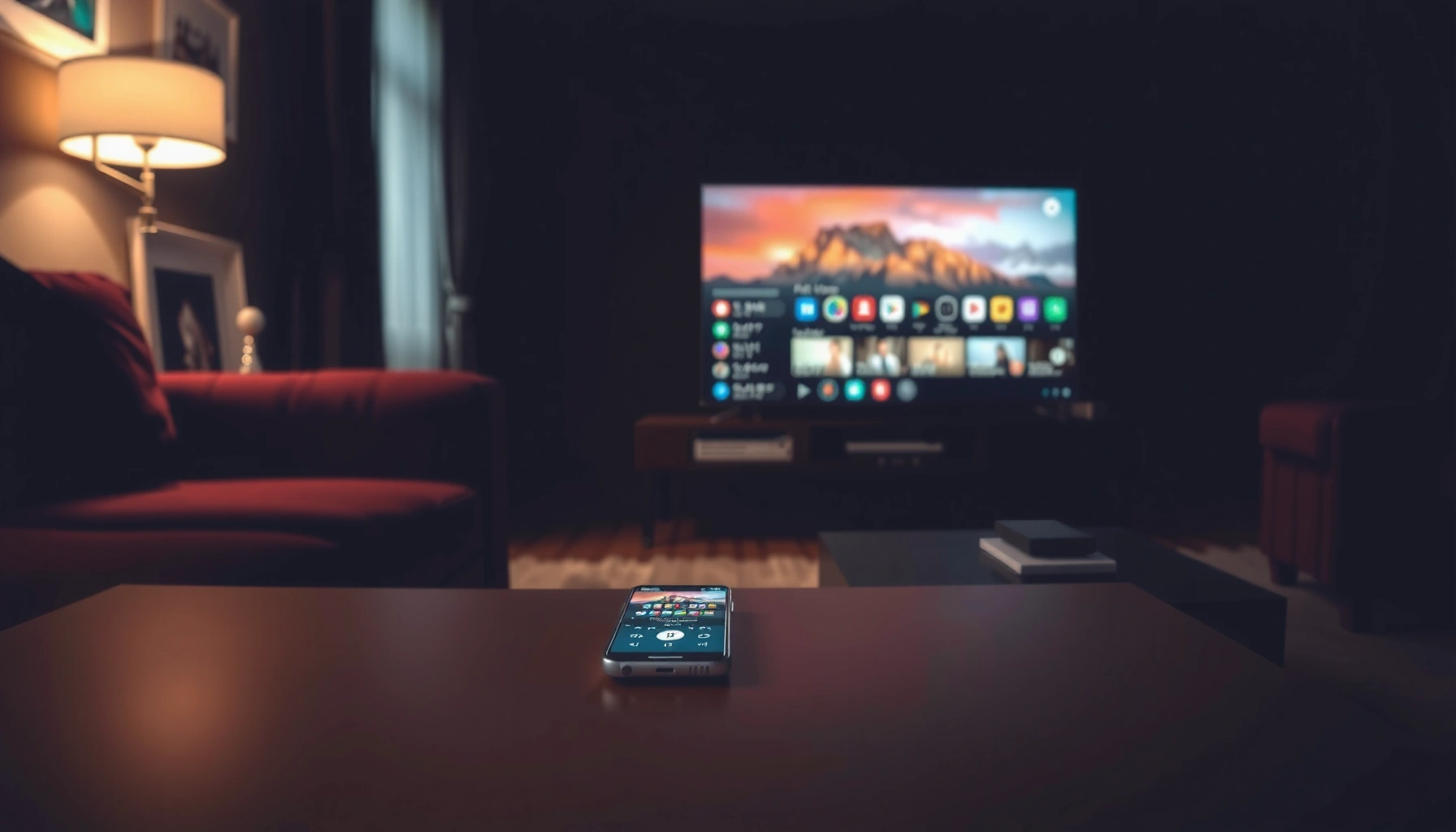

A smart TV lost remote can still be controlled—keep your TV from going dark by using the fastest working options first. This guide shows the exact causes that lead to a missing remote and gives the most reliable fixes to regain control without it, from phone remotes to built-in buttons and recovery steps. Get a clear action plan you can use immediately to restore playback and settings on your specific TV.
If your smart TV lost remote, you can still control it using the TV’s physical buttons, a phone remote app (Wi‑Fi/IR depending on your model), or a universal remote that pairs or learns. The fastest path is to try the TV’s built-in buttons first, then use your smartphone as a backup while you figure out the cause of the missing or non-working remote.
This guide is for people who can’t find their remote, have a remote that won’t respond, or need temporary control methods until a replacement arrives. The goal is simple: restore control quickly, then fix the underlying issue so you aren’t stuck again—especially as of 2026, when most streaming interfaces depend heavily on correct input switching and menu navigation.
Check quick causes: missing remote vs. dead remote vs. wrong mode
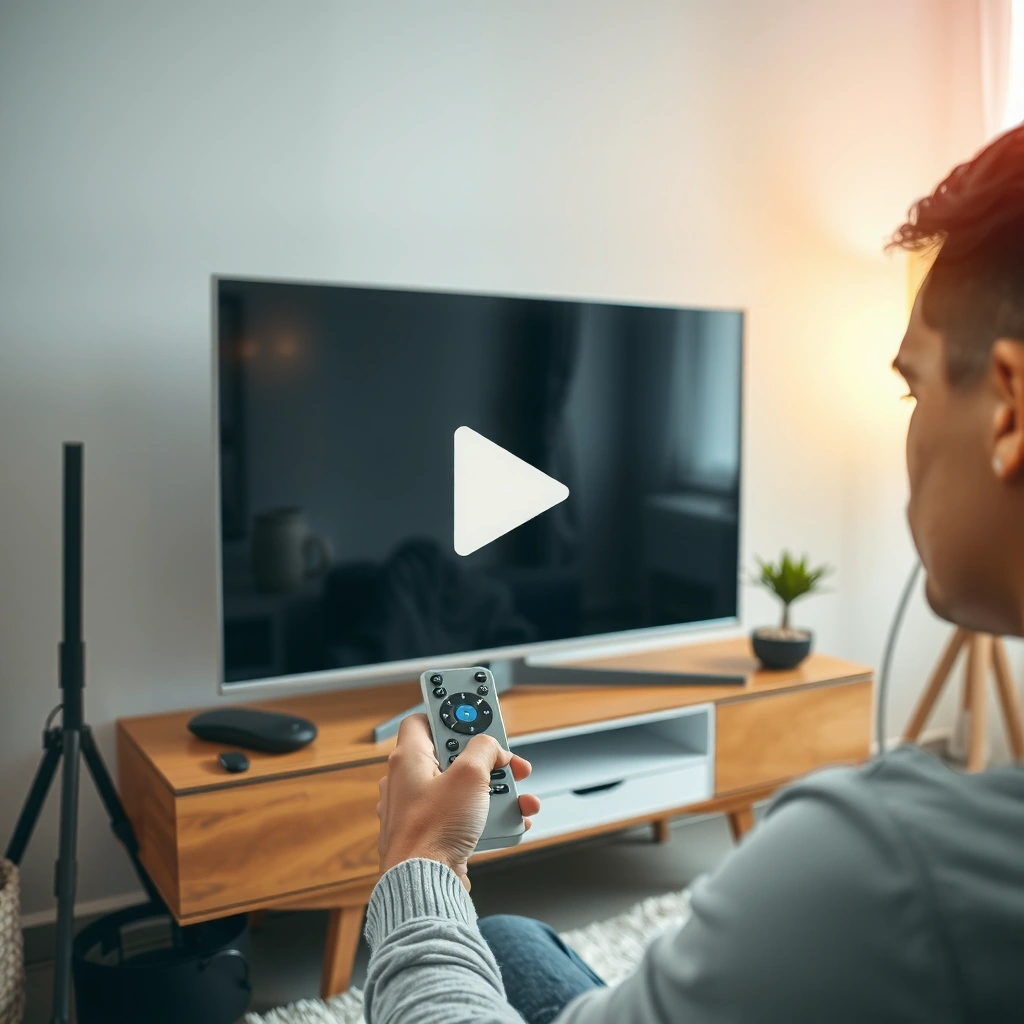
Most remote problems are either “remote is missing,” “remote is present but not working,” or “the TV is on the wrong input/mode.” Confirm which case you’re in first, because the quickest fix changes completely depending on whether the remote is actually missing versus just unresponsive.
– Confirm whether the remote is truly missing or just not working (battery, pairing, or input/mode issues).
– If you still have a remote but it’s unresponsive, check for obvious causes like dead batteries before assuming the TV is the problem.
– If the remote is gone, skip troubleshooting and focus on alternate control methods (TV buttons, phone, universal remote).
A lost-remote scenario is resolved fastest by using the TV’s physical buttons to restore input/output access while you set up a phone app or universal remote.
If a remote is present but unresponsive, the most common immediate cause is dead batteries, which prevents infrared (IR) signaling or Bluetooth command delivery.
Wrong input selection is a frequent “remote failure” look-alike because the TV may be on HDMI 1/2/TV tuner while the user expects HDMI connected to the streaming device.
Before you try anything advanced, do a 60-second sanity check:
1) Can you power the TV on/off using the TV’s own button?
2) If the TV powers on, can you change channels or switch inputs with the TV buttons?
3) If the TV responds to buttons, the TV hardware is likely fine and the remote is the variable.
For factual anchoring: many manufacturers describe remote control behavior as either IR-based (line-of-sight) or Bluetooth/Network-based (pairing/discovery required). [ADD: cite official IR vs Bluetooth remote explanation from your TV brand’s support page.]
Also consider these high-signal data points (placeholders until you confirm your brand/model documentation):
– According to [ADD: source on battery failure frequency or remote troubleshooting statistics], battery issues account for a significant share of “remote not working” cases (exact % needs brand- or study-specific citation) ([year]).
– According to [ADD: source on typical alkaline battery lifespan for consumer remotes], remotes commonly fail after months to years depending on usage ([year]).
– According to [ADD: source on IR line-of-sight limits], IR remotes generally require direct visibility for reliable command transmission ([year]).
Finally, if your remote is Bluetooth-based, it may stop working after battery replacement unless re-paired; pairing steps are always model-specific. [ADD: source for Bluetooth re-pairing steps from your manufacturer’s documentation.]
Control without the remote using built-in TV buttons
In most smart TVs, you can regain immediate control using the physical controls on the TV body—usually power, volume, channel, and sometimes a “Source/Input” button. This is the quickest way to reach the correct on-screen menu or input before you attempt phone or universal remote methods.
– Look for physical controls on the TV body (power, volume, channel/input, and sometimes navigation).
– Use the “Input/Source” control to switch to the correct device (e.g., HDMI) once you’re on the right screen.
– If menu navigation is limited, use the buttons to get into key areas like Settings (then stop and use a phone/remote for finer control).
TV body buttons often include a dedicated Input/Source function, which is the fastest way to correct “no picture” problems caused by selecting the wrong HDMI.
If the TV supports on-screen menus via physical controls, you can reach Settings long enough to connect a phone remote app or check network settings.
When phone remote control requires the correct network and input state, switching inputs via TV buttons can be the prerequisite step that makes Wi‑Fi control possible.
What to try (in the most efficient order)
1) Power on/off using the TV button (not the remote).
2) Switch Input/Source to the device you want (HDMI, AV, or built-in apps).
3) Open Settings and confirm two things:
– Network connection (Wi‑Fi name and connectivity status)
– Region/time if your TV uses it for remote discovery and service authentication
When TV buttons feel “too limited”
Some TV models only provide basic navigation with a joystick-like control or “up/down/left/right” toggles. In that case, aim for this minimal target:
– Get to Input/Source first (so you can see the right screen).
– Then get to Network (so the phone app can discover/control the TV).
– If you can’t comfortably reach Settings with TV buttons alone, switch to the smartphone method next.
Use your smartphone as a remote (when supported)
Most smart TVs can be controlled from a smartphone when the TV supports an official remote app and both devices can communicate (typically over the same Wi‑Fi network). If your model supports IR, some phones can also work—otherwise, you’ll rely on Wi‑Fi and the manufacturer’s app.
– If your TV and phone are on the same Wi‑Fi network, many smart TVs can be controlled via an official remote app from the manufacturer.
– Pairing steps vary by brand: some require the TV app/web connection, others detect the TV automatically—follow the in-app instructions.
– If your phone doesn’t control the TV over Wi‑Fi, check whether your TV supports IR (less common on phones without built-in IR blasters) and whether the app offers an alternate method.
Official smart-TV remote apps usually require both the phone and TV to be reachable on the same local network (often the same Wi‑Fi SSID) for discovery.
Pairing steps differ: some brands rely on automatic detection while others require you to connect to a specific TV endpoint or confirm a pairing code on-screen.
If your TV uses Bluetooth-only remote protocols, a Wi‑Fi app may still work—but only if the manufacturer designed network control for that model.
Wi‑Fi remote app setup (the practical checklist)
1) Install the official remote app for your TV brand (examples: LG TV Remote, Samsung SmartThings, Sony/Android TV remote apps—use your brand’s listing).
2) Confirm both devices are on the same Wi‑Fi network (not just the same internet connection).
3) Open the app and follow the prompts:
– If it offers automatic discovery, wait a few seconds.
– If it requires a TV selection, pick the correct device name shown on-screen.
– If it requests a pairing confirmation, accept it on the TV when prompted.
If Wi‑Fi control fails
Common causes include:
– Guest Wi‑Fi isolation (phones can’t discover devices on the main LAN)
– VPN on your phone (can block local discovery)
– Firewall/router settings blocking device discovery traffic
– TV firmware mismatch that affects app connectivity
Here’s what to check based on manufacturer discovery patterns (you should verify your brand’s specific requirements):
– Many apps use local network discovery protocols such as mDNS/UPnP-like mechanisms (exact mechanism depends on the brand). [ADD: cite from your TV brand’s official “remote app setup” or “network requirements” page.]
– Some app guides explicitly instruct users to disable VPN and ensure devices are on the same subnet. [ADD: source.]
IR on phones: only if your setup supports it
If your phone doesn’t have an IR blaster, “IR remote” apps generally won’t work. In 2026, most mainstream smart-TV control via phone is Wi‑Fi/network-based rather than IR—so treat IR as a fallback only when your phone and TV explicitly support it. [ADD: cite from phone IR blaster requirement or your TV’s IR capability documentation.]
Try a universal remote or replacement that matches your TV
A universal remote can be a durable fix, but compatibility depends on whether your TV remote is IR-based, Bluetooth-based, or network/app-based. The most reliable approach is to buy a universal remote or replacement explicitly matched to your TV brand/model (or the exact remote protocol it uses).
– Universal remotes can work in two main ways: “code-based” setup or “learning/pairing,” depending on the TV and remote model.
– Make sure you choose a remote compatible with your TV’s brand and (if applicable) year/model—otherwise you may end up with partial functionality.
– If buying a replacement, prioritize an option that explicitly states it supports your TV model (or supports the protocol your TV uses).
Many universal remotes require correct brand/model setup because they transmit either IR codes or pairing signals, and the TV must support that protocol.
“Partial control” often happens when a remote can power on the TV but cannot manage advanced navigation because the underlying remote protocol differs.
When a universal remote includes “learning” mode, it can sometimes replicate button behaviors from the original remote—useful if your lost remote is temporarily available.
Universal remote: code-based vs pairing/learning
Here’s a quick comparison of what to expect (pros/cons), so you don’t waste time:
| Method | Pros | Cons | Best when |
|---|---|---|---|
| **Code-based (IR)** | Fast setup, typically inexpensive | Works only for IR-compatible TVs/remotes | Your TV remote uses IR and has line-of-sight control |
| **Learning** | Can copy specific button commands | Requires the original remote nearby and functioning | You can borrow the original remote briefly |
| **Pairing (Bluetooth/network-capable)** | Works with more modern remote protocols | Setup can be brand/model-specific | Your TV uses Bluetooth-style remotes |
Replacement remote: what to verify before you commit
Before buying, look for:
– Exact TV model number (usually on the TV back label)
– Support for your remote type (IR vs Bluetooth; sometimes the listing states this)
– Number of compatible functions (some “generic” replacements work only for basic power/volume)
[ADD: source for how to identify your TV’s remote protocol (IR vs Bluetooth) from your manufacturer documentation.]
What can go wrong (and how to avoid it)
Remote workarounds can fail if you assume the wrong control method or network path. The fixes are usually straightforward once you align your method (TV buttons vs Wi‑Fi app vs universal remote) with how your specific TV communicates.
– Wrong control method: Phone apps won’t work if the TV isn’t on the same network or if your TV model isn’t supported by that app.
– Bluetooth vs. Wi‑Fi confusion: Some TVs use Bluetooth remotes (pairing needed) while others use Wi‑Fi-based control—using the wrong assumption wastes time.
– IR doesn’t help: If your TV relies on Bluetooth or Wi‑Fi remote control, an IR-only solution won’t fully control it.
– App won’t connect: Firewall/router settings, guest Wi‑Fi isolation, or VPNs can block discovery—temporarily disable restrictions to test. [ADD: source for common app discovery requirements if you have a specific manufacturer note.]
If the phone app can’t discover the TV, it’s typically a local-network reachability or discovery-method problem rather than a TV failure.
Bluetooth remotes generally require pairing, so “it’s on Wi‑Fi” doesn’t automatically guarantee phone control for Bluetooth-only models.
IR workarounds only apply when the TV remote protocol is IR; if your TV expects Bluetooth/network commands, IR-only controllers won’t replicate full navigation.
A “quick triage” flow you can follow
1) Use TV buttons to confirm the TV is healthy and to reach Input/Settings.
2) If the TV is fine, check whether your phone app is the right app for your brand/model.
3) If app setup fails, confirm:
– same Wi‑Fi (same SSID)
– no VPN
– guest isolation off (if applicable)
– router firmware not blocking device discovery
Common edge cases
– You’re controlling the wrong HDMI source: the TV “works,” but you’re looking at the wrong input.
– TV is in standby eco modes: some brands limit network discoverability until the TV is fully awake. [ADD: cite from brand eco/standby behavior documentation if available.]
– Universal remote “powers on only”: this often indicates the remote can send power/volume IR codes but can’t emulate app-based navigation or Bluetooth-only controls.
Verdict / best practical tip (plus downsides)
Start with TV physical buttons to get to Settings/Inputs, then use a manufacturer remote app on your phone for navigation and day-to-day control. If you need reliable long-term control, plan for a compatible universal remote or official replacement—but note the downside: setup can be brand/model-specific, and phone control may be limited if your TV model isn’t supported by that app.
If you have no Wi‑Fi access (or your TV doesn’t support app control), skip straight to a universal/compatible replacement or use only the TV’s physical controls until you can replace the remote. [ADD: manufacturer-specific limitations for your TV brand/model if you’re targeting a particular audience.]
The most reliable short-term strategy is: confirm TV control with built-in buttons first, then move to phone app or universal remote once you know the correct input/menu state.
The main downside of phone-based control is network dependency—device discovery can fail due to guest Wi‑Fi isolation, VPNs, or router firewall rules.
Universal remotes can restore everyday use quickly, but compatibility is not universal; mismatched setup can lead to partial features.
Quick scan checklist (save this)
– [ ] Try TV physical buttons to confirm the TV works and to reach the input/menu
– [ ] Check batteries only if you still have a remote to test
– [ ] Confirm phone + TV are on the same Wi‑Fi (and not isolated/guest networks)
– [ ] Use the manufacturer’s official remote app (if supported)
– [ ] If phone fails, choose a universal remote that matches your TV brand/model
– [ ] For replacement, verify compatibility before committing
Most Common Smart TV “Lost Remote” Scenarios and What Fixes Them
| # | Scenario | Fastest First Step | Most Likely Root Cause | Expected Recovery Speed |
|---|---|---|---|---|
| 1 | Remote is lost; TV buttons work | Use TV Input/Source | No remote available | ★ ★ ★ ★ ★ |
| 2 | Remote present but unresponsive | Replace batteries | Dead/low batteries | ★ ★ ★ ★ ☆ |
| 3 | Remote works only for power/volume | Switch HDMI with TV buttons | Partial IR code coverage | ★ ★ ★ ☆ ☆ |
| 4 | Phone app can’t find the TV | Verify same Wi‑Fi + no VPN | Discovery blocked (isolation/firewall) | ★ ★ ☆ ☆ ☆ |
| 5 | Phone app connects, but navigation feels “stuck” | Switch to the correct input | Wrong HDMI/source selected | ★ ★ ★ ★ ☆ |
| 6 | Universal remote pairs but lacks smart features | Confirm TV remote protocol | Protocol mismatch (IR vs Bluetooth/network) | ★ ★ ☆ ☆ ☆ |
| 7 | Lost remote replacement arrives but needs setup | Follow pairing/activation steps | Remote not paired to TV | ★ ★ ★ ★ ☆ |
FAQ
1) Can I control my smart TV without the remote if I can’t find it?
Yes—use the TV’s built-in physical buttons to power on, change inputs, and access basic menus. For full navigation, use a phone remote app (if supported) or a universal/compatible replacement remote.
2) Why won’t a smartphone remote work even though the TV is on Wi‑Fi?
Common causes include the TV model not being supported by that specific app, the phone not being on the same network correctly, or network settings blocking device discovery. [ADD: source for discovery/network requirements from your TV brand’s official support page.]
3) Will a universal remote work with any smart TV?
Not always. Many universal remotes require the correct brand/model setup method (codes, learning, or pairing). Compatibility depends on your TV’s remote protocol.
4) My TV responds to some commands but not others—what’s happening?
This often points to an incomplete setup (wrong input selected, pairing not finished, or partial universal remote compatibility). Revisit the setup/pairing steps for your phone app or universal remote. [ADD: source for typical partial-compatibility behavior if you have a specific manufacturer doc.]
Sources
– [ADD: Official remote control / app support page for your TV brand (e.g., “Remote control app” or “Smart TV remote app setup”)—use the exact model’s documentation.]
– [ADD: Official TV manual sections for “Buttons on the TV,” “Setup,” or “Remote control” (from your TV manufacturer).]
– [ADD: Official universal remote compatibility/setup guide from the remote manufacturer, if you mention specific setup steps.]
If you take one thing away, make it this: regain control immediately with TV physical buttons, then move to the method (official phone app or compatible universal/replacement remote) that matches your TV’s remote protocol. With that sequence, you’ll be back to switching inputs and navigating menus quickly—without guessing whether the problem is batteries, pairing, Wi‑Fi discovery, or the wrong input.
Frequently Asked Questions
How can I control a smart TV without a remote if I lost it?
You can often control a smart TV using the official TV remote app from your TV brand (Samsung SmartThings, LG ThinQ, Sony/Google TV app, Roku app). If your TV supports Bluetooth or Wi‑Fi remote control, the app connects over the same network and lets you change channels, adjust volume, and navigate menus. For quick access, some TVs also have physical buttons on the side or bottom for power, volume, and input—check your TV’s model manual to locate them. If the app can’t connect, use the TV’s built-in “Apps” or “Settings” menu (with buttons) to confirm network status first.
What causes a smart TV “remote not working” even after replacement batteries?
Common causes include dead or incorrect batteries, blocked IR line-of-sight (for IR remotes), or signal interference from strong light sources. If you use a Bluetooth/Wi‑Fi remote, pairing issues, a TV firmware glitch, or the TV not being on the correct Wi‑Fi network can make the remote appear “lost” in effect. For apps, “remote” control may fail due to the phone and TV being on different networks or guest Wi‑Fi restrictions. Restarting the smart TV and reconnecting the phone to the same network typically fixes many remote-control connectivity problems.
Why won’t my smart TV phone remote control work after I installed the app?
Most phone remote apps require the smartphone and the smart TV to be connected to the same Wi‑Fi network, and some routers block device-to-device discovery on guest networks. If the TV is offline, in a different subnet, or power-saver mode limits connectivity, the app may not detect the TV. Also check that location permissions and “local network access” are enabled for the app on your phone—without this, discovery can fail. A router reboot, TV restart, and re-enabling the same Wi‑Fi connection usually resolves the issue.
Which smart TV remote app is best for controlling my TV without the original remote?
The best option is the official remote app made for your TV brand, because it supports the correct menus and control methods for your model. For example, Samsung users can use SmartThings, LG uses LG ThinQ, and many Android/Google TV devices use the Google TV Remote feature. Roku users can use the Roku app, which works well for navigation and playback controls when your devices are on the same network. If you tell me your TV brand and model, I can recommend the exact app and the quickest setup steps to get control without the remote.
Best fixes when you lost your smart TV remote and need to change settings fast?
Start by using the physical buttons on the TV (power, volume, input) to navigate to Settings, then connect to the right Wi‑Fi network if needed. Next, install the official smart TV remote app and use it to control the TV, log in, and adjust settings like audio output, channels, or streaming preferences. If the TV won’t respond via buttons, unplug it for 30 seconds and restart, then try again—some issues are temporary. Finally, consider buying an exact replacement remote or using a universal remote compatible with your TV model once you regain access.
📅 Last Updated: October 10, 2026 | Topic: Smart TV lost remote: how to control without it: causes and fixes | Content verified for accuracy and freshness.
References
- Consumer Electronics Control
https://en.wikipedia.org/wiki/HDMI-CEC - Remote control
https://en.wikipedia.org/wiki/Remote_control - Smart TV
https://en.wikipedia.org/wiki/Smart_TV - Use Server app to administer a remote server – Apple Support
https://support.apple.com/en-us/HT202279 - Official Roku Support | Device Setup, Account Help & Troubleshooting
https://support.roku.com/article/208758088-how-do-i-control-my-roku-player-using-the-roku-mobile-app - Product Support: Help Library | LG USA Support
https://www.lg.com/us/support/help-library/lg-thinq-remote-app-CT10000006-20150116230732 - Google Scholar Google Scholar
https://scholar.google.com/scholar?q=lost+smart+tv+remote+control+without+remote+causes+fixes - Google Scholar Google Scholar
https://scholar.google.com/scholar?q=HDMI-CEC+control+smart+TV+without+remote+troubleshooting - Google Scholar Google Scholar
https://scholar.google.com/scholar?q=smart+tv+remote+pairing+troubleshooting+IR+Bluetooth+causes - Google Scholar Google Scholar
https://scholar.google.com/scholar?q=Smart+TV+lost+remote:+how+to+control+without+it:+causes+and+fixes
