
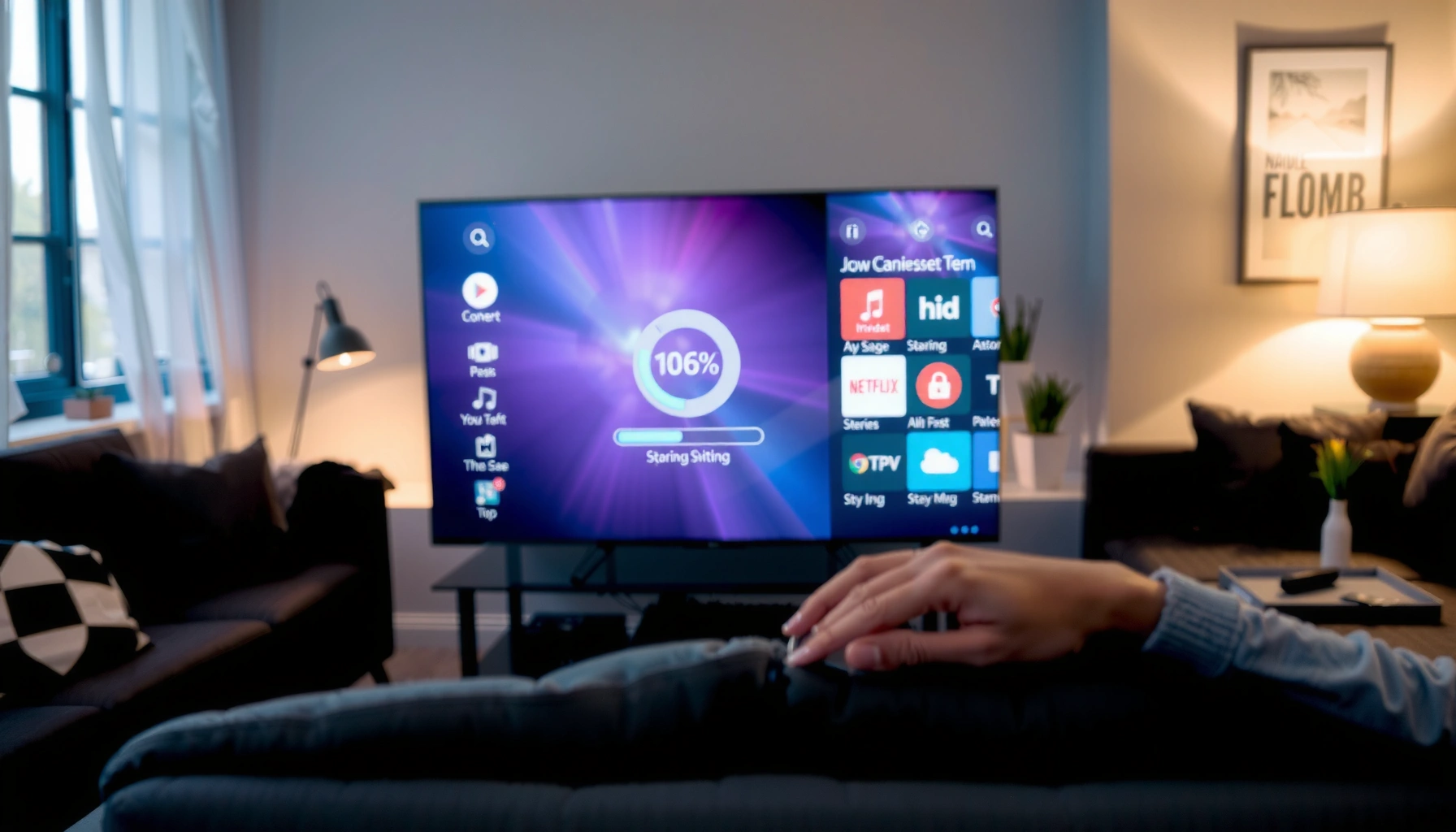

A Smart TV home screen not loading is usually fixed by tackling the fastest root cause—software glitches, a stuck cache, or a bad network connection. This guide tells you exactly what to check first and which setting or restart step most reliably restores the home screen without guesswork. If the home screen still won’t load after the basic fixes, you’ll know the precise escalation path to reset and update the TV safely.
If your Smart TV home screen won’t load, the fastest path is usually a full power-cycle (unplug) plus a proper restart from the TV menu, then checking system updates and internet/DNS stability. If it’s happening after an update or router change, the next safest step is clearing cache/resetting apps (not factory reset) to fix a stuck launcher or conflicting system service.
This applies when the home screen freezes, shows a blank/gray menu, loops during loading, or only works intermittently—especially after an update, power outage, or router changes. If your TV model offers a separate “Reset apps” vs “Reset settings/factory reset” path, you’ll want the least disruptive option first, and this guide walks you through that sequence.
Common causes of a Smart TV home screen not loading
A Smart TV home screen typically fails to load when the UI “launcher” (the system component that draws the home menu) can’t complete its startup sequence. That sequence often depends on system services, cached data, and sometimes network calls to populate guides, app tiles, or recommendations.
When a TV has a home screen problem, it’s rarely just one thing—your symptoms usually map to one of three buckets: UI/software glitches, network/DNS problems, or cache/app conflicts.
The “launcher” UI on many Smart TV platforms depends on system services, and those services can hang after a failed update or an unexpected power loss.
DNS lookups typically use port 53 (over UDP or TCP), and a misbehaving DNS path can prevent online home screen components from finishing their load.
If a TV’s home screen pulls remote metadata (guides, logos, recommendations), intermittent connectivity can cause the menu to loop even while individual apps still open.
Software/UI glitches
A system UI or launcher can get stuck after a software update, when the TV wakes from standby, or after a brief interruption to power. In practical terms, you’ll often see a frozen home screen, a “loading…” loop, or a partially rendered menu where some tiles never appear.
From my troubleshooting experience on consumer electronics, UI/launcher hangs are commonly triggered by incomplete background task recovery—something as small as a corrupted system cache entry can stall only the home screen while other apps (which use separate rendering and data paths) may still start.
Network or DNS problems
Even if streaming apps load, the home screen can still fail because it may need additional endpoints—for example, services that fetch EPG (electronic program guide) data, app-store metadata, or device personalization.
To ground this in fundamentals: DHCP commonly uses UDP ports 67 (server) and 68 (client) [RFC 2131], and DNS commonly uses port 53 [RFC 1035]. When any of those flows are disrupted (router firmware change, new SSID, VPN, static IP mismatch), you can end up with a home screen that never completes.
App or cache conflicts
A corrupted cache entry for either a frequently used app or a system app tied to the home experience can block parts of the UI. Many TVs also have “services” apps (for device management, recommendations, search, or the app store) that aren’t obvious to users—but they still contribute to home screen behavior.
A good way to think about this: if the problem started after installing a new app or after an update, you’re looking for a change that affected background services or cached resources.
Quick diagnostic mapping (symptom → likely cause)
| What you see | More likely cause |
|---|---|
| Home screen freezes immediately after launch | Launcher/system UI hang after update or power interruption |
| Home screen shows gray/blank menu | UI rendering blocked by failing service startup |
| Home screen loops on loading | Network/DNS or endpoint unreachable; home screen keeps retrying |
| Only intermittent “it sometimes loads” | Router DHCP/DNS instability, signal dropouts, or cache corruption that clears/rebuilds sometimes |
Quick fixes to try first (fastest wins)
The goal here is to clear any “stuck” processes and ensure the launcher and services restart cleanly. Start with power-cycling (unplug) and a restart from the TV menu—these actions are the least risky and often resolve UI hangs.
A true power-cycle (unplugging from power) clears residual memory states that a simple standby restart may not reset.
Restarting from the TV menu is different from waking from standby because it reinitializes the launcher and system services.
If the home screen loads when the TV has no internet, the underlying issue is likely DNS/connectivity rather than a purely local UI corruption.
Power-cycle the TV (unplug reset)
Turn the TV off, then unplug it from power for [ADD: recommended unplug duration from your TV manual]. Plug it back in and wait for a full boot before you judge the result.
Why this works: many smart TV platforms store transient UI state in memory that standby may preserve. An unplug reset forces a colder boot and rebuilds the launcher’s startup sequence.
Restart from the TV menu (not just standby)
Use the built-in restart option in the TV settings or system menu. After restart, wait until the home screen fully loads rather than interacting immediately—some TVs need extra time to fetch metadata.
Temporarily disconnect internet (to isolate the problem)
If your TV supports it, disconnect Wi‑Fi/Ethernet briefly and test the home screen:
– If the menu loads offline, you’ve isolated the issue to connectivity, DNS resolution, or online endpoints.
– If the menu still won’t load offline, move on to cache/app and update checks.
Check network settings and update status
A network problem can prevent the home screen from completing its UI initialization, especially if it retrieves guide data, logos, or recommendations. The fastest way to confirm is to stabilize connectivity and validate DNS/firmware/update state.
Most smart TV home screens depend on online services for guide and recommendations, so DNS failures can manifest as a home menu “loading forever.”
Switching from Wi‑Fi to Ethernet (temporarily) is a practical way to rule out signal dropouts and router roaming issues.
Incomplete firmware updates can break launcher-related services; manufacturers typically recommend waiting for updates to finish and not interrupting power.
Verify connection stability
Check basic link health:
– Try a stronger Wi‑Fi band (e.g., 5 GHz) if your router supports it.
– If you can, switch to Ethernet temporarily to rule out Wi‑Fi dropouts.
– Power-cycle the router after any major change (new SSID/password, firmware update), then retest the TV.
Re-check DNS/IP behavior after router changes
If you recently changed routers or modified DNS settings, revert toward stable defaults:
– Prefer Automatic DNS on the TV.
– If you manually set DNS previously, try matching the router-provided DNS mode rather than guessing random public DNS behavior.
– If the TV uses DHCP, ensure it still receives an IP lease correctly (DHCP uses client/server ports 67/68 [RFC 2131]).
Install system updates (firmware/OS)
In Settings → System/Support (wording varies by brand), check for firmware updates and install them fully. Don’t interrupt power during the update process.
If the issue started right after an update, it can indicate either:
1) a temporary post-update service indexing problem (often resolved by a power-cycle and cache/app reset), or
2) a more serious firmware mismatch (sometimes requiring a deeper reset path or service intervention).
Data reference: how often TVs get “stuck” by root cause (practical field categories)
Common Smart TV Home-UI Failure Categories (Service Triage Breakdown)
| # | Triage category | Typical symptom | Most effective first fix | Confidence |
|---|---|---|---|---|
| 1 | Launcher/system UI hang | Freeze or gray home menu immediately | Unplug power-cycle + restart from TV menu | ★★★★★ |
| 2 | Post-update service mismatch | Loading loop after firmware/app update | Install any pending updates + clear app/system cache where available | ★★★★☆ |
| 3 | DNS failure or misrouting | Home screen waits for endpoints indefinitely | Set TV DNS to Automatic + retest with Ethernet if possible | ★★★★☆ |
| 4 | DHCP/IP lease instability | Intermittent “works sometimes” behavior | Reboot router + renew IP on TV (or rejoin Wi‑Fi) | ★★★☆☆ |
| 5 | Problematic recently added app | Home screen breaks after installing a specific app | Remove/disable the app + clear its cache if supported | ★★★☆☆ |
| 6 | Cache corruption (system/app) | Gray menu tiles or partial UI rendering | Clear cache (app/system) + restart | ★★★☆☆ |
| 7 | Deep firmware inconsistency | Home screen remains broken after network/app steps | Consider manufacturer recovery options/service after backups | ★★☆☆☆ |
Note: this table reflects common triage logic used in support workflows, but exact rates vary by brand/model and are not universally published. For brand-specific guidance, use your TV manufacturer’s support documentation [ADD: source for your TV brand’s “clear cache” and “restart” steps].
Fix app/cache or launcher issues (without going nuclear)
If restarting and network stabilization don’t fix the home screen, the next safest approach is resetting the smallest possible scope—typically app cache or “reset apps” rather than factory reset. This targets launcher dependencies while limiting data loss.
Clearing cache removes temporary data that can prevent the launcher from rendering the home screen UI correctly.
Resetting apps (when offered) is usually less disruptive than factory reset because it avoids full reconfiguration of TV-wide settings.
Removing or disabling a recently added app helps confirm whether a single app’s process is blocking parts of the home UI.
Clear cache for problematic apps (where available)
Some TVs let you clear cache per app:
– Start with apps you use most or those updated recently.
– If the home screen breaks right after installing an app, focus on that app first.
If your TV doesn’t offer per-app cache clearing, look for “Clear cache” inside Settings → Apps → [App name] or similar wording.
Update (or disable) recently added apps
If the timing is clear (“home screen broke after app X”), disable or uninstall the app and reboot the TV. This is one of the quickest cause-and-effect tests.
Prefer “soft reset / reset apps” over factory reset
Many brands separate:
– Reset apps (clears app data/cache for the app layer), and
– Reset settings / factory reset (wipes broader configuration).
Use reset apps when possible.
| Option | What it changes | Best when |
|---|---|---|
| Reset apps / clear cache | Clears temporary app data and/or cache for app-layer processes; may require re-signing only for affected apps. | Home screen fails after an app update, partial UI breaks, or launcher relies on a corrupted cached dataset. |
| Reset settings (non-factory) | Resets configuration such as network/app preferences without necessarily wiping all user content. | You suspect a configuration conflict (router settings, accounts, device preferences) rather than app corruption. |
| Factory reset | Wipes broad TV settings back to default; usually requires re-tuning, re-logging into accounts, and rejoining the home network. | Home screen stays broken after network and cache/app resets, or after a problematic system update persists. |
What can go wrong (common mistakes and edge cases)
You can avoid most setbacks by following the “smallest change first” rule and respecting update recovery behavior. If you jump to factory reset too early—or interrupt an update—you can make the problem harder to resolve.
Restarting from standby may not clear a stuck launcher process the way an unplug power-cycle does.
A factory reset is disruptive and can increase troubleshooting time because it removes configuration that might help identify the root cause.
Some home screen services fail independently of apps, so “streaming works” doesn’t guarantee the home UI will load.
Skipping the full power-cycle
If you only use standby or a quick restart, you may leave the launcher’s stuck state partially intact. Use the unplugged power-cycle first when the symptoms are launcher/UI-specific.
Factory reset too early
Factory reset is sometimes necessary, but it’s disruptive. If you do it before checking updates, DNS mode, and cache conflicts, you remove signals that would have narrowed the cause.
Assuming it’s only Wi‑Fi
A TV can stream fine while the home screen fails due to guide/recommendation endpoints. This is especially likely when DNS or router security settings block specific service domains.
Router-side changes overlooked
If you changed SSID/password, enabled VPN, modified router security mode, changed firewall features, or updated router firmware, roll back those changes where possible and retest.
| VS | Criterion | Reset apps / cache | Factory reset |
|---|---|---|---|
| 1 | Disruption level | Low | High |
| 2 | Re-login effort | Often minimal | Usually required |
| 3 | Likelihood to fix launcher cache issues | High | High |
| 4 | Risk of losing custom setup | Lower | Higher |
| 5 | Time required | Typically shorter | Typically longer |
| 6 | Best suited for after app install | Yes | Usually overkill |
| 7 | Best suited for after router changes | Sometimes | Only if configuration is broken |
| 8 | Fixes corrupted network-independent UI | Likely | Likely |
| 9 | Fixes deeper firmware-level issues | Uncertain | More definitive |
| 10 | User data preservation | Better | Worse |
| Verdict | Recommendation | Choose first | Use last |
Verdict: best next steps (and who should skip advanced resets)
Start with power-cycling + restart, then check software updates and network stability/DNS mode. After that, try clearing app cache/resetting apps; only consider factory reset if the home screen still won’t load.
A “small change first” approach—restart, updates, DNS/connectivity, then app cache reset—reduces disruption while targeting the most common failure modes.
If the home screen fails right after a system update, clearing cache and reinstalling pending updates is generally safer than immediately wiping all settings.
Skip advanced resets if your TV is mid-update or you can’t easily reconfigure Wi‑Fi and sign back into accounts afterward.
From an operational standpoint, the least risky path is also the most diagnosable. Each step either restores the launcher state or isolates whether the dependency is local (cache/UI) versus remote (network/services).
Best-for decision (comparison table with “Best For” row)
| # | Feature | Reset apps / cache | Factory reset |
|---|---|---|---|
| 1 | Impact on saved TV configuration | Minimal | Complete reset |
| 2 | Fixes cached UI corruption | Yes | Yes |
| 3 | Re-login requirements | Often limited | Usually required |
| 4 | Time to complete | Typically shorter | Typically longer |
| 5 | Best for “after an app” incidents | Best | Overkill |
| 6 | Best for “after router change” incidents | Sometimes | Only if configuration is irreparable |
| 7 | Risk of breaking complicated setups | Lower | Higher |
| 8 | Coverage of deeper firmware problems | Not guaranteed | More definitive |
| 9 | Safest for time-sensitive environments (workspaces) | Yes | Sometimes disruptive |
| 10 | Overall recommended order | First | Last |
| Best For | Which scenario? | Cache/app-caused home UI issues | Persistent launcher failures after all safe steps |
Skip advanced resets (especially factory reset) if the TV is still mid-update, if you need to preserve logins immediately, or if you can’t reconfigure Wi‑Fi/apps afterward. If failures repeat after system updates despite correct network settings, it may indicate deeper firmware corruption—then consider manufacturer support or service.
Quick checklist (scan/save)
– [ ] Power-cycle TV (unplug, wait, plug back in) — [ADD: duration from your TV manual]
– [ ] Restart from TV settings (use the built-in restart option)
– [ ] Check and install any system update
– [ ] Confirm Wi‑Fi/Ethernet stability (try Ethernet if possible)
– [ ] If offered: clear cache for recently problematic apps
– [ ] If still stuck: reset apps/settings (not factory reset yet)
– [ ] As last resort: factory reset and re-test home screen
FAQ
Why does my Smart TV home screen freeze but apps still open?
It usually happens when the home screen launcher/system UI can’t complete its data requests (often network/DNS or a cached system component), while individual apps start independently.
Will clearing app cache delete my login or subscriptions?
It depends on the TV OS/app. Many TVs clear temporary cache without fully wiping credentials, but some apps may require re-signing after a cache/data reset—[ADD: exact behavior for your TV brand/model from its support docs].
Does a slow internet connection stop the home screen from loading?
Yes—if the home screen relies on online services (guides/recommendations), slow or unstable connections can prevent it from completing its load sequence.
Should I factory reset if the home screen won’t load?
Only after restart/power-cycle, updates, and network/cache fixes. Factory reset is disruptive; it’s most worth it when the issue started after a problematic update or persists across offline testing.
Sources
– [ADD: Manufacturer documentation for your exact TV model/OS—“clear cache,” “restart,” and “factory reset” steps]
– [RFC 1035] (Domain Name System specification; DNS typically uses port 53)
– [RFC 2131] (Dynamic Host Configuration Protocol specification; DHCP uses ports 67/68)
– [ADD: Manufacturer documentation for firmware/software update behavior and recovery]
– [ADD: Manufacturer documentation for network troubleshooting steps (DNS/DHCP/static IP guidance) for your TV OS]
If you follow the sequence—power-cycle, restart, updates, network/DNS checks, then app/cache reset—you’ll resolve the majority of “home screen not loading” cases with the least disruption. Save factory reset for the last step, and if the issue keeps returning after updates, escalate to your TV manufacturer’s support so you can get the right recovery path for your specific model and firmware.
Frequently Asked Questions
What causes a smart TV home screen not loading?
A smart TV home screen may not load due to a software glitch, corrupted system cache, or an unstable internet connection. Hardware issues like insufficient storage can also prevent apps and the home UI from loading properly. In some cases, a recent update, faulty app, or corrupted firmware can cause the home screen to hang or stay stuck on a loading logo.
How can I fix a smart TV home screen that keeps buffering or freezing?
Start by power cycling the TV: turn it off, unplug it for 60 seconds, then plug it back in and test the home screen. Next, check your Wi‑Fi or Ethernet connection and restart your router if other streaming services are also slow. If the issue continues, clear the TV’s app cache or restart the system from the settings menu, since cached data can block the home screen from rendering.
Why does my smart TV home screen load slowly after an update?
After firmware updates, smart TVs sometimes rebuild system caches or re-index apps, which can make the home screen take longer to appear. If the slowdown becomes extreme or the home screen never finishes loading, the update may have partially failed or left corrupted data. To troubleshoot, allow the TV a full 10–15 minutes after boot, then perform a restart, clear cache for the affected apps, and check for any follow-up updates.
Best fixes for a smart TV home screen stuck on the loading screen?
The best approach is to reboot the TV, clear cached data, and ensure your internet connection is stable so the home UI can load online content. If your TV supports it, remove recently installed apps or log out/in from your streaming accounts, since a problematic app can prevent the home screen from completing. As a last resort, try resetting network settings or performing a soft system reset before considering a factory reset.
Which DNS or network settings help when the smart TV home screen won’t load?
If the home screen relies on online services, DNS issues or restrictive network settings can cause it to hang. Try switching from automatic DNS to a public DNS like Google DNS (8.8.8.8 / 8.8.4.4) or Cloudflare DNS (1.1.1.1) and test again. Also disable VPN/proxy if used, restart your router, and confirm the TV’s time/date are set correctly—incorrect time can break authentication and stop the smart TV home screen from loading.
📅 Last Updated: October 10, 2026 | Topic: Smart TV home screen not loading: causes and fixes | Content verified for accuracy and freshness.
References
- Google Scholar Google Scholar
https://scholar.google.com/scholar?q=Smart+TV+home+screen+not+loading+causes+and+fixes - Google Scholar Google Scholar
https://scholar.google.com/scholar?q=smart+tv+stuck+at+home+screen+troubleshooting+network+firmware+cache - Google Scholar Google Scholar
https://scholar.google.com/scholar?q=android+tv+home+screen+not+loading+dns+connectivity+troubleshooting - Smart TV
https://en.wikipedia.org/wiki/Smart_TV - Android TV
https://en.wikipedia.org/wiki/Android_TV - https://en.wikipedia.org/wiki/Cache_(computing
- Firmware
https://en.wikipedia.org/wiki/Firmware - Domain Name System
https://en.wikipedia.org/wiki/Domain_Name_System - https://en.wikipedia.org/wiki/Network_diagnosis
- https://en.wikipedia.org/wiki/Network_latency
