
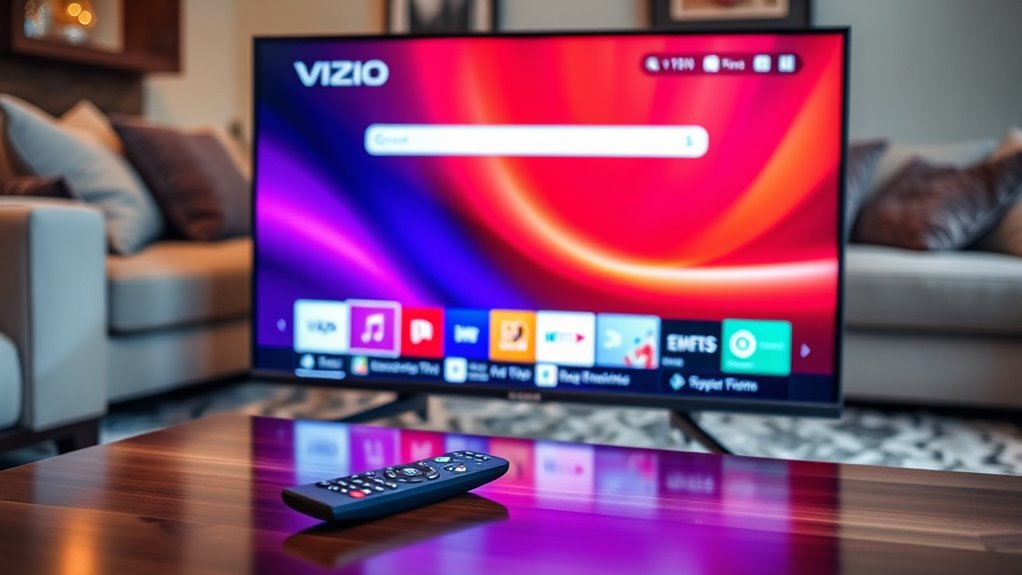

To search the web on your Vizio Smart TV, first make certain it’s connected to Wi-Fi. Use your remote to access the main menu and select the web browser. Navigate the browser using the on-screen keyboard to enter web addresses or use bookmarks for quick access to your favorite sites. If you run into issues, check your internet connection or explore additional apps for a smoother experience. Continue to discover more helpful tips for an enhanced browsing experience!
Setting Up Your Vizio Smart TV for Internet Access
To get your Vizio Smart TV connected to the internet, you’ll want to follow a few simple steps. First, verify your TV is powered on and your router is nearby. Navigate to the menu using your remote control and select the “Network” option. Here, you’ll find the “Network Connection” settings. Choose either a wired or wireless internet connection based on your setup. If you opt for Wi-Fi, select your network from the list and enter your password. Once confirmed, your smart TV will initiate the connection process. Keep an eye on the status indicator, and you should soon see a successful connection message. With your smart TV setup complete, you’re ready to explore the vast world of online content!
Connecting to Wi-Fi
Connecting your Vizio Smart TV to Wi-Fi is a straightforward process that opens up a world of streaming possibilities. First, make sure your router’s placed where it can provide a strong signal to your TV. Ideally, it should be in an open space, free from obstructions. Once your router’s set up, access the TV’s network settings. Your TV will scan for available networks; select yours and enter the password. If you run into issues, don’t panic—Wi-Fi troubleshooting can help. Check the signal strength, reboot your router, or move it closer to your TV if needed. Once connected, you’re ready to explore the vast range of content available on your Vizio Smart TV. Enjoy!
Accessing the Smart TV Menu
To start browsing the web on your Vizio Smart TV, you’ll need to access the Smart TV menu. Simply navigate through the options using your remote to find the web browser. Once you select it, you’re ready to explore the internet right from your screen.
Navigating the Menu
Maneuvering the menu on your Vizio Smart TV is a simple process that opens up a world of entertainment options. The user interface is designed for ease, allowing you to explore various smart TV features effortlessly. Here’s how to traverse it:
- Press the Vizio button on your remote to access the main menu.
- Use the arrow keys to scroll through the options, such as Apps, Settings, and inputs.
- Select your choice by pressing the OK button, revealing more features.
- Explore the categories to find streaming services, games, and settings tailored to enhance your viewing experience.
With these steps, you’ll quickly become proficient at traversing your Vizio Smart TV, enjoying all the content it has to offer.
Selecting Web Browser
Once you’ve maneuvered the menu, accessing the web browser on your Vizio Smart TV is straightforward. First, head to the app section, where you’ll find various browser options available for installation. If you don’t see your preferred browser, consider downloading it from the app store—just a few clicks away! Once installed, select the browser icon to launch it.
You’ll appreciate the freedom to browse the web right from your TV screen. Whether you want to watch videos, read articles, or shop online, the browser opens up a world of possibilities. Remember, maneuvering between tabs and bookmarks is seamless, making your web experience enjoyable. So, plunge in and start exploring!
Navigating to the Web Browser
Finding the web browser on your Vizio Smart TV is a straightforward process that opens up a world of online content. To navigate to it, follow these steps:
- Press the Vizio button on your remote.
- Scroll through the Apps section to locate the web browser.
- Select the browser icon, which showcases its web browser features.
- Launch the browser and explore!
Keep in mind that while Vizio Smart TVs offer convenient access to the internet, they do come with certain smart TV limitations, like a less robust browsing experience compared to computers. Nevertheless, you can enjoy browsing, streaming, and discovering new content right from your living room. Embrace the freedom of online exploration!
Using the Remote Control for Easy Navigation
Using your Vizio Smart TV remote can make web browsing a breeze. You’ll want to familiarize yourself with the basic functions, as well as some handy navigation tips to enhance your experience. Let’s explore how to easily access the web browser and make the most of your remote control.
Remote Control Basics
Steering your Vizio Smart TV becomes a breeze with the remote control at your fingertips. To access the full potential of its remote control features, here are some smart TV shortcuts you should know:
- Home Button: Instantly access your TV’s main menu.
- Back Button: Quickly return to the previous screen.
- Voice Command: Use voice search for hands-free navigation.
- Channel Up/Down: Effortlessly flip through channels without hassle.
These features enhance your viewing experience, giving you the freedom to explore your favorite content with ease. Familiarizing yourself with these controls not only simplifies navigation but also allows you to enjoy your Vizio Smart TV to the fullest. Embrace the convenience and make the most of your entertainment journey!
Navigation Tips
Steering your Vizio Smart TV can be a seamless experience with just a few handy tips. To make web browsing easy, familiarize yourself with the remote control’s directional pad. Use the up, down, left, and right arrows to navigate menus and select options. The “OK” button lets you confirm choices, while the “Back” button helps you return to the previous screen.
For a more efficient search, consider using voice commands if your remote supports it. Always keep internet safety in mind—avoid suspicious links and make sure you’re browsing secure websites. By mastering these navigation techniques, you’ll enjoy a smoother experience while exploring the vast online world right from your TV. So, take control and plunge into web browsing with confidence!
Accessing Web Browser
To access the web browser on your Vizio Smart TV, start by pressing the “V” button on your remote, which opens the Smart TV menu. Once you’re there, follow these web browsing tips for smooth navigation:
- Select ‘Apps’: Navigate to the ‘Apps’ section and find the browser icon.
- Open the Browser: Click on the browser to launch it.
- Use the Remote: Use the arrow keys for scrolling and the “OK” button to select links.
- Stay Safe Online: Always prioritize internet safety by avoiding suspicious sites and using secure connections.
With these steps, you can easily surf the web and enjoy the freedom of online content right from your Vizio Smart TV!
Entering Web Addresses
When you want to browse specific websites on your Vizio Smart TV, entering web addresses directly is a straightforward process. First, grab your remote and navigate to the browser. You’ll see an address bar at the top. To enter URLs, you can use either the on-screen keyboard or a connected keyboard for quicker typing. Make sure to use the correct web address formats, like “http://” or “https://” at the beginning of the URL. For example, typing “https://www.example.com” will take you right to that site. If you make a mistake, don’t worry—just edit the URL using the backspace key. Enjoy exploring the web freely and effortlessly on your Vizio Smart TV!
Bookmarking Your Favorite Sites
Bookmarking your favorite sites on a Vizio Smart TV can enhance your browsing experience considerably. With effective bookmark management, you can quickly access your favorite links without the hassle of searching each time. Here’s how to do it:
- Open your web browser and navigate to the site you want to bookmark.
- Press the menu button on your remote, then select the option to add a bookmark.
- Name your bookmark for easy identification later.
- Access your bookmarks via the browser menu whenever you want to revisit your favorite links.
Troubleshooting Common Issues
While browsing the web on your Vizio Smart TV is usually straightforward, you might encounter some common issues that can disrupt your experience. Here’s a quick guide to troubleshooting:
| Issue | Cause | Solution |
|---|---|---|
| Common Connectivity Problems | Weak Wi-Fi signal | Move closer to the router |
| Browser Performance Issues | Outdated firmware | Update your TV’s software |
| Slow Loading Pages | Too many background apps | Close unused apps |
If you’re facing connectivity problems, check your network settings and restart your router. For browser performance issues, verify your TV software is up to date. These steps can help restore your browsing freedom and enhance your overall experience!
Exploring Additional Apps for Enhanced Browsing
If you want to elevate your browsing experience on your Vizio Smart TV, exploring additional apps can make a significant difference. These apps can enhance your user experience and provide more freedom while surfing the web. Here are four additional browsing apps you should consider:
Elevate your Vizio Smart TV browsing with these four essential apps for an enhanced user experience.
- Google Chrome – Familiar interface and extensive extensions for added functionality.
- Firefox – Strong privacy features and customizable options for a tailored browsing experience.
- Opera – Built-in ad blocker and free VPN for secure browsing.
- Puffin Browser – Fast browsing with cloud support, ideal for streaming content.
Frequently Asked Questions
Can I Use a Wired Connection Instead of Wi-Fi?
Yes, you can use a wired network instead of Wi-Fi. It often provides a more stable connection and faster internet speed, enhancing your overall experience while streaming or browsing on your Vizio Smart TV.
Is There a Limit to the Number of Bookmarks?
No, there isn’t a limit to the number of bookmarks you can save. With efficient bookmark management and browser customization, you can organize your favorites freely, ensuring quick access to your preferred sites whenever you want.
How Do I Update My Vizio Smart TV Software?
To update your Vizio Smart TV software, go to Vizio settings, select “System,” then “Check for Updates.” If an update’s available, follow the prompts. Enjoy the latest features and improvements for your viewing freedom!
Can I Use Voice Search on the Web Browser?
Yes, you can use voice command functionality on your Vizio Smart TV’s web browser. Did you know that using voice search can improve your search accuracy by up to 30%? Just speak clearly for best results.
Are There Parental Controls for Web Browsing?
Yes, there’re parental control settings on your Vizio Smart TV. You can use web filtering options to restrict access to certain sites, ensuring a safer browsing experience for your family while maintaining your freedom online.
