

If you’re wondering whether Alexa can connect to Apple TV, the answer is yes, but with some limitations. While Alexa can control certain features of Apple TV, it requires specific setups and compatible devices. Understanding how to integrate these two platforms can enhance your entertainment experience, allowing you to manage playback and access content using voice commands. In this article, we’ll explore how to get Alexa working with your Apple TV, what you can control, and the limitations you might encounter.
How to Connect Alexa to Apple TV
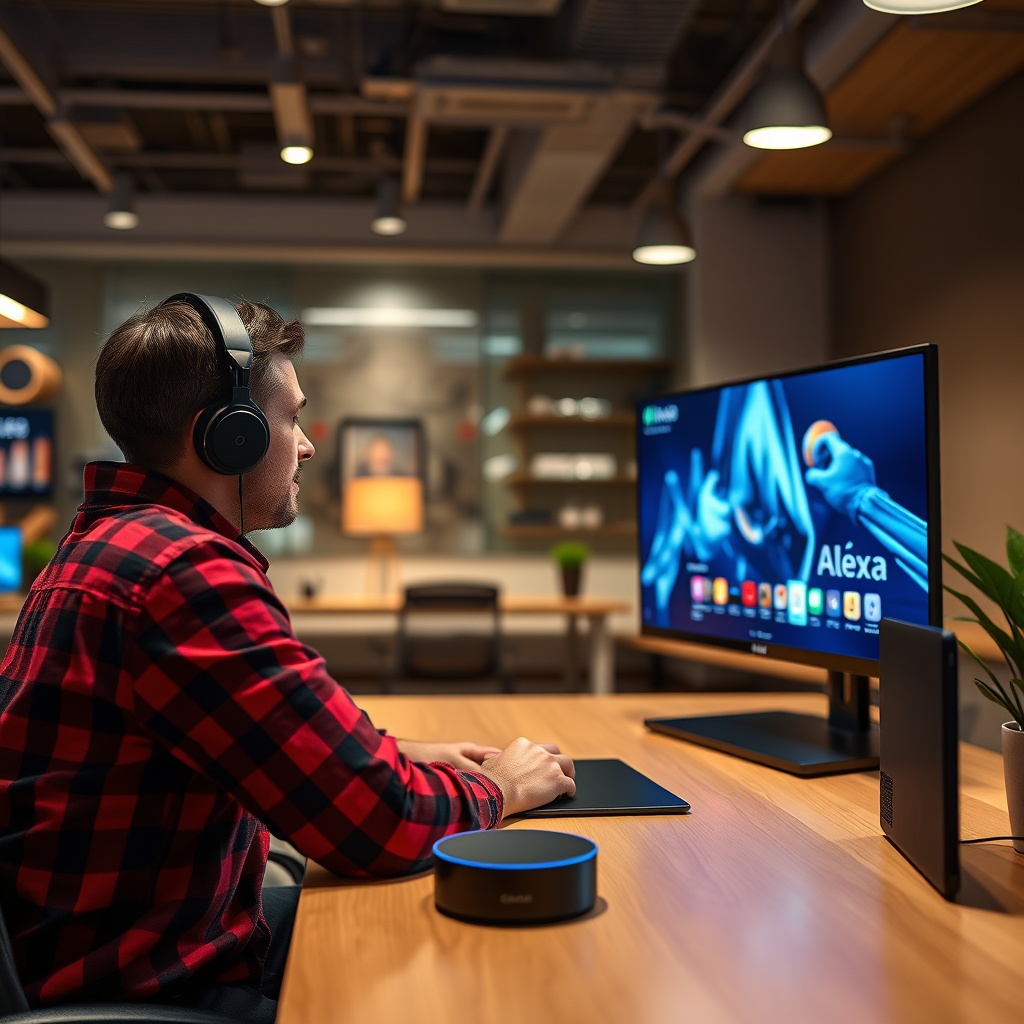
Connecting Alexa to your Apple TV is a straightforward process, but it does have specific requirements. First and foremost, you need to ensure that both your Apple TV and your Alexa-enabled device are connected to the same Wi-Fi network. This is essential as it allows the devices to communicate effectively.
To set up the connection, you can use the Apple TV app on compatible devices, such as certain smart TVs or streaming devices that support Apple services. The integration typically involves linking your Apple TV account with the Amazon Alexa app. This is done by navigating to the Alexa app, selecting “Skills & Games,” and searching for the Apple TV skill. Once enabled, follow the on-screen prompts to sign in to your Apple TV account.
After successfully linking the accounts, you can also use the “Discover Devices” feature in the Alexa app to find your Apple TV. This makes it easier for Alexa to identify and connect to your Apple TV.
What Can Alexa Control on Apple TV?
Once you have completed the setup, Alexa can control various playback functions on your Apple TV. Some of the commands you can use include:
– Playback Control: You can say commands like “Alexa, play,” “Alexa, pause,” or “Alexa, skip,” allowing for seamless control over your viewing experience.
– App Launching: You can ask Alexa to launch specific apps available on Apple TV, such as “Alexa, open Netflix” or “Alexa, launch Apple TV+.”
– Volume Control: If you have compatible speakers, you can ask Alexa to adjust the volume on your Apple TV, enhancing your audio experience.
These functionalities make it convenient to manage your entertainment without needing to pick up the remote control.
Setting Up Alexa for Apple TV Commands
Setting up Alexa for Apple TV commands involves a few simple steps. First, ensure you have the latest version of the Amazon Alexa app installed on your smartphone or tablet. Once you have the app, follow these steps:
1. Link Your Apple TV Account: Open the Alexa app, go to “Skills & Games,” and search for the Apple TV skill. Enable it and sign in with your Apple ID.
2. Discover Devices: After linking your account, use the “Discover Devices” feature in the Alexa app. This will allow Alexa to find your Apple TV on the same network.
3. Test Commands: After discovery, you can test several commands to ensure everything is functioning correctly.
By following these steps, you create a voice-controlled environment that enhances your Apple TV experience.
Key Features of Alexa and Apple TV Integration
| # | Feature | Description | Availability |
|---|---|---|---|
| 1 | Playback Control | Control play, pause, and skip | Yes |
| 2 | App Launching | Launch apps like Netflix and Hulu | Yes |
| 3 | Volume Control | Adjust the volume with voice commands | Yes |
| 4 | Search Content | Search for shows or movies | Limited |
| 5 | Playlists Access | Control music playlists | Yes |
| 6 | Voice Feedback | Receive feedback through Alexa | Yes |
| 7 | Smart Home Integration | Integrates with smart home devices | Limited |
Limitations of Alexa and Apple TV Integration
While the integration between Alexa and Apple TV offers impressive capabilities, there are notable limitations that users should be aware of.
1. Full Voice Control: Currently, not all Apple TV features are accessible through Alexa. For instance, navigation through menus or accessing settings requires manual input via the Apple TV remote.
2. Compatibility Issues: Some older models of Apple TV or Alexa devices may not support the latest integration features, which can limit functionality.
3. Limited Third-Party App Control: While you can launch certain apps, not all third-party applications are compatible with Alexa commands, which reduces the overall versatility of voice commands.
4. Dependency on Network Stability: The performance of Alexa commands is heavily dependent on the stability of your Wi-Fi connection. Any issues in connectivity can disrupt the ability to control your Apple TV.
These limitations can impact the overall user experience, so it’s important to weigh the benefits against the potential drawbacks when considering use.
Troubleshooting Connection Issues
If you encounter connection issues between Alexa and your Apple TV, several troubleshooting steps can help resolve the problems:
1. Software Updates: Ensure that both your Apple TV and Alexa-enabled devices are running the latest software updates. Outdated software can cause compatibility issues.
2. Restart Devices: Sometimes, simply restarting both the Apple TV and your Alexa-enabled device can help clear up any glitches.
3. Check Wi-Fi Connection: Confirm that both devices are connected to the same Wi-Fi network. If there are connectivity issues, try resetting your router.
4. Re-link Accounts: If problems persist, you may need to unlink your Apple TV account from the Alexa app and then re-link it to refresh the connection.
By following these troubleshooting steps, you can restore functionality and enjoy seamless integration between Alexa and Apple TV.
Alternative Ways to Control Apple TV
If you find the Alexa and Apple TV integration lacking in certain areas, there are alternative methods to control your Apple TV:
1. Apple TV Remote App: The Apple TV Remote app, available on iOS devices, offers comprehensive control options, including swipe navigation and keyboard input for easier text entry.
2. Third-Party Apps: Numerous third-party remote control apps are available that may provide better integration with your smart home setup and allow for additional features not available through Alexa.
3. Apple HomeKit: If you have a smart home setup using Apple HomeKit, you can control Apple TV through Siri commands, offering another layer of voice control options.
These alternatives can provide a more robust experience if you find Alexa’s capabilities insufficient for your needs.
Connecting Alexa to Apple TV is possible but comes with certain limitations. For the best experience, ensure your devices are compatible and properly set up. Consider exploring alternative control options if needed. If you have more questions, feel free to check additional resources or guides on Alexa and Apple TV compatibility. The integration can enhance your media consumption experience, making it easier to enjoy your favorite shows and movies with just your voice.
Frequently Asked Questions
Can Alexa control my Apple TV?
Yes, Alexa can control your Apple TV with the help of a compatible smart device or app, such as the Apple TV app on Fire TV or a Harmony Hub. By integrating these devices, you can use voice commands to play, pause, or navigate through your Apple TV content seamlessly.
How do I set up Alexa to work with my Apple TV?
To set up Alexa with your Apple TV, first ensure that your Apple TV is connected to the same Wi-Fi network as your Alexa device. Then, use a compatible app like the Harmony app or Fire TV app to create a skill that connects Alexa to your Apple TV, allowing you to control it with voice commands.
Why can’t Alexa find my Apple TV?
If Alexa cannot find your Apple TV, it may be due to connectivity issues or compatibility. Ensure that both devices are on the same network, and check if the required skills or apps are properly set up. Restarting both devices can also resolve any temporary glitches.
What voice commands can I use with Alexa for Apple TV?
With Alexa connected to your Apple TV, you can use various voice commands such as “Alexa, play [movie title] on Apple TV,” “Alexa, pause Apple TV,” or “Alexa, skip to the next episode.” These commands allow for a hands-free viewing experience and enhance your entertainment setup.
Which smart device is best for connecting Alexa to Apple TV?
The best smart device for connecting Alexa to Apple TV is the Amazon Fire TV, as it integrates seamlessly with Alexa and offers a user-friendly interface. Alternatively, the Logitech Harmony Hub is also an excellent choice, allowing you to control multiple devices, including your Apple TV, with Alexa voice commands.
References
- https://www.lifewire.com/control-apple-tv-with-amazon-alexa-5071575
https://www.lifewire.com/control-apple-tv-with-amazon-alexa-5071575 - https://www.reuters.com/article/us-apple-amazon-alexa-idUSKBN1XZ2M7
https://www.reuters.com/article/us-apple-amazon-alexa-idUSKBN1XZ2M7 - https://www.bbc.com/news/technology-55927023
https://www.bbc.com/news/technology-55927023 - https://www.theguardian.com/technology/2020/jun/30/alexa-apple-tv-integration
https://www.theguardian.com/technology/2020/jun/30/alexa-apple-tv-integration - Google Scholar Google Scholar
https://scholar.google.com/scholar?q=can+alexa+connect+to+apple+tv - Google Scholar Google Scholar
https://scholar.google.com/scholar?q=smart+home+integration+alexa+apple+tv - https://scholar.google.com/scholar?q=voice+control+alexa+apple+tv Google Scholar
https://scholar.google.com/scholar?q=voice+control+alexa+apple+tv - can alexa connect to apple tv – Search results
https://en.wikipedia.org/wiki/Special:Search?search=can+alexa+connect+to+apple+tv - https://www.ncbi.nlm.nih.gov/search/research-articles/?term=can+alexa+connect+to+apple+tv
https://www.ncbi.nlm.nih.gov/search/research-articles/?term=can+alexa+connect+to+apple+tv
