


Yes, you can connect your AirPods to your Roku TV, but it requires a few specific steps because Roku devices do not natively support Bluetooth audio. While this may seem a limitation, there are effective methods to enjoy your Roku TV audio through your AirPods. In this article, we will walk you through the options available, ensuring that you have the best sound experience possible while enjoying your favorite shows and movies.
Understanding Roku TV Audio Options
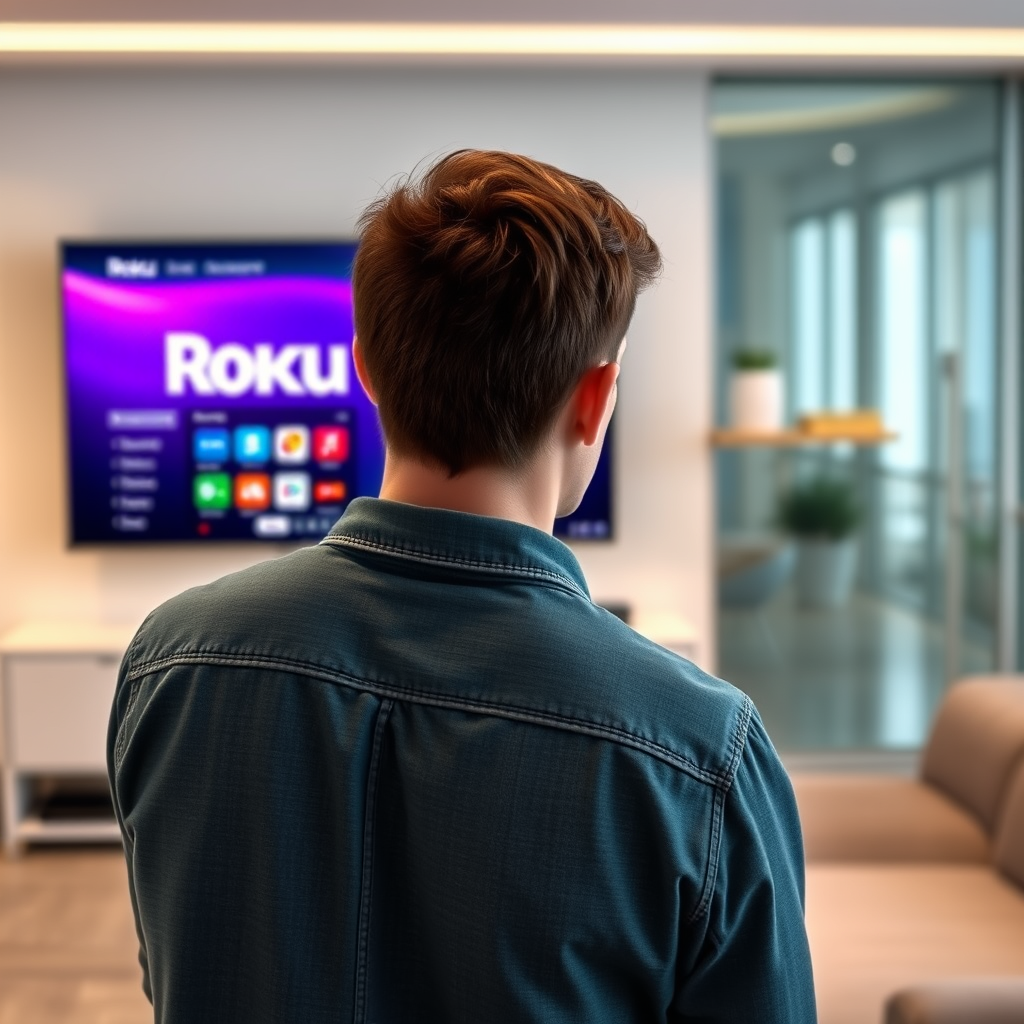
Roku TVs primarily utilize HDMI and optical audio outputs, making them compatible with a variety of audio devices, including soundbars and home theater systems. However, they lack direct support for Bluetooth audio connections like many other smart TVs. To bridge this gap, Roku has introduced Bluetooth audio capabilities through specific mobile applications and devices, allowing users to connect Bluetooth headphones and earbuds, such as AirPods, albeit indirectly.
Roku’s private listening feature is an excellent alternative for those wanting to enjoy audio without disturbing others around them. Additionally, some Roku models support wireless audio through compatible Bluetooth adapters, enhancing the flexibility of audio options available to users. Understanding these options is crucial for maximizing your Roku TV experience.
Connecting AirPods via the Roku Mobile App
One of the simplest ways to connect your AirPods to your Roku TV is through the Roku mobile app. Follow these steps to establish a connection:
1. Download the Roku Mobile App: Available on both iOS and Android platforms, the Roku mobile app can be downloaded from the App Store or Google Play Store. Ensure you have the latest version for optimal performance.
2. Put Your AirPods in Pairing Mode: Open the lid of your AirPods case and press and hold the setup button on the back until the LED indicator flashes white. This indicates that your AirPods are ready to connect.
3. Open the Roku Mobile App: Launch the app and connect to your Roku TV. You may need to allow permissions for the app to access your local network.
4. Activate Private Listening: In the app, select the “Remote” option, and then tap on the “Headphone” icon to enable private listening. The app will search for available Bluetooth devices, where you can select your AirPods from the list.
5. Enjoy Your Audio: Once connected, the audio from your Roku TV will stream directly to your AirPods, allowing you to enjoy your favorite content wirelessly.
This method provides a seamless listening experience, perfect for late-night binge-watching or for those who prefer a more private audio experience.
Using a Bluetooth Adapter with Roku
If you prefer a more direct connection without relying on a mobile app, consider investing in a Bluetooth audio adapter compatible with your Roku TV. This method allows you to connect your AirPods directly to the TV’s audio output for a more straightforward setup. Here’s how to do it:
1. Choose the Right Bluetooth Adapter: Look for a Bluetooth audio adapter that supports aptX Low Latency, which minimizes audio lag. Popular options include the TaoTronics Bluetooth 5.0 Transmitter and the Avantree Oasis Plus, both of which are well-rated for their performance.
2. Connect the Adapter to Your Roku TV: Plug the Bluetooth adapter into the Roku TV’s audio output port, which can be the 3.5mm headphone jack or the optical audio output, depending on your TV model.
3. Pair Your AirPods: Put your AirPods in pairing mode and follow the instructions provided with your Bluetooth adapter to complete the connection process.
4. Adjust Audio Settings: Once connected, check your TV’s audio settings to ensure that the output is directed through the adapter. You may need to adjust the volume levels on both the Roku TV and your AirPods to achieve the desired sound.
Using a Bluetooth adapter offers a reliable solution for connecting your AirPods, particularly if you wish to stream audio without the need for a smartphone.
Top Bluetooth Adapters for Roku TV (2024)
| # | Adapter | Compatibility | Audio Lag | Range | Rating |
|---|---|---|---|---|---|
| 1 | TaoTronics Bluetooth 5.0 | Roku TV, Smart TVs | Low | 30m | ★★★★☆ |
| 2 | Avantree Oasis Plus | Roku TV, PCs | Low | 50m | ★★★★★ |
| 3 | ZIOCOM Bluetooth Transmitter | Roku TV, Laptops | Medium | 25m | ★★★☆☆ |
| 4 | Mpow Bluetooth Transmitter | Roku TV, TVs | Medium | 20m | ★★★☆☆ |
| 5 | TROND Bluetooth V5.0 | Roku TV, PCs | Low | 30m | ★★★★☆ |
| 6 | TaoTronics TT-BA07 | Roku TV, Smart Devices | Medium | 30m | ★★★★☆ |
| 7 | Auris Blume HD | Roku TV, Home Theater | Low | 50m | ★★★★★ |
Troubleshooting Connection Issues
While connecting your AirPods to your Roku TV should be straightforward, issues can occasionally arise. Here are some common troubleshooting steps to resolve connection problems:
1. Check AirPods Battery: Ensure your AirPods are adequately charged. Low battery levels can affect connectivity and audio quality.
2. Proximity Matters: Make sure your AirPods are within a reasonable range of the Roku TV or the Bluetooth adapter. Bluetooth has a limited range, typically around 30 feet.
3. Restart Devices: If your AirPods do not connect after several attempts, try restarting both your Roku TV and AirPods. This can often resolve minor connectivity issues.
4. Reset Your AirPods: If problems persist, consider resetting your AirPods. To do this, press and hold the setup button on the back of the case until the LED flashes amber, then white.
5. Update Software: Ensure that your Roku TV, Roku mobile app, and AirPods are running the latest software versions. Software updates often include bug fixes and improvements that can enhance connectivity.
By following these steps, you should be able to troubleshoot most common issues and enjoy your AirPods with your Roku TV seamlessly.
Enhancing Your Audio Experience
To get the most out of your audio experience while using AirPods with your Roku TV, consider exploring the various audio settings available on your Roku device. Here are some tips to enhance sound quality:
1. Audio Settings Customization: Navigate to the audio settings menu on your Roku TV. You may find options such as “Surround Sound,” “Night Mode,” and “Volume Leveling.” These settings can optimize the audio output based on your preferences.
2. Adjusting Volume Levels: Finding the right balance between your Roku TV’s volume and your AirPods is crucial. Start with moderate levels on both and adjust based on your listening comfort.
3. Use High-Quality Content: Streaming high-definition content can significantly enhance your audio experience. Many streaming services offer 5.1 surround sound options; ensure you select these when available.
4. Experiment with Audio Formats: Depending on the type of content you are watching, switching between stereo, surround sound, or specific audio formats may provide a richer sound experience.
By taking the time to adjust these settings, you can significantly enhance your audio experience, making it more immersive and enjoyable.
Alternatives to AirPods for Roku TV
If you find that AirPods do not meet your expectations when connected to your Roku TV, or if you are looking for other options, there are several alternatives worth considering:
1. Other Wireless Headphones: There are many wireless headphones and earbuds designed specifically for TV use. Brands like Bose, Sony, and Sennheiser offer models that provide excellent audio quality and compatibility with various devices, including Roku.
2. Soundbars: Investing in a soundbar can dramatically improve your audio experience. Many soundbars have Bluetooth capabilities, allowing you to connect your devices easily.
3. Dedicated Streaming Headphones: Some headphones are designed with low latency specifically for TV viewing. These headphones often come with a transmitter, making it easy to connect to your Roku.
4. Wired Headphones: If you don’t mind being tethered, a good pair of wired headphones can also provide great sound quality without the need for Bluetooth connectivity.
By exploring these alternatives, you can find the right audio solution that best fits your viewing habits and preferences.
Utilizing your AirPods with a Roku TV is definitely achievable with the right approach. By following the methods outlined in this article, you can enjoy your favorite shows and movies wirelessly, bringing convenience and quality to your viewing experience. If you encounter issues, don’t hesitate to troubleshoot, and remember to explore other audio options that may suit your needs. For more tips and tricks on optimizing your Roku usage, check out our other articles!
Frequently Asked Questions
Can I connect my AirPods to my Roku TV?
Yes, you can connect your AirPods to your Roku TV using the Roku app. Simply download the Roku app on your smartphone, connect your AirPods to your phone via Bluetooth, and use the app’s private listening feature to stream audio directly to your AirPods.
How do I use the Roku app to connect my AirPods?
To connect your AirPods via the Roku app, first ensure your AirPods are paired with your smartphone. Open the Roku app, go to the “Devices” tab, select your Roku device, and tap on “Private Listening.” This will route the TV audio to your AirPods, allowing you to enjoy a wireless listening experience.
Why can’t I find the private listening feature for my AirPods on Roku?
If you cannot find the private listening feature on Roku, make sure that your Roku device is updated to the latest software version and that your AirPods are properly connected to your smartphone. Additionally, ensure your Roku app is updated, as older versions may lack this feature.
What are the best alternatives for connecting wireless headphones to Roku TV?
The best alternatives for connecting wireless headphones to Roku TV include using Bluetooth-enabled headphones that are compatible with Roku devices directly. Some Roku TVs also have audio outputs that can connect to wireless transmitters, allowing you to pair them with any Bluetooth headphones, including AirPods.
Which Roku devices support AirPods connectivity?
Most Roku streaming devices, including Roku Ultra, Roku Streaming Stick+, and Roku TVs, support AirPods connectivity through the Roku app’s private listening feature. However, ensure your device is updated and check the compatibility of your specific Roku model to confirm support for Bluetooth headphones.
References
- Roku
https://www.roku.com/blog/how-to-connect-airpods-to-roku-tv - Roku
https://support.roku.com/article/208754188-how-to-pair-your-bluetooth-device-with-your-roku-streaming-device - https://www.lifewire.com/how-to-connect-airpods-to-a-roku-tv-5073916
https://www.lifewire.com/how-to-connect-airpods-to-a-roku-tv-5073916 - Google Scholar Google Scholar
https://scholar.google.com/scholar?q=connect+airpods+to+roku+tv - Google Scholar Google Scholar
https://scholar.google.com/scholar?q=bluetooth+devices+with+roku+tv - Google Scholar Google Scholar
https://scholar.google.com/scholar?q=Roku+TV+audio+connections - Roku
https://www.roku.com/blog/ - https://www.wikiwand.com/en/Roku
https://www.wikiwand.com/en/Roku - Google Scholar Google Scholar
https://scholar.google.com/scholar?q=can+i+connect+my+airpods+to+my+roku+tv - can i connect my airpods to my roku tv – Search results
https://en.wikipedia.org/wiki/Special:Search?search=can+i+connect+my+airpods+to+my+roku+tv
